









Project members and guests can be invited using the following steps.
How to invite project members and guests
Only users with Member permissions can invite new members or guests to a team or project. Guests cannot invite other users.
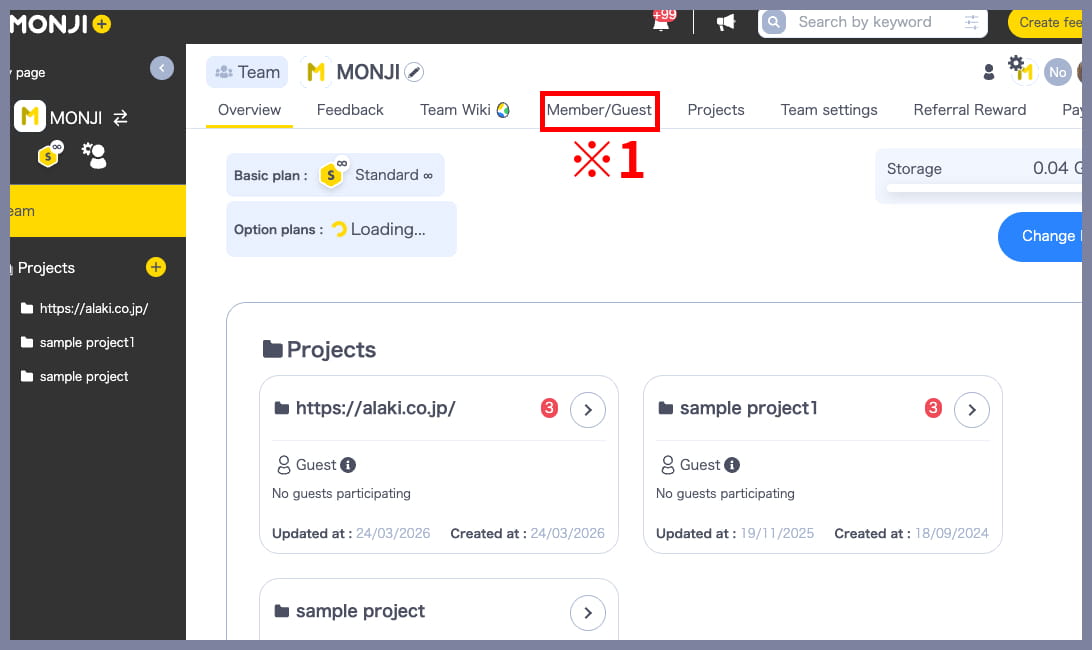
1. Open the “Project members and guests” page
From the team menu where you want to add users, click “Project members and guests” (※1).
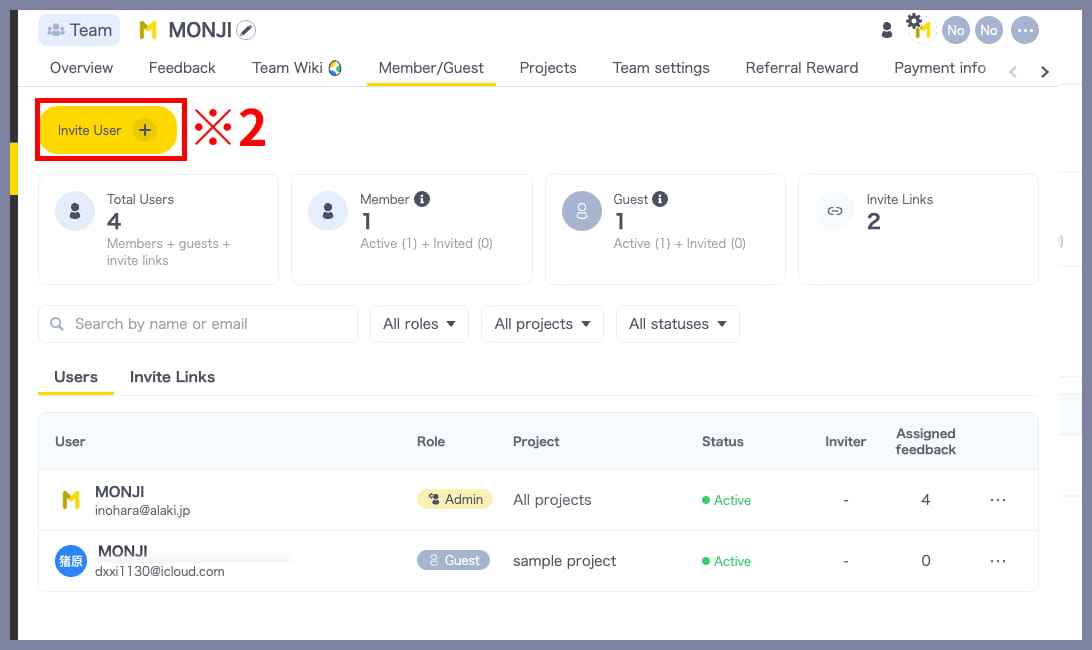
2. Click “Invite users”
Click “Invite users” (※2) at the top of the page.
3. Choose an invitation method
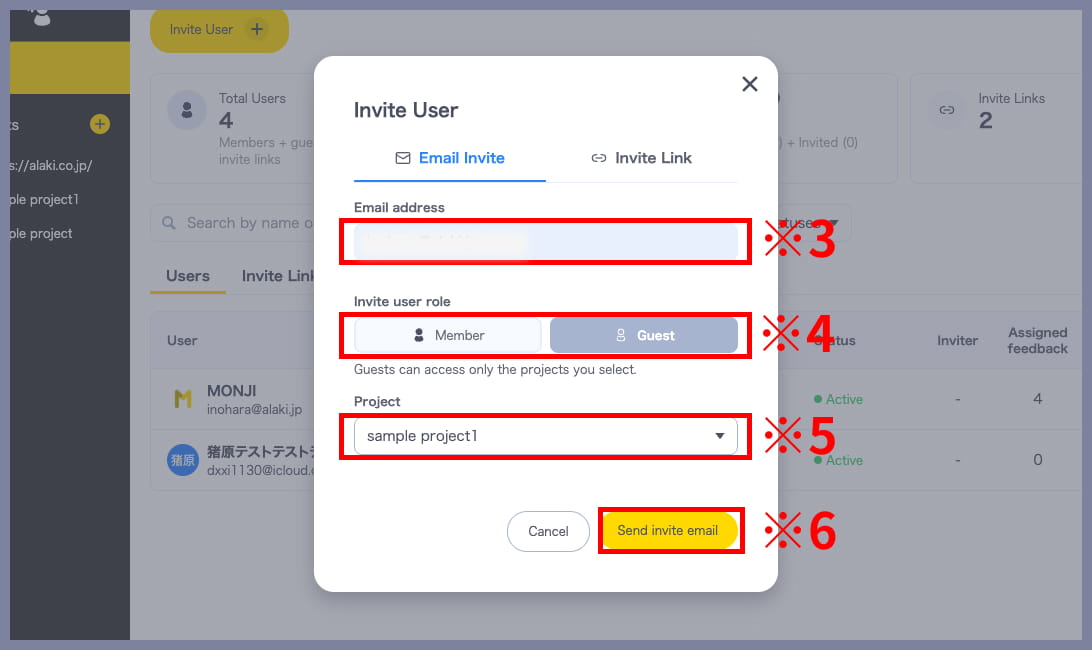
You can invite users via email or invite link.
Invite via email
1)Enter the email address of the person you want to invite (※3)
2)Select the user role (※4)
3)If inviting a guest, select a project (※5)
4)Click “Send invite email” (※6)
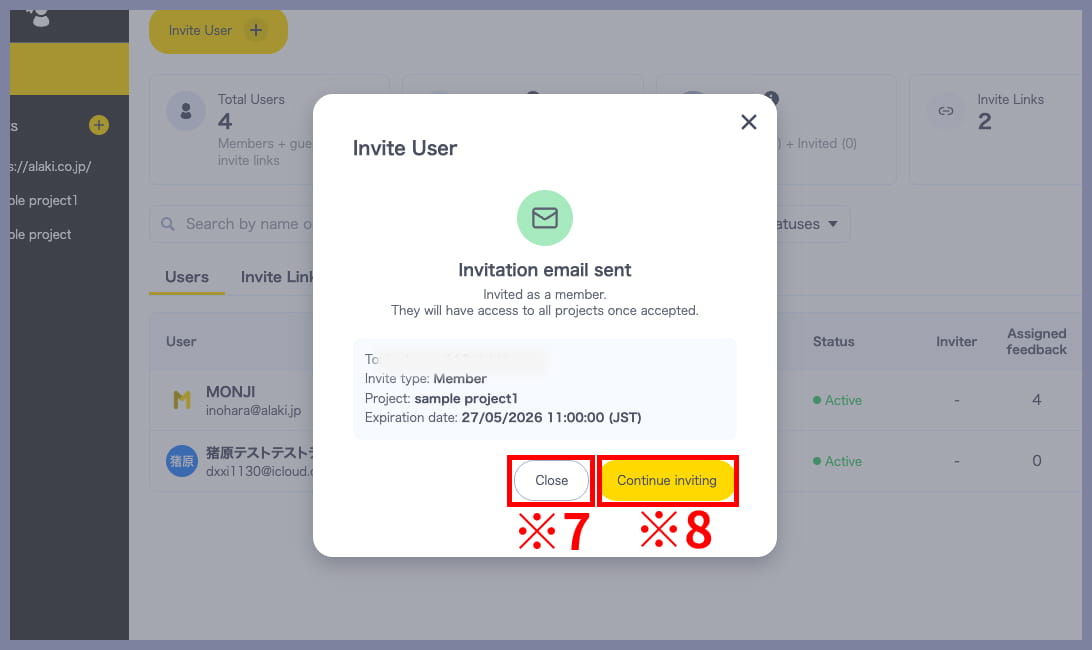
5)Invitation email sent
When the “Invite email sent” screen appears, click “Close” (※7).
Click “Invite another user” (※8) to continue inviting more people.
6)Check the participation confirmation email
Once the invited user completes Sign up or logs in, they will join the team/project.
You will receive a confirmation email once they have joined.
Invite via link
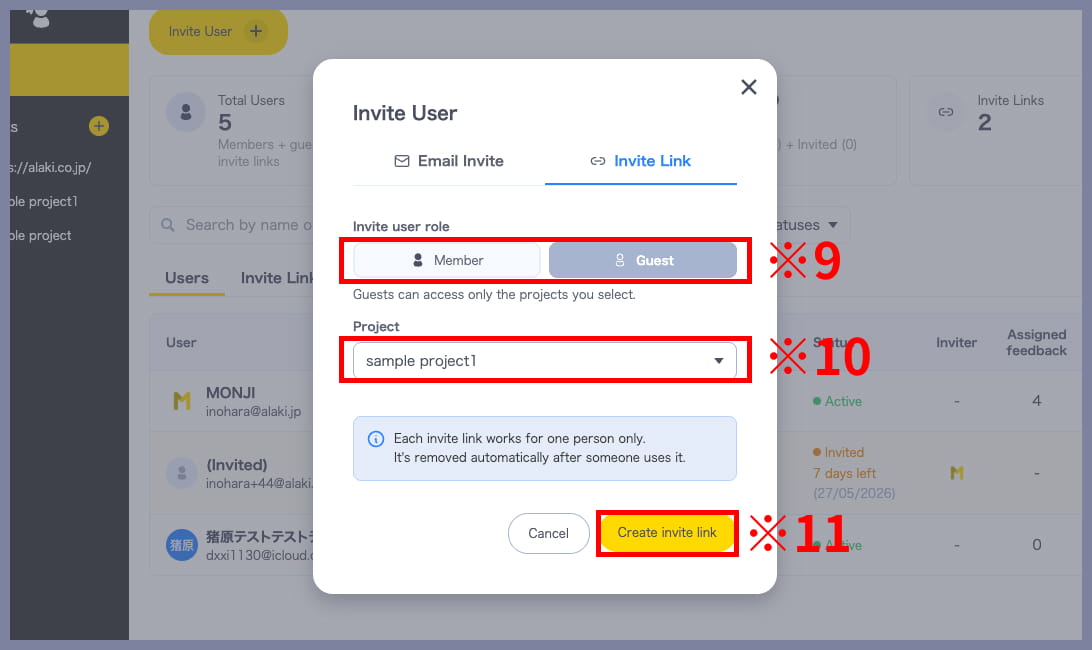
1)Select the user role (※9)
2)If inviting a guest, select a project (※10)
3)Click “Create invite link” (※11)
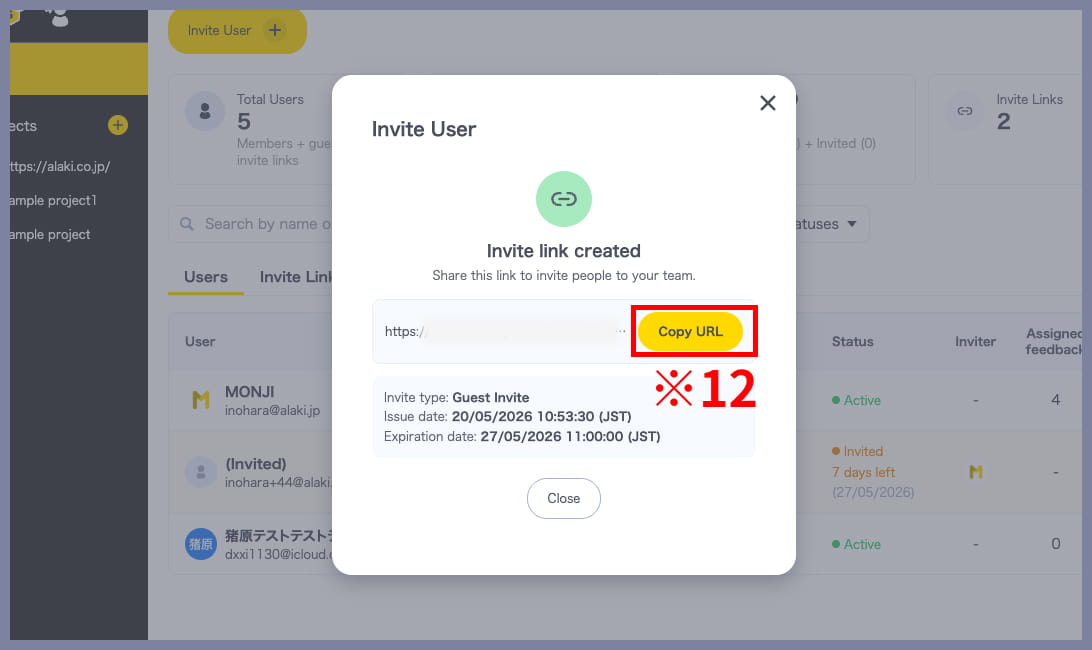
4)Click “Copy URL” (※12) and share it via chat or other tools
5)Check the participation confirmation email
Once the invited user completes Sign up or logs in, they will join the team/project.
You will receive a confirmation email once they have joined.
Add existing guests to another project
Guests who are already part of the team can also be added to another project using the following steps.
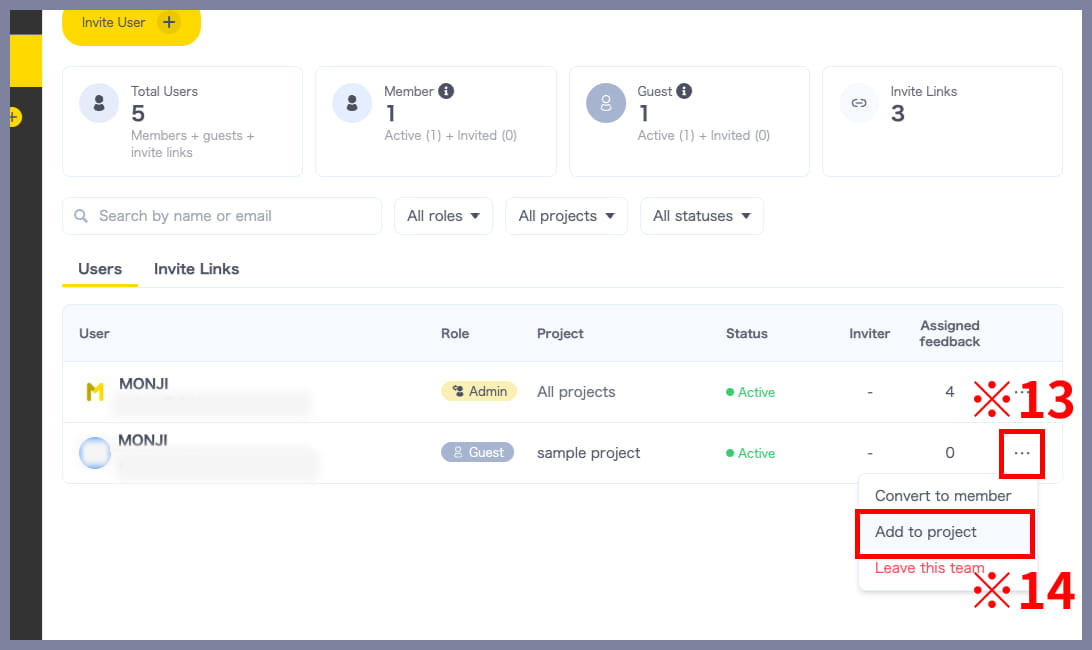
1)Click “…” (※13) from the user list
2)Click “Add to project” (※14)
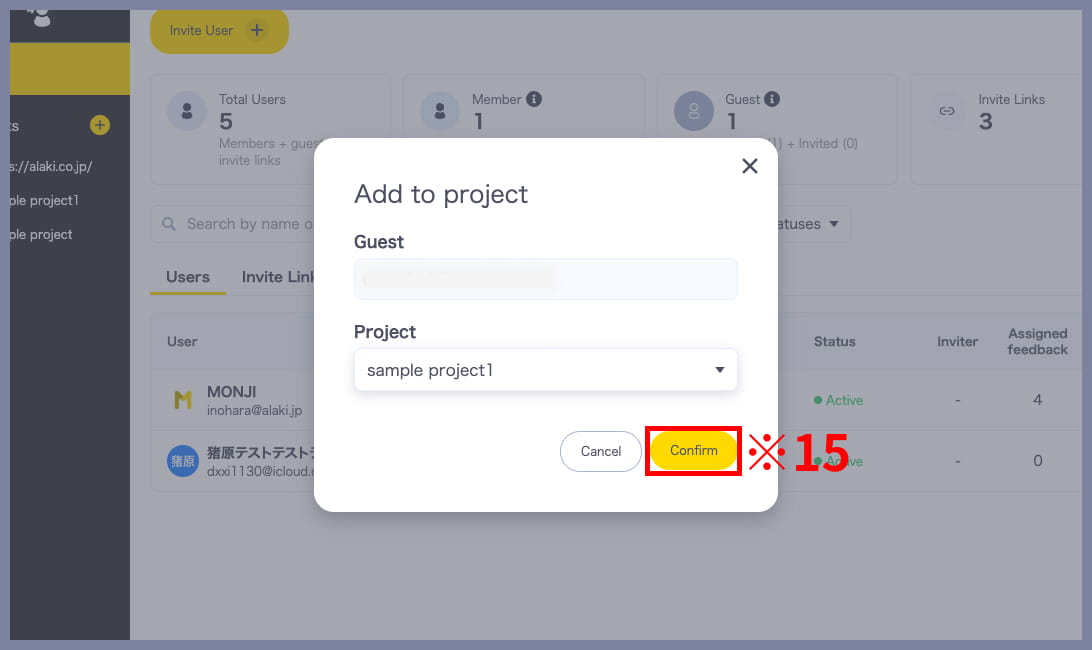
3)Select the project you want to add them to, then click “Confirm” (※15)
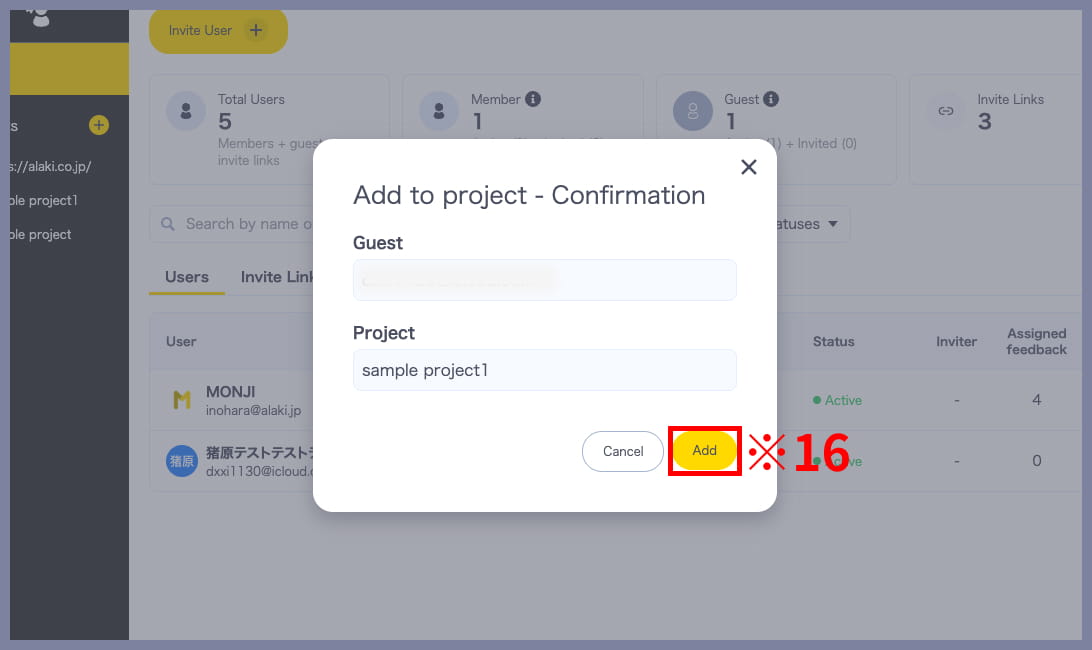
4)Click “Add” (※16)
How to join as a project member or guest
The steps differ depending on how you were invited.
If you were invited via email
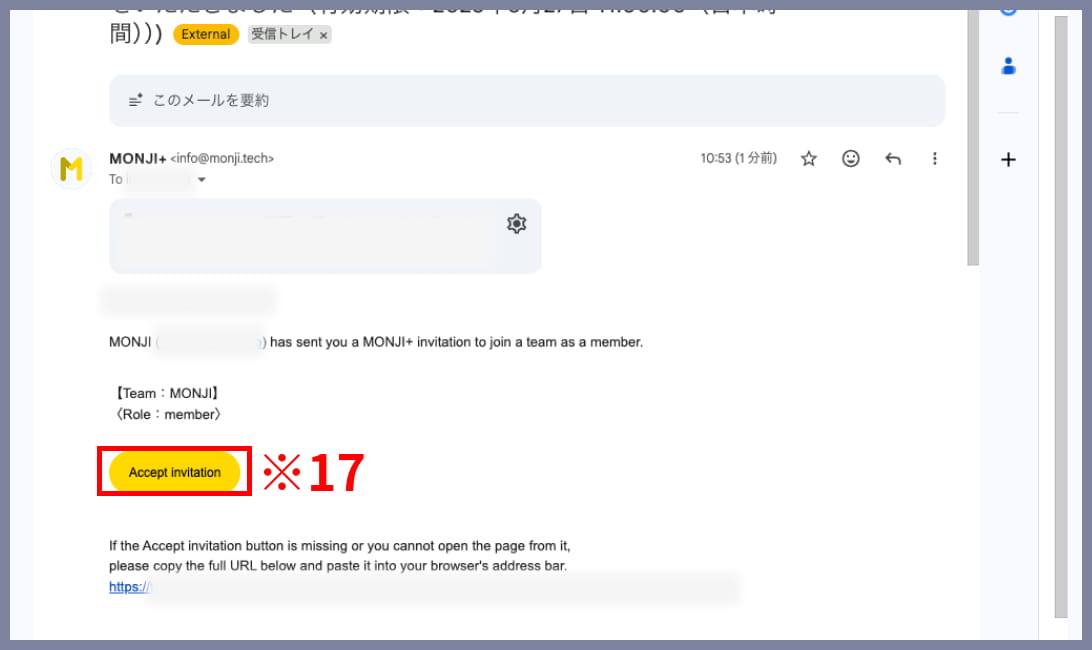
1)Click “Accept invitation” (※17) in the email.
■ If you do not have a MONJI+ account
Complete Sign up (※18).

■ If you already have a MONJI+ account
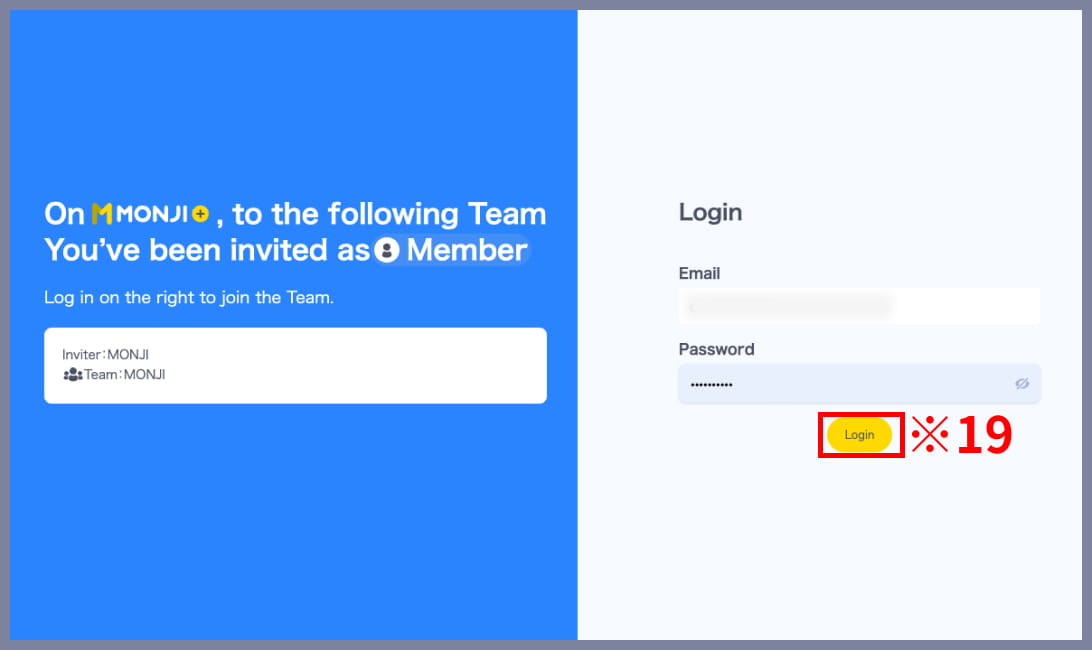
Log in (※19).
2)Join the invited team/project
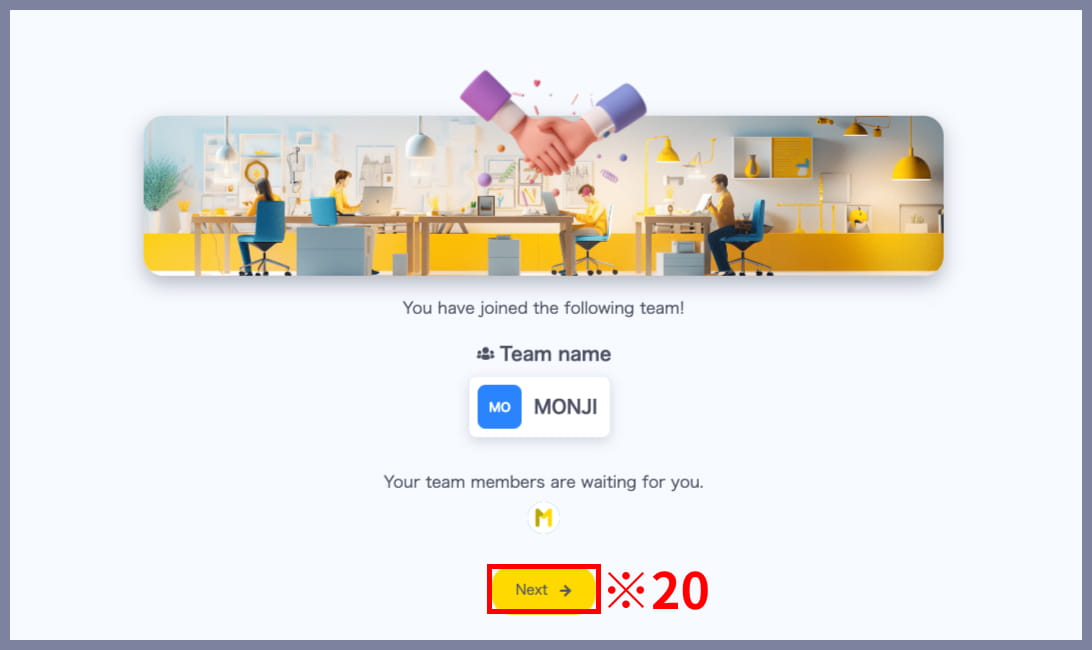
After completing Sign up or logging in, the following screen will appear.
Click “Next” (※20) to access the invited team/project.
If you were invited via invite link
1)Open the invite link shared via chat or another tool.
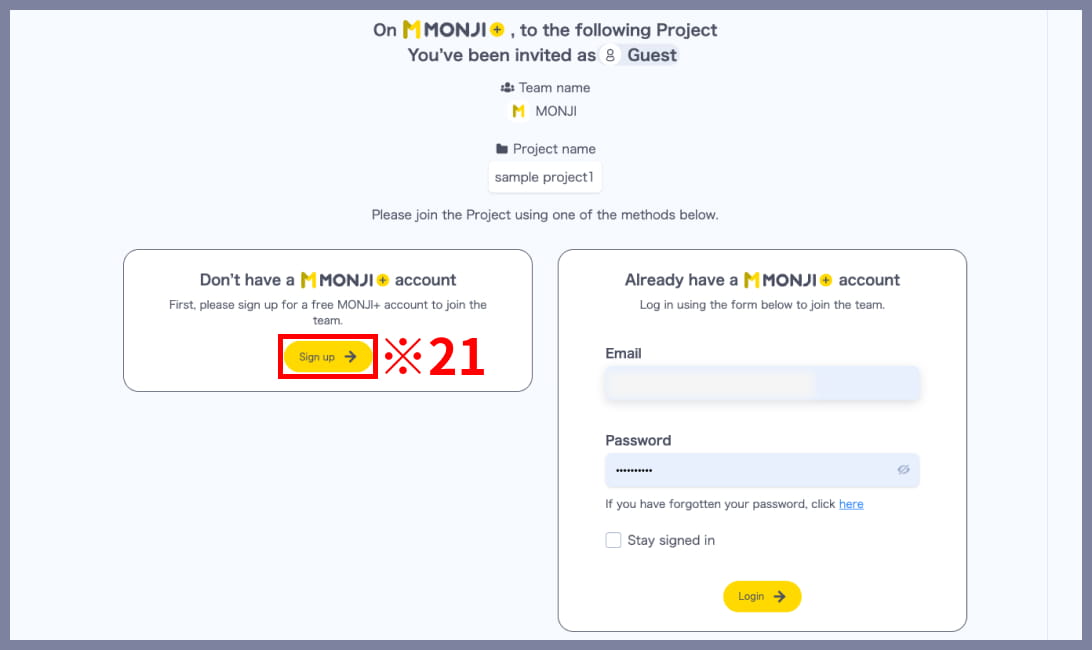
■ If you do not have a MONJI+ account
Complete Sign up (※21).
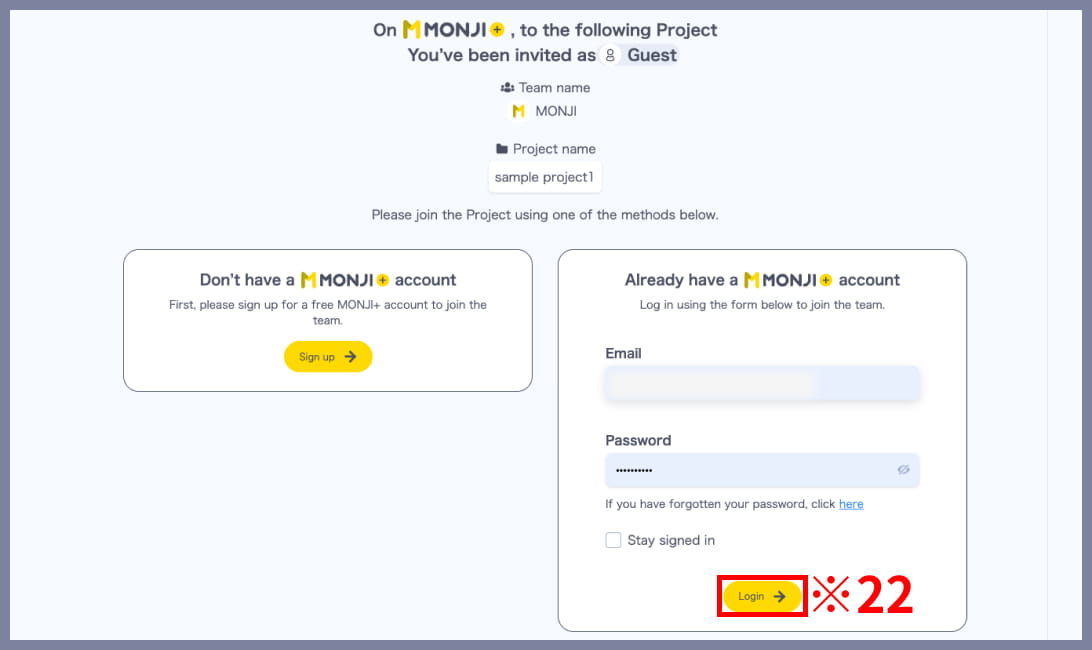
■ If you already have a MONJI+ account
Log in (※22).
2)Join the invited team/project
After completing Sign up or logging in, the following screen will appear.
Click “Next” (※23) to access the invited team/project.
