









A feedback holds several comments, written on a web page or a file.
In MONJI+, progress is managed at two levels: “comment progress” for each comment, and the “status” of the whole feedback.
*To learn how to write comments, see How to Use the Feedback Feature (Creating and Sending Feedback).
How progress tracking works
In MONJI+, progress is managed at the following two levels.
Comment progress (three checks)
On the feedback view screen, three check buttons are shown for each comment.
- ⚫︎ Fixed
Check this when the work for the comment is done. - ⚫︎ Confirmed
Check this when you have reviewed the work and found no problems. - ⚫︎ No Action Needed
Check this for comments that need neither work nor review. They are excluded from the progress count.
Status (four stages)
The status shows the situation of the whole feedback.
Please choose one of the following four to match the situation.
- ⚫︎ Not started
Work has not started yet - ⚫︎ In progress
The comments are being worked on - ⚫︎ Review
The work is done and waiting for review - ⚫︎ Completed
All work and review are finished
Manage the progress of the comments
Comment progress is managed on the feedback view screen.
Check the comments
To match the situation, click “Fixed”, “Confirmed”, or “No Action Needed” under each comment to check it.
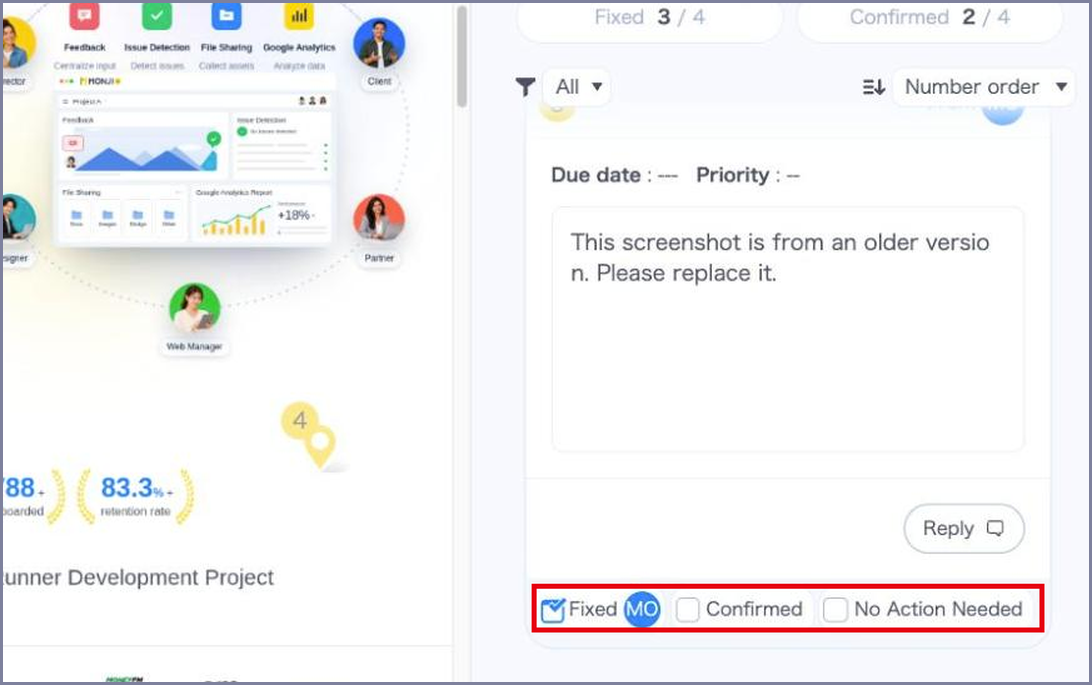
Once checked, the icon of the person who checked it appears on the button.
Your team can see who did the work and who reviewed it.
Check the counts
Above the comments, the counts for “Fixed” and “Confirmed” are shown.
The number on the right is the “Fix Required” count, which is the number of all comments minus those marked “No Action Needed”.
Hover over the “i” icon to the right of the number to see the breakdown.
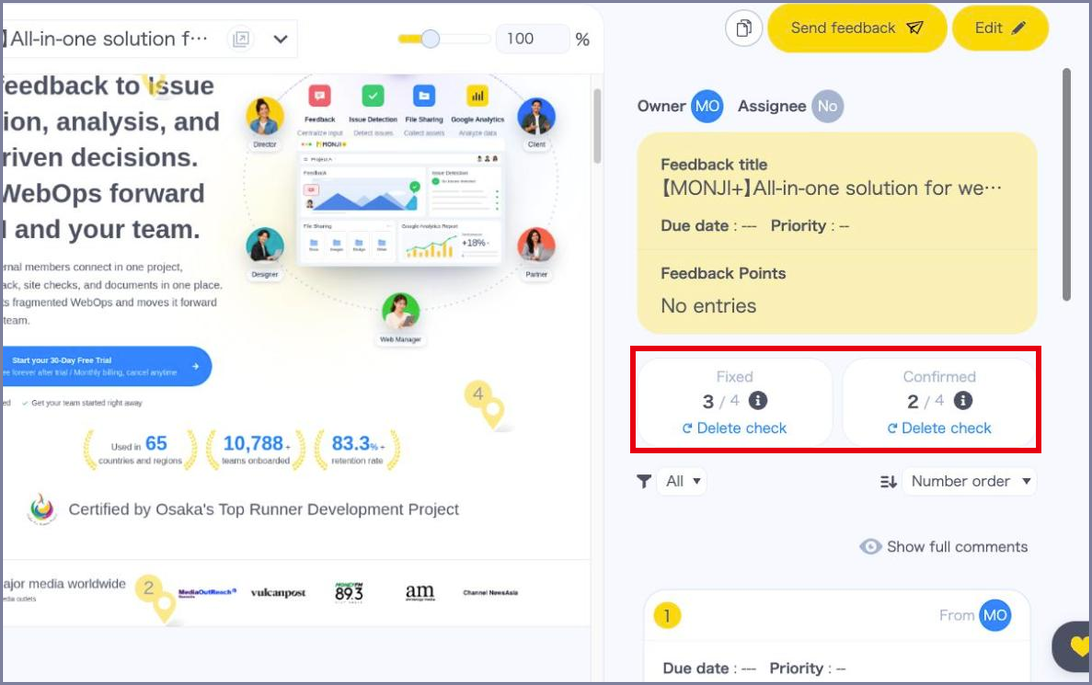
Filter the comments
The filter above the comments lets you select the following conditions under “Status”.
- ⚫︎ All
- ⚫︎ Not Fixed
- ⚫︎ Not Confirmed
- ⚫︎ No Action Needed
“All” is selected by default.
Select “Not Fixed” to show only the comments without a “Fixed” check, excluding those marked “No Action Needed”.
Please use it when you want to review everything that is still open.
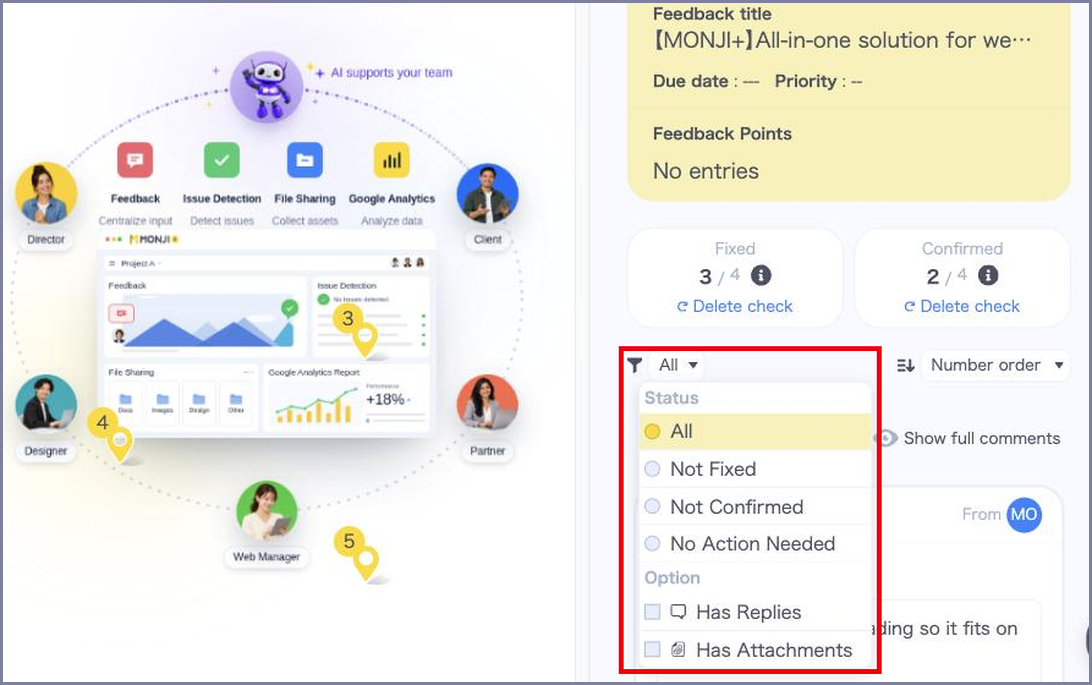
You can also check “Has Replies” or “Has Attachments” under “Option” to narrow the list down to the comments that match those conditions as well.
Remove the checks all at once
Click “Delete check” under the counts to remove that check from every comment at once.
A message such as “Clear the status Fixed?” appears, so please click “Clear”.
Note that “No Action Needed” checks are not removed by this.
Change the status
You can change the status from the feedback list and from the view screen.
Change it on the list
Click the “Status” column on the list (list view) and select a status from the choices shown.
In card view, click the status shown on the card to change it.
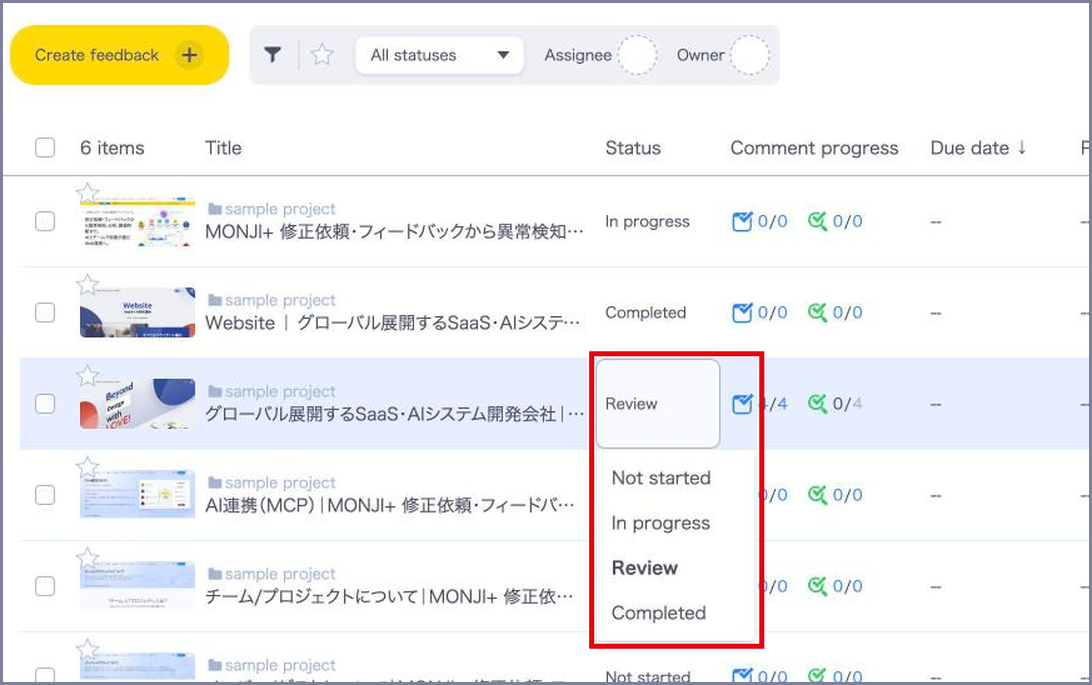
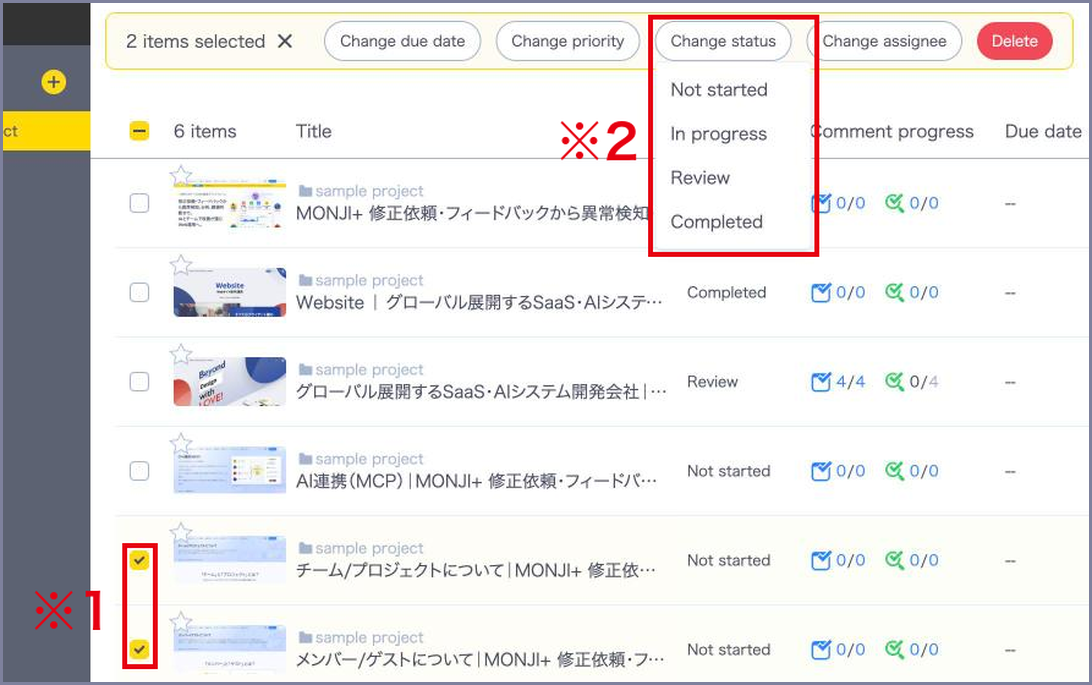
Change several at once
On the list (list view), check the feedback you want to change. (*1)
Click “Change status” shown above the list, and select a status. (*2)
Change it on the view screen
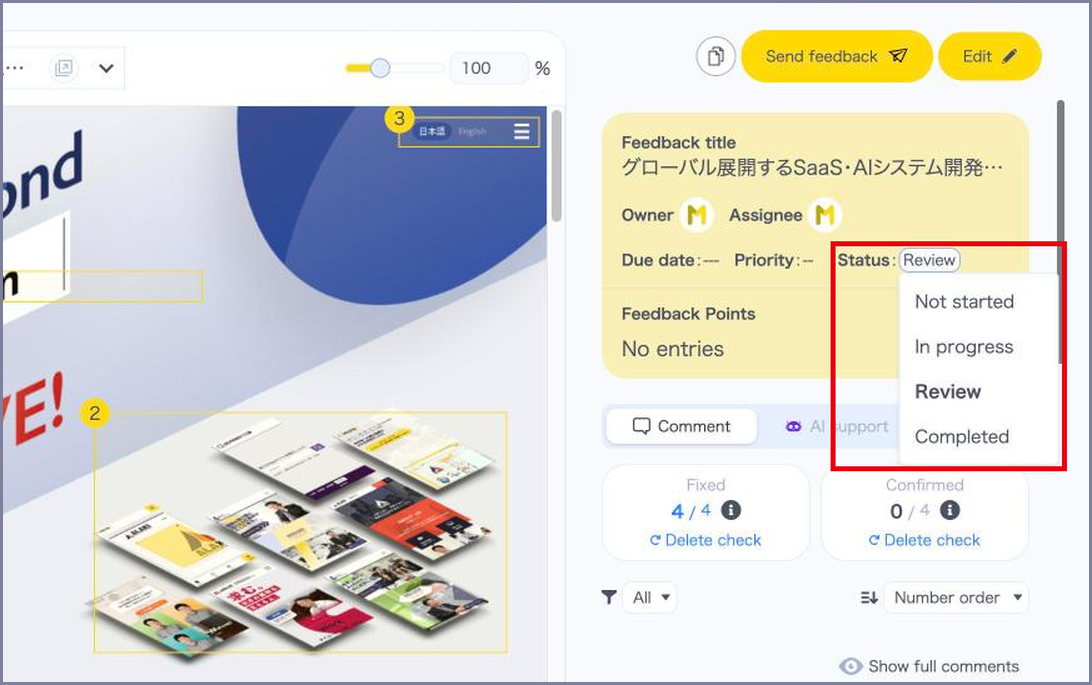
On the right side of the view screen, click the value next to “Status :” and select a status from the choices shown.
Update it to match the comment checks
When checking comments on the view screen moves the progress forward, a message such as “Update the status to “Review” to match the comment progress?” appears.
Click “Update” to change it, or “Keep as is” to leave it unchanged.
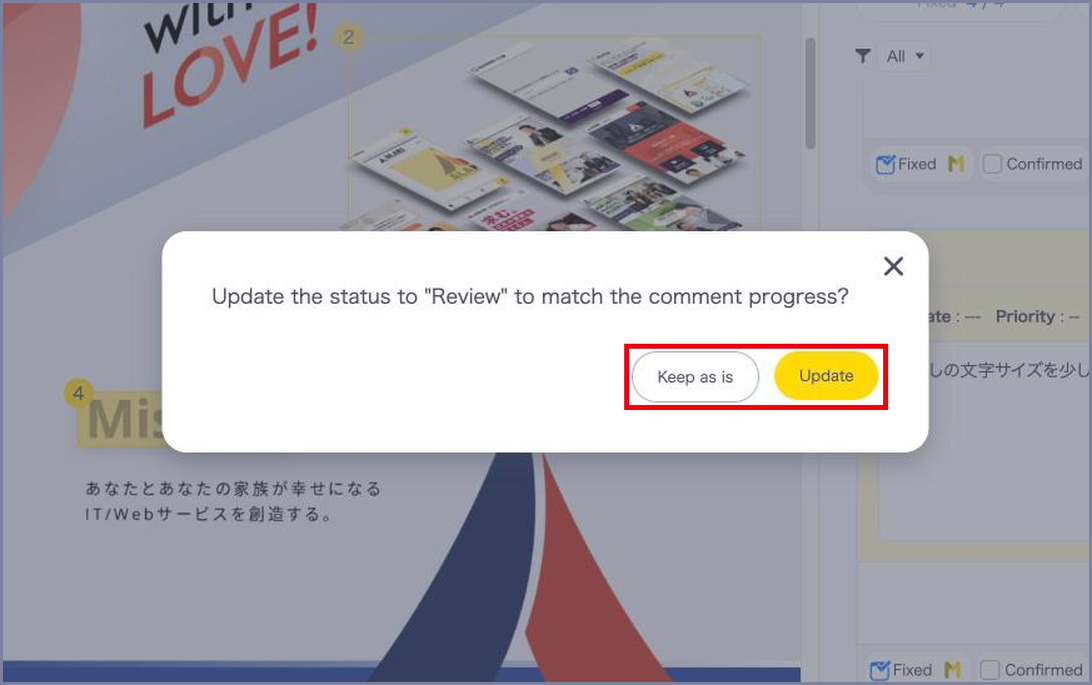
The status suggested in the message is decided by the checks on the comments as follows.
- ⚫︎ In progress
Some comments have “Fixed” - ⚫︎ Review
Every comment has “Fixed” - ⚫︎ Completed
Every comment has both “Fixed” and “Confirmed”
*Comments marked “No Action Needed” are excluded from this judgement.
Check and filter the status
On the list (list view), the “Status” column shows the status of each feedback, and the “Comment progress” column shows the “Fixed” and “Confirmed” counts.
The counts in the “Comment progress” column are for reference and cannot be changed from this column.
Use the filter at the top of the list (“All statuses” by default) to choose which statuses to show.
Select “Incomplete” to show only the feedback in “Not started”, “In progress”, and “Review”.

Notes
*Only members and guests of the project that holds the feedback can check comment progress.
*If the public scope is set to “anyone with the link”, people outside the project can also check the progress.
When someone outside the project checks it, no icon is shown on the comment check.
*Only members and guests of the project that holds the feedback can change the status.
People outside the project viewing through a shared link can see the status but cannot change it.
*Checking every comment does not change the status to “Completed” automatically.
Until you change the status to “Completed”, the feedback is treated as incomplete.
*If you add comments or remove checks after setting the status to “Completed”, the status stays “Completed”.
*The comment filter is not available on the Free plan.
Please see the pricing plans for the plans that include it.