









From the Issue Detection results screen, you can create Feedback for affected pages and track progress at the page level.
Manage everything—from detection to Feedback and progress tracking—in one place to keep your team aligned and avoid missed updates.
How to create Feedback
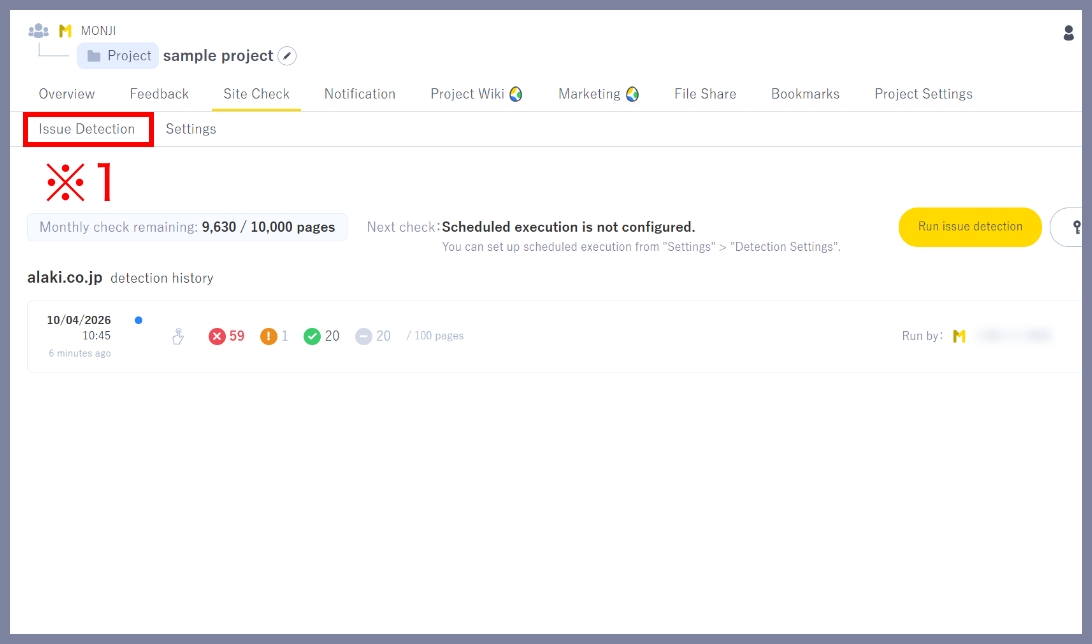
1.Go to detection history
Click Site check > Issue Detection in the project menu (※1).
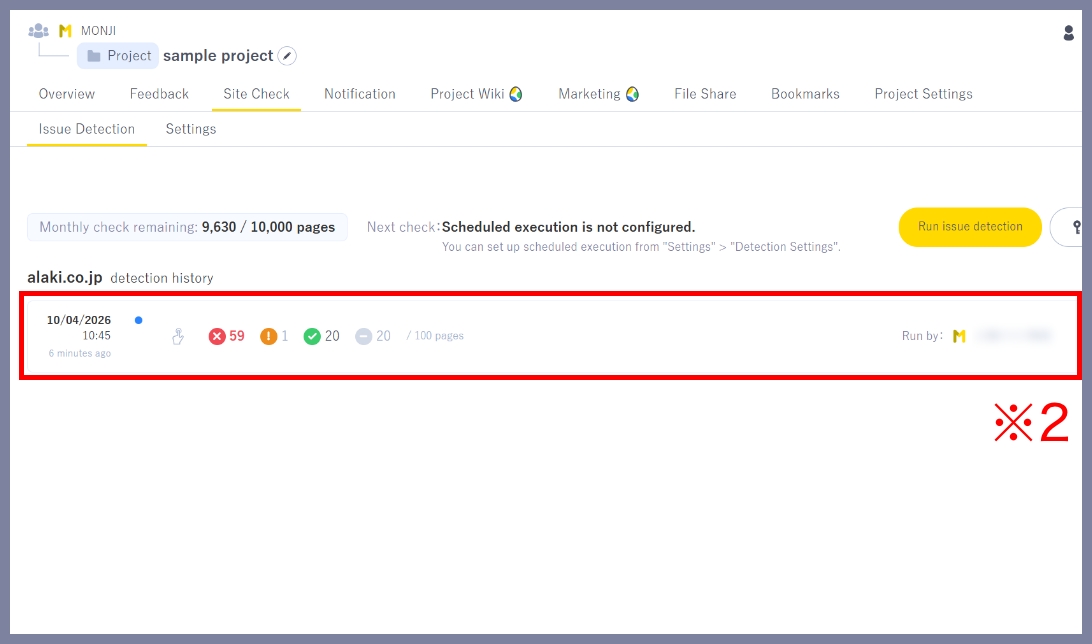
2.Open detection details
Click a result (※2) to view details.
3.Create Feedback
Hover over the row of the page you want to fix, then click the Create Feedback icon (※3).

Create Feedback for multiple pages
Select the checkboxes (※4) to the left of each path to create Feedback for up to 5 pages at once (※5).
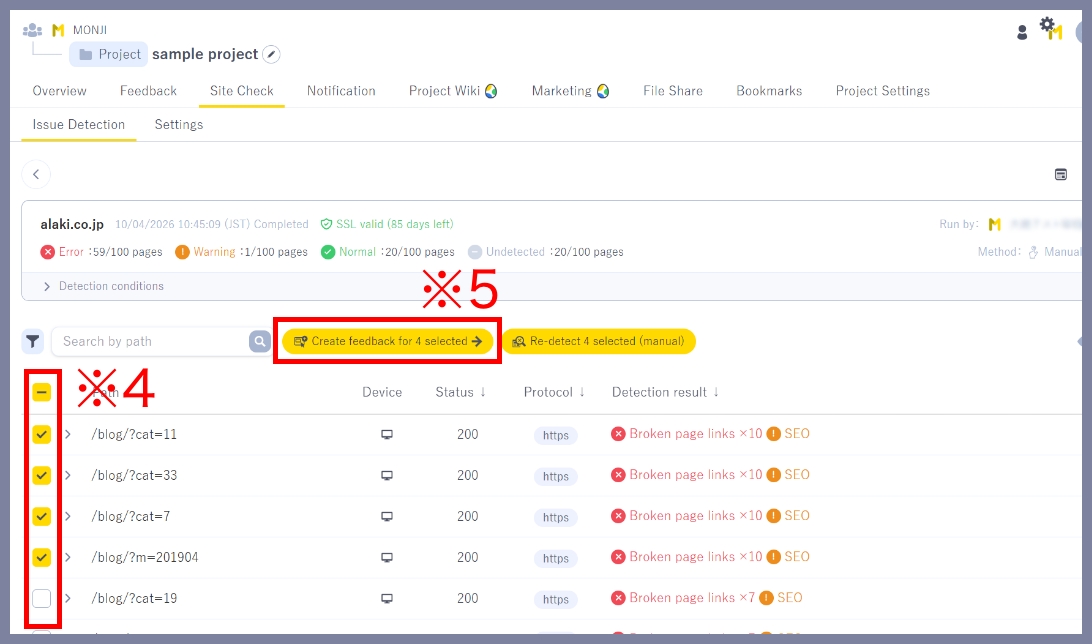
4.Open Feedback
Feedback starts loading.
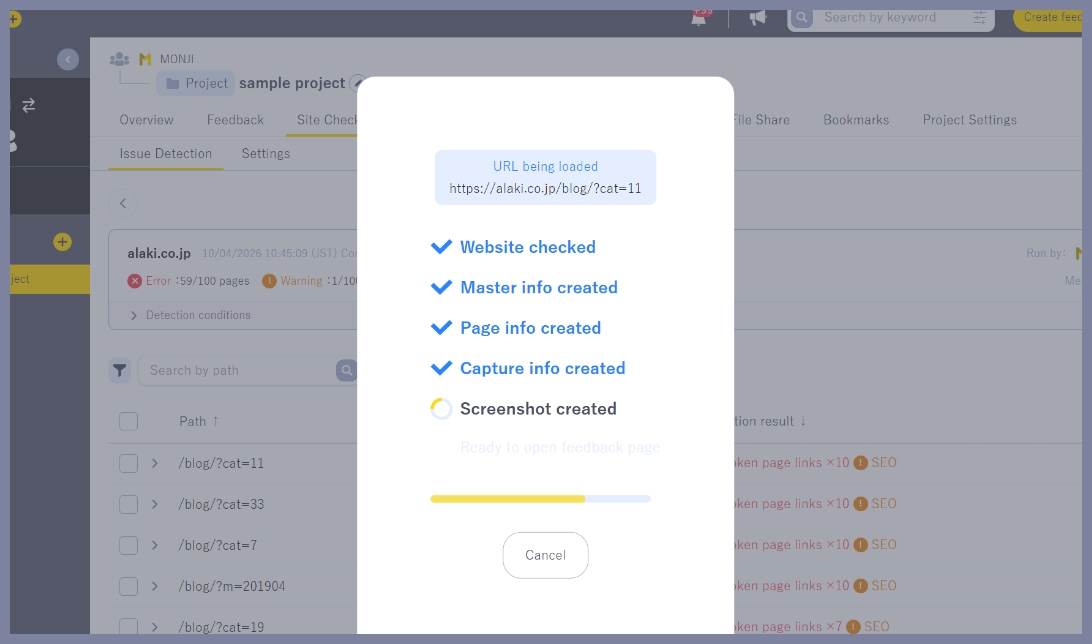
In the modal, click Open Feedback (※6).
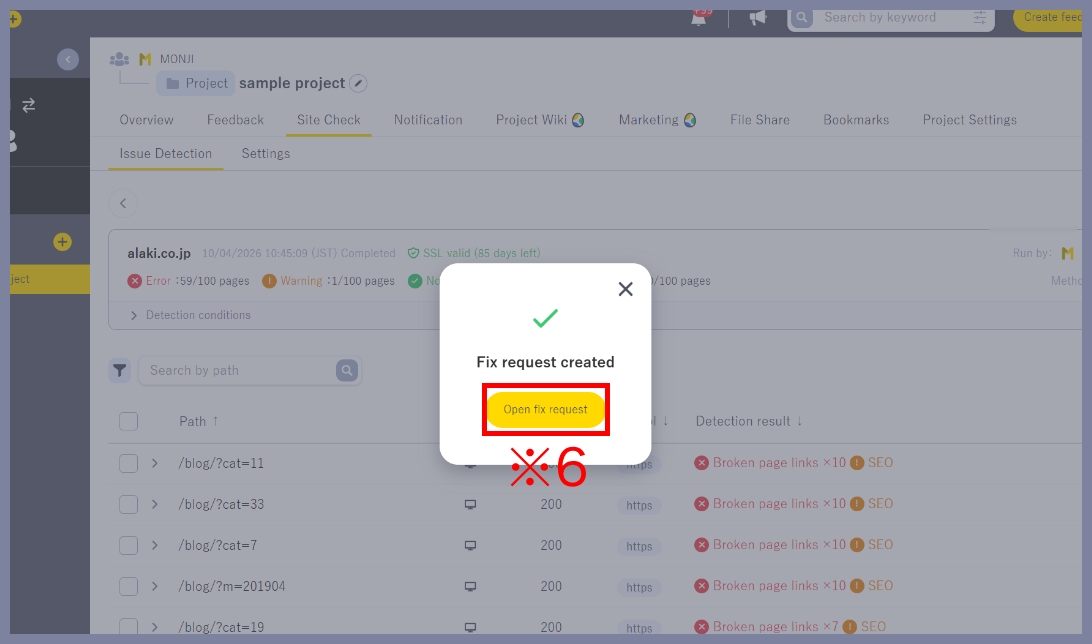
You can add pages to the same Feedback using the following steps.
1.While keeping the feedback editor open, click the Create Feedback icon on another page
2.In the modal, click Add to existing Feedback (※7)
3.Select a Feedback to add to, then click Apply (※8)
If you reload the detection details screen while Editing the feedback is open (step 1), you won’t be able to add pages to existing Feedback.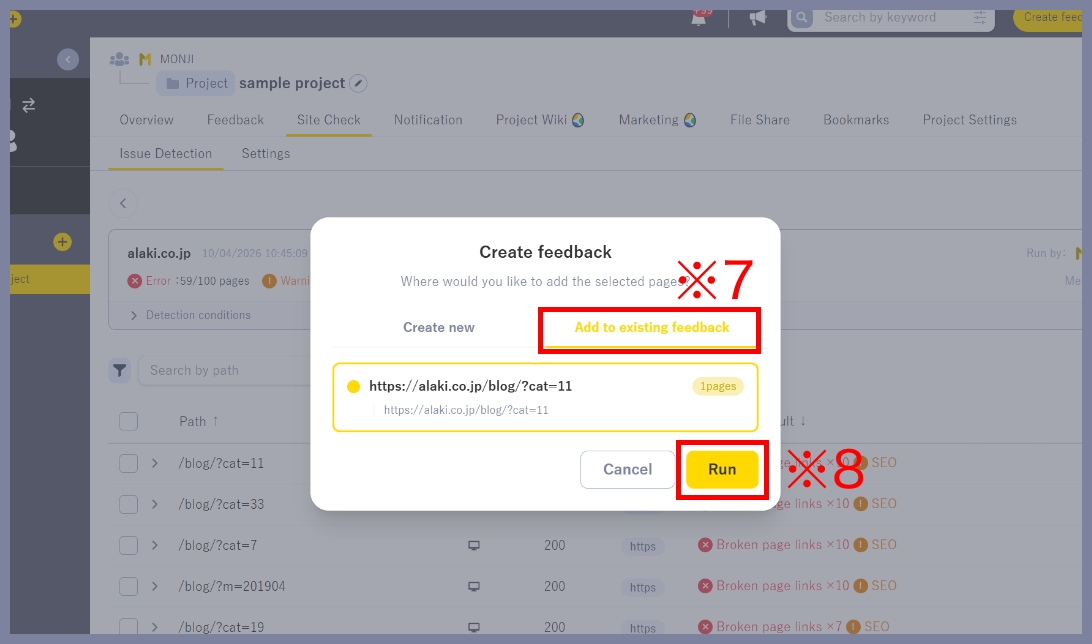
5.Create and send Feedback
The Create Feedback screen opens. Add your comments and send.
For details on creating and sending Feedback, see here.
How to track Feedback progress
View Feedback created from Issue Detection by page.
Progress and Assignees are clearly organized, making it easy for your team to stay aligned and move work forward.
1.Open the Feedback list
Click the Feedback list icon (※9) shown in the row of the page where you created the Feedback.
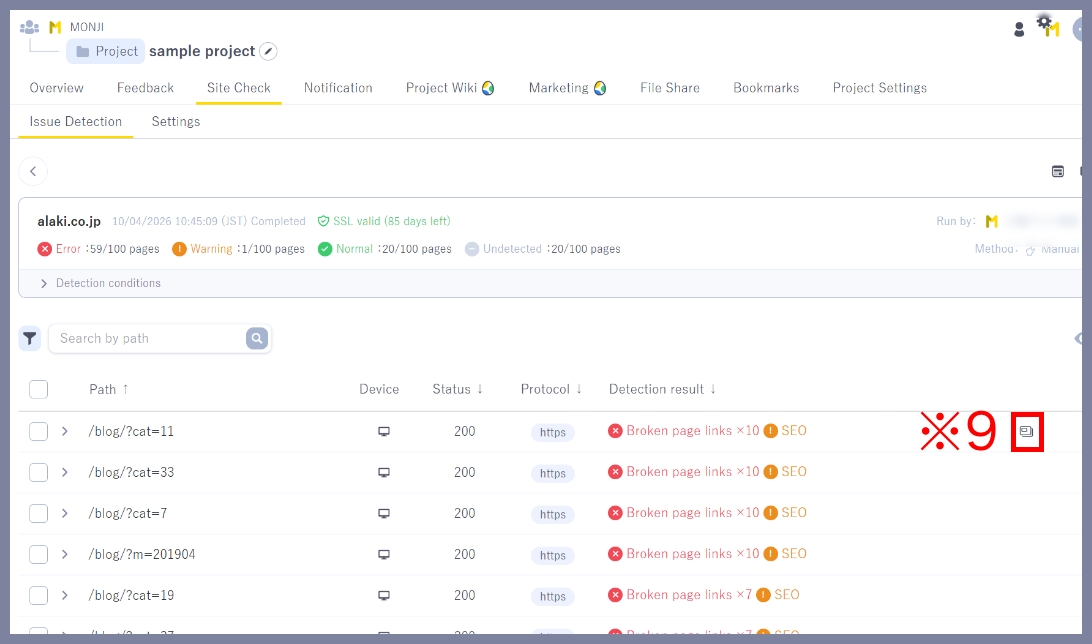
2.Review Feedback
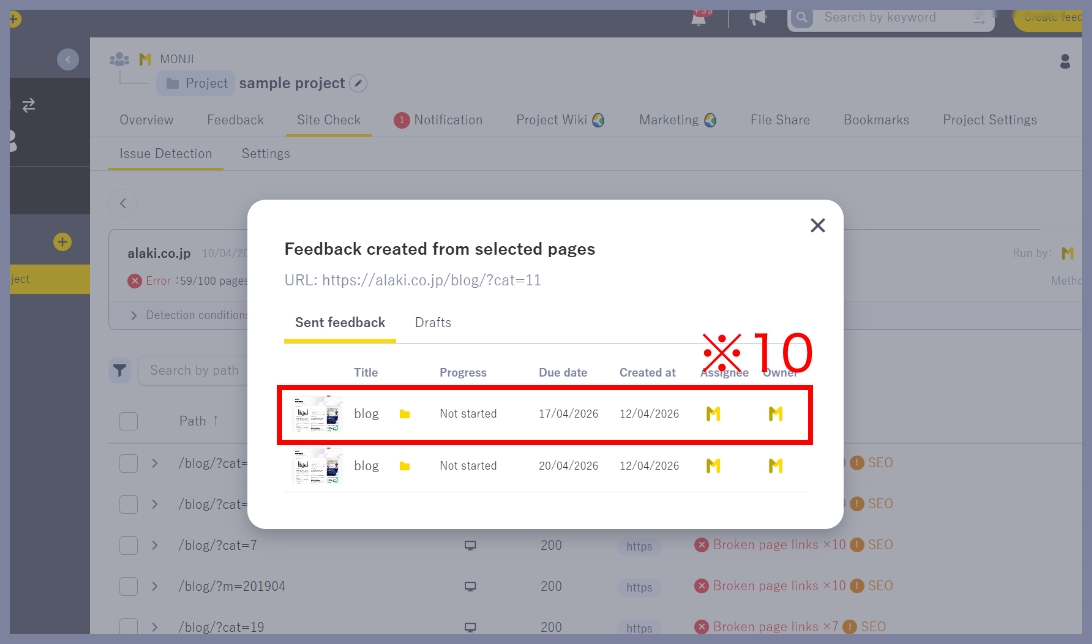
A list of created Feedback will appear, where you can check progress, due dates, and Assignees.
Click a Feedback item (※10) to view its details.
Note: Only Feedback created from Issue Detection results are shown in this list.
Track improvements and prevent recurrence
●Verify improvements
After fixing issues, use the Google Analytics integration to measure results.
Learn how to use the Google Analytics integration here.
●Build knowledge to prevent recurrence
Document the root cause and resolution in the Wiki to help prevent similar issues and share learnings across the team.
Learn how to use the Wiki here.
★Related guides
● How to manually run Issue Detection (first run and subsequent runs)
● How to run Issue Detection with Scheduled Run
● How to set detection conditions and items (Detection settings)
● How to configure notification recipients (Notification settings)
● How to set who can view/edit results and settings (Sharing settings)
● How to view detection results (History・details)