









There are two ways to run Issue Detection: Scheduled Run, which runs automatically at set times, and Manual Run, which you can trigger anytime.
This guide explains how to use Scheduled Run for Issue Detection.
For Manual Run instructions, see here.
Scheduled Run and Manual Run can be used together. Even with Scheduled Run enabled, you can trigger a Manual Run at any time.
Scheduled Run are available on the following plans:
・30-Day Free Trial
・Standard plan
・Lite plan (with Sitecheck Auto Monitoring optional add-ons)
Set up Scheduled Run
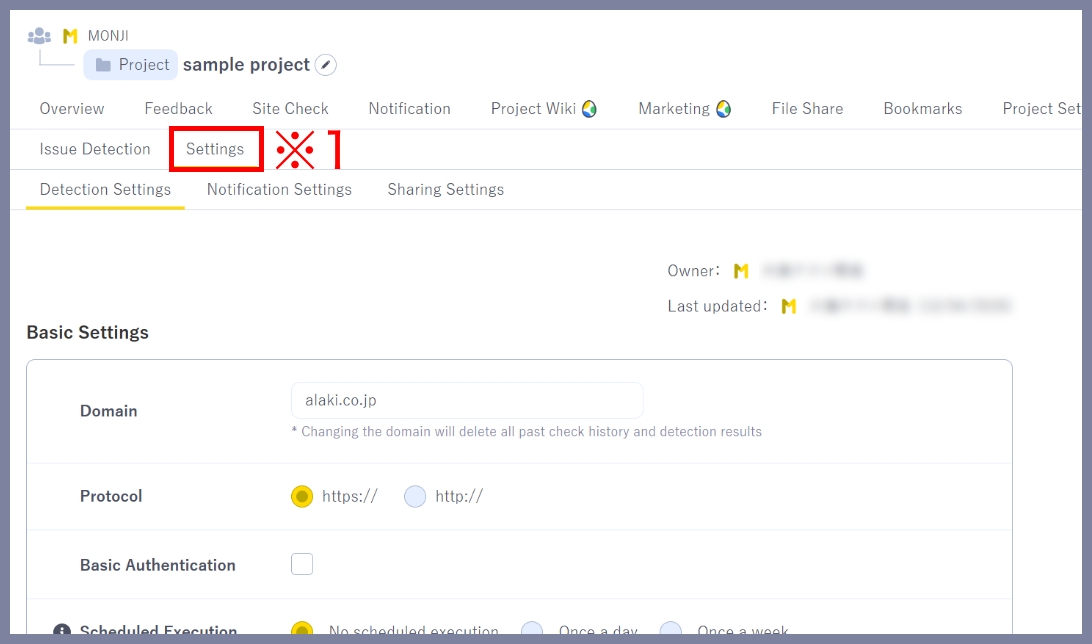
1.Go to Detection settings
Click Site check > Settings (※1) in the project menu to open the Detection settings page.
2.Set a schedule
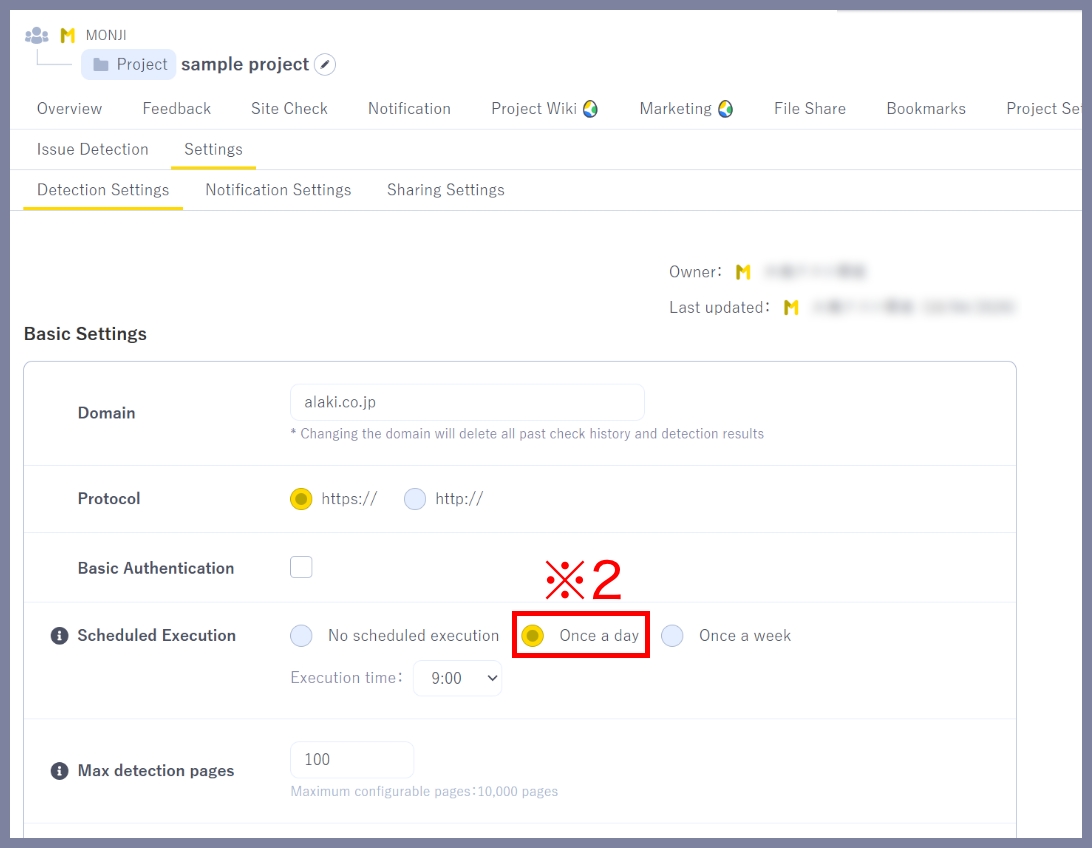
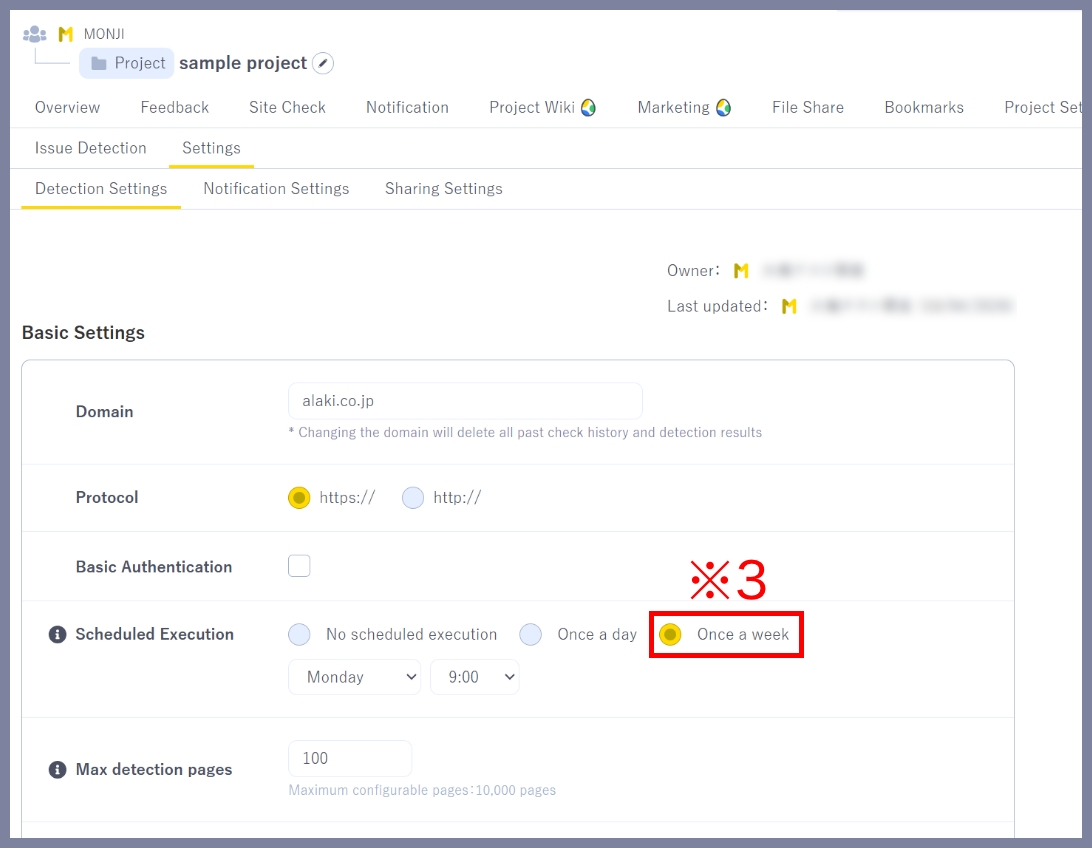
Choose one of the following options:
Once a day (※2)
Runs automatically every day at the selected time.
Once a week (※3)
Runs automatically on the selected day and time.
3.Save settings
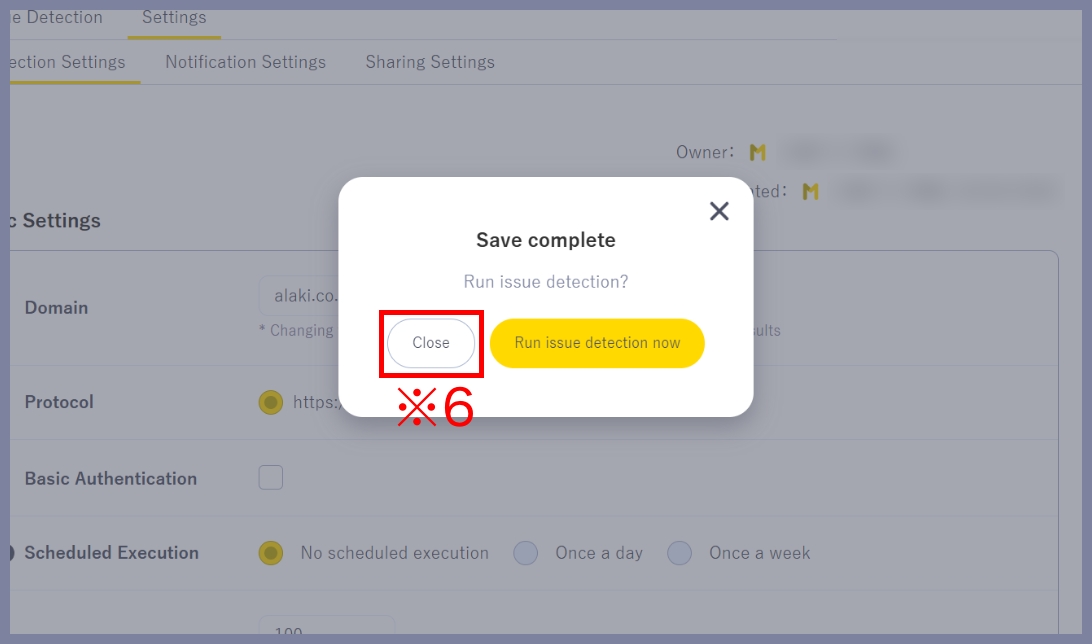
Click Save after updating the settings (※4). A confirmation modal will appear—click Save (※5) to apply the Scheduled Run settings.
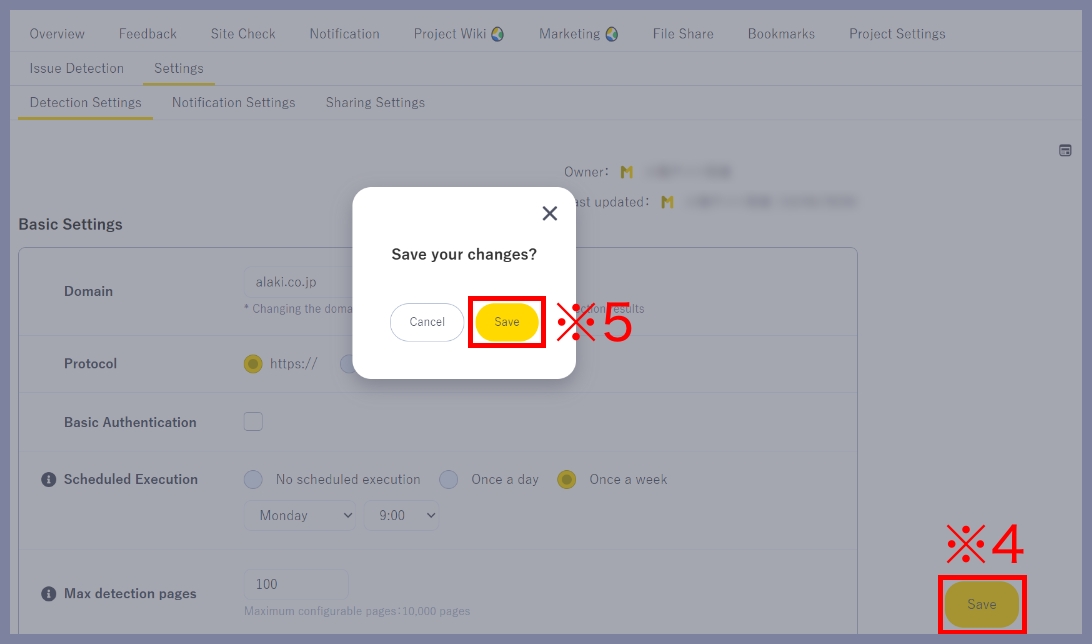
Click Close (※6) in the modal that appears after clicking Save.
4.Check the schedule
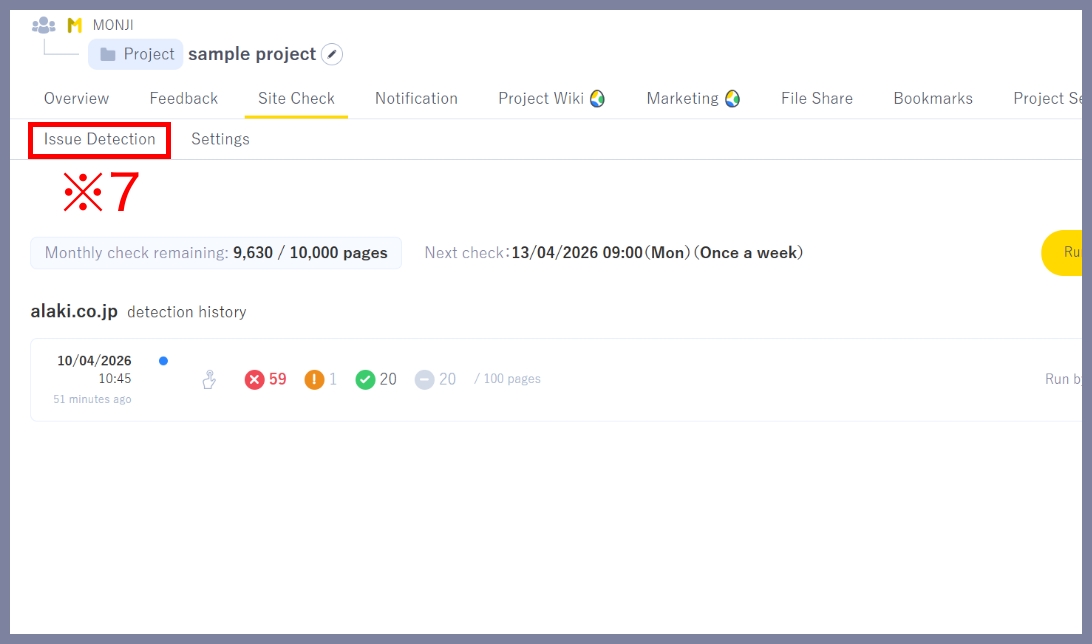
Click Site check > Issue Detection (※7) in the project menu.
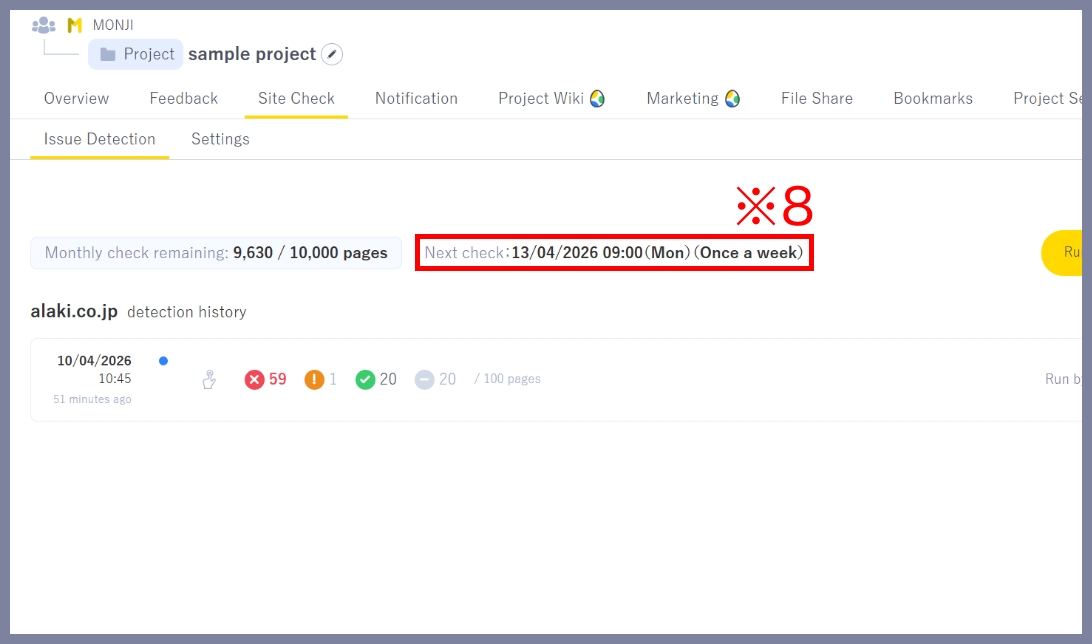
If your schedule appears under Next run (※8), setup is complete.

5.Review results
Issue Detection runs automatically based on your schedule.
Once complete, you’ll receive in-app and email notifications. Check them to review the results.
★Related guides
● How to manually run Issue Detection (first run and subsequent runs)
● How to create Feedback from detection results
● How to set detection conditions and items (Detection settings)
● How to configure notification recipients (Notification settings)
● How to set who can view/edit results and settings (Sharing settings)
● How to view detection results (History・details)