









This guide explains how to view detection results, including History and Details.
How to view detection results (History)
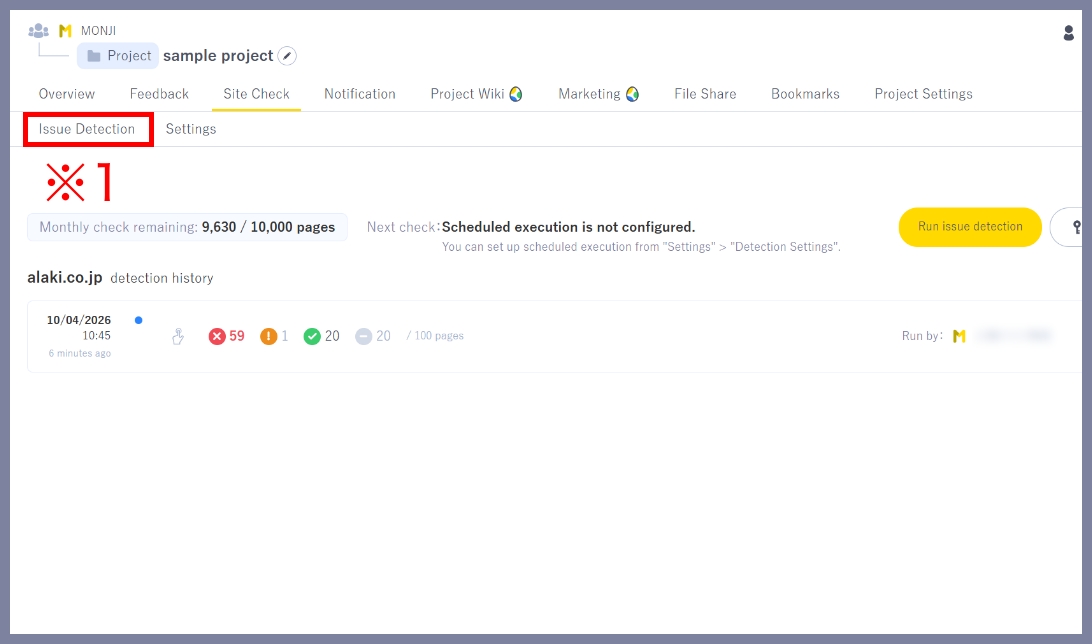
Click Site check > Issue Detection (※1) in the project menu to view the detection history.
Results are saved as history, making it easier to investigate and identify issues.
Changing the target domain will delete the history.
History display limits vary by plan.
・30-Day Free Trial / Standard: Unlimited
・Lite: Up to 3 items (Unlimited with Sitecheck Auto Monitoring optional add-ons)
How to view detection results (Details)
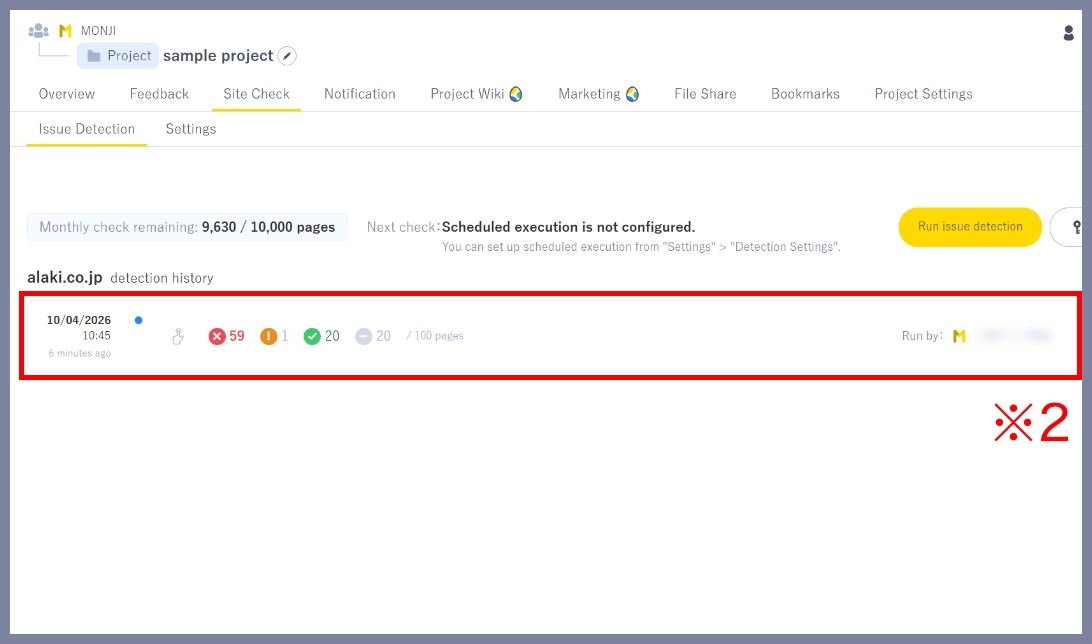
Click a result (※2) in the detection history to open the details.
Detection result fields (※3)
The detection result details page will be displayed.
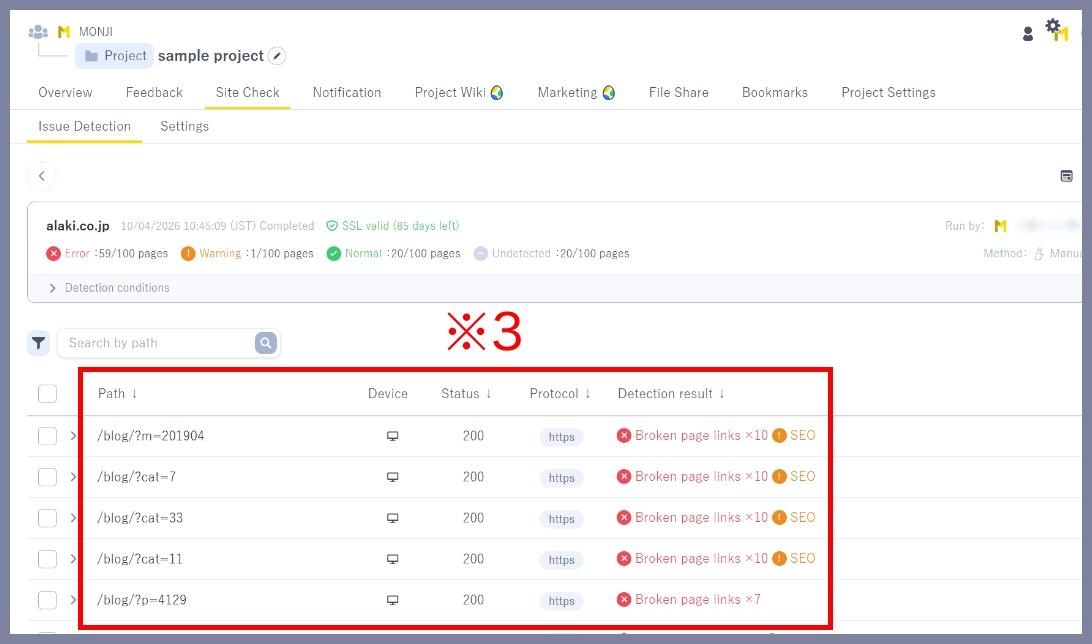
Path
The part of the URL after the domain (page location).
Example: /sample.html
If the domain is alaki.co.jp, it refers to:
alaki.co.jp/sample.html
Device
Shows which viewport (Desktop / Mobile) was used for detection.
Results may vary depending on the screen size.
・ Desktop
:Detected at ~1280px width・ Mobile
:Detected at ~390px width
Status
Displays the HTTP status of the page (server response).
Indicates whether the page is loading correctly.
Common examples:
・200: Page loaded successfully
・404: Page not found (possible broken link)
Protocol
Shows the protocol (https / http) of the detected page.
・https: Secure, encrypted connection
・http: Not encrypted, may pose security risks
Detection result
Shows whether issues were found on each page and their severity.
・Red: Critical issues (e.g., page errors)
・Orange: Warnings (recommended to review)
・Green: No issues detected
・Gray: Page status could not be determined
View issue details
Click a row to view the issue details for that page (※4).
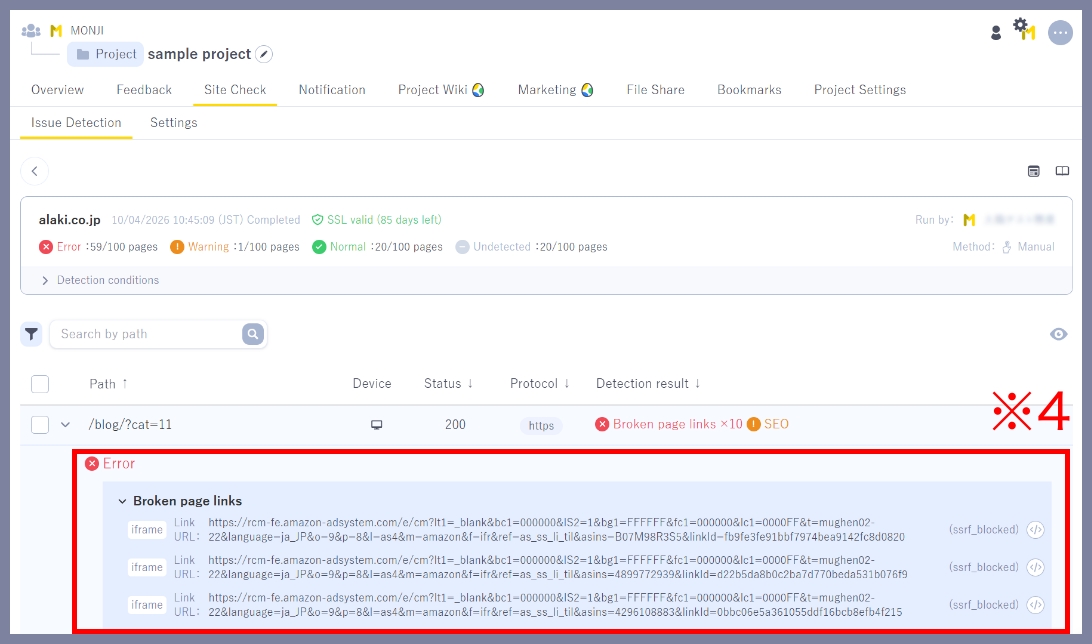
Check the affected code
1.Click the View code icon (※5) shown for each item.
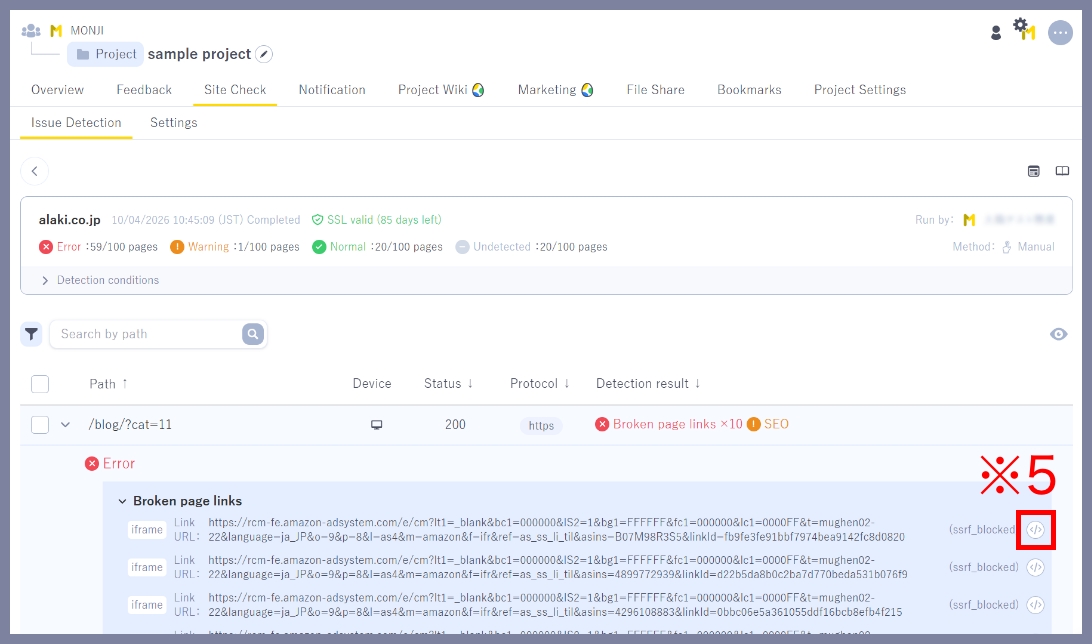
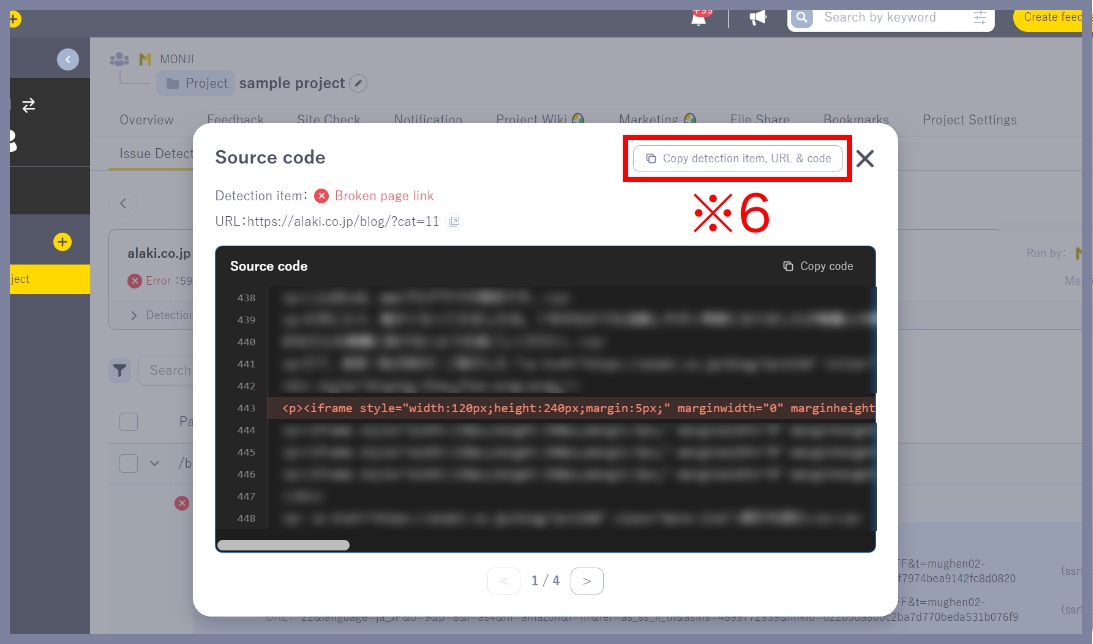
2.The source code of the detected issue will be displayed.
You can copy the detection item, URL, and code together, making it easy to paste into a Feedback comment or request fixes directly (※6).
View all issue details
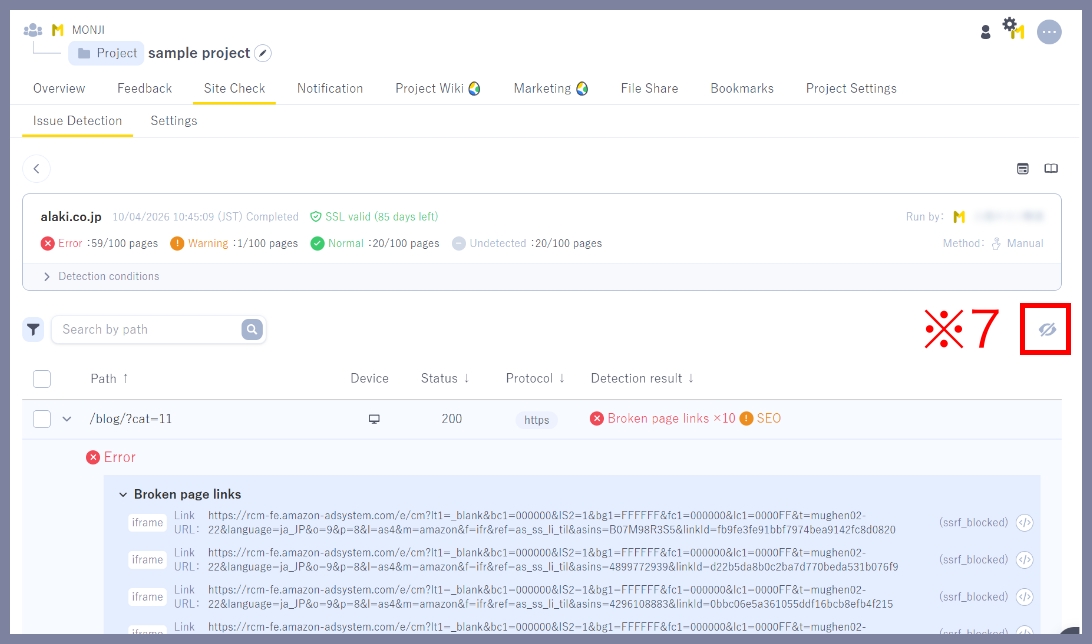
Click the eye icon (※7) in the top right of the list to view all issue details across pages at once.
Filters
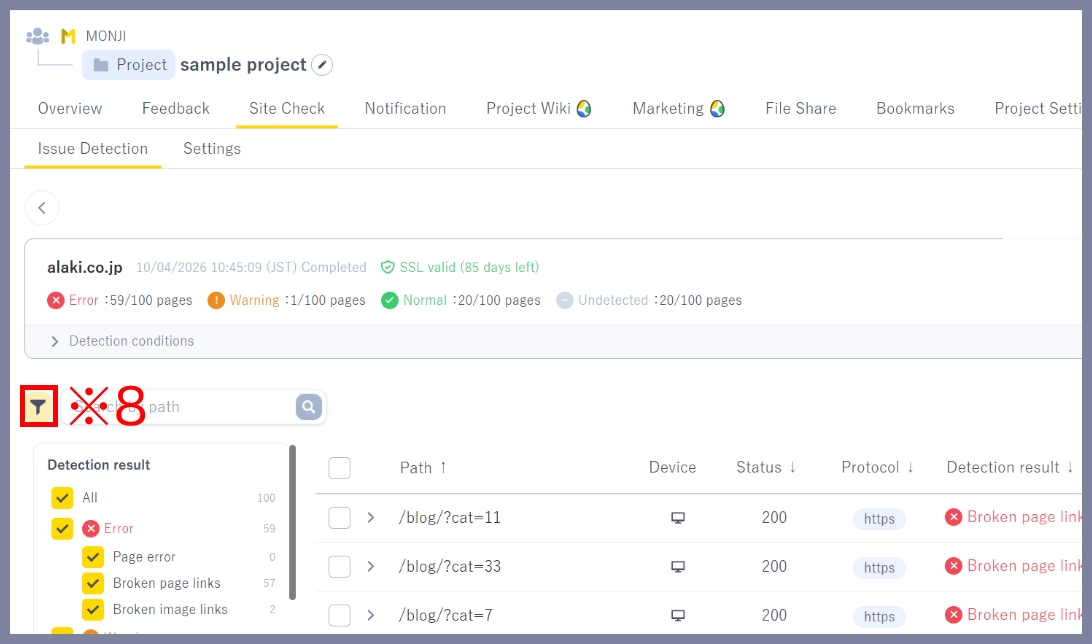
Click the Filter icon (※8) in the top left to open the filter menu and refine the detection results.
Search by path
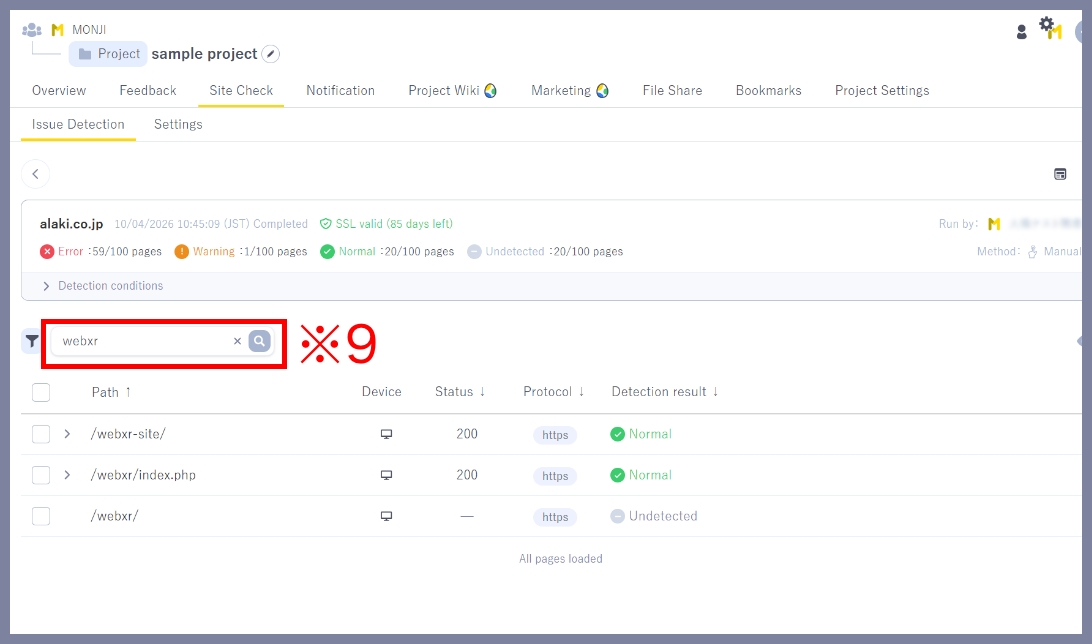
Enter a path in the search field and click the search icon (※9) to show only pages that include the entered path.
Sort
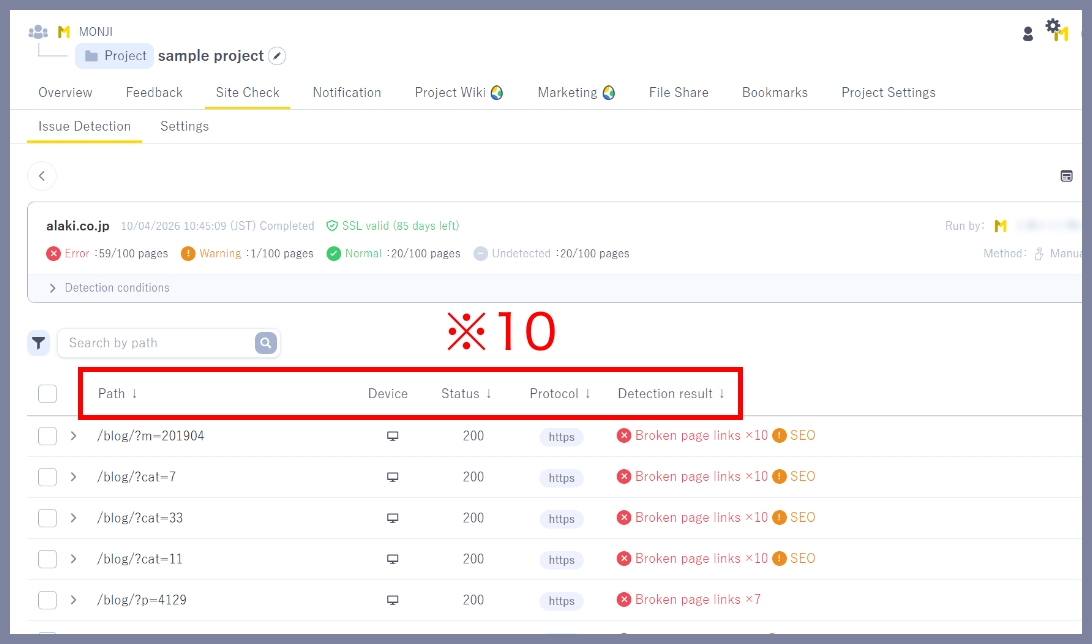
Click the column headers (※10) for Path, Device, Status, Protocol, or Detection result to sort in ascending or descending order.
Create Feedback
You can create Feedback from detection results.
See here for how to create Feedback.
Rerun detection
Hover over a row and click the Rerun icon (※11) to run detection for that page.

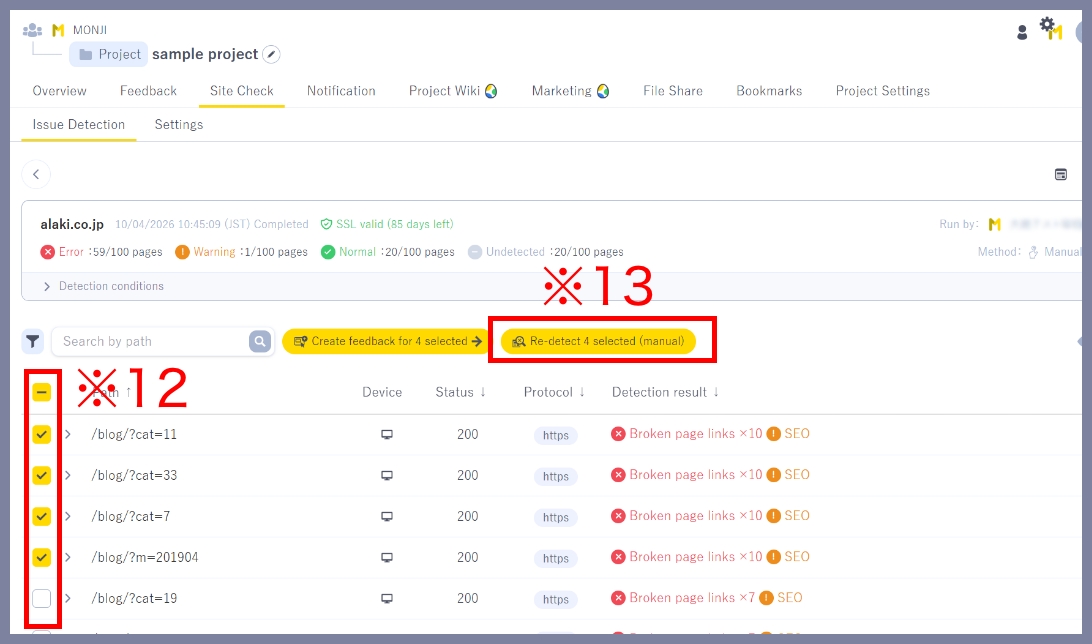
Select the checkboxes (※12) next to each path to run Rerun in bulk (※13).
★Related guides
● How to manually run Issue Detection (first run and subsequent runs)
● How to run Issue Detection with Scheduled Run
● How to create Feedback from detection results
● How to set detection conditions and items (Detection settings)
● How to configure notification recipients (Notification settings)
● How to set who can view or edit results and settings (Sharing settings)