









Use Detection settings to configure conditions and detection items.
1.Go to the Detection settings page
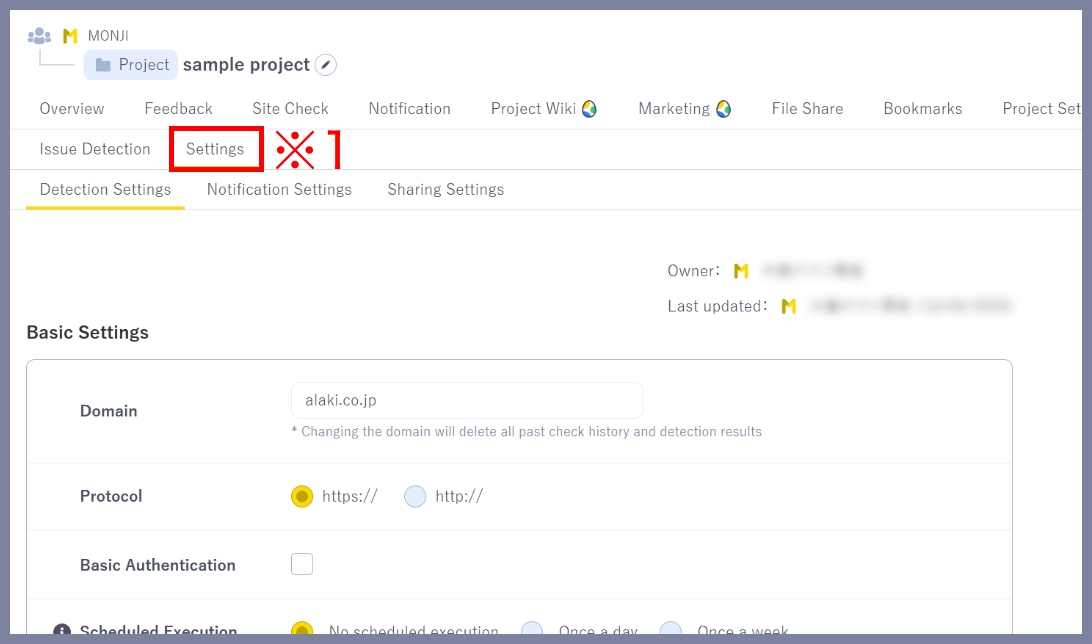
Click Site check > Settings (※1) in the project menu.
2.Set detection conditions
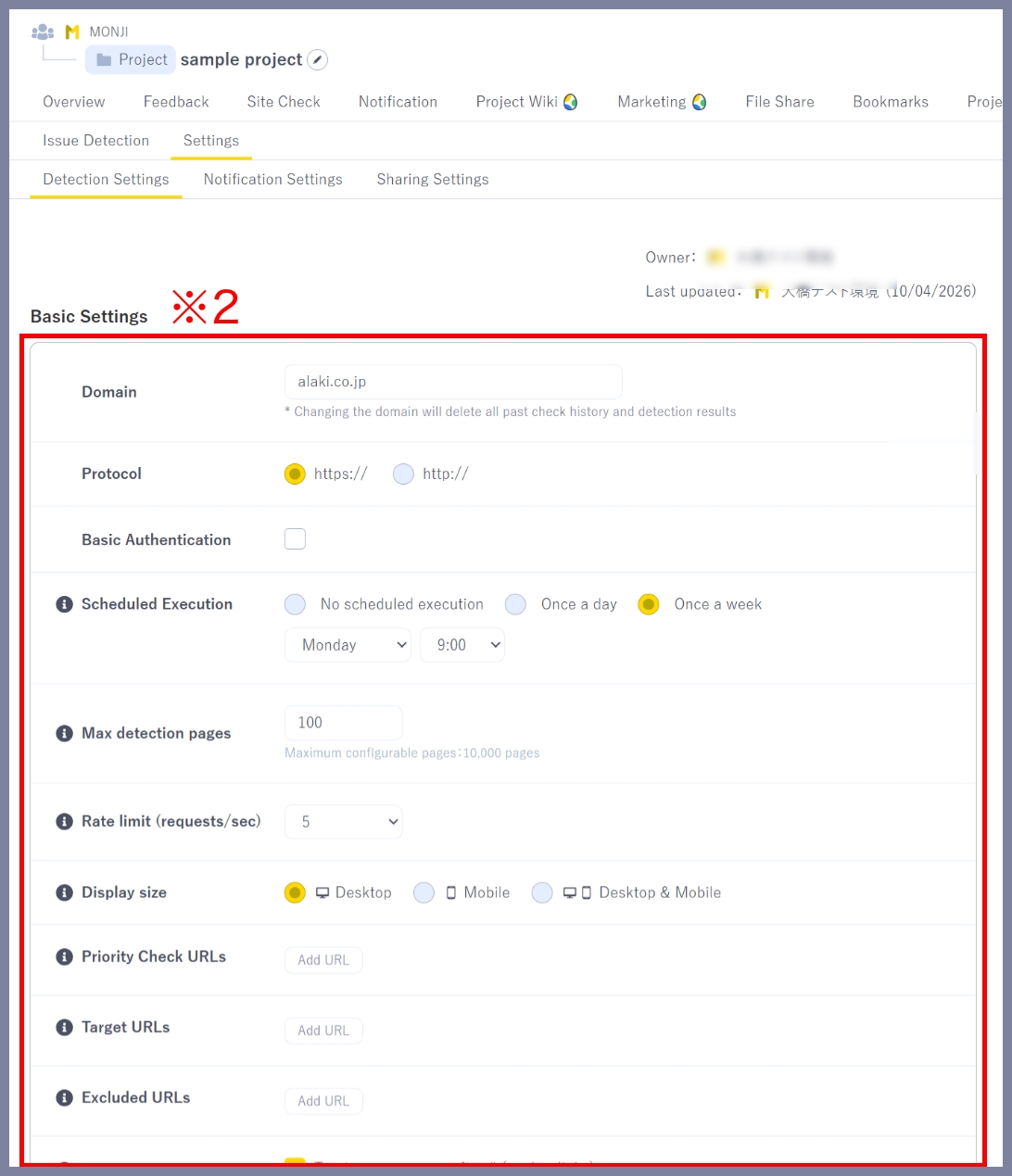
In Basic settings (※2), you can configure the detection conditions.
Domain
Set the target website (domain) for detection.
Example: If you set https://example.com,
All pages under the domain are included.
Changing the domain will delete all past history and results.
Protocol
Set the protocol (https / http) for the target domain.
If your site URL changes (from http:// to https://), update this setting as well.
Basic authentication
Configure credentials for sites that require basic authentication (ID and password).
This allows detection to include pages in protected environments like staging or test sites.
Scheduled Run
Set when detection runs automatically.
Catch issues after updates and avoid missing them.
See here for details on Scheduled Run.
Scheduled Run are available on the following plans:
・30-Day Free Trial
・Standard plan
・Lite plan (with Sitecheck Auto Monitoring optional add-ons)
Max pages per run
Set the maximum number of pages to scan in a single run.
Lower limits run faster but may miss some pages.
Higher limits cover more pages but take longer.
Adjust based on your site size and needs.
Rate limit (requests/sec)
Set how many requests per second are sent to the target site (scan speed).
Higher values increase speed but also server load.
Use the default unless you need faster detection.
Viewport size
Set the screen size used during detection (Desktop / Mobile).
Results may vary by viewport, so choose based on what you want to check.
・Desktop: Loads pages at ~1280px width
・Mobile: Loads pages at ~390px width
Check both PC and smartphone at the same time is available on the following plans:
・30-Day Free Trial
・Standard plan
・Lite plan (with Sitecheck Auto Monitoring optional add-ons)
Priority URLs
Add specific URLs to always include in detection.
These pages are scanned regardless of link structure or URL rules.
Useful for checking orphan pages (not linked from other pages).
Target URL rules
Define rules for which URLs to include in detection.
Only pages matching these rules will be scanned.
Orphan pages are excluded.
Exclude URL rules
Define rules for URLs to exclude from detection.
Matching pages will be skipped.
Useful for excluding test pages or unnecessary content.
Ignore URL parameters
Choose whether to treat URLs with different query (?) or fragment (#) values as the same page.
If enabled, URLs with different parameters/fragments are treated as one page, prevent duplicate detection.
Examples:
・/sample?page=1 and /sample?page=2
・/sample#section1 and /sample#section2
Disable this if you need to check content differences per parameter.
(paginated list pages like ?page=1, ?page=2)
3.Set detection items
In Issue Detection settings (※3), you can choose which items to include in detection.
Items turned off will be excluded and won’t appear in the results.
Disable unnecessary items to focus only on the issues you want to review.

4.Save settings
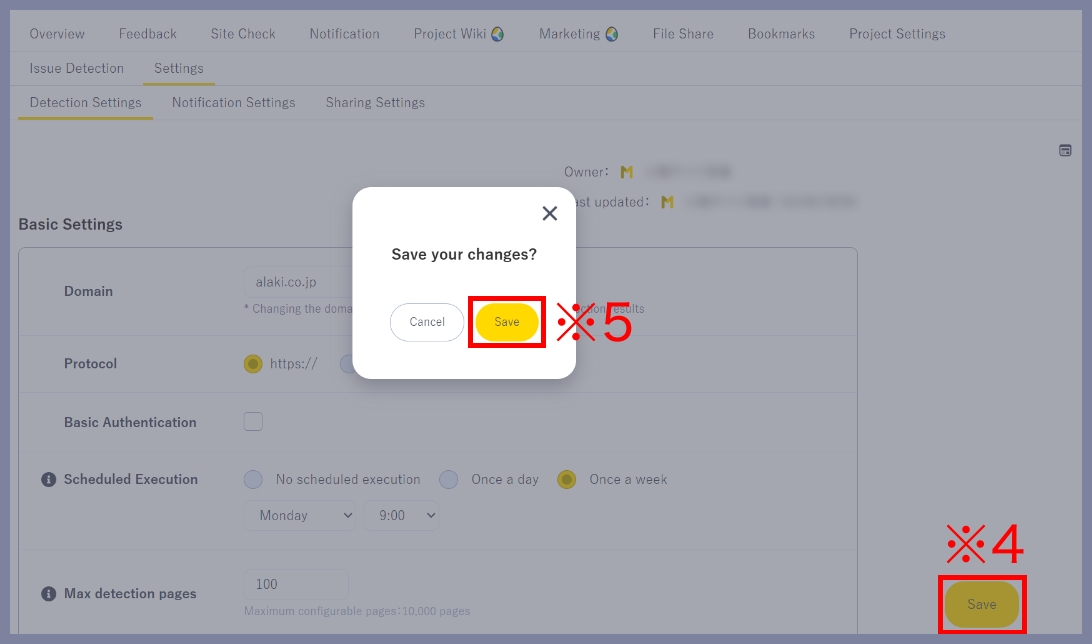
After making changes, click Save (※4). A confirmation modal will appear—click Save (※5) to save changes.
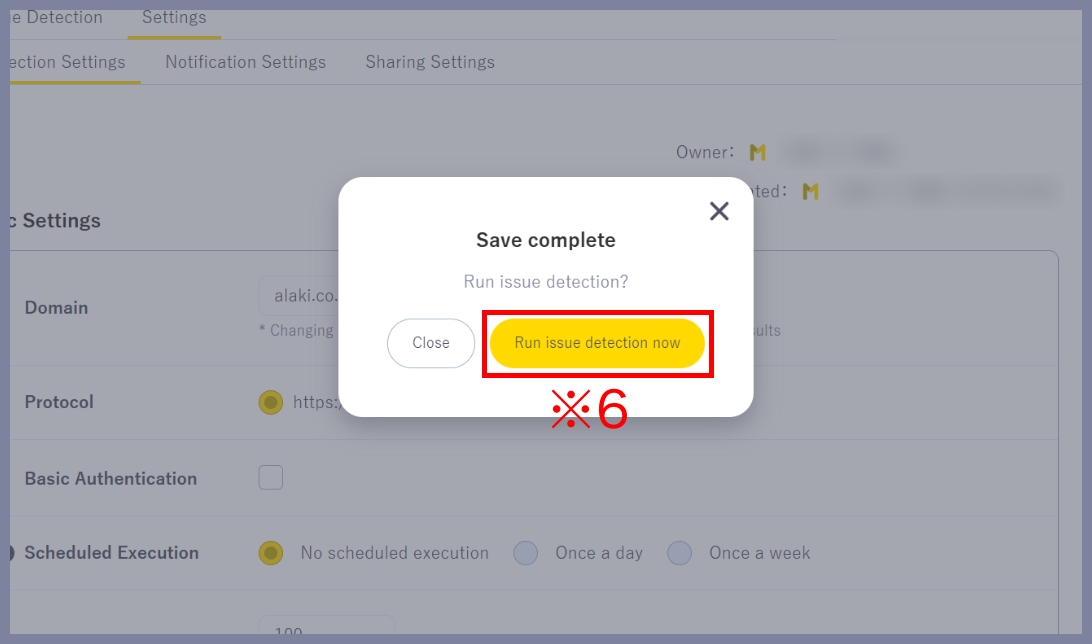
After clicking Save, a modal will appear—click Run check now (※6) to run Issue Detection with the updated conditions and items.
★Related guides
● How to manually run Issue Detection (first run and subsequent runs)
● How to run Issue Detection with Scheduled Run
● How to create Feedback from detection results
● How to configure notification recipients (Notification settings)
● How to set who can view/edit results and settings (Sharing settings)
● How to view detection results (History・details)