









There are two ways to run Issue Detection: Manual Run, which you can trigger anytime, and Scheduled Run, which runs automatically at set times.
This guide explains how to run Issue Detection manually, covering both the first run and subsequent runs.
For Scheduled Run instructions, see here.
Manual Run and Scheduled Run can be used together. Even with Scheduled Run enabled, you can trigger a Manual Run at any time.
How to run Issue Detection for the first time
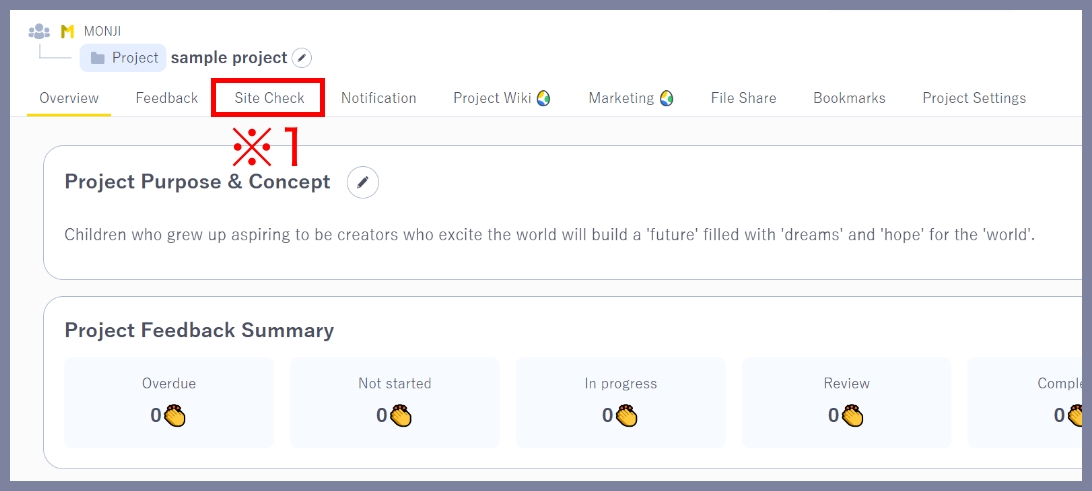
1.Go to the Issue Detection page
Click Site check (※1) in the project menu to open the Issue Detection page.
2.Enter a URL and start the check
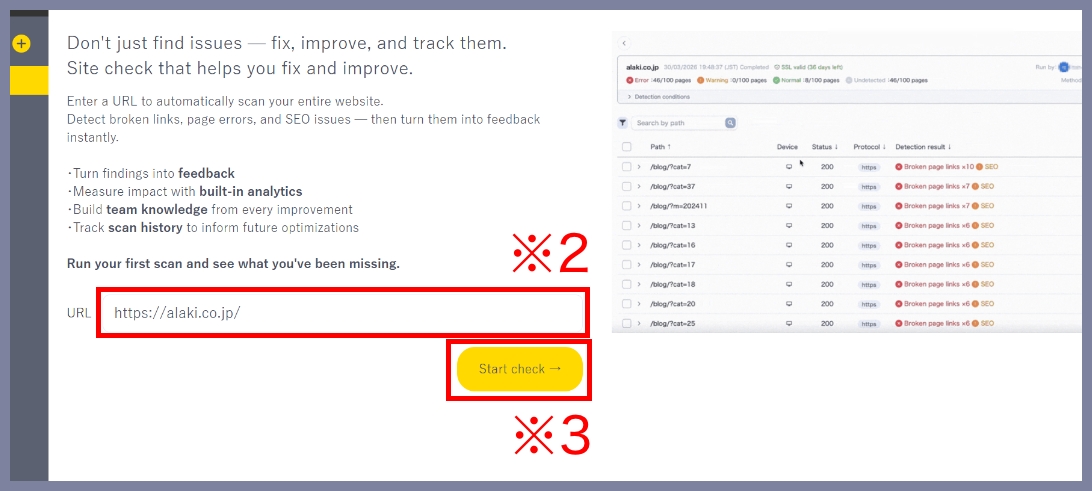
Enter the URL of the site you want to scan (※2), then click Start check → (※3) to begin Issue Detection.
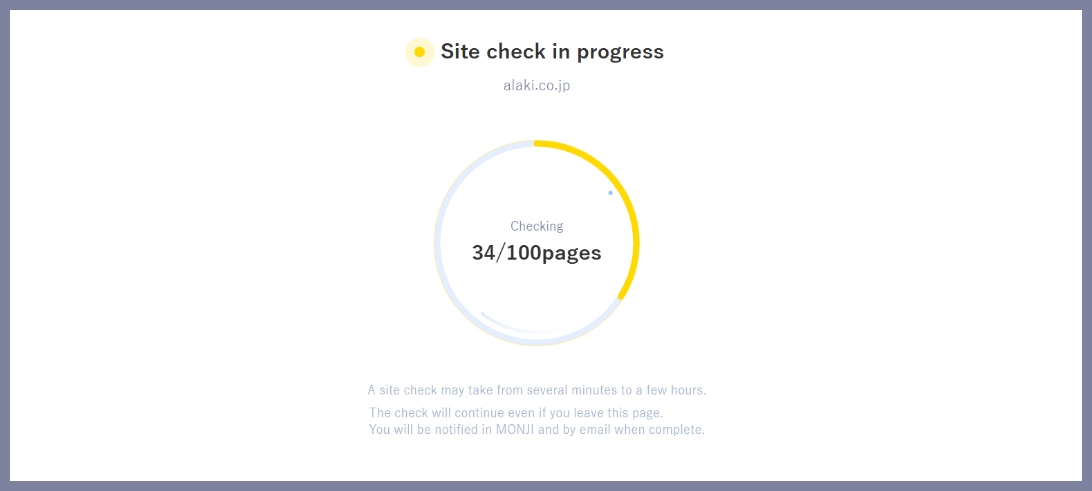
Issue Detection continues running even if you leave the page.
Once a Site check starts, it cannot be canceled.
Issue Detection may take from several minutes to a few hours.
Only team Admins and Members can run the first Issue Detection.
3.Detection is complete
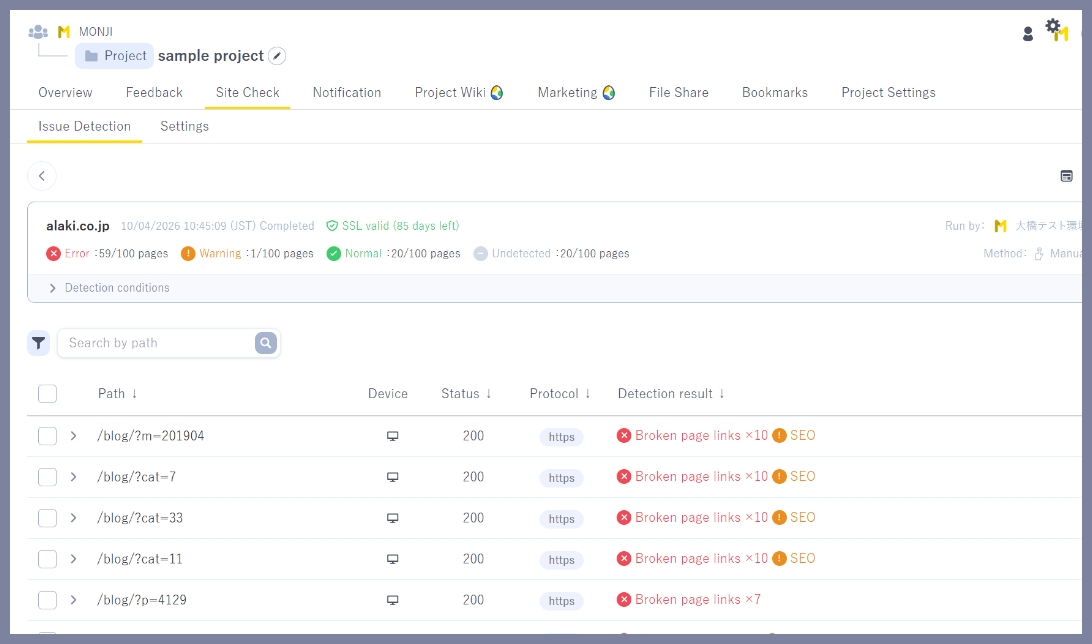
Once detection is complete, the results will be displayed, and notifications will be sent to the user who ran it via:
1.In-app notifications in MONJI
2.Email
You can configure who receives notifications in Notification settings.
See here for setup instructions.
To learn how to review detection results, see here.
You can also create Feedback from the detection results.
See here for how to create Feedback.
Sites where Issue Detection may not run properly
Issue Detection may not work correctly on sites with the following structures:
●Frame-based sites
Sites built with older HTML technologies (frame / frameset).
Because the page is split into multiple frames, detection may not work properly.
●Sites with navigation inside an iframe
Sites that embed another page (iframe) containing menus or links.
Since the content is treated as an external page, the link structure may not be captured correctly.
2.How to run Issue Detection after the first run
Choose from these options to run detection after the first run:
1.Run without changing settings
Rerun detection with current settings.
1-1. Click Run Issue Detection
Go to Site check > Issue Detection (※4) in the project menu to open the detection history, then click Run Issue Detection (※5) on the right side of the screen.
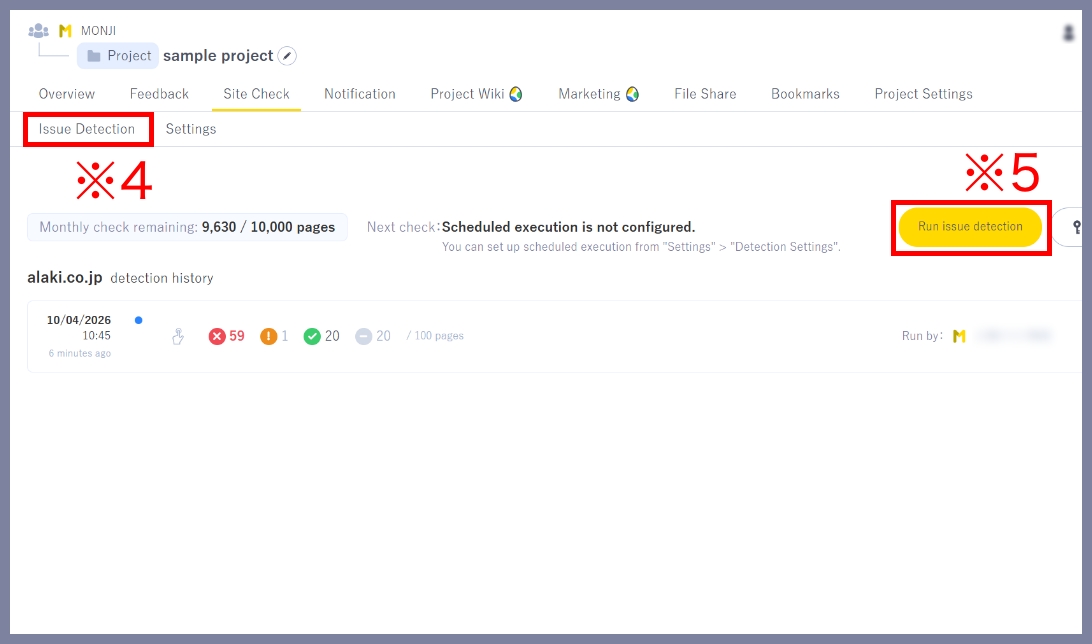
1-2. Run detection
Review the settings, then click Run (※6).
To update the settings, click Edit settings (※7) and make your changes.
For instructions on running detection with updated settings, see 2. Run with updated settings below.
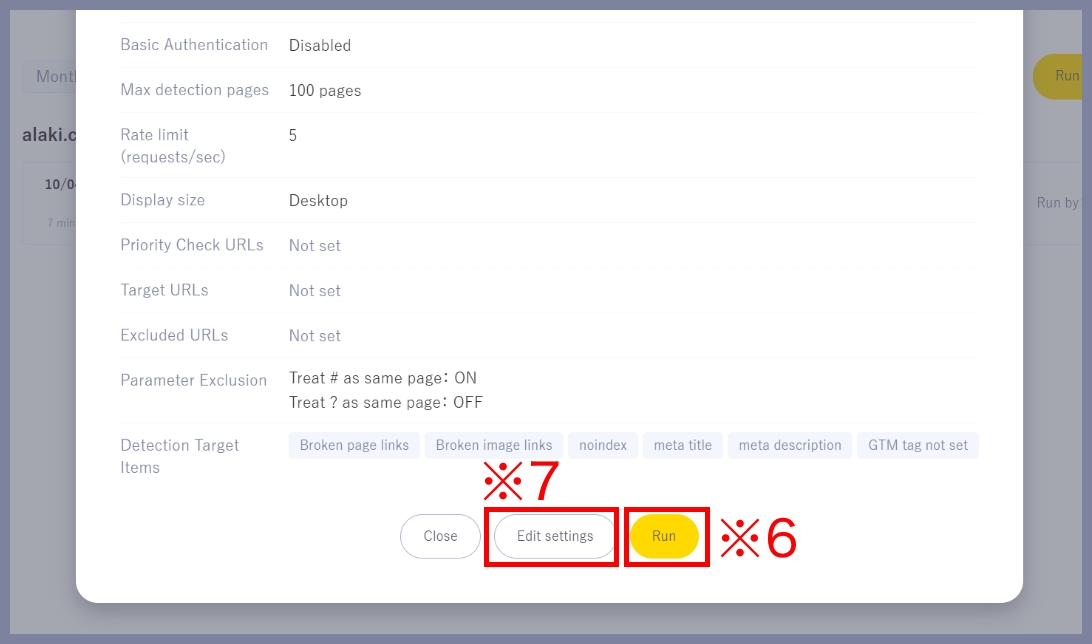
2.Run with updated settings
Update the target URL or detection items before running.
2-1. Go to Detection settings
Click Site check > Settings (※8) in the project menu.
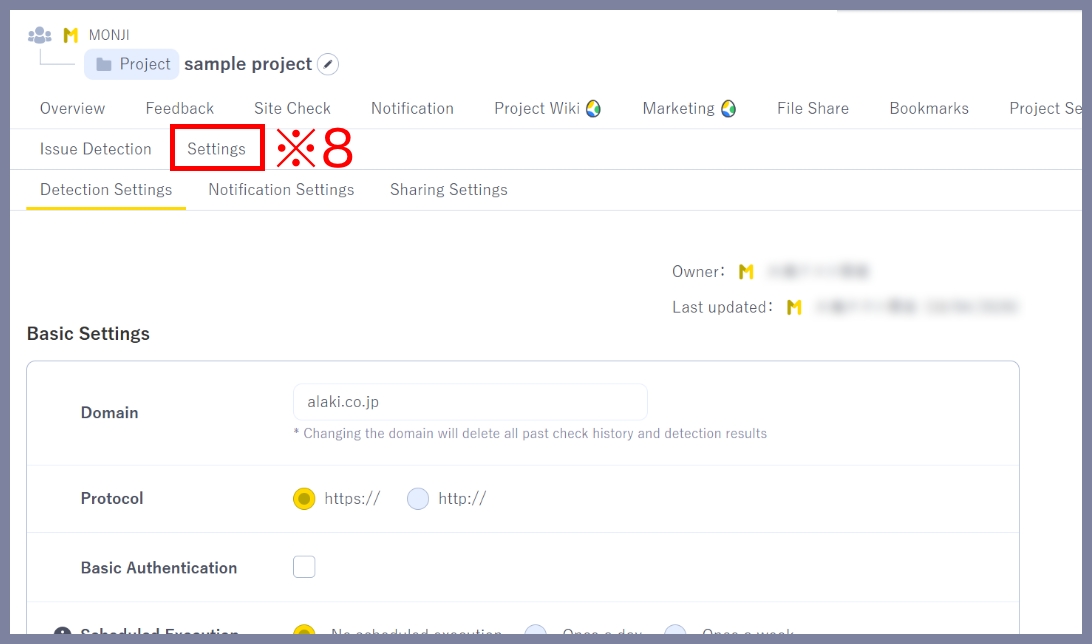
2-2. Update settings and save
Update the settings, then click Save (※9).
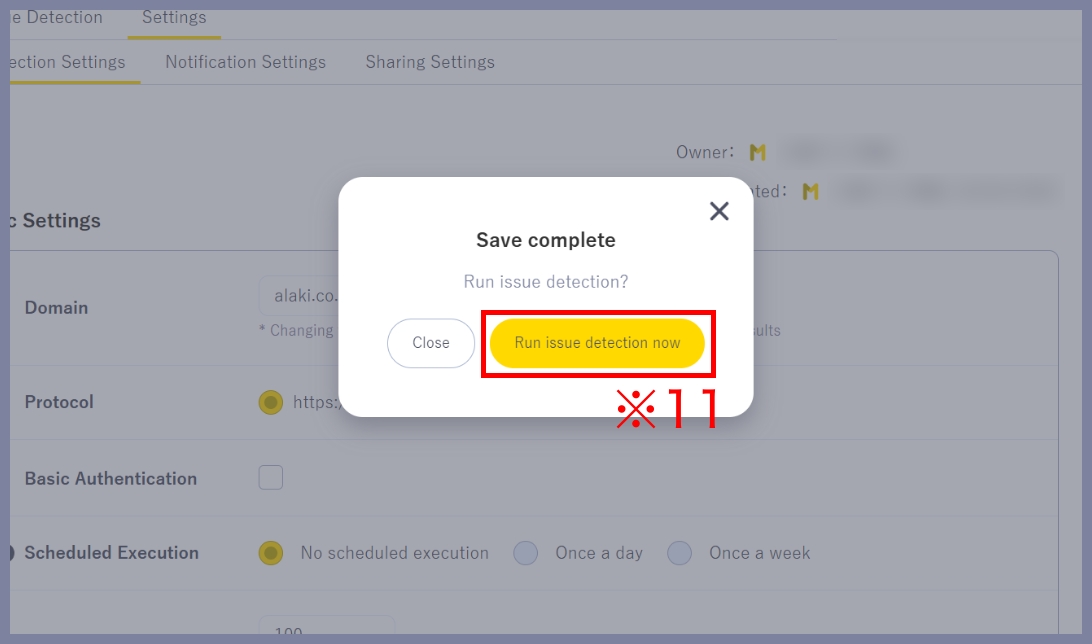
In the modal that appears, click Save (※10).
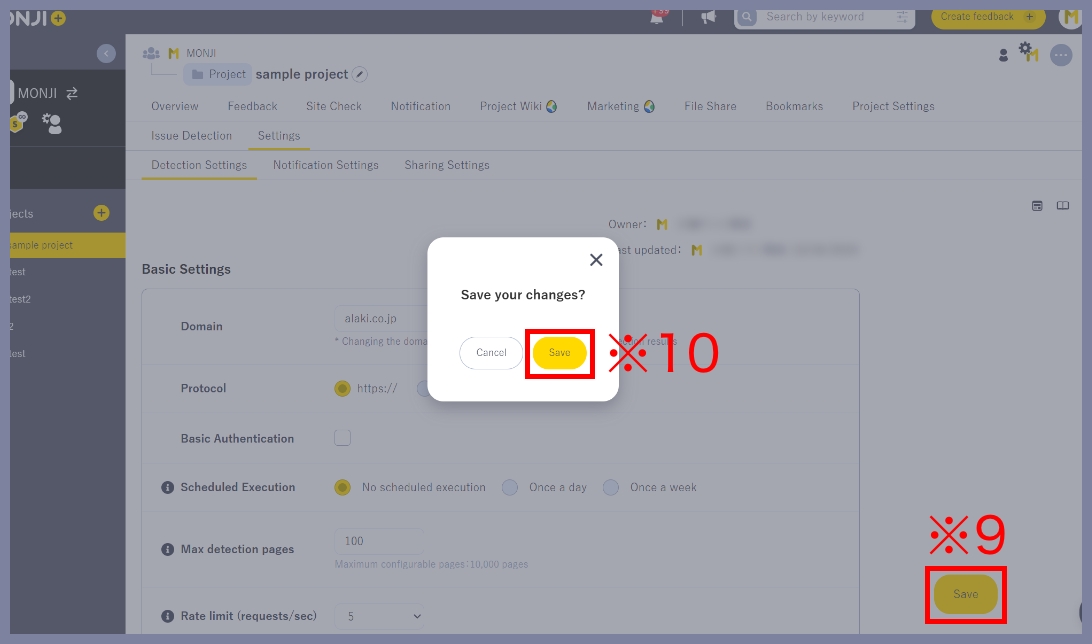
2-3. Run detection
In the modal, click Run check now (※11).
3.Run detection for a specific page
Run detection for a specific page.
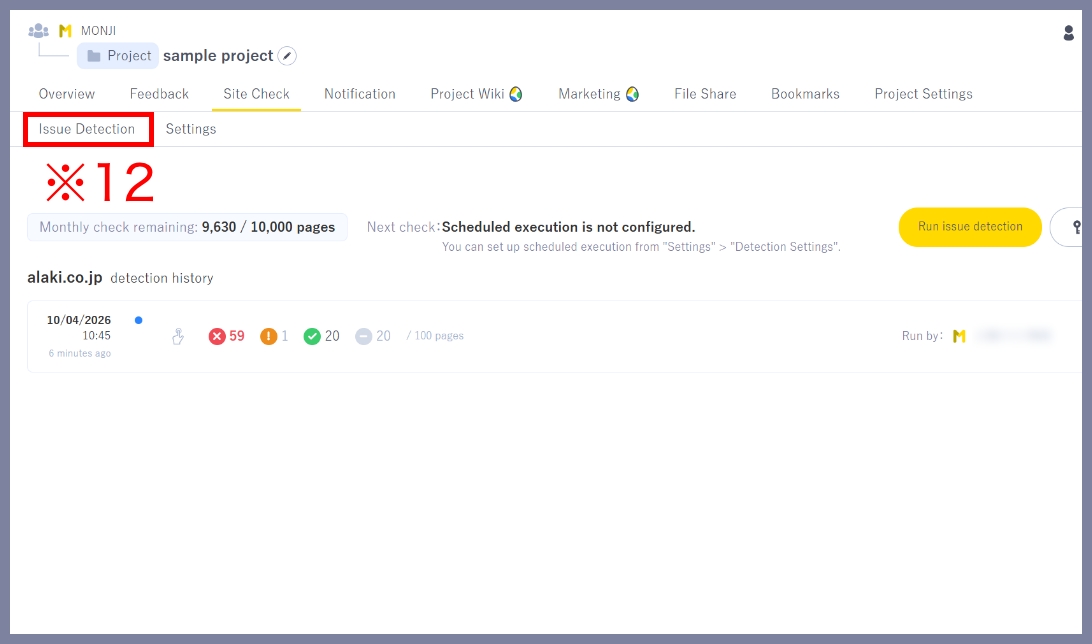
3-1. Go to Detection history
Click Site check > Issue Detection (※12) in the project menu.
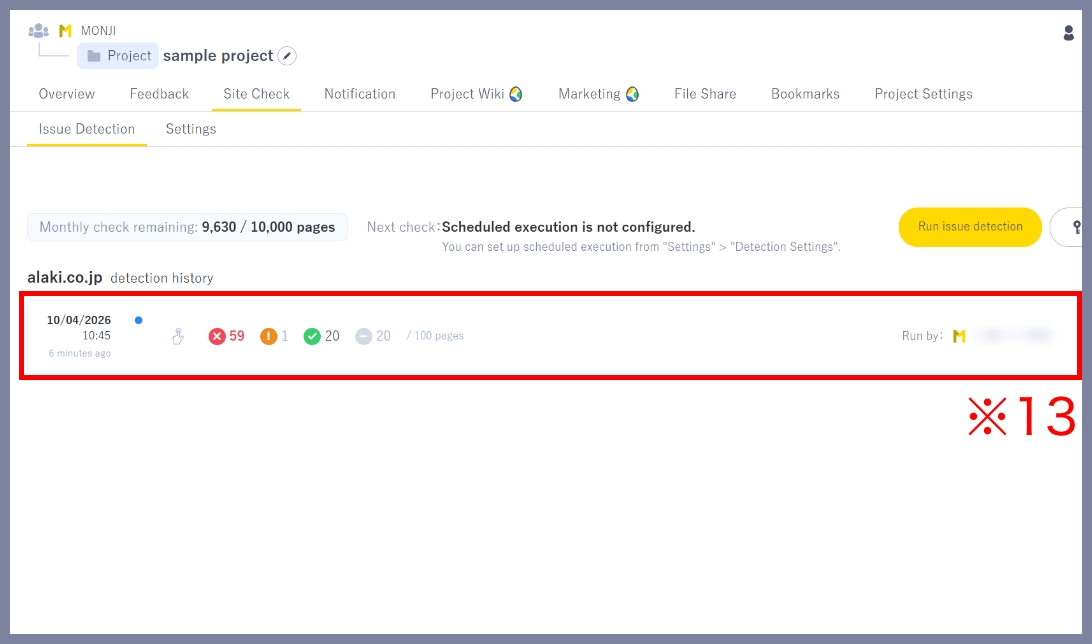
3-2. Go to Detection details
Click the detection result you want to rerun (※13) to open the details.
3-3. Select the page to run detection
Hover over the row of the page you want to run, then click the Rerun (Manual Run) icon (※14).

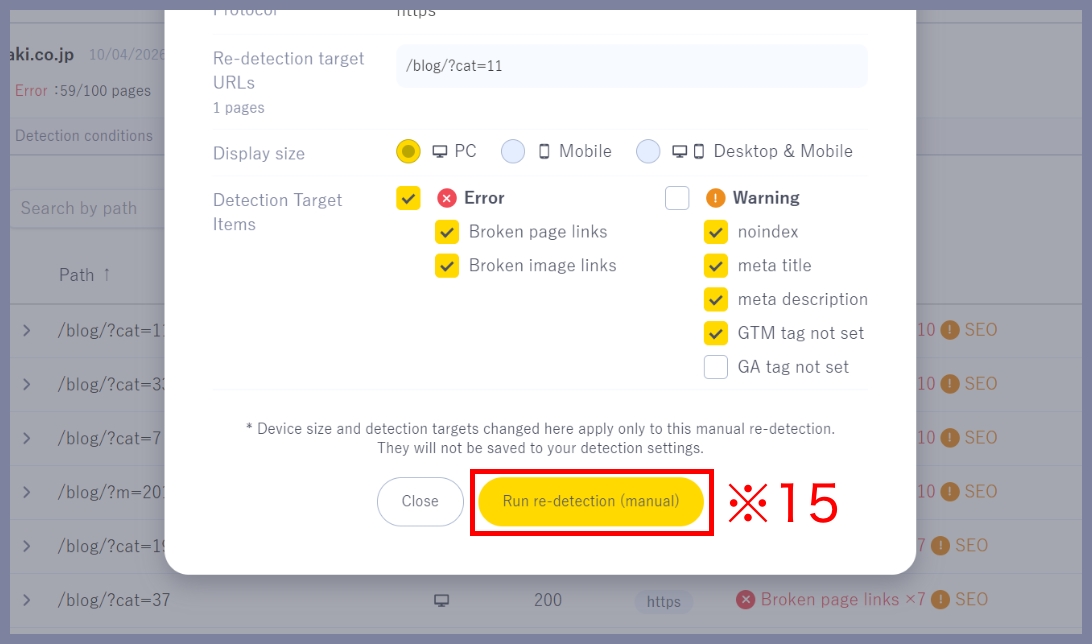
3-4. Run detection
Review the settings, then click Run Detection (Manual Run) (※15).
★Related guides
● How to run Issue Detection with Scheduled Run
● How to create Feedback from detection results
● How to set detection conditions and items (Detection settings)
● How to configure notification recipients (Notification settings)
● How to set who can view/edit results and settings (Sharing settings)
● How to view detection results (History・details)