









In Notification settings, you can choose which users receive notifications when Issue Detection is complete.
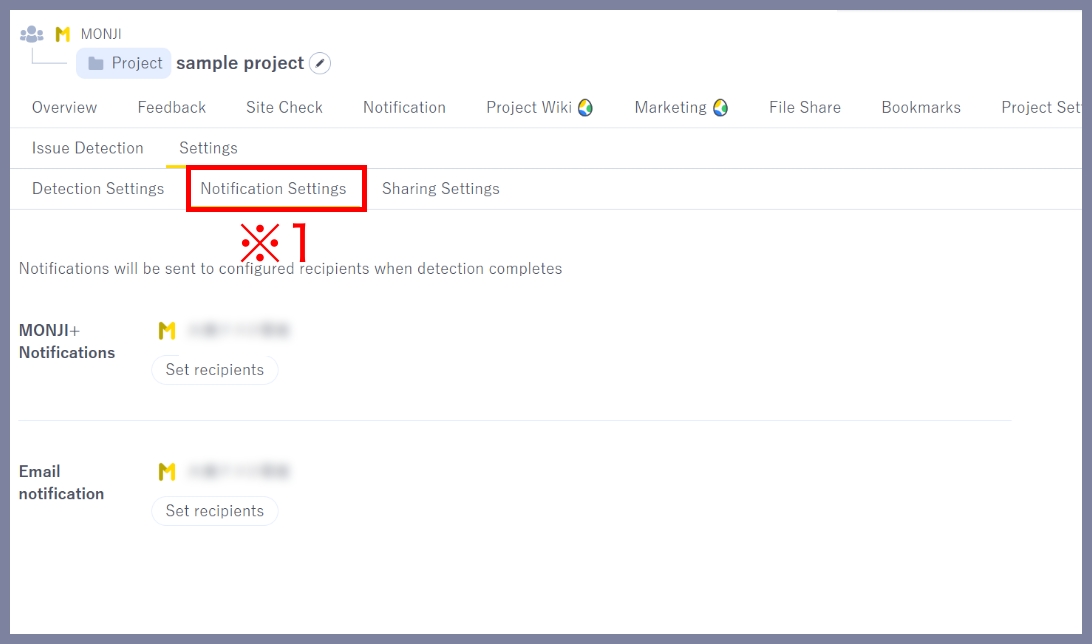
1.Go to the Notification settings page
Click Site check > Settings > Notification settings (※1) in the project menu.
2.Set notification recipients
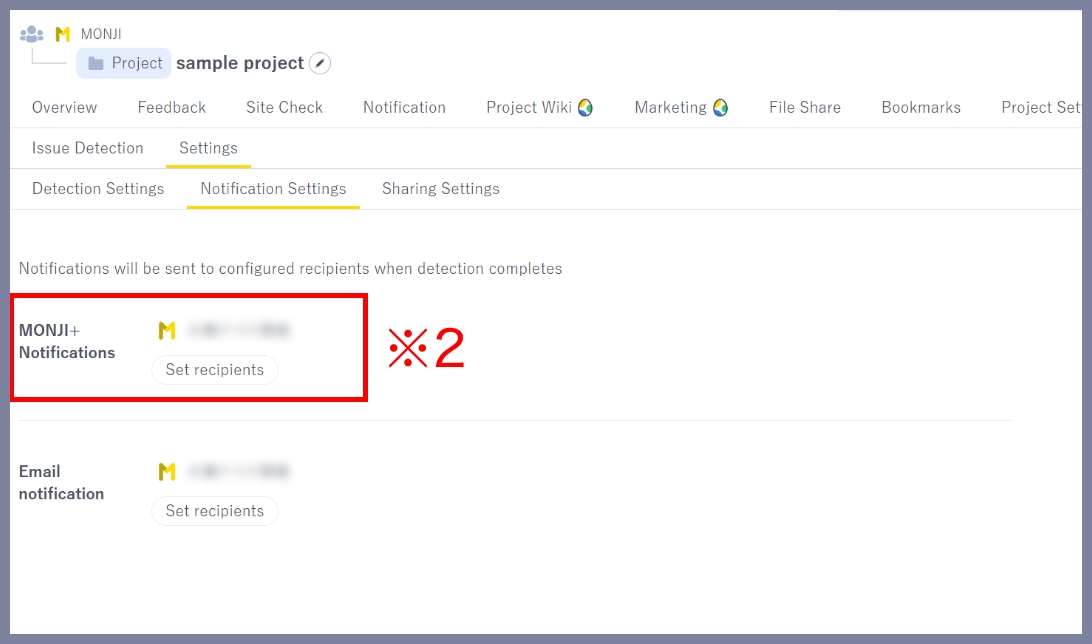
In-app notifications (※2)
Choose which users receive in-app notifications when Issue Detection is complete.
※You can select from Project members and guests.
※Only users with view or edit access in Sharing settings are shown.
※If a user’s view or edit access is removed, they will also be automatically removed from notification settings.
You can check notifications in the following three places:
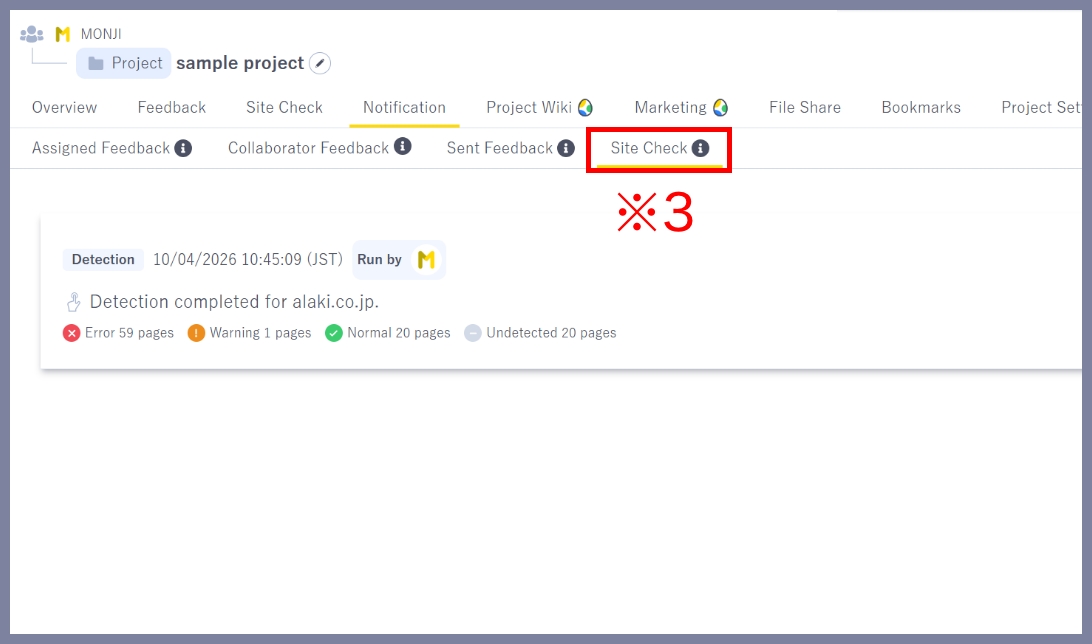
1.Project menu > Notifications > Site check (※3)
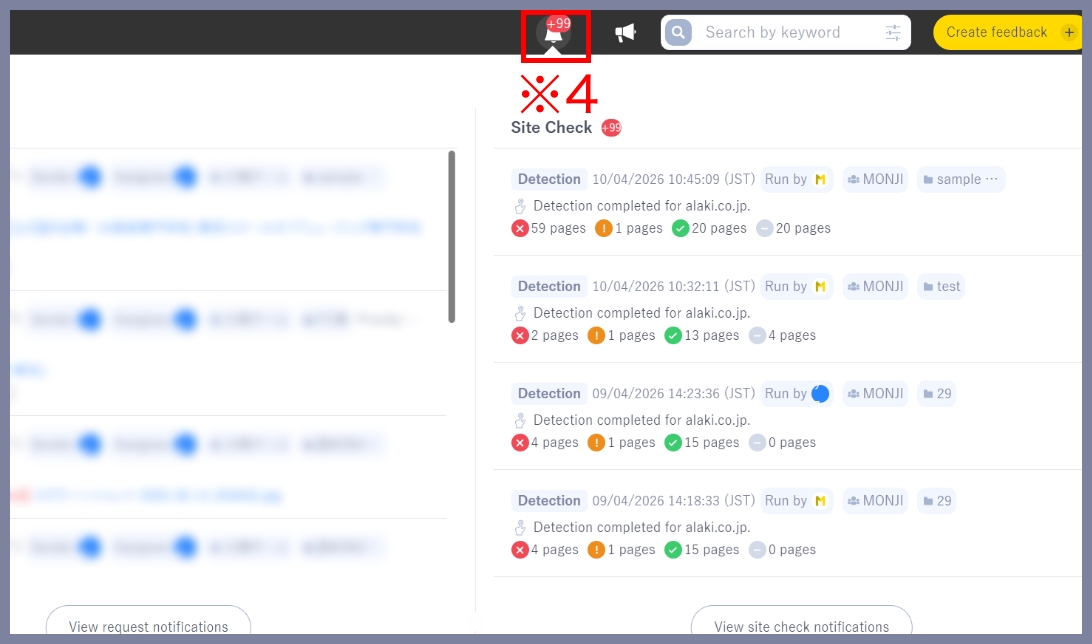
2.Header > Bell icon > Site check (※4)
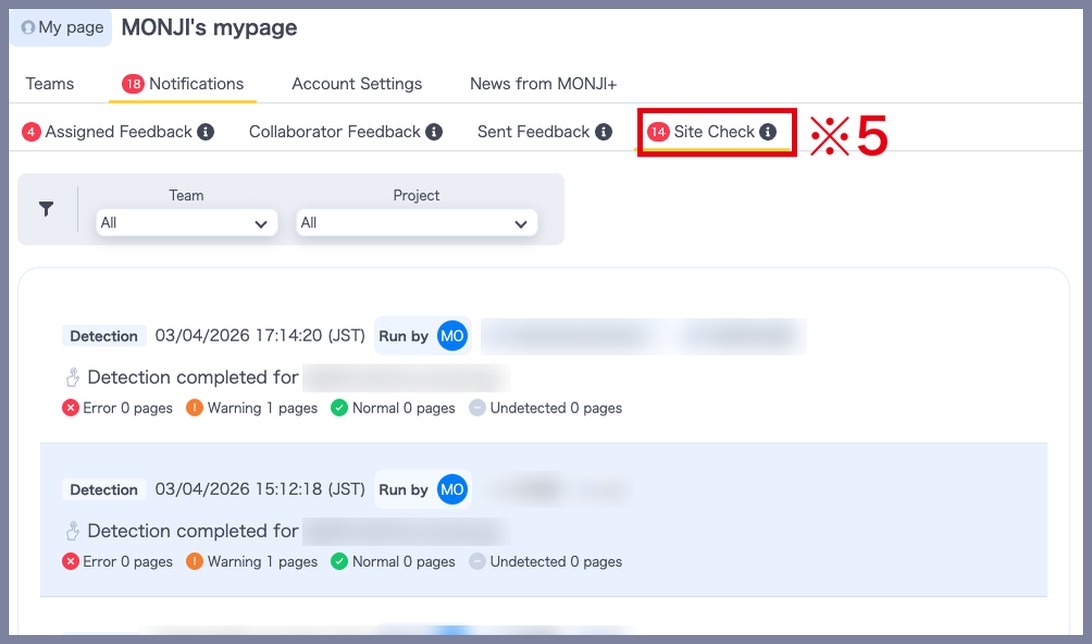
3.My page > Notifications > Site check (※5)
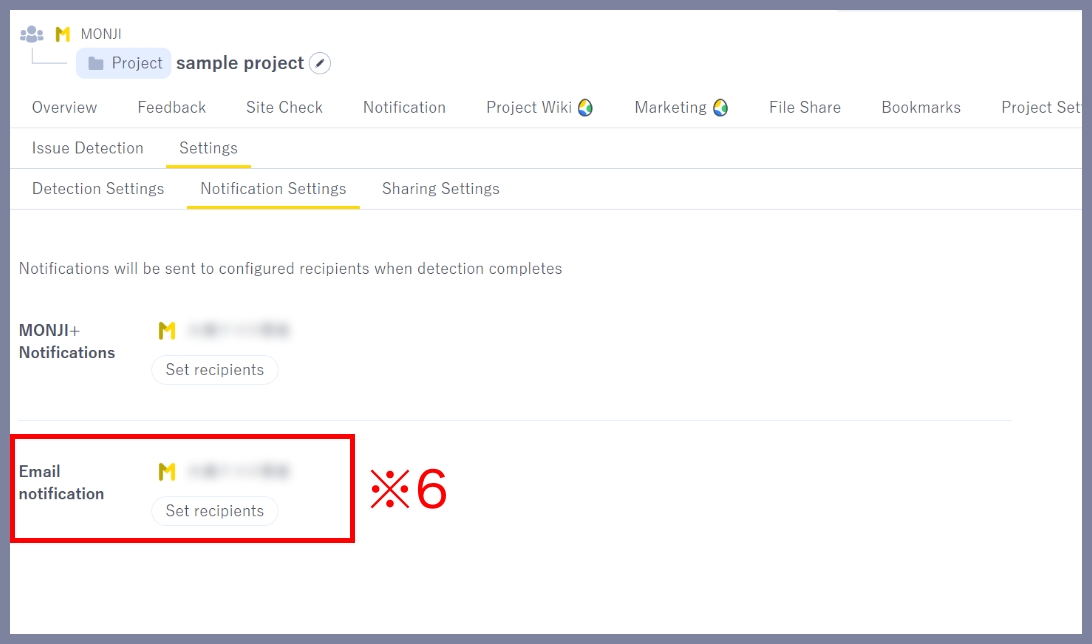
Email notifications (※6)
Choose which users receive email notifications when Issue Detection is complete.
※You can select from Project members and guests.
※Only users with view or edit access in Sharing settings are shown.
※If a user’s view or edit access is removed, they will also be automatically removed from notification settings.
★Related guides
● How to manually run Issue Detection (first run and subsequent runs)
● How to run Issue Detection with Scheduled Run
● How to create Feedback from detection results
● How to set detection conditions and items (Detection settings)
● How to set who can view/edit results and settings (Sharing settings)
● How to view detection results (History・details)