This page explains how to use one of the main features of MONJI+, the Feedback feature, in a clear step-by-step format.
For details on how to receive and handle Feedback, please see this page.
How to Create and Send Feedback
Step 1: Load the target page or file
1-1. Access your team home
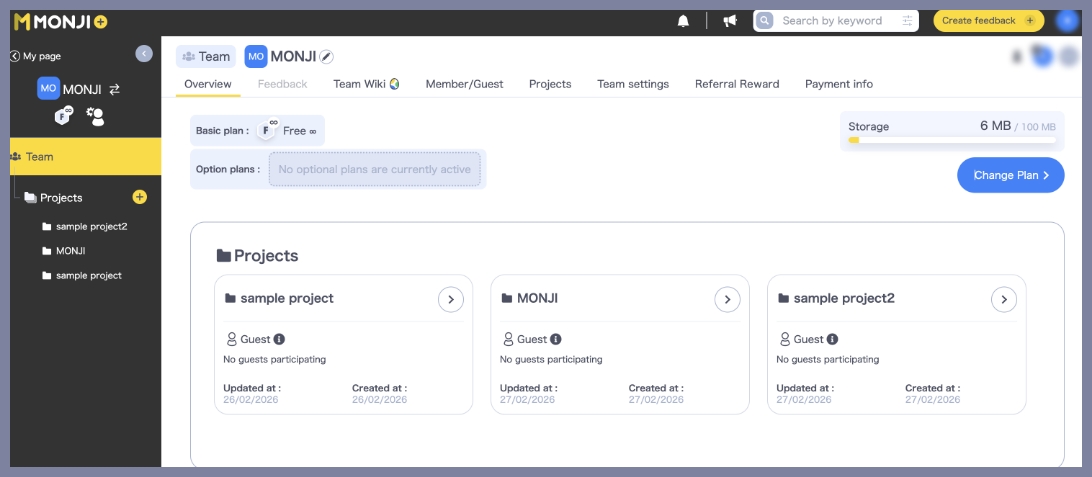
Go to the home screen of the team where you want to create the Feedback.
1-2. Open the Feedback creation screen
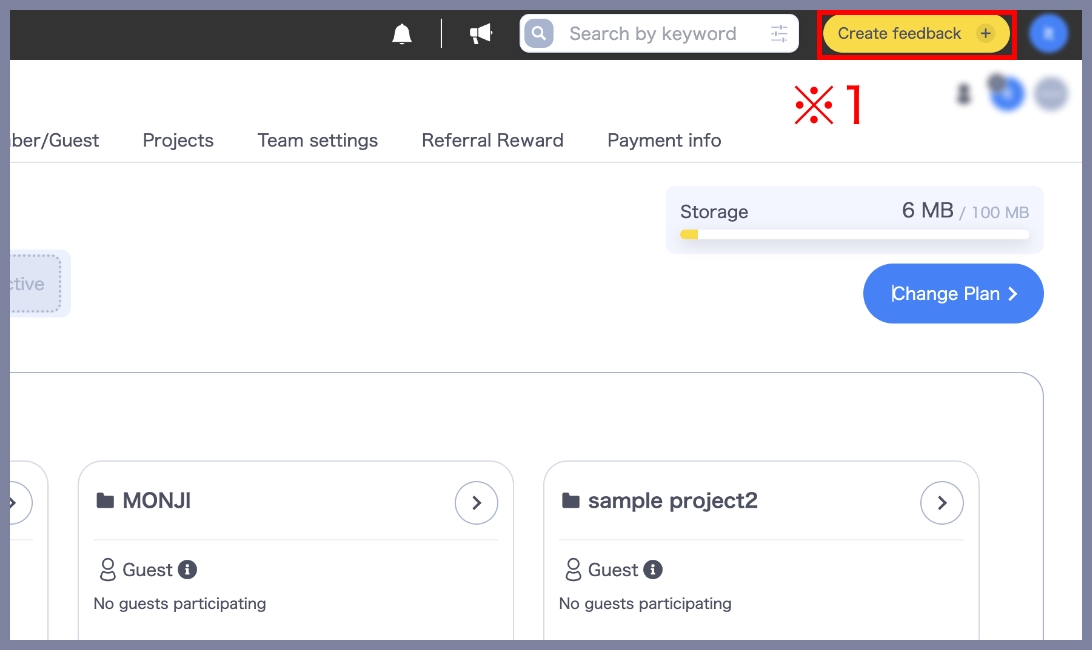
Click Create Feedback in the top-right corner of the screen to open the Feedback creation page. (※1)
1-3. Select a Project
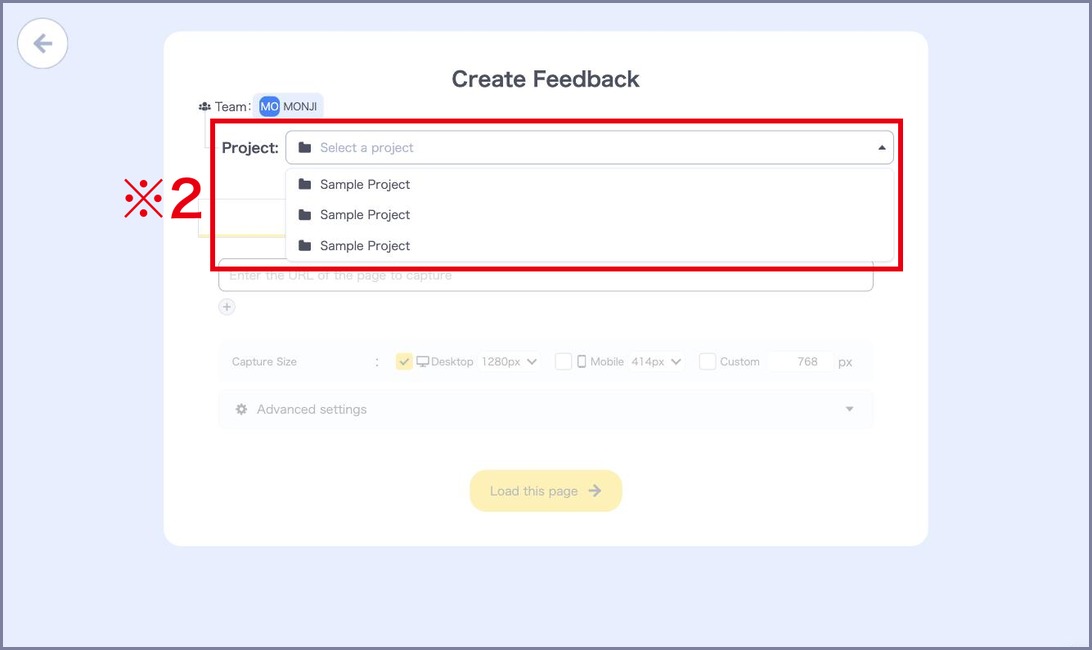
Open the Project dropdown and select the Project for which you want to create the Feedback. (※2)
The Team you are working in is shown above it.
1-4. Load the target website or file
Load the website or file that you want to review.
1-4-1. When loading a website
Open the Website capture tab (※3), enter the website URL (※4), and click Load this page (※5).
You can upload up to 5 Websites at once.
Simultaneous uploads are not available on the Free plan.
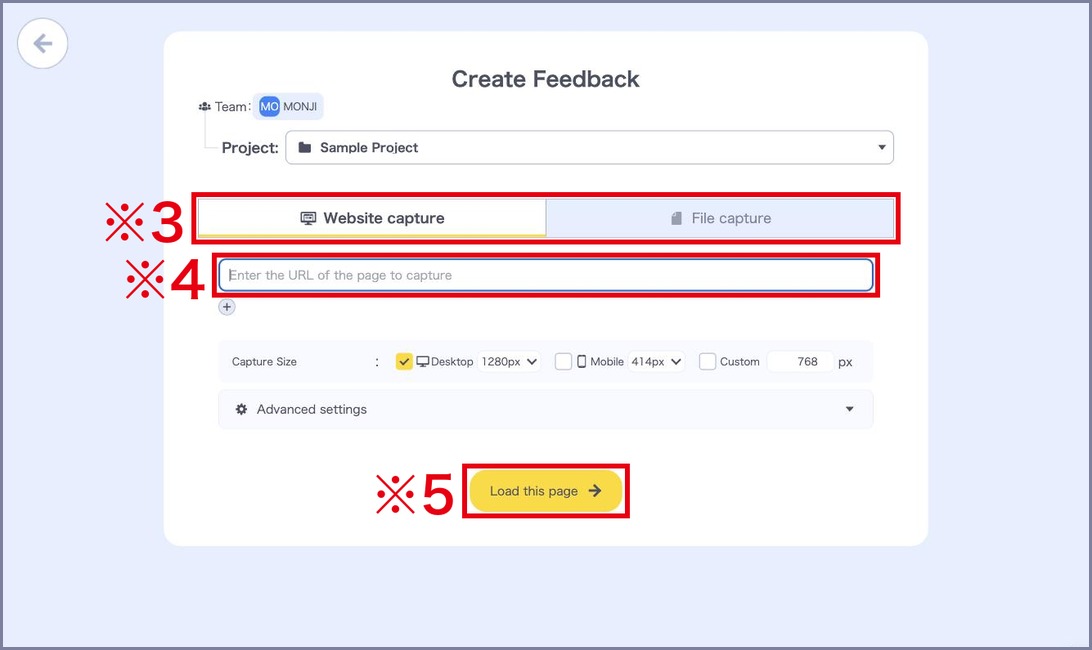
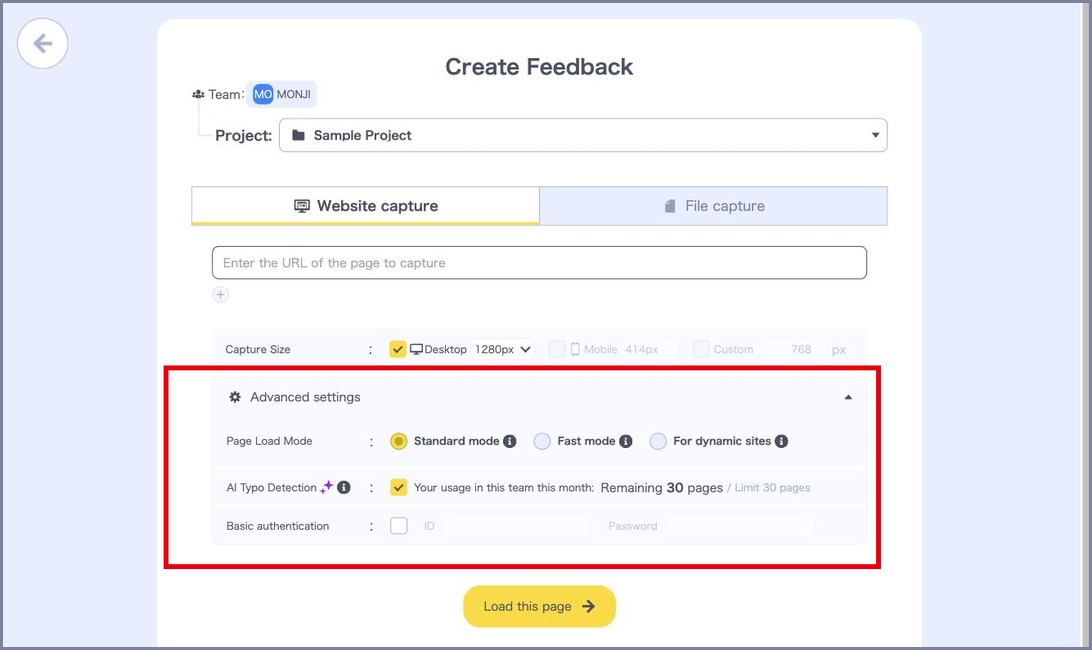
Open Advanced settings to configure the following three options.
● Page Load Mode
Choose how the website is loaded from the following three modes.
・Standard mode: A mode that balances screenshot accuracy and loading speed.
・Fast mode: Prioritizes loading speed, reducing average load time by 45% compared to standard mode.
・For dynamic sites: Enables high-accuracy loading even for sites with many animations.
※ Fast mode and For dynamic sites are not available on the Free plan.
● AI Typo Detection
When this is checked, MONJI AI automatically detects typos in the page you load. (Languages to detect: Japanese, English)
The number of pages you can use depends on your Basic Plan.
For more details, please see this page.
※ When using AI Typo Detection, multiple URLs and multiple viewport sizes cannot be loaded at the same time.
● Basic authentication
To load a website protected by Basic Authentication, check this option and enter the ID and password.
※ When loading multiple URLs at once, you cannot enable loading for sites with Basic Authentication.
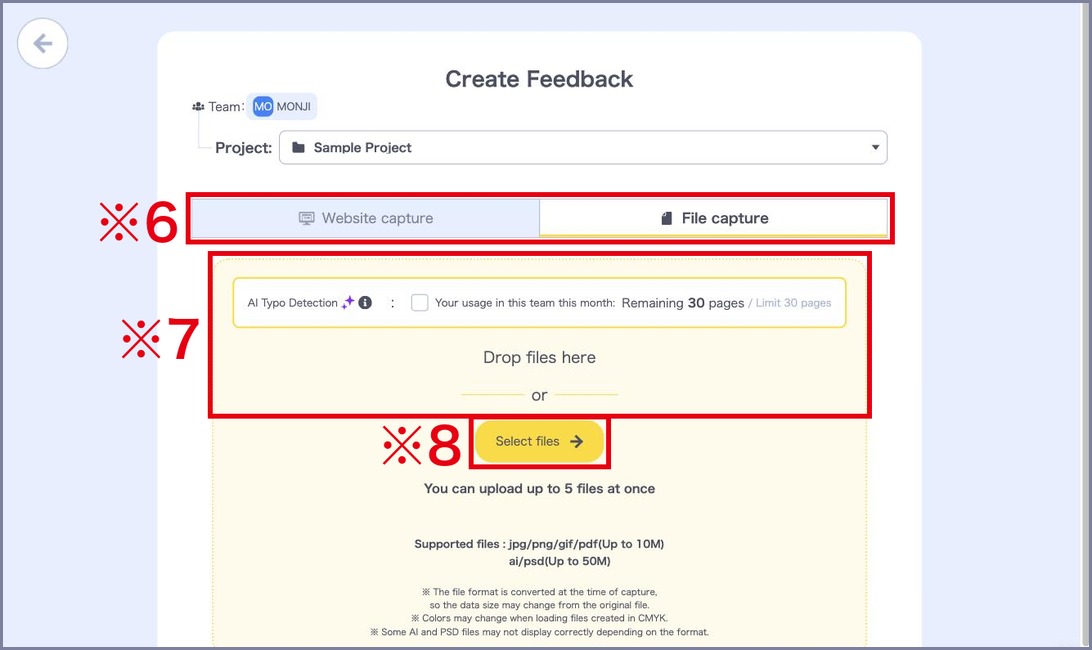
Open the File capture tab (※6), then drag and drop your file (※7) or click Select files (※8) to choose a file to upload.
You can upload up to 5 files at once.
Simultaneous uploads are not available on the Free plan.
Step 2: Select areas to fix and add comments
The loaded website or PDF/image file will be displayed.
Select the area you want to fix on the screen and enter a comment. (※9)

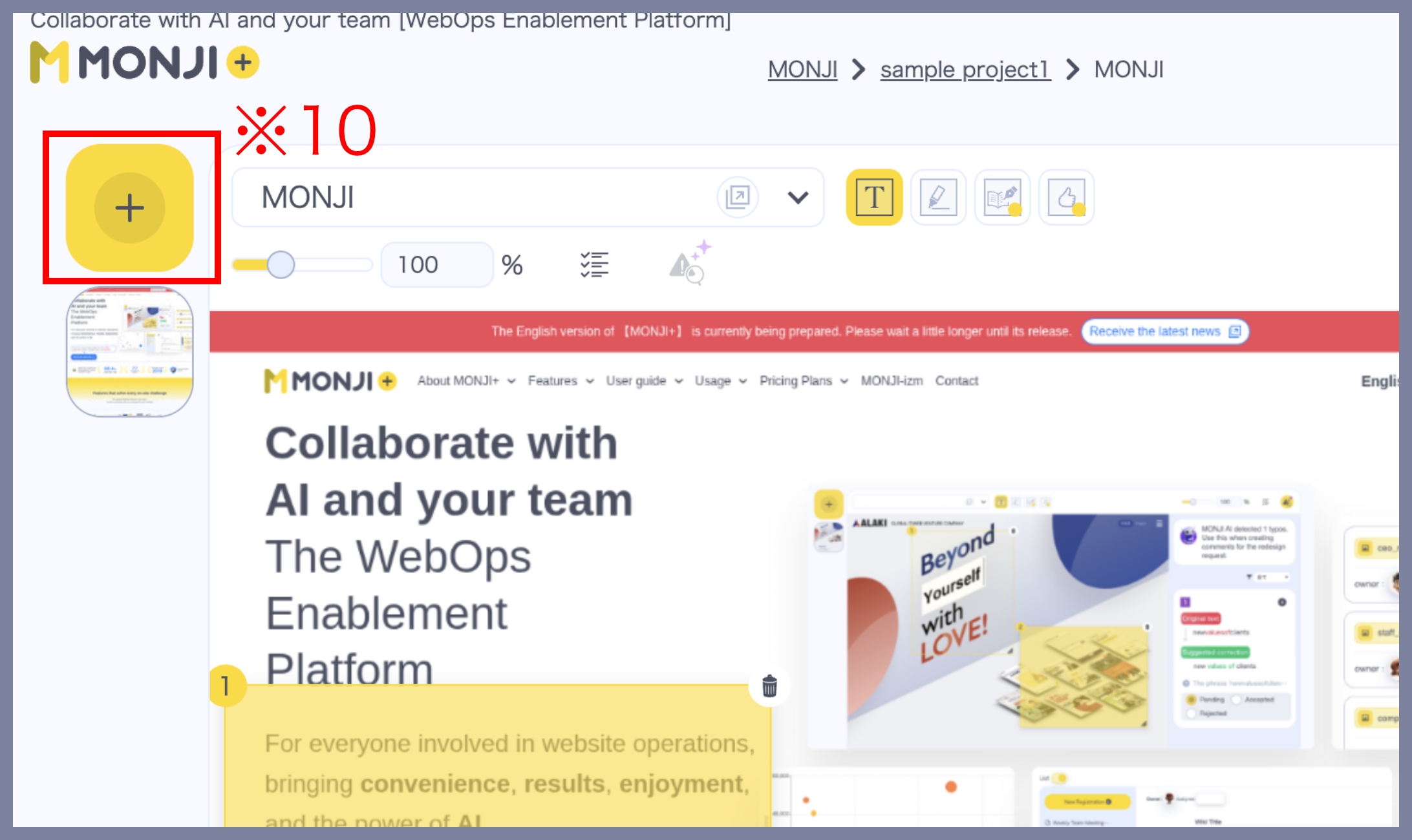
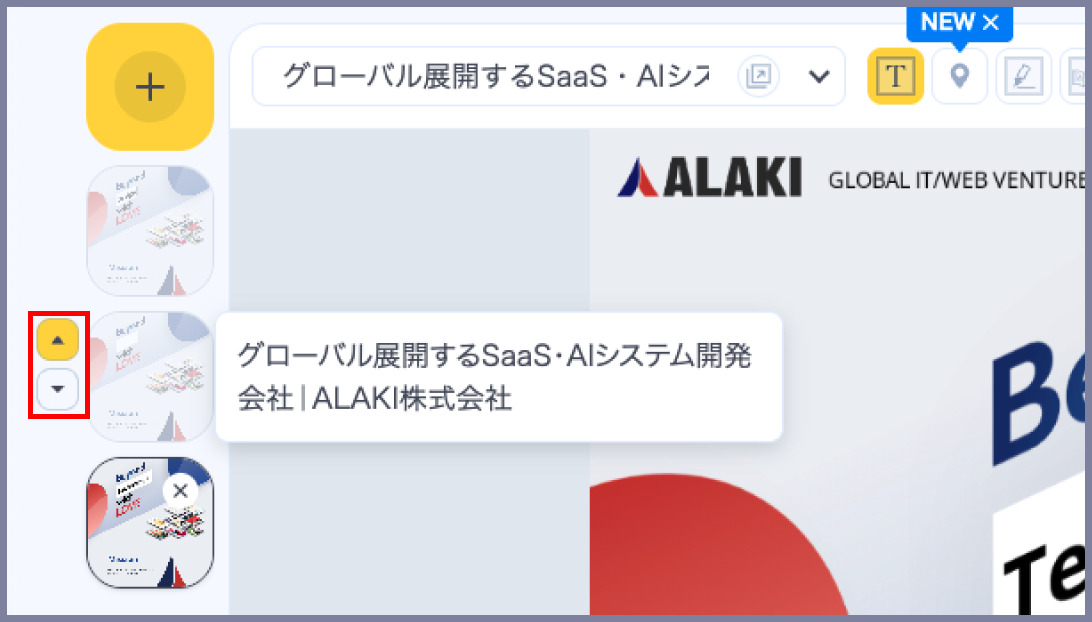
Click the “+” icon in the top-left corner to open the Add Page screen. You can then load additional websites or files. (※10)
※ Page reordering is not available on the Free plan.
Step 3: Send the request to the assignee
3-1. Select the visibility range
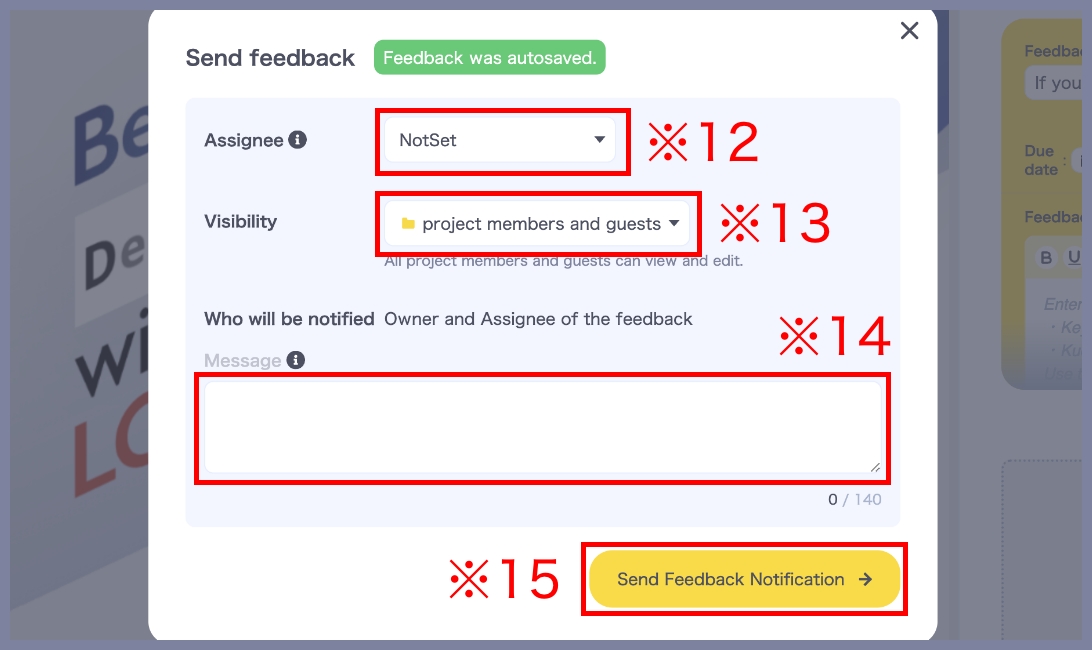
Finally, select the Assignee (※12), add a message if needed (※13), and send the Feedback.
In Visibility (※14), you can specify who can view this Feedback.
After completing the selection and input, click Next. (※15)
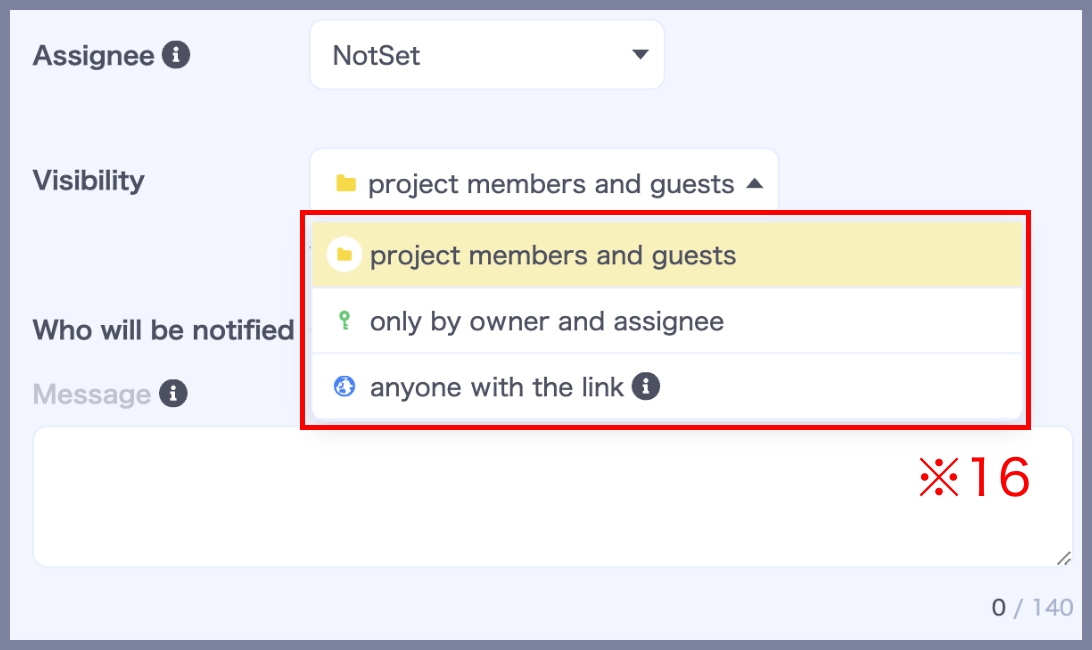
You can choose from the following three options. (※16)
① Visible to all project Members/Guests
Shared with all Members and Guests in the project.
② Visible only to Owner, Assignee, and Parties involved
Shared only with the Owner (creator of the Feedback), the Assignee, and specified Parties involved.
※ This feature is available for Free Trial (30 days) and Standard Plan users only.
③ Visible to anyone with the link
Anyone who knows the viewing password can access the Feedback.
※ You can choose whether or not to require a password.
For more details on “Visible to anyone with the link,” please see this page.
3-2. Completion
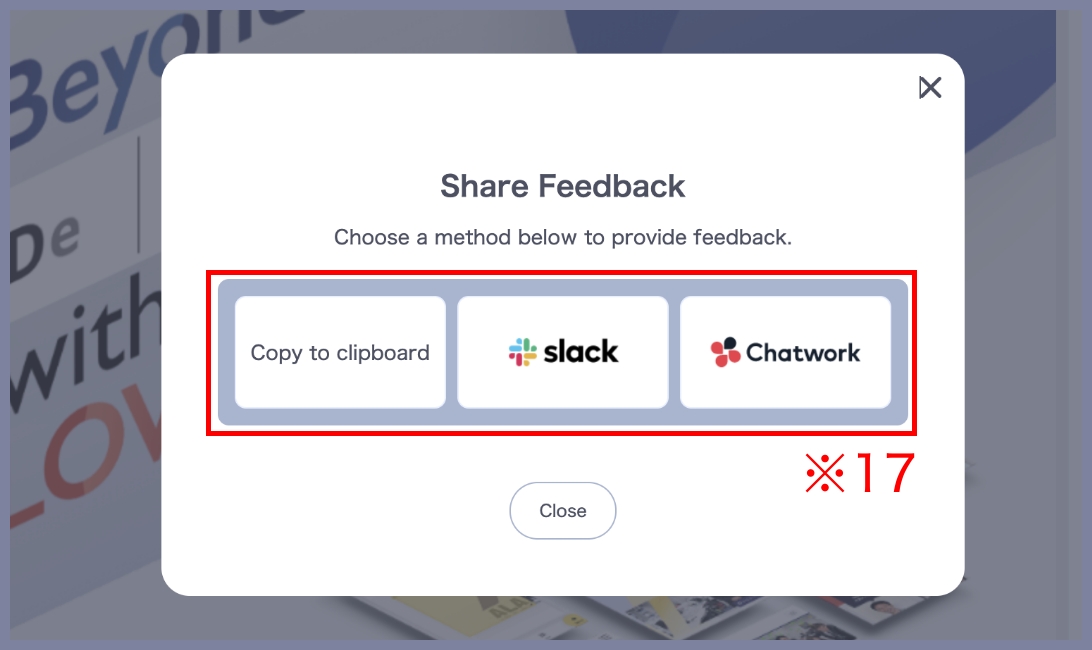
You can also copy the Feedback title and viewing URL, or share them via Slack or Chatwork. (※17)