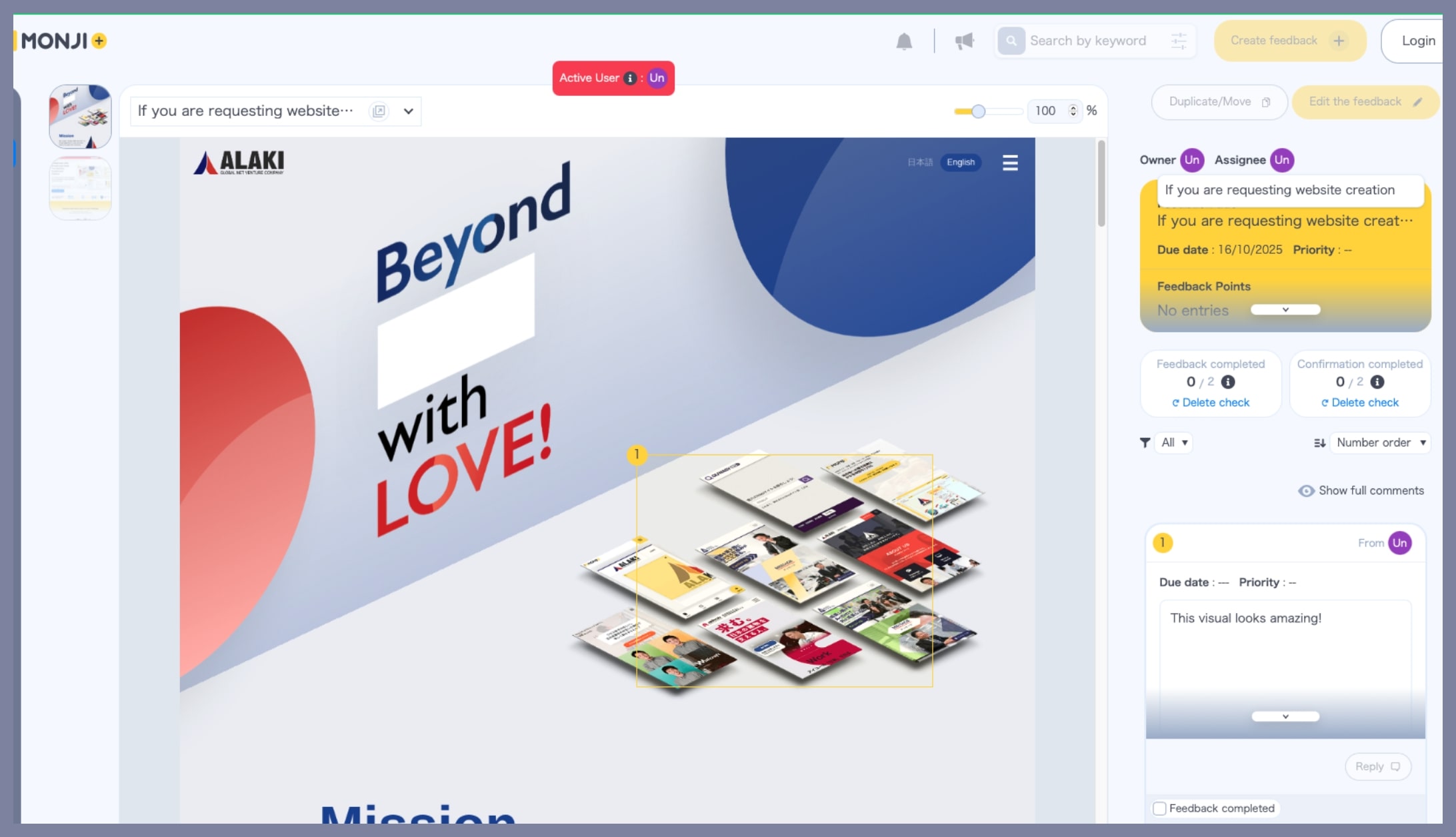
About the “Public Link (password protected)” feature
Even users without a MONJI+ account or not belonging to a Team/Project can view feedback as a Visitor.
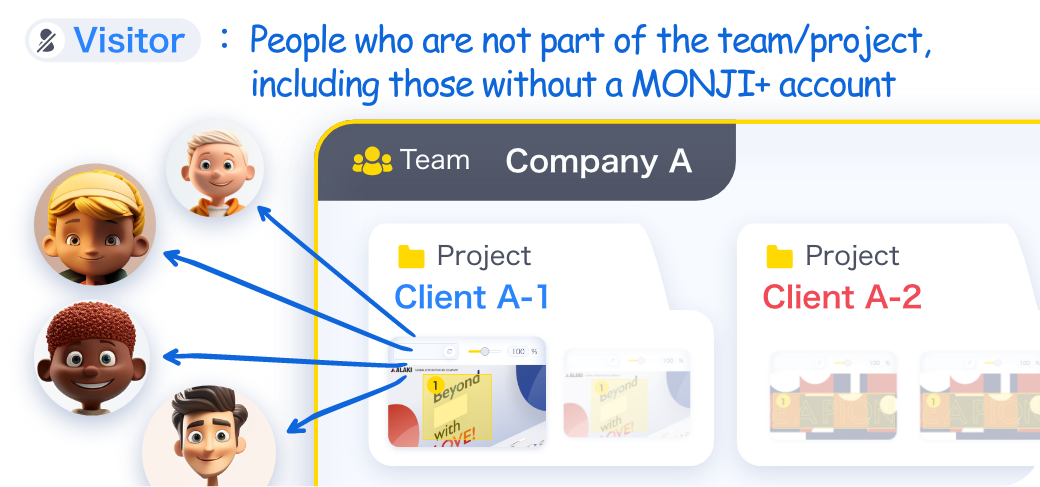
What Visitors can do
・View feedback
・Filter and sort comments on feedback
・Manage comment progress on feedback
※Visitors never see Team/Project names, or any Member/Guest info such as usernames, icons, or email addresses.
How to send feedback via “Public Link (password protected)”
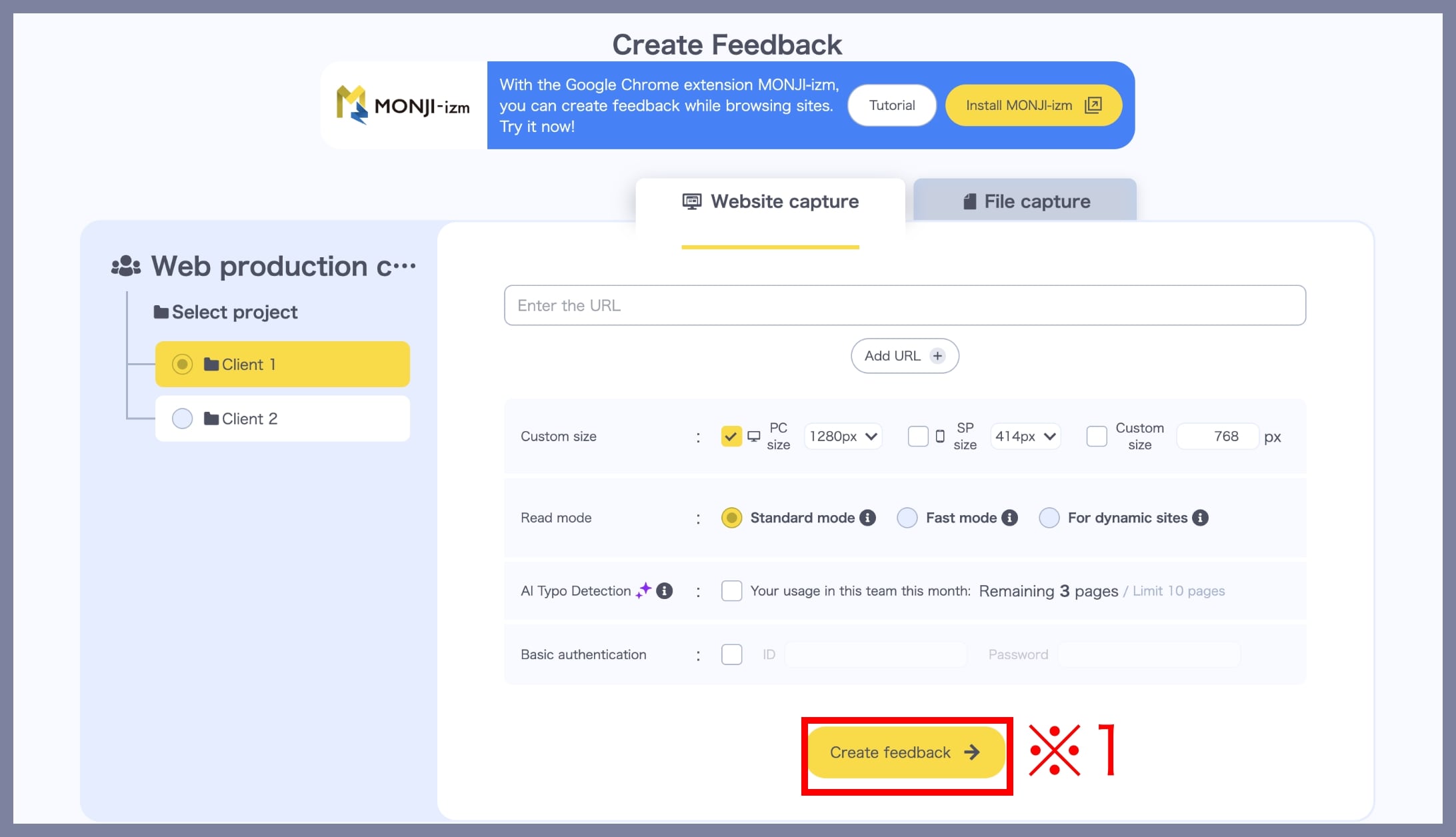
1. Create new feedback from the Feedback creation screen
Go to the Feedback creation screen and click the Create Feedback button (※1).
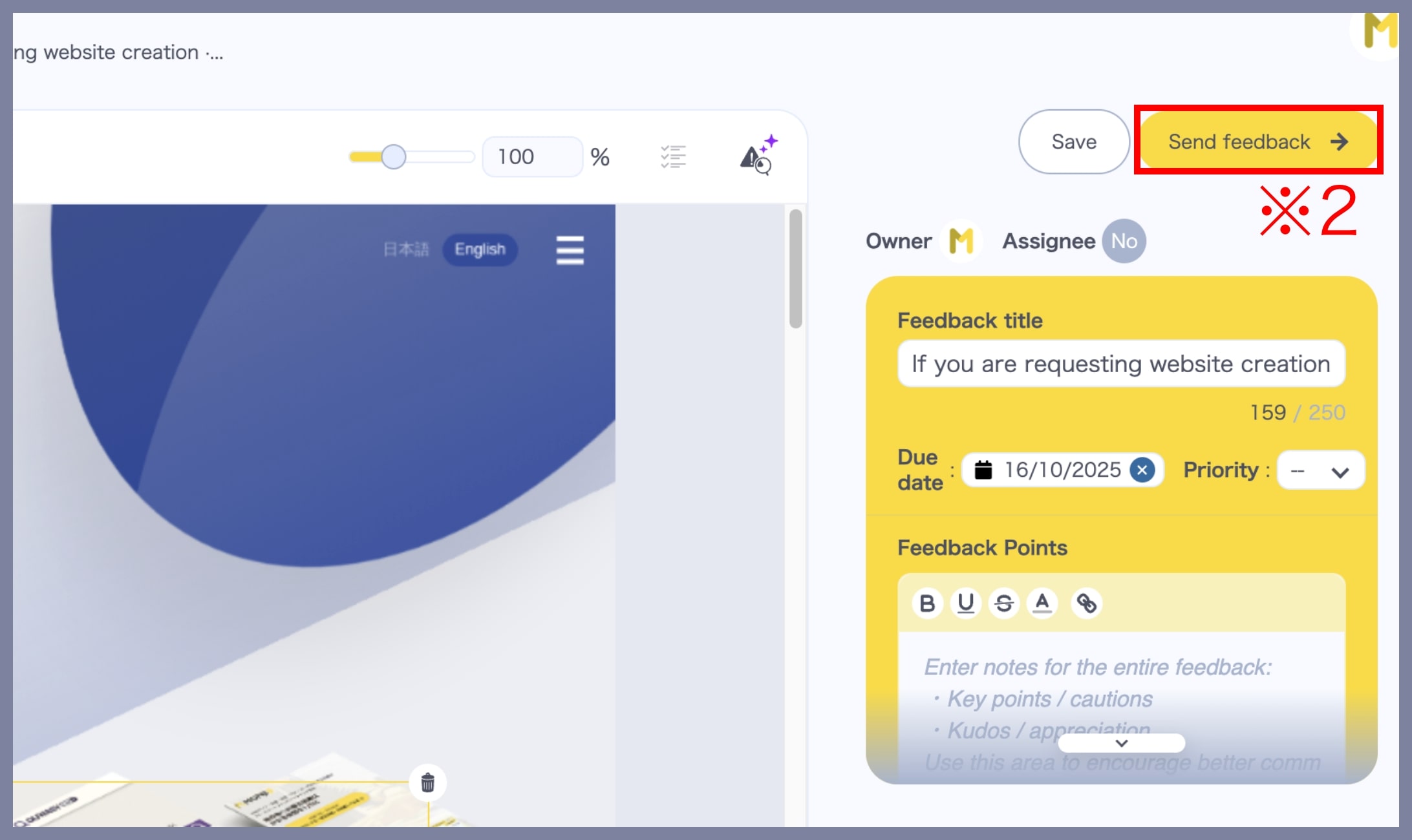
2. Send the feedback
After creating the feedback, click Send Feedback (※2).
3. Set the Visibility
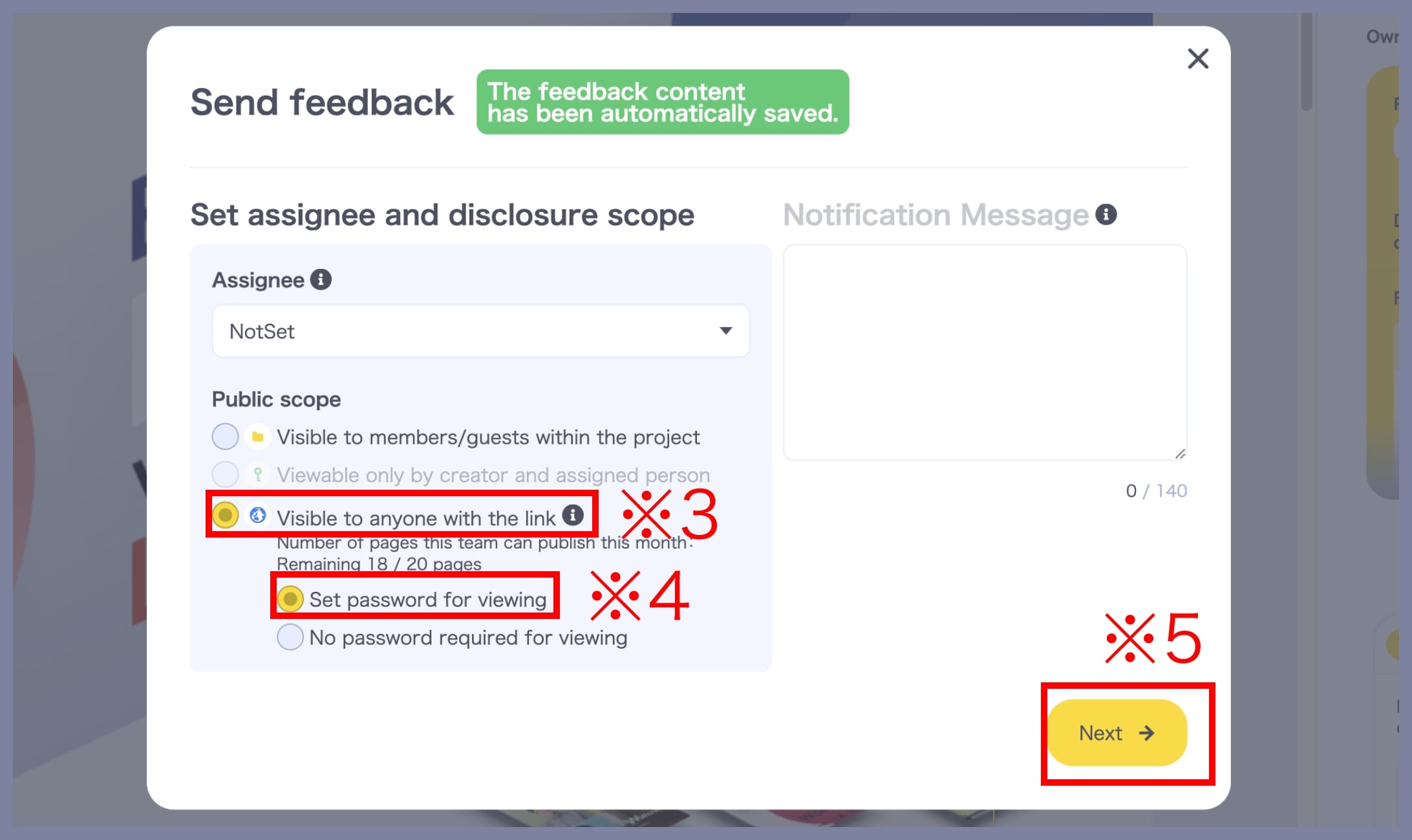
In the Send Feedback screen, set Visibility to Public to anyone with the link (※3), choose whether to require a Viewing password (※4), then click Next (※5).
*You can toggle the Viewing password on or off at any time.
*If you set the Viewing password to Off, anyone with the link can view the feedback. Handle the link with care.
About reissuing the Viewing password
If you change the Viewing password setting after sending, the password will be reissued as follows:
1. Send with Viewing password: On
2. Change the same feedback to Viewing password: Off and send again
3. Change it back to Viewing password: On and send again
→ The password issued in step 1 becomes invalid, and a new password is issued at step 3.
About the number of pages you can make public
The monthly number of pages you can make public varies by Basic Plan.
For details, see the Pricing Plans page.
Definition of “number of pages”
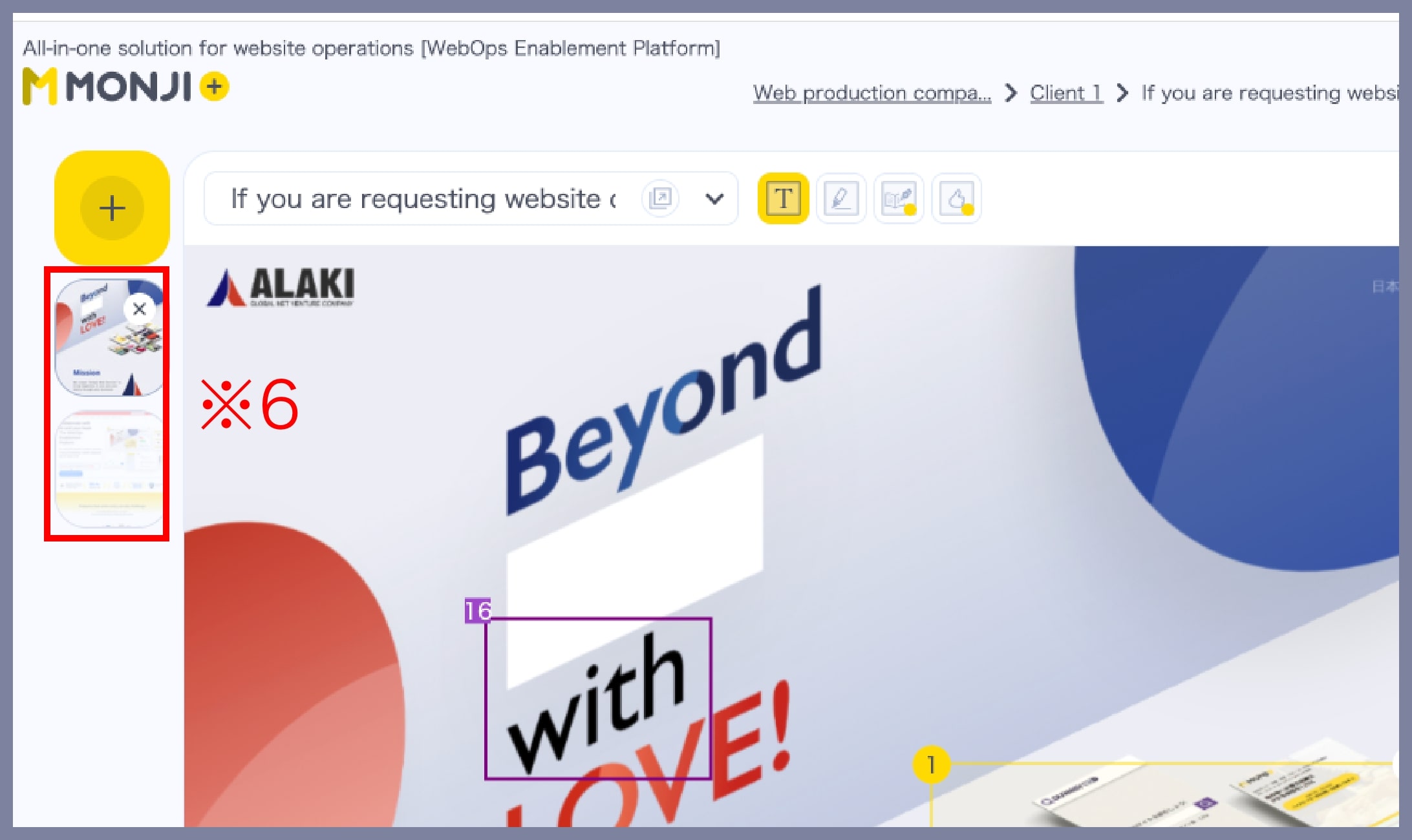
“Number of pages” refers to each website or file (※6) loaded into that feedback.
If you send the feedback below via a public link, the number of pages counts as 2.
How page count is calculated
The count applies to pages that become newly targeted by public links within that month.
Counting rules
Rule ① When you add pages to feedback that is already set to Public link
・The number of pages added is counted in that month.
・Counting occurs when the pages are added, regardless of whether you send again.
Rule ② When you send a draft feedback via Public link
・The total number of pages at the time of sending is counted.
・Counting occurs when you send the feedback.
Rule ③ When you change a sent feedback’s Visibility to “Public to anyone with the link”
・Switching from another visibility to Public link counts the total number of pages at that moment.
・If you repeat this change within the same month, each change is counted.
*Once feedback has been sent with Public link, its page count remains counted even if you switch to another visibility later.
Example:
1) Send 5 pages with Public link
2) Change Visibility to something other than Public link
3) Switch back to Public link in the same month (still 5 pages)
→ Counted as a total of 10 pages.
Rule ④ Toggling the Viewing password On/Off for a sent feedback
・This does not affect the monthly page count.
Counting example
①
August 10, 2025
Send feedback (1 page) with Public link
→ Count for August = 1 page
↓
②
September 1, 2025
Add 1 page to the feedback from ① and send with Public link unchanged
→ Count for September = 1 page (the page sent on August 10 is not counted again)
↓
③
September 5, 2025
1) Change the 2-page feedback from ② to a visibility other than Public link
2) Switch it back to Public link within September
→ Count for September = 3 pages
Restrictions when the monthly page limit is reached
If you reach the monthly limit, the following actions are not available:
・Add pages to feedback that is set to Public link
・Send a draft feedback with Visibility set to Public link
・Change a sent feedback’s Visibility to Public link
4. Send externally
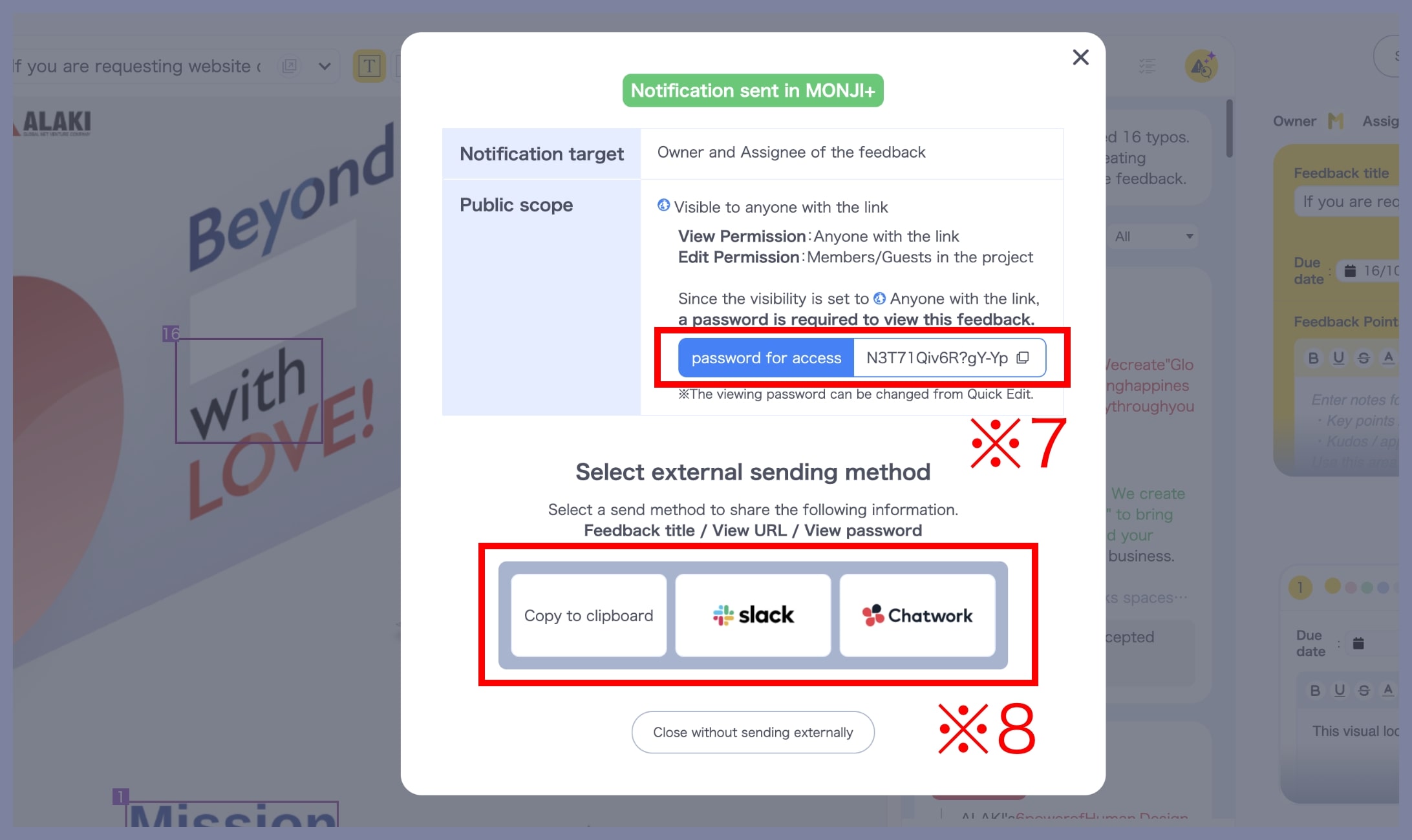
If you select Require a viewing password, a Viewing password (※7) will be issued.
Choose a method under Select how to send externally (※8) to share the feedback title / viewing URL / viewing password.
*The issued viewing password has no expiration.
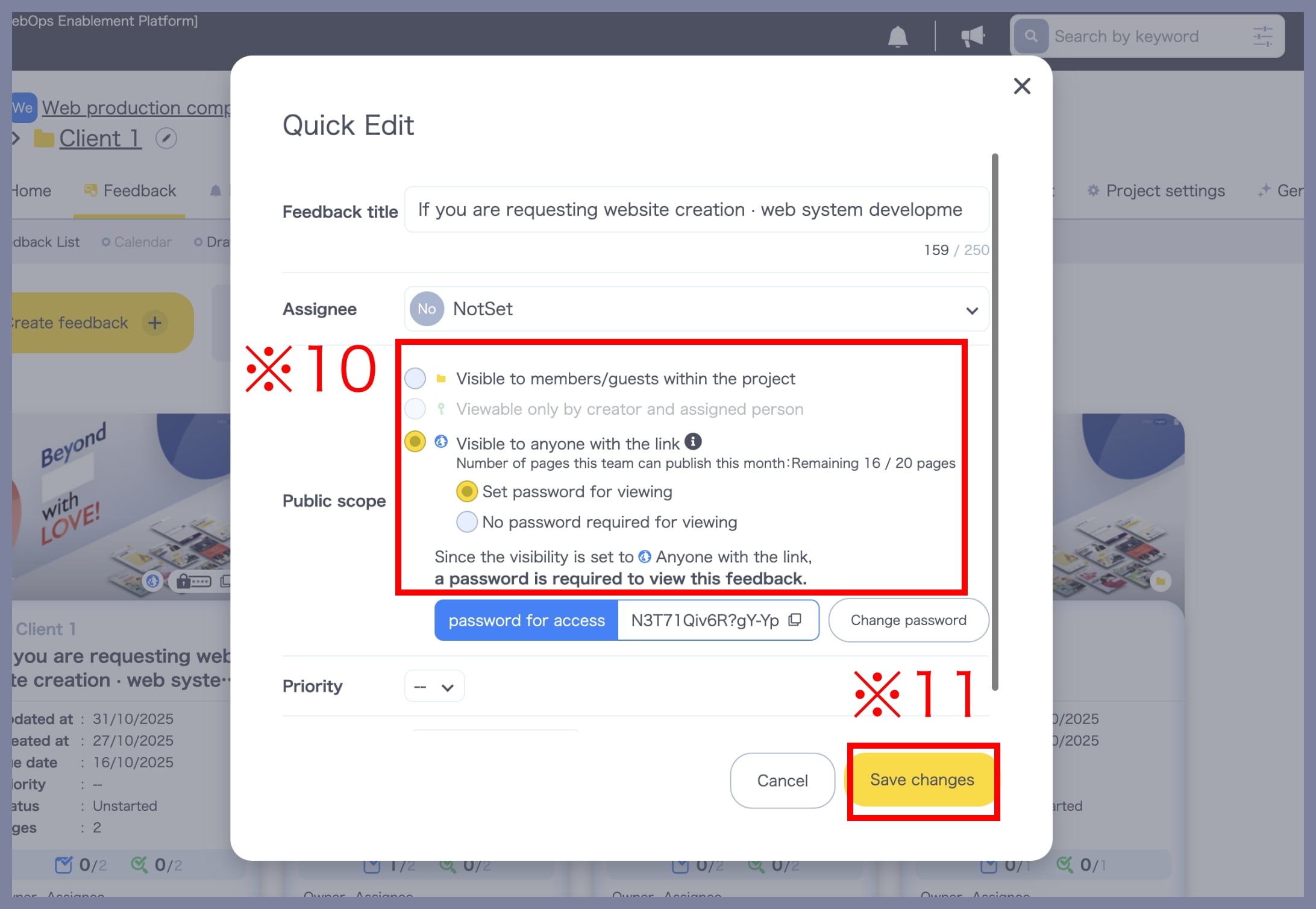
About changing the Viewing password
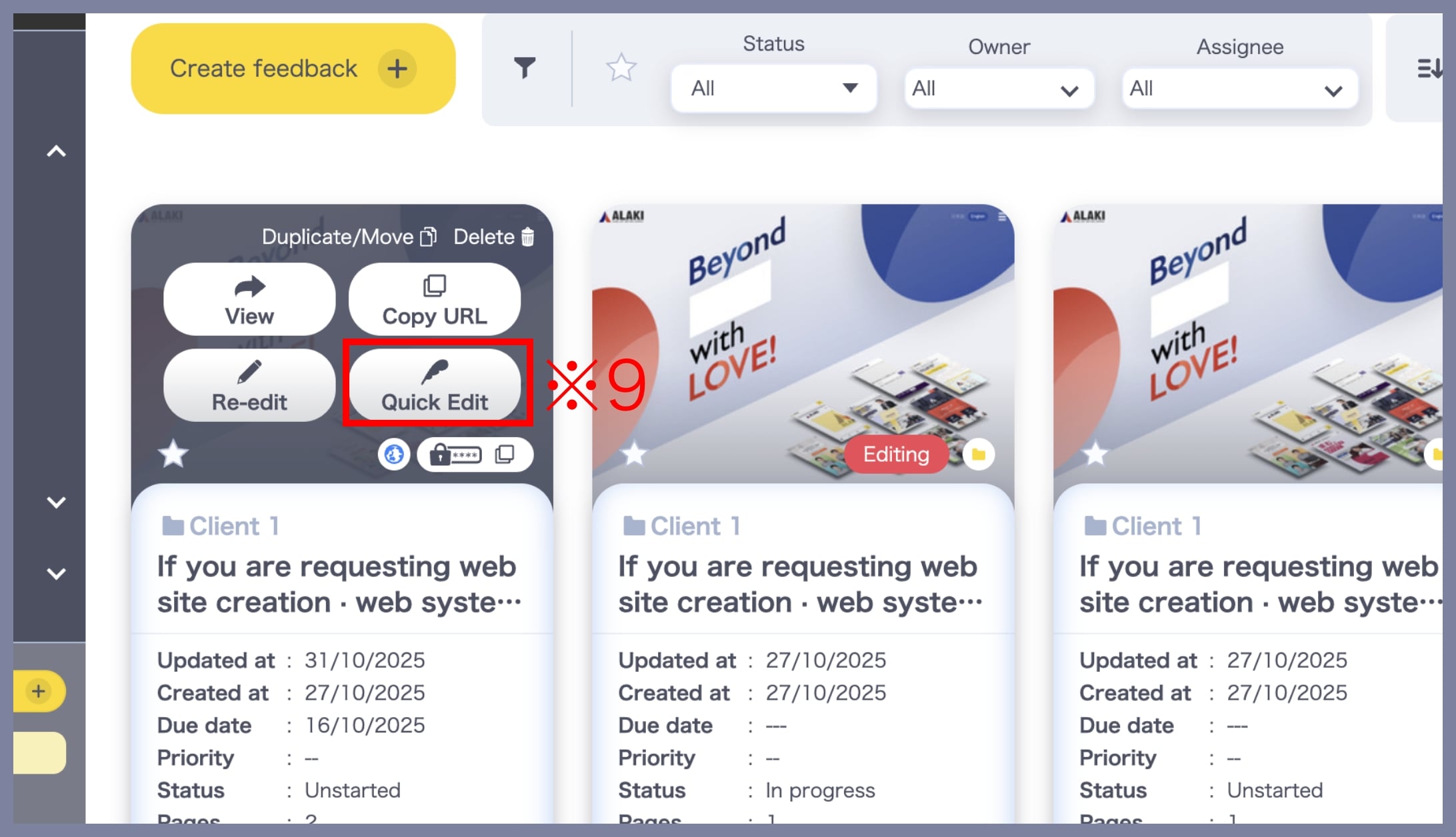
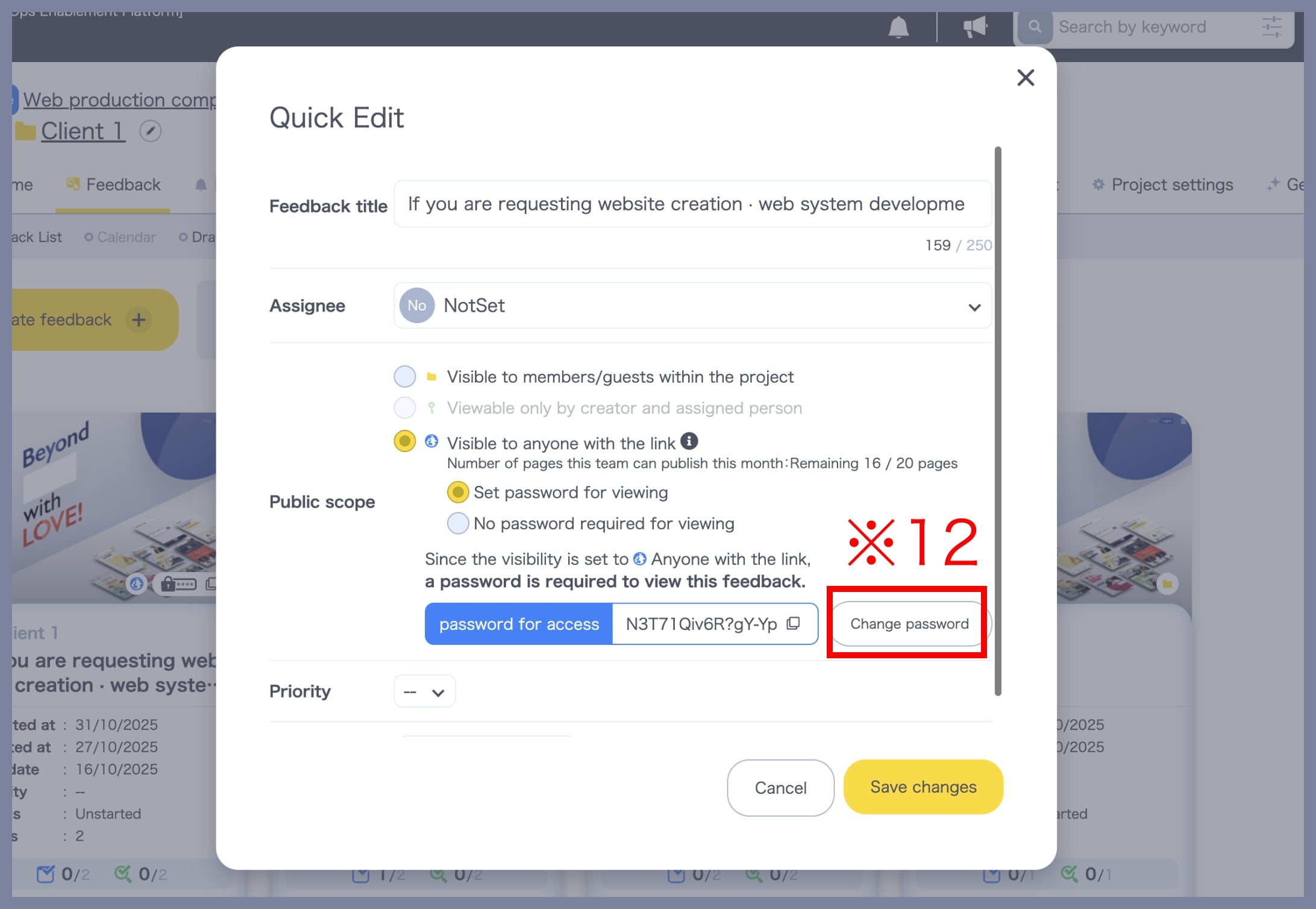
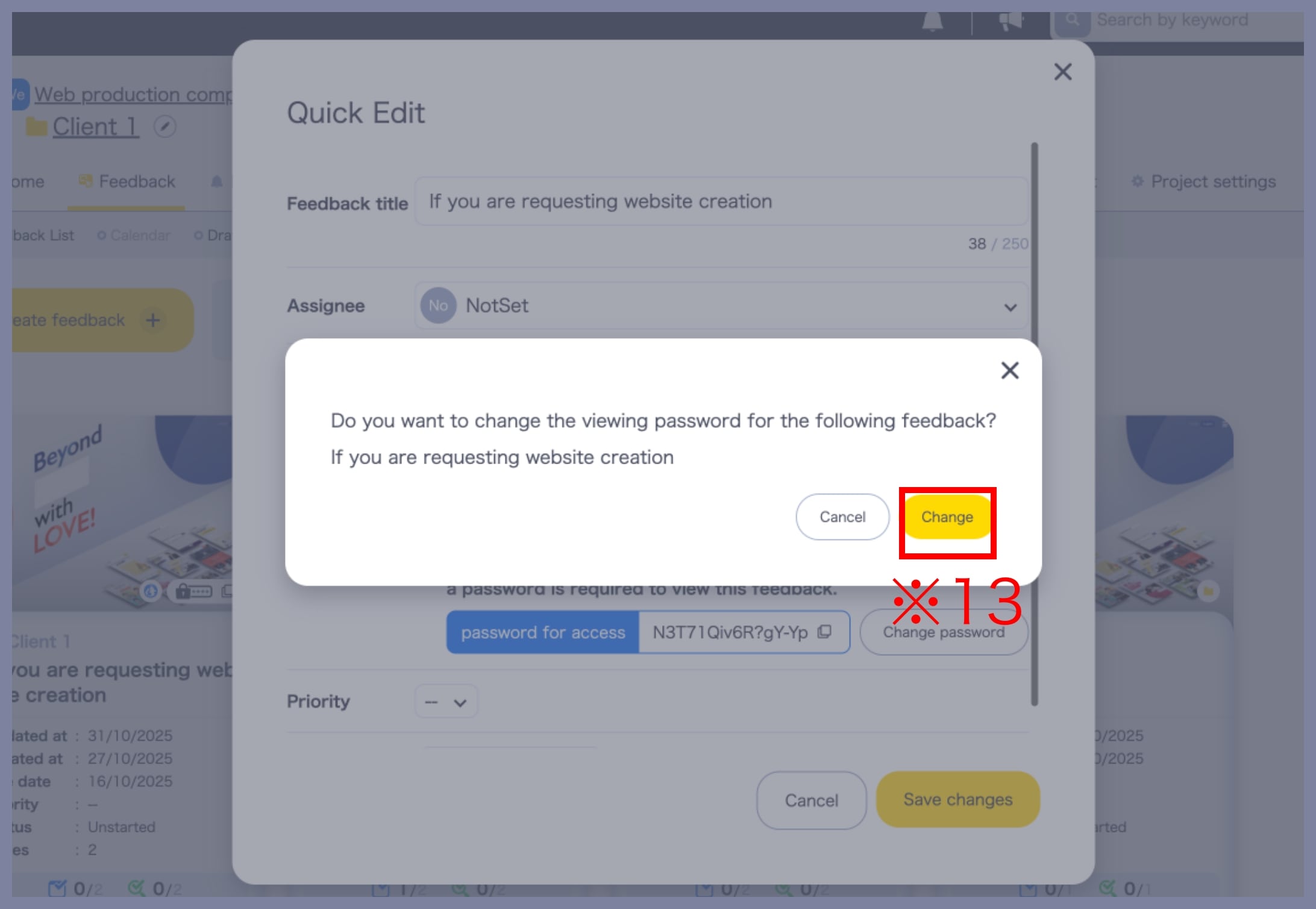
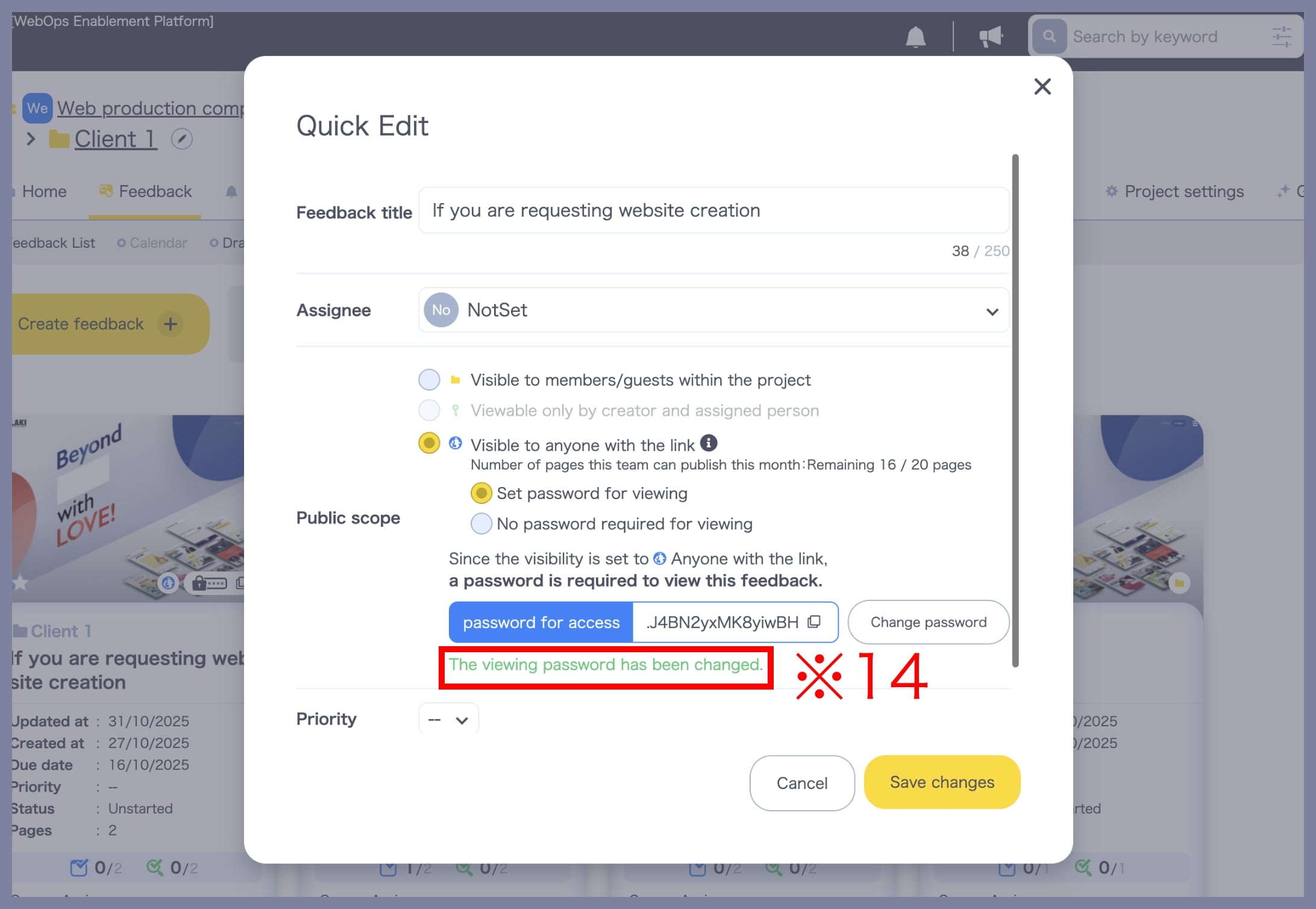
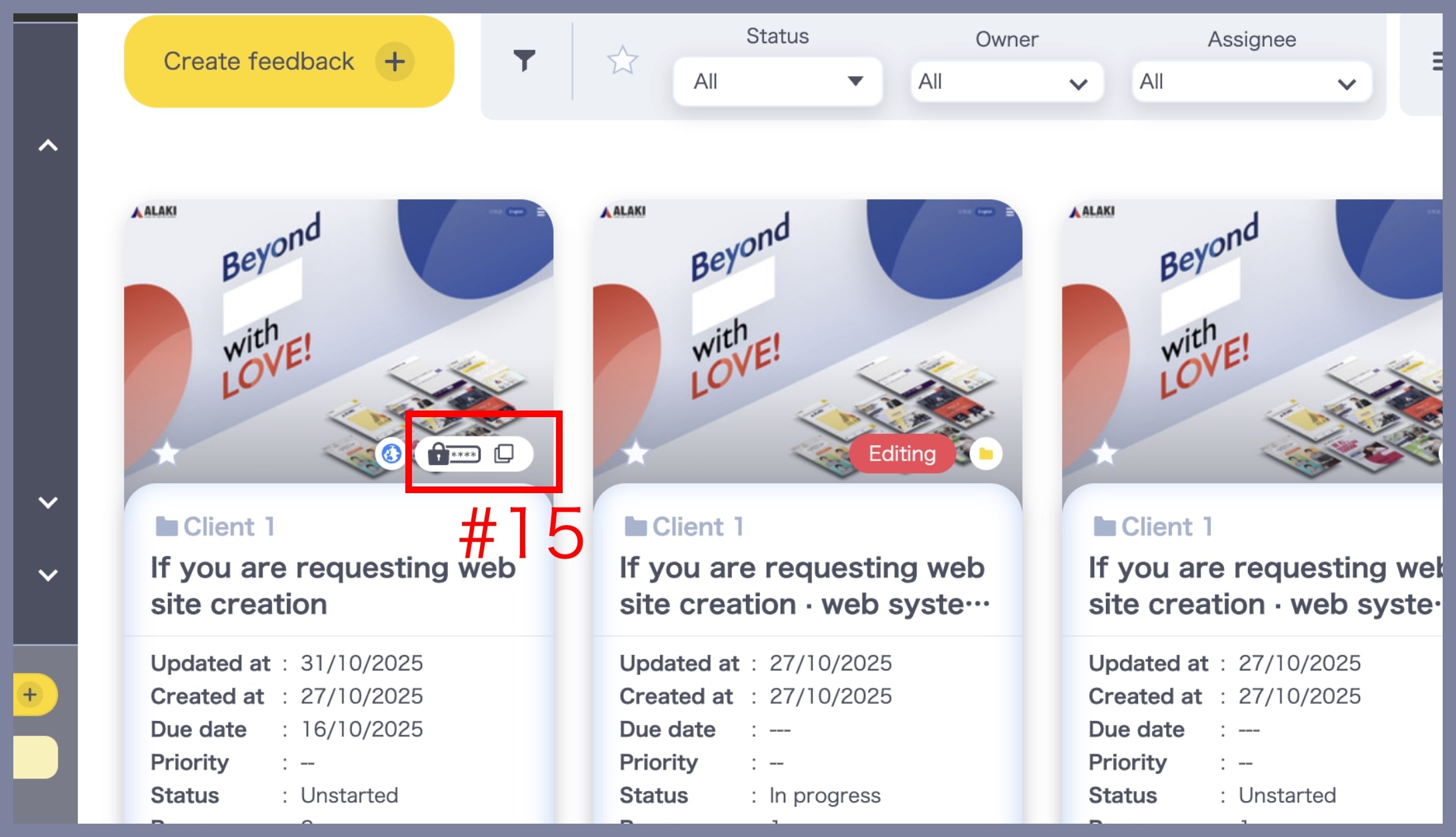
You can change the viewing password from the Quick Edit screen.
Click Change password (※12).
How recipients view feedback via the Public Link
1. Open the viewing URL
The steps differ depending on whether a Viewing password is set.
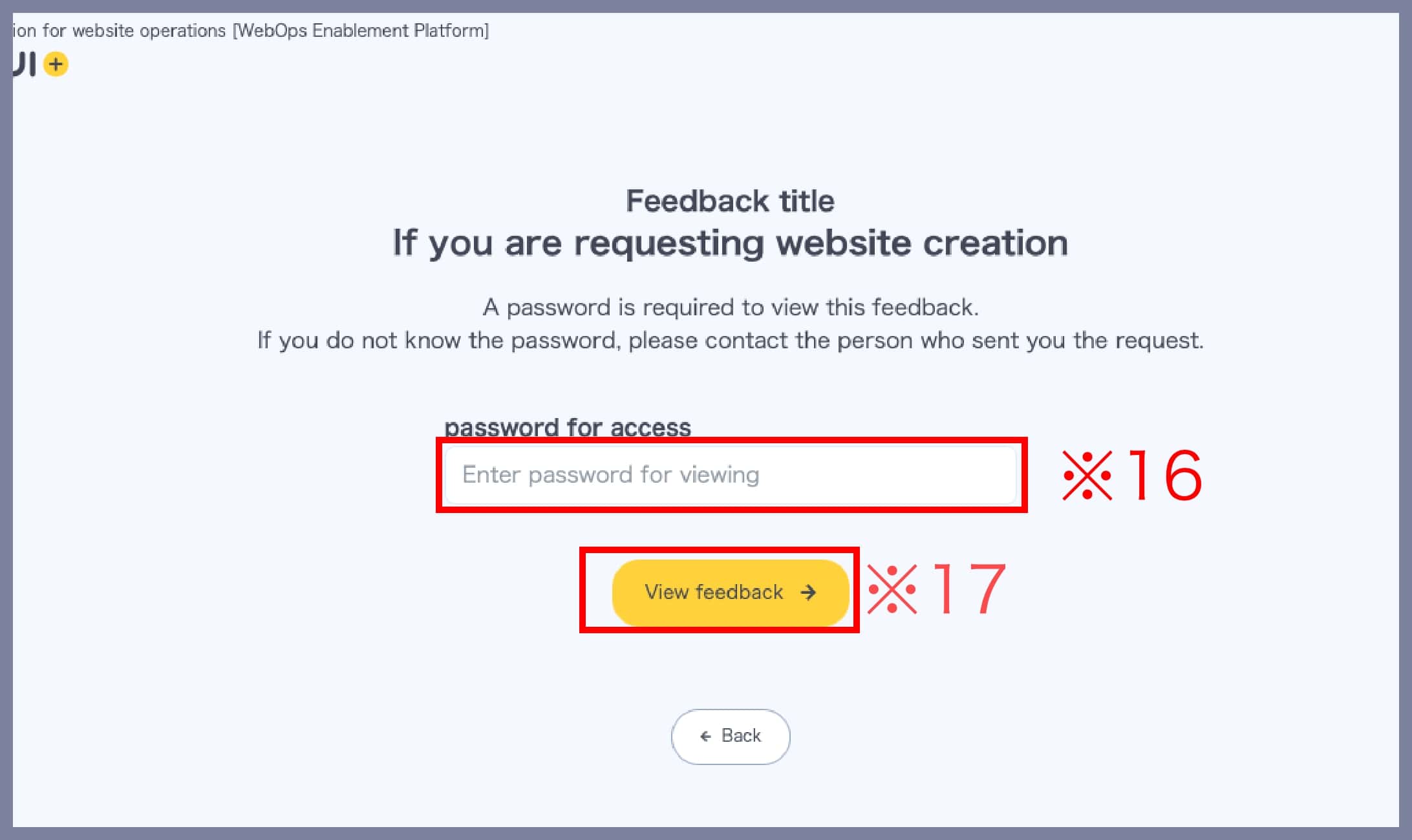
1-1. When a Viewing password is set
When you access the viewing URL, a password input screen appears. Enter the Viewing password that was shared with the URL (※16) and click View feedback (※17).
1-2. When a Viewing password is not set
When you access the viewing URL, the Viewing the feedback screen opens. Continue to “2. Check the feedback.”
2. Check the feedback
The Viewing the feedback screen appears. If you are a Project member and guest, you can operate it as a normal feedback.
・View feedback
・Filter and sort comments
・Manage comment progress
Visitors never see Team/Project names, or any Member/Guest info such as usernames, icons, or email addresses. Member/Guest icons are shown as “Unknown.”