









This page introduces the benefits of the Feedback feature and explains how to receive and handle Feedback.
For details on how to create and send Feedback, please see this page.
Benefits of the Feedback Feature
Since feedback details are written directly on the screenshots, you can instantly understand what needs to be fixed.
No more confusing Excel files or handwritten notes—this reduces work time to about one-fifth of what it used to be.
- ⚫︎ View correction points directly in the browser to easily and accurately understand the instructions.
- ⚫︎ Simply check off completed items to share progress across the team.
- ⚫︎ Manage multiple Feedback requests efficiently from a single list view.
How to Receive and Handle Feedback
Step 1. Open the Feedback viewing screen
Click the Feedback URL to open the viewing screen where you can review the content.

Step 2. Review the Feedback
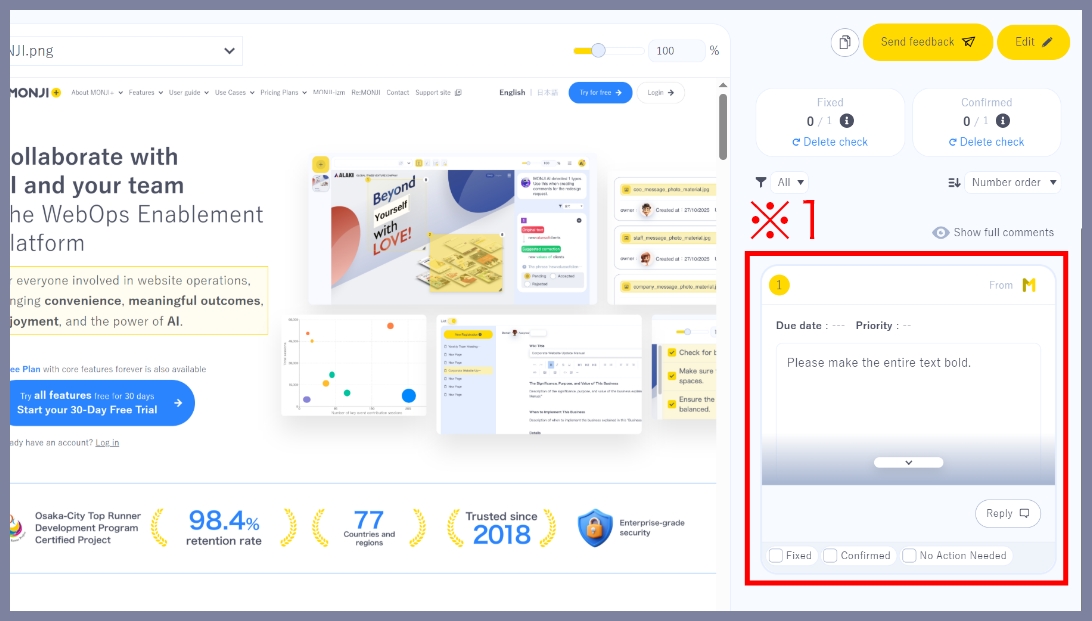
The comment section on the right side of the screen displays all Feedback details. Please check them carefully. (※1)
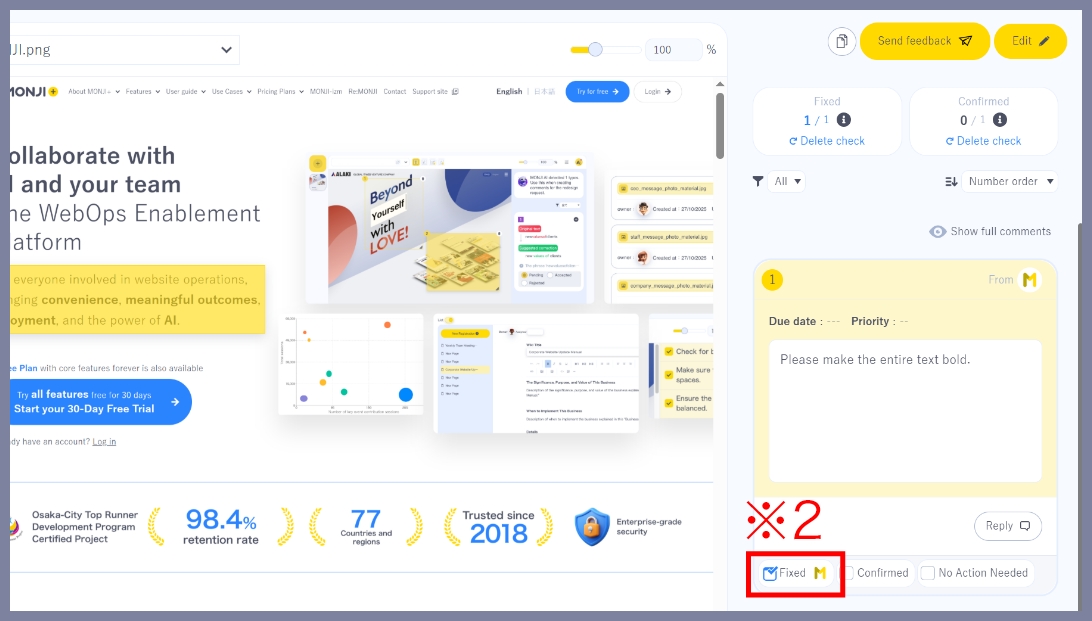
Once the correction is complete, check the box labeled “Fixed.”
You can track the progress in the list view to avoid missing any tasks. (※2)
You can track the progress in the list view to avoid missing any tasks. (※2)
Step 3. Report completion
Once the work is complete, click “Send feedback” in the top-right corner to open the “Send feedback” screen. (※3)

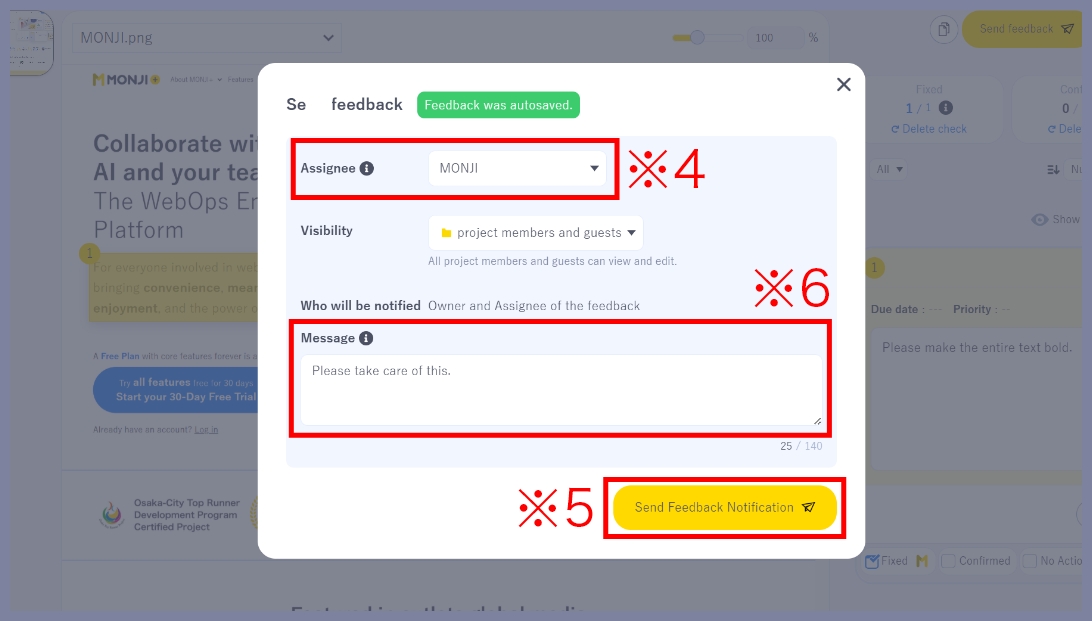
Set the assignee to notify (※4), then click “Send Feedback Notification” (※5).
If you have any additional notes, enter them in “Message” to include them in the notification. (※6)
If you have any additional notes, enter them in “Message” to include them in the notification. (※6)
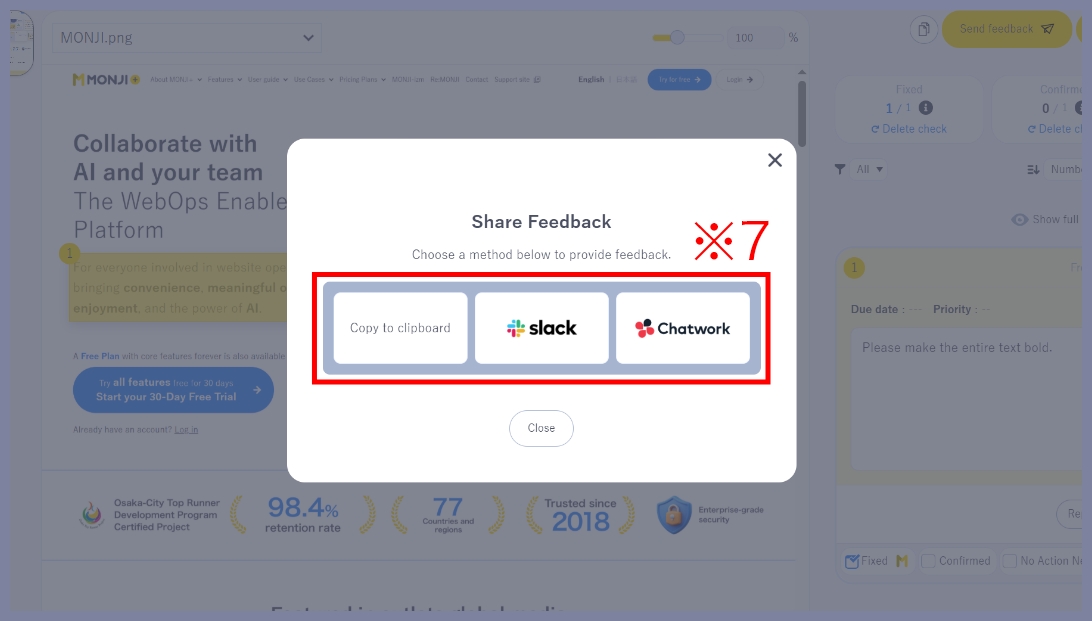
When the “Select External Sharing Method” screen appears, the notification has been sent successfully.
You can also copy the feedback title & viewing URL or share it via Slack or Chatwork. (※7)
You can also copy the feedback title & viewing URL or share it via Slack or Chatwork. (※7)
For details on how to create and send Feedback, please see this page.