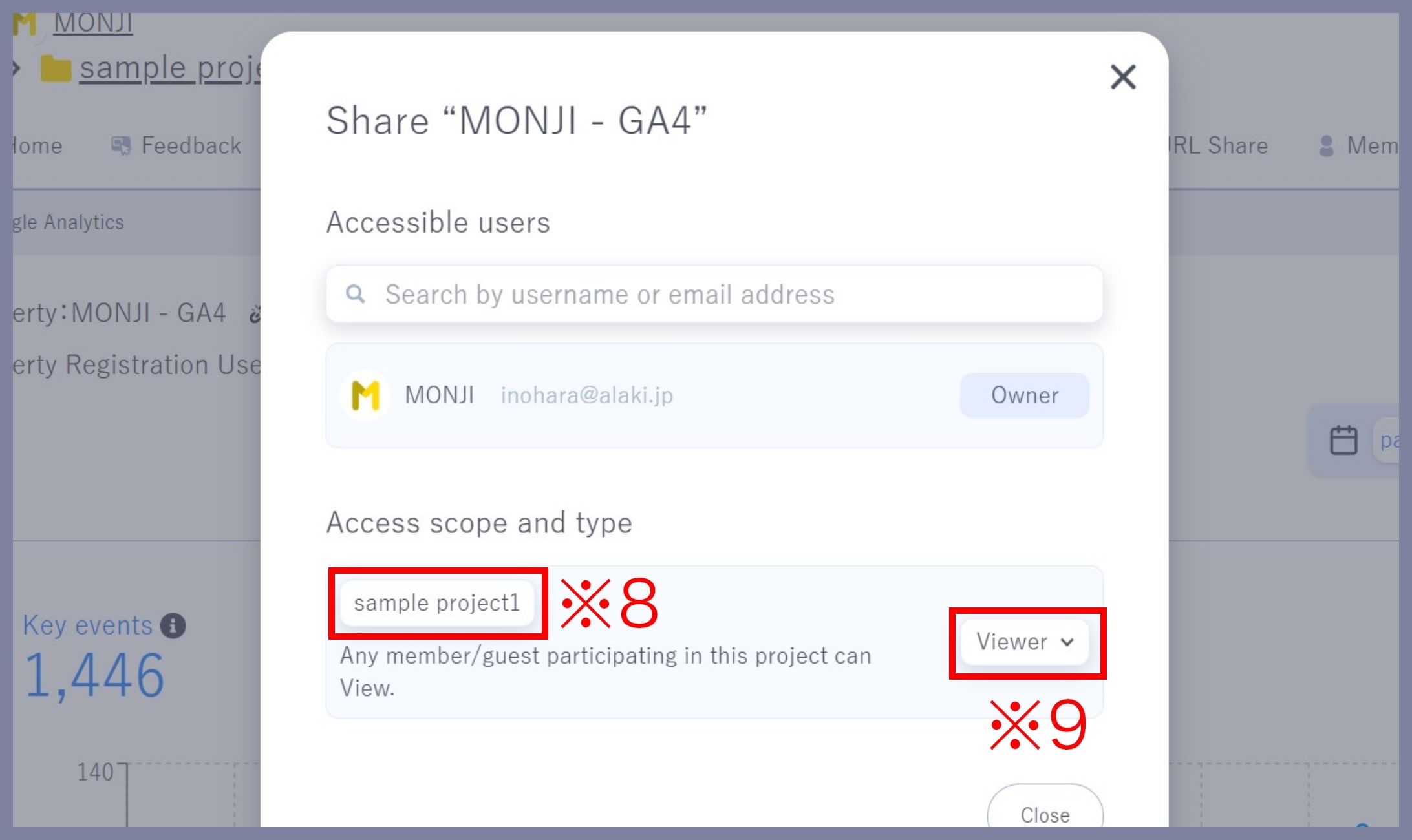
1. Go to “Project > Google Analytics”
From the menu of the project you want to connect with Google Analytics, click the Marketing link (※1).
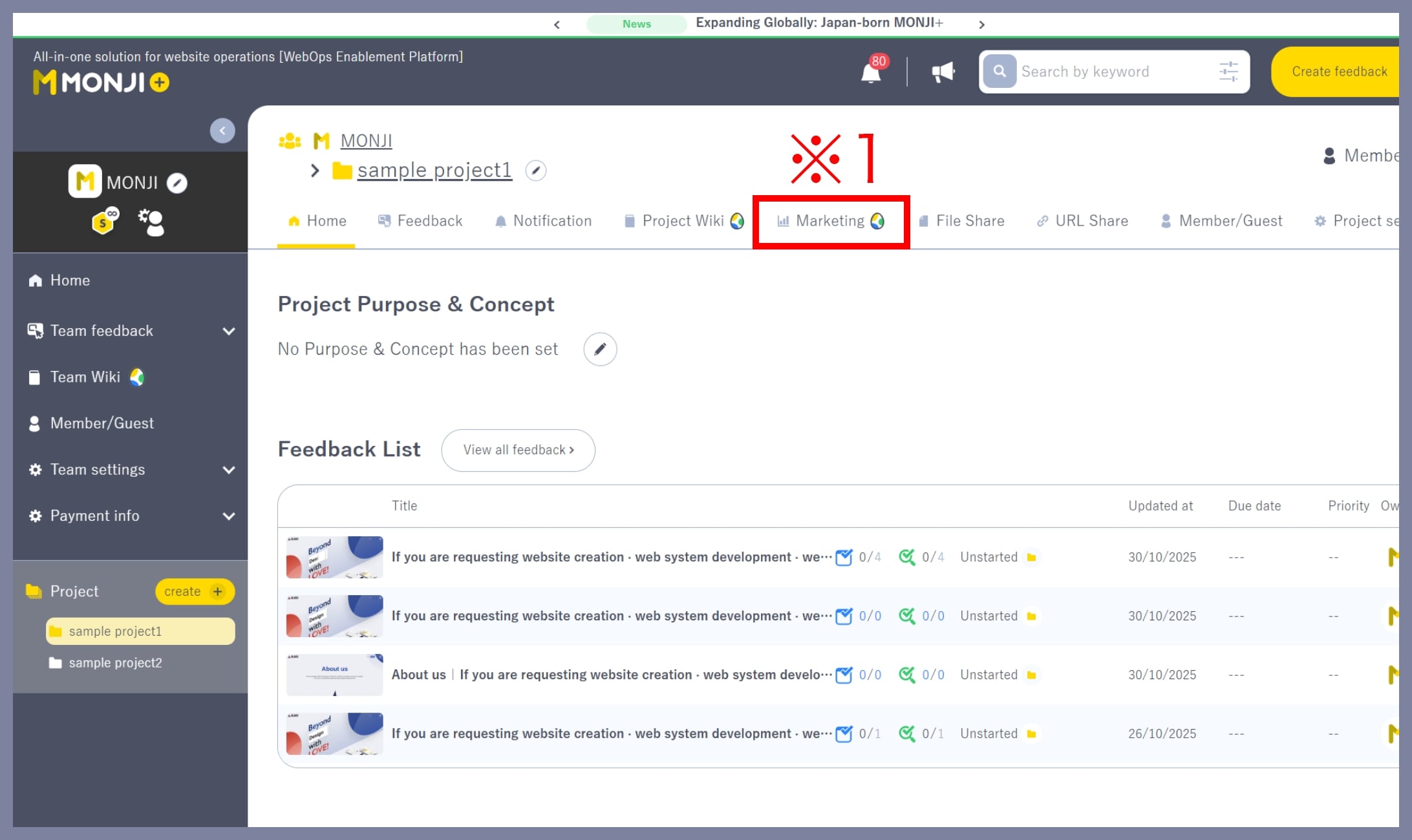
2. Start the Google Analytics integration
If your project is not yet connected to Google Analytics, click the Connect button (※2).
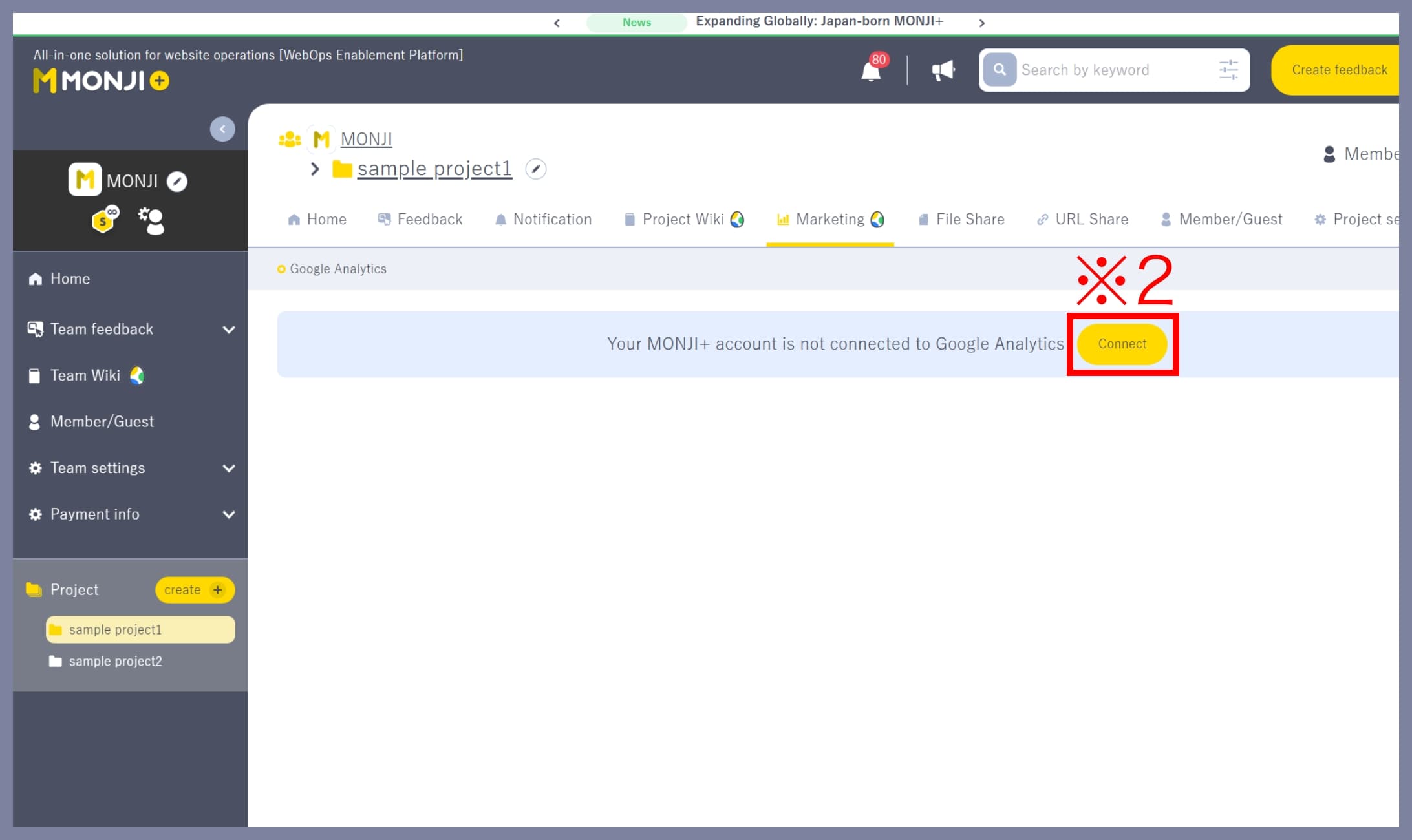
3. Select your Google account
Choose the Google account that has access to the Google Analytics property (website) you want to connect (※3).
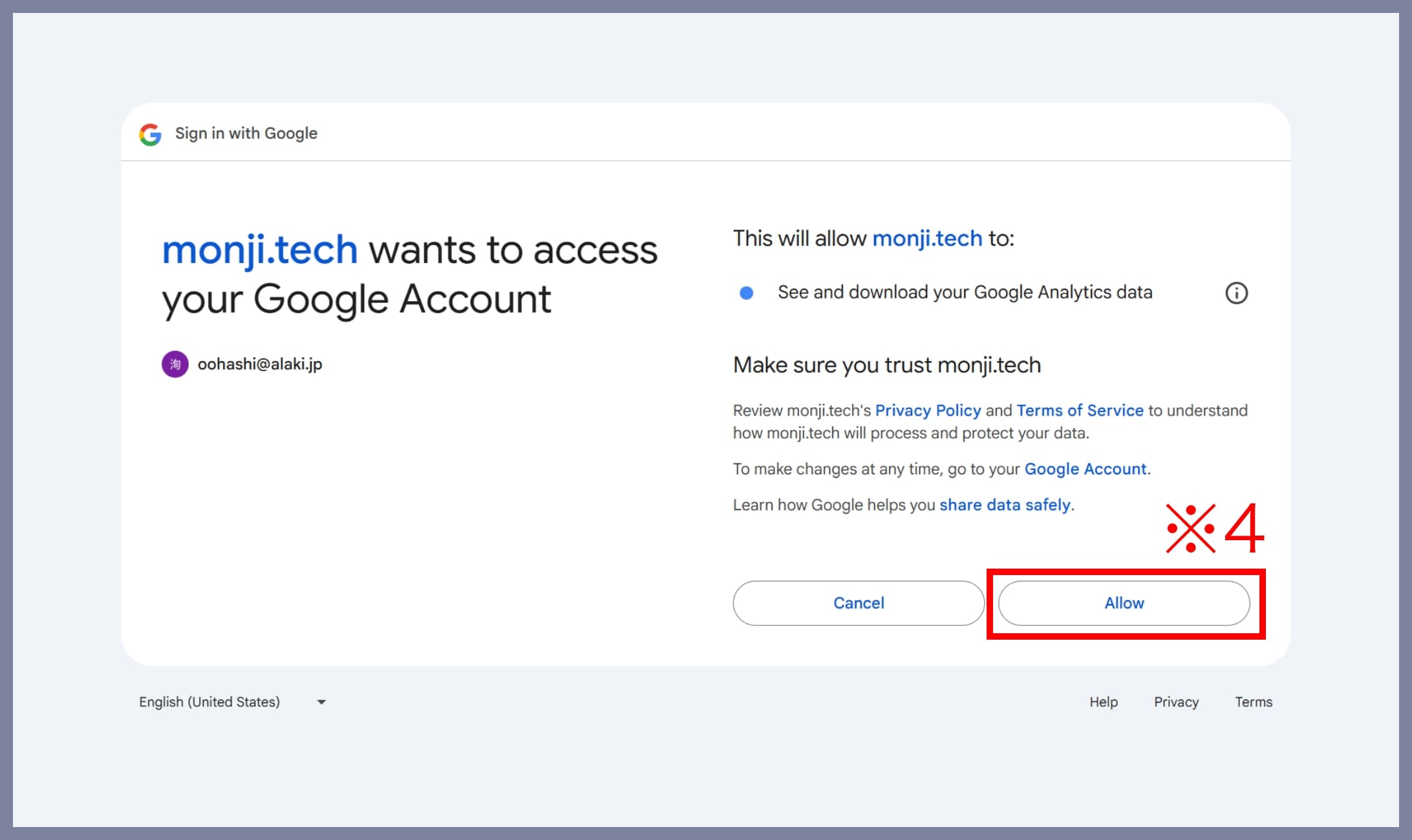
4. Grant MONJI+ access to Google Analytics data
Follow the on-screen instructions to allow MONJI+ to view your Google Analytics data. Click Allow (※4) to continue.
5. Register your Google Analytics property (website) with the project
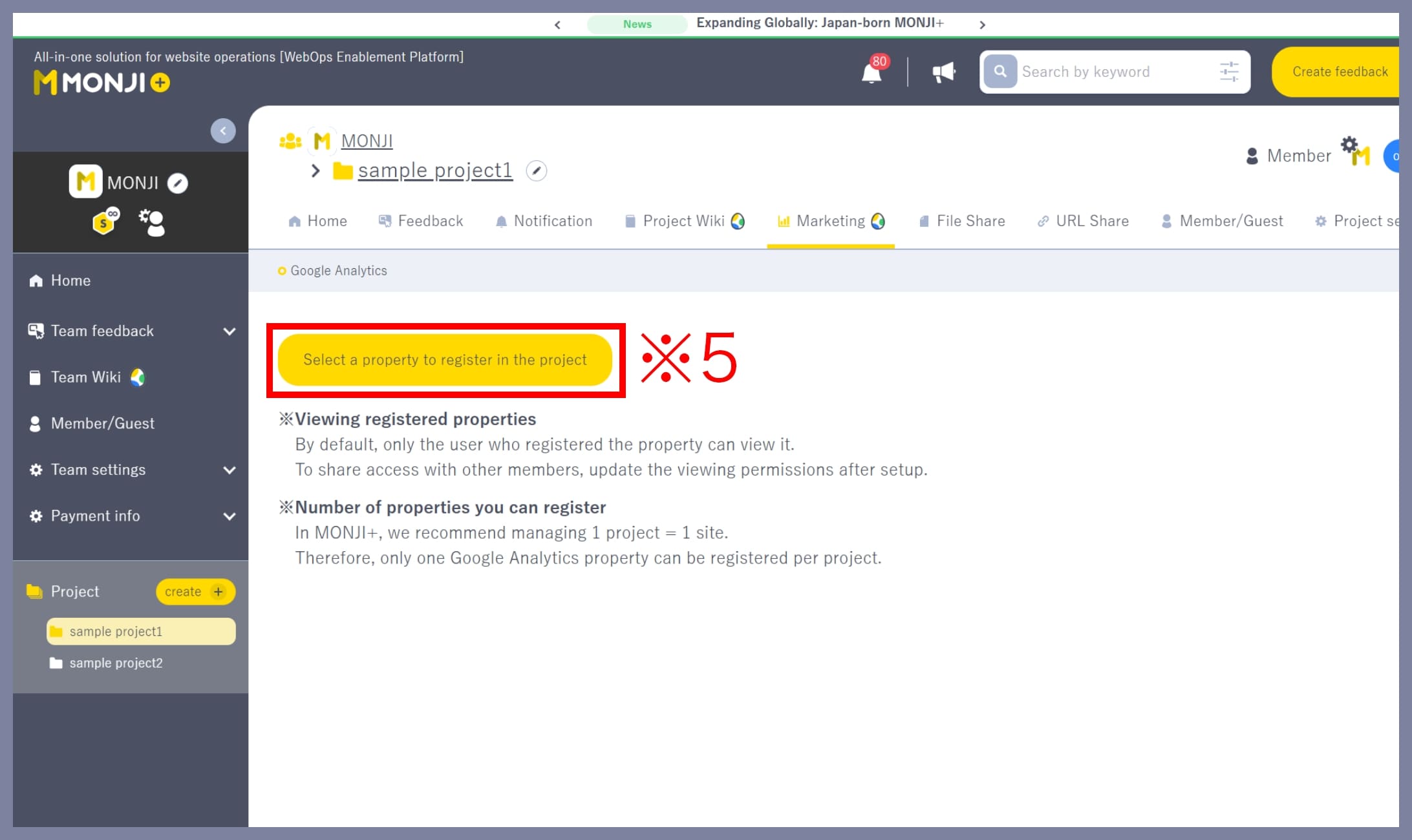
*MONJI+ recommends managing one site per project.
Therefore, each project can be linked to only one Google Analytics property.
Click Register Property to Project (※5).
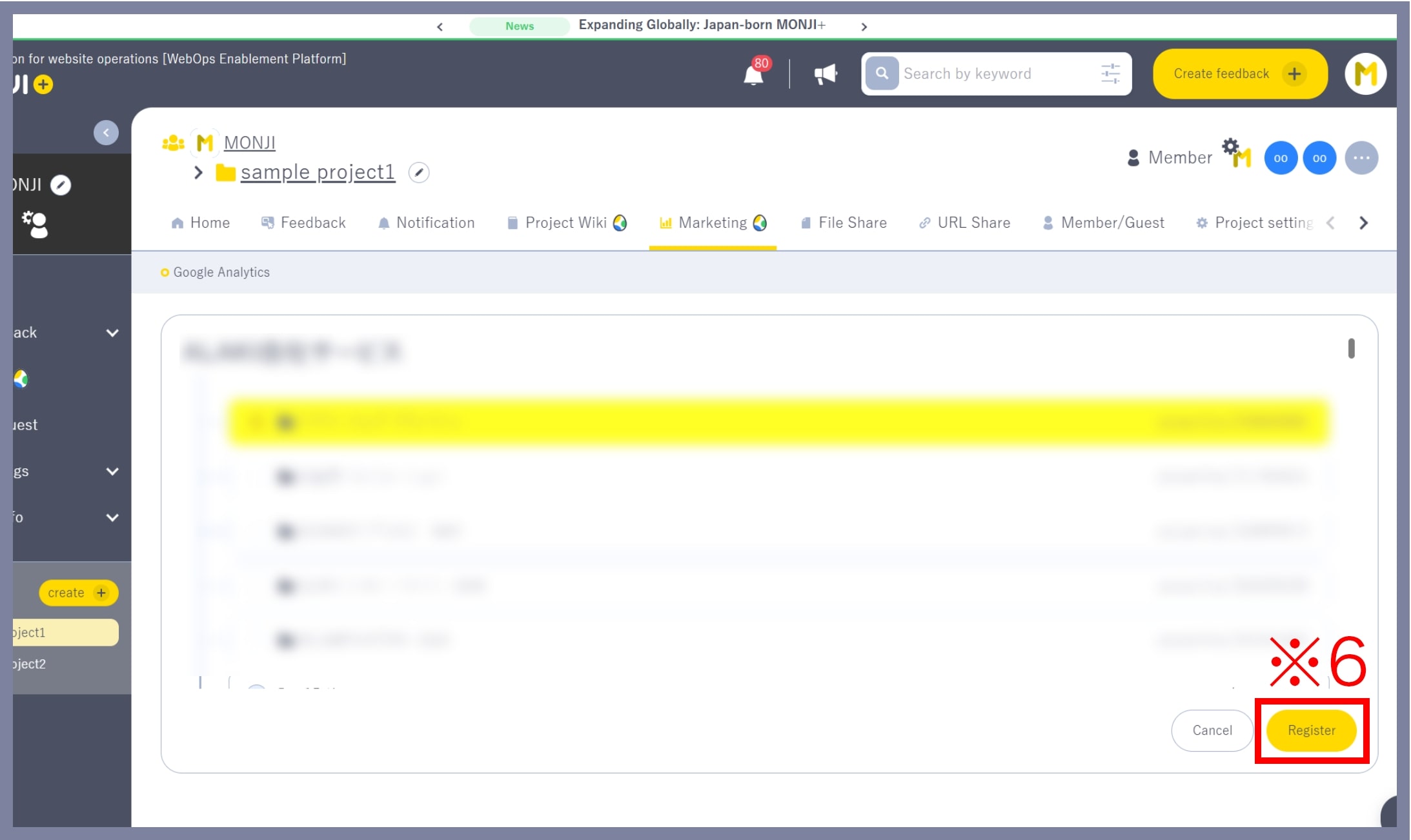
A list of available Google Analytics properties (websites) will appear. Select the property you want to connect and click Register (※6).
6. Configure sharing settings for the Google Analytics screen
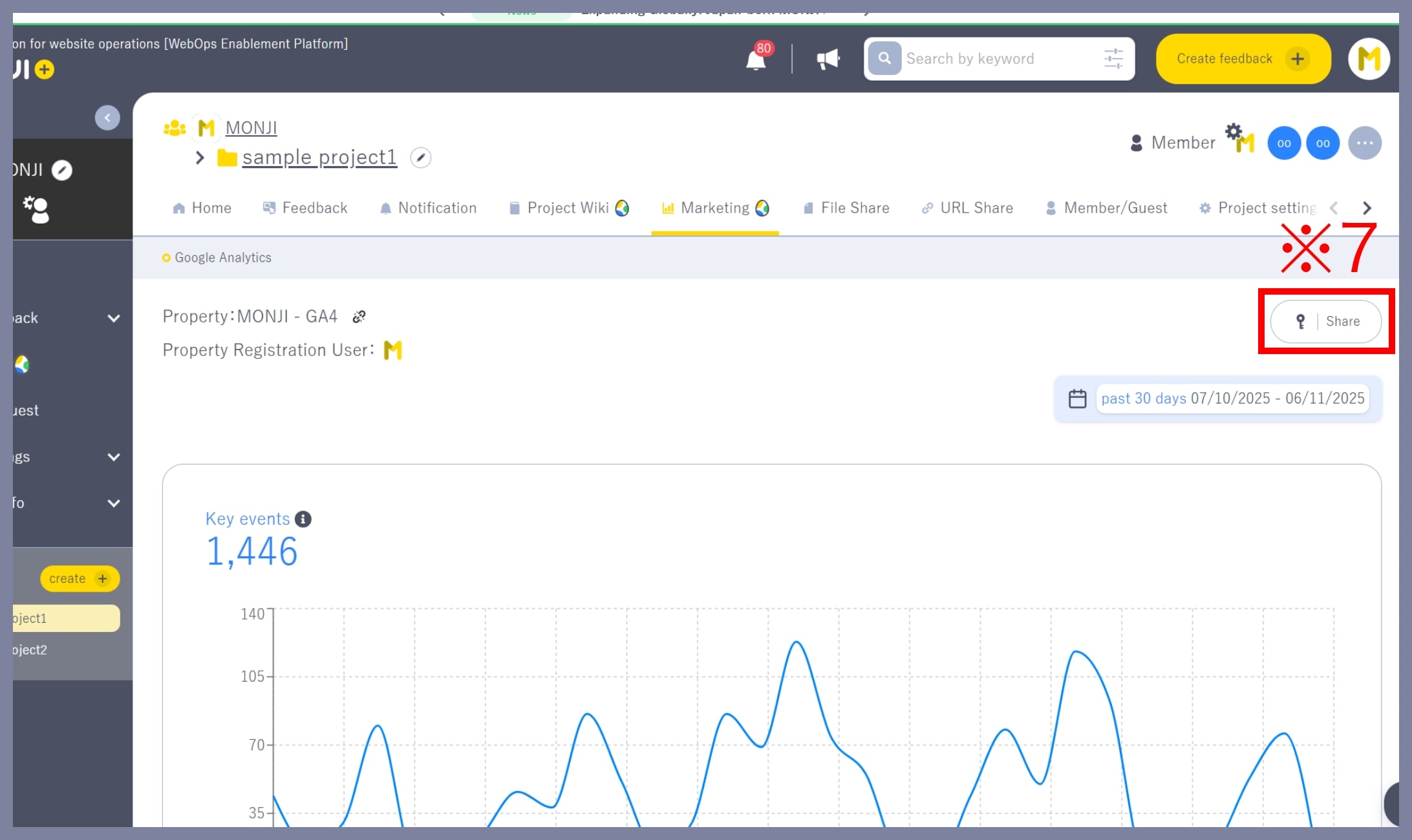
Once the integration is complete, key metrics from the selected property (website) will appear. You can set which users can view or edit this screen. To update these settings, click the Share button (※7) and specify the users and permissions.
① Restricted (Default)
Assign view or edit permissions to specific users with access rights.
② Project
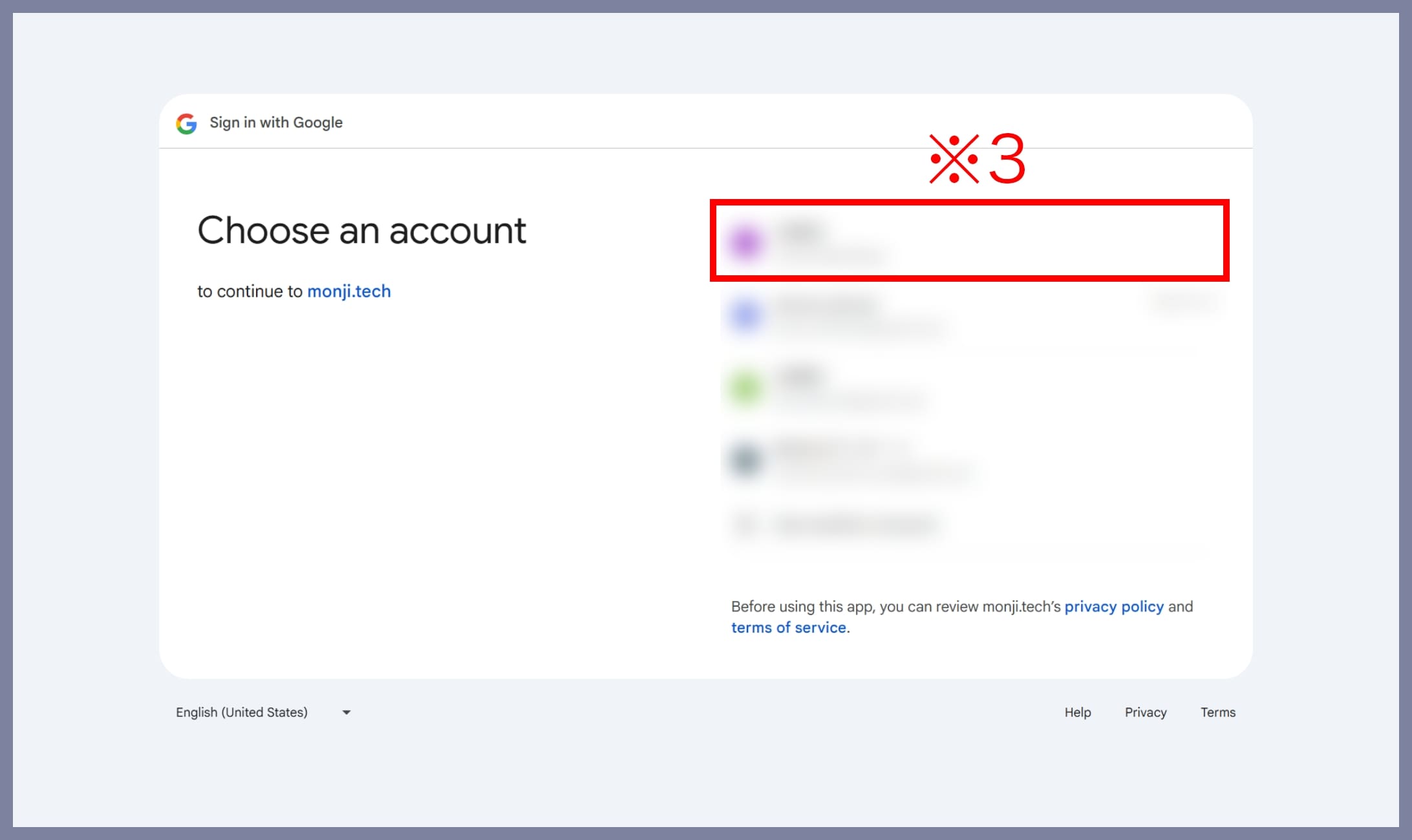
In the project sharing settings screen, you can add specific users and set access permissions for each project (Viewer or Editor) (※8).
In Access Scope and Type, you can specify which project each user can access.
For example, selecting “Viewer” allows the user to view data only (※9).