Overview
The AI Typo Detector for Feedback automatically finds typos in websites and files as soon as you load them. MONJI AI proposes fixes, and you can turn any accepted suggestion into a comment with one click.
※Languages to detect: Japanese, English
How to Use
1. Create new feedback from the Feedback creation screen
1-1. For websites
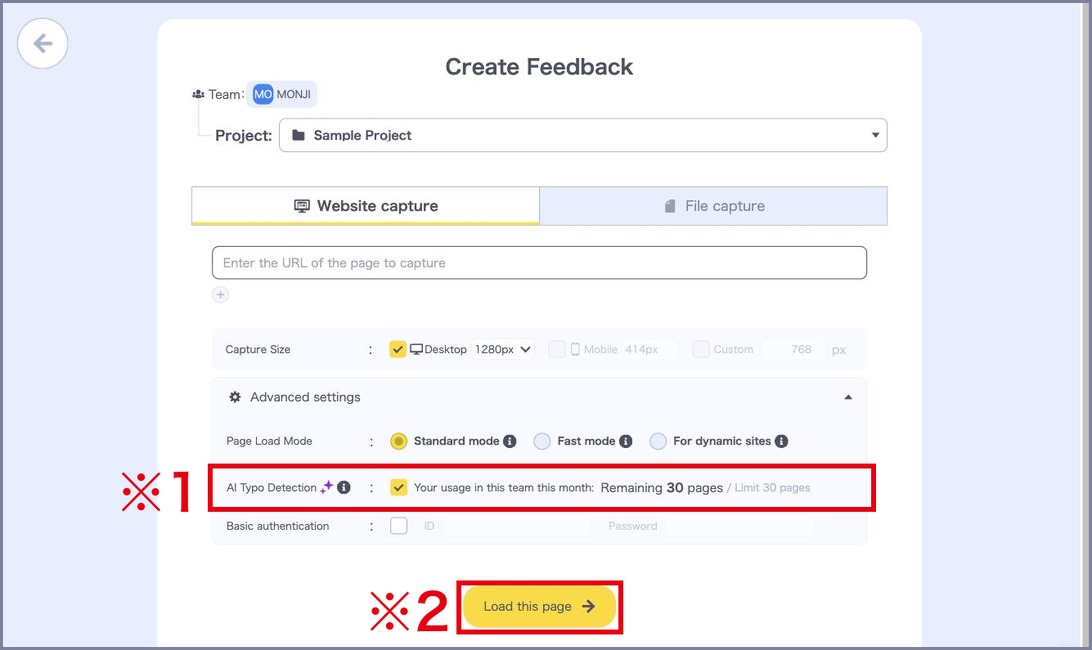
Open Advanced settings, check AI Typo Detection (※1), then click Load this page → (※2).
1-2. For files
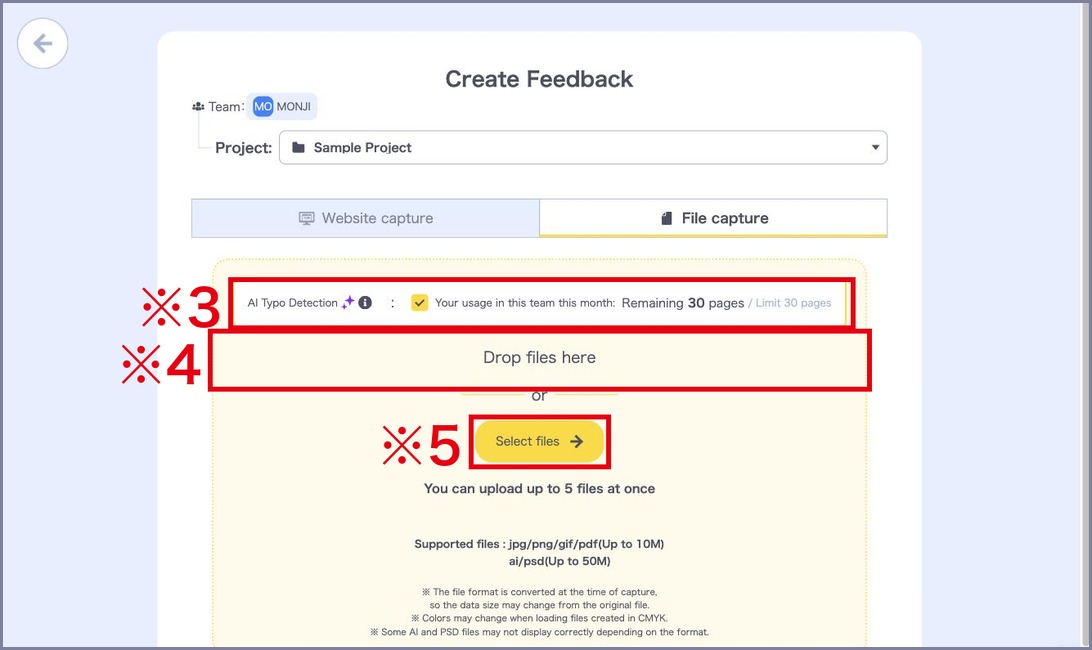
Check AI Typo Detection (※3), then drag and drop the file (※4) or click Select files → (※5) to choose a file and create feedback.
Supported files
・Images (jpg/png/gif)
・PDF
・AI (Illustrator)
・PSD (Photoshop)
2. MONJI AI detects typos
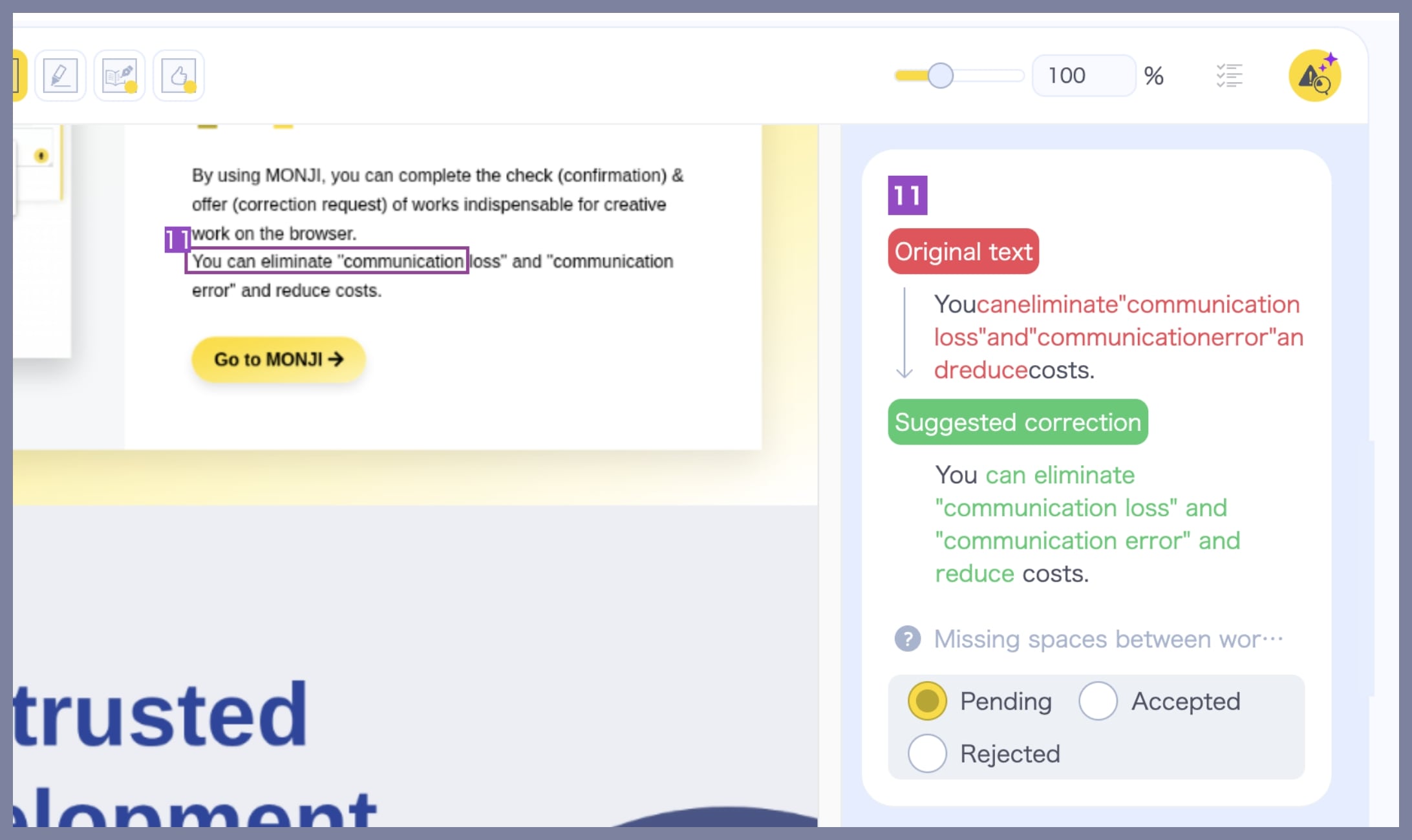
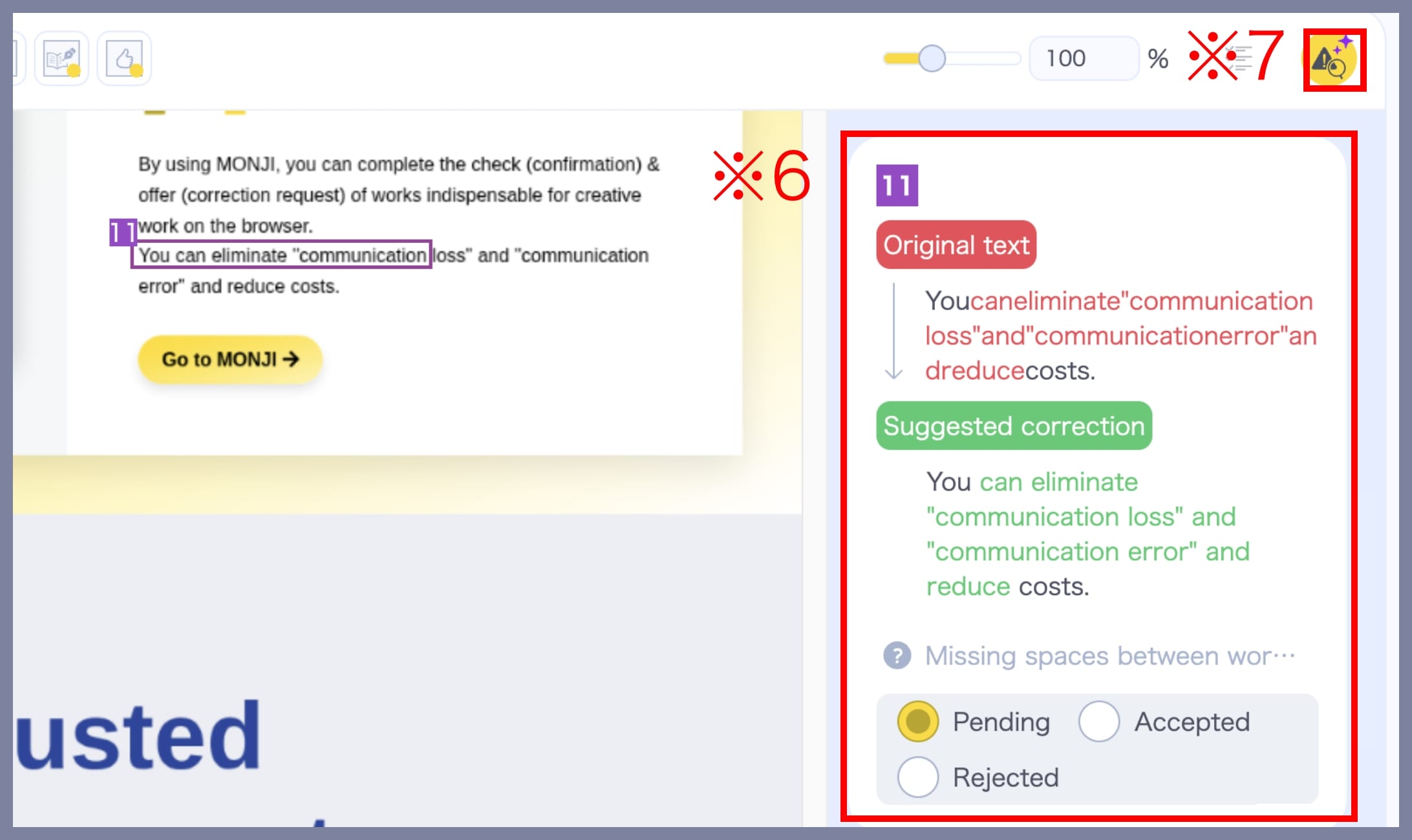
After loading is complete, detected typos appear on the right of the screenshot (※6). Click the AI Typo Detection icon (※7) to toggle the results on or off.
• What each result contains
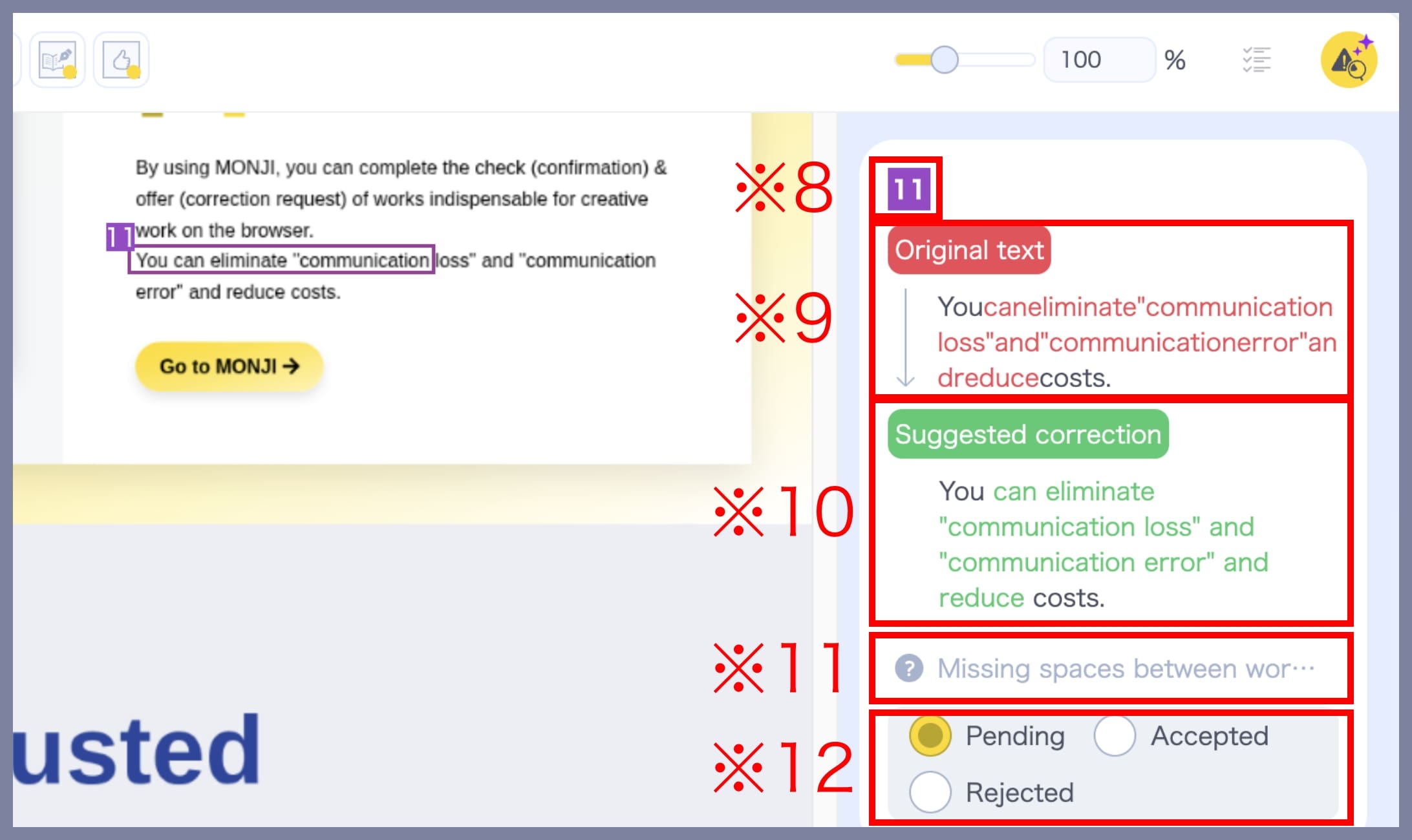
Each detected item includes:
① Number (※8)
② Original text detected as a typo (※9)
③ AI suggestion (※10)
④ Rationale for the suggestion (※11)
⑤ Status (※12)
• Showing typo locations
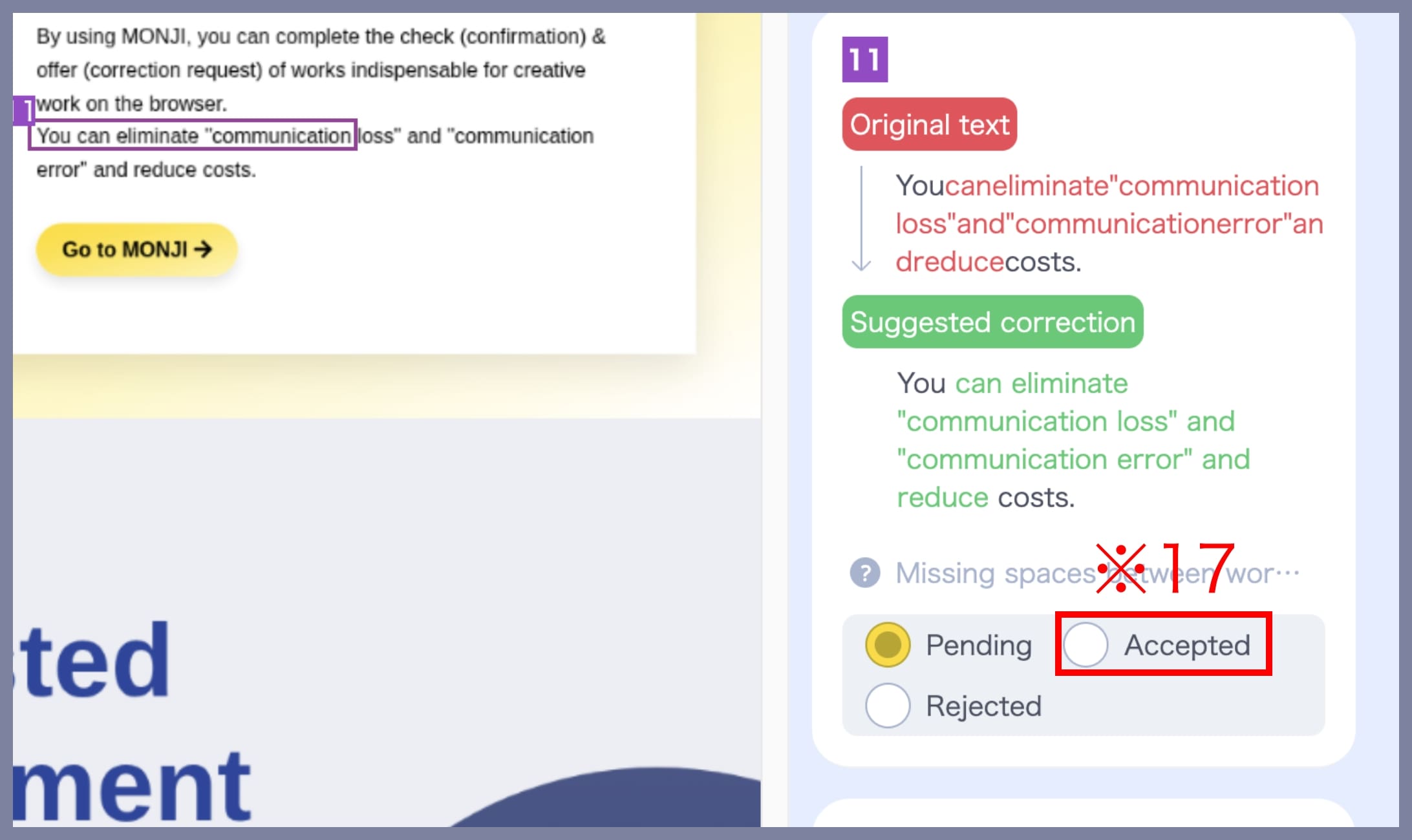
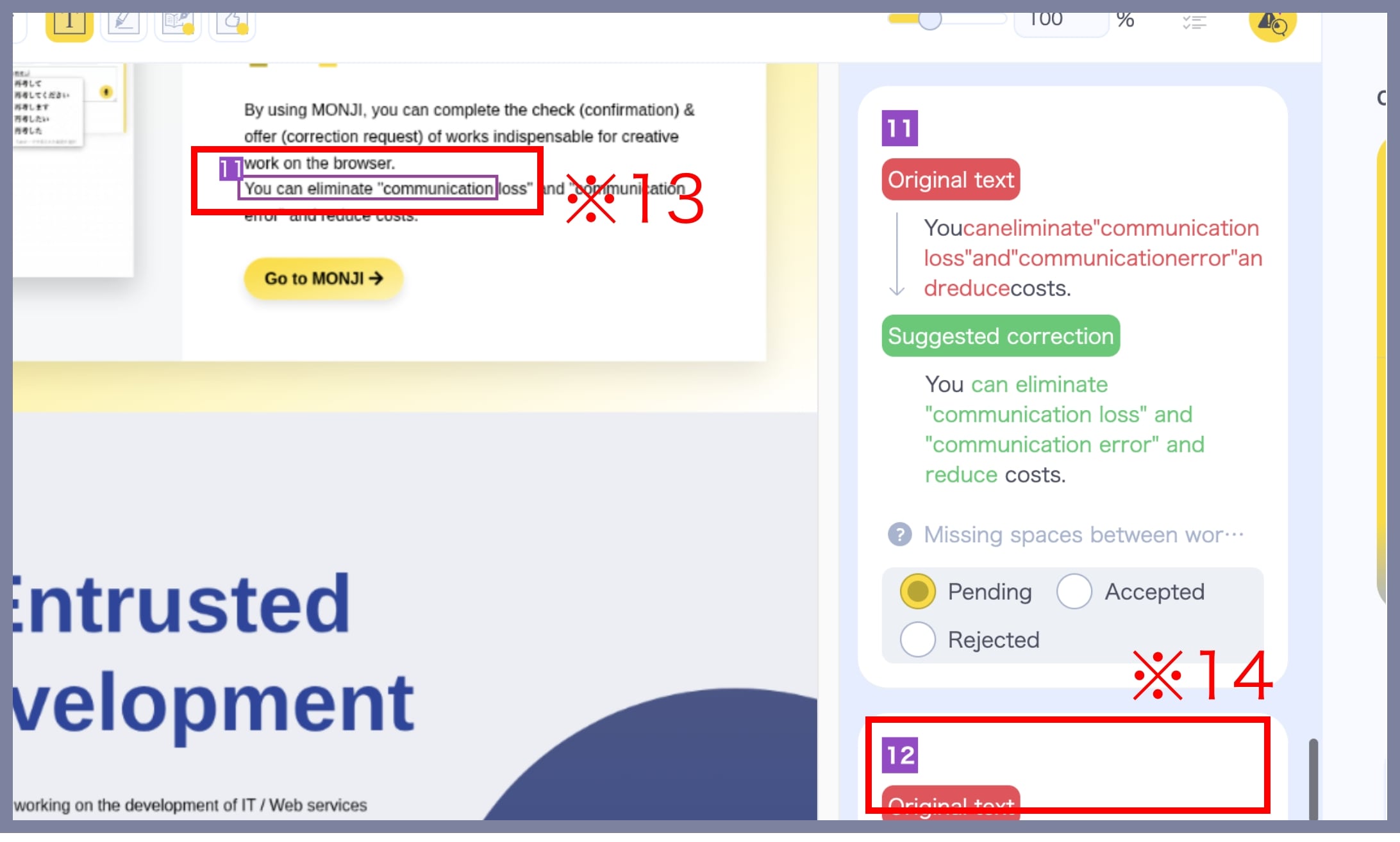
Depending on the website/file structure, some items may not be shown on the screenshot. In that case, you’ll see the note “This detection is not shown on the screenshot” at the top (※14).
• Filter by status
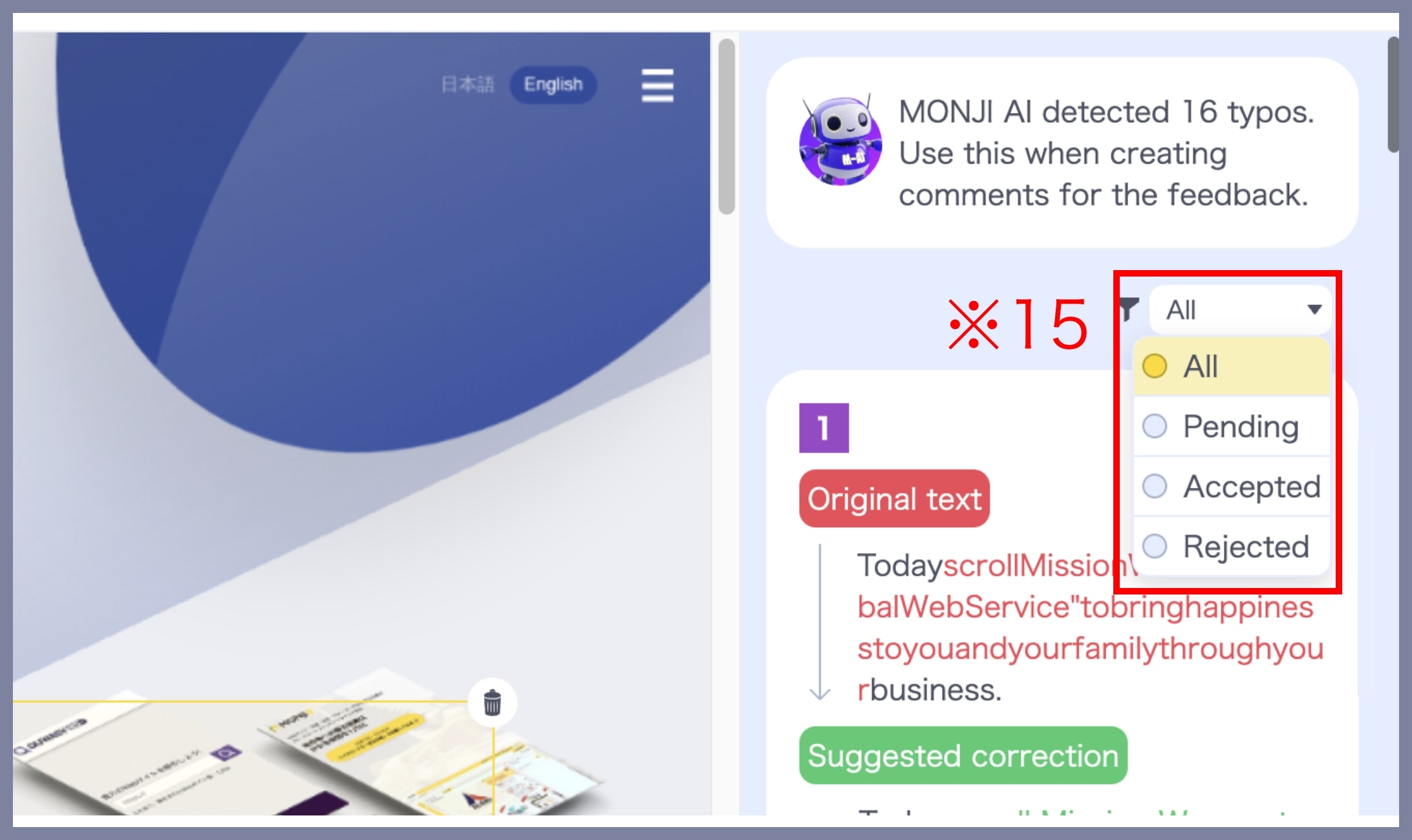
Select a status: Pending, Accepted, or Rejected.
Use the filter at the top (※15) to narrow down the list by status.
3. Add to comments
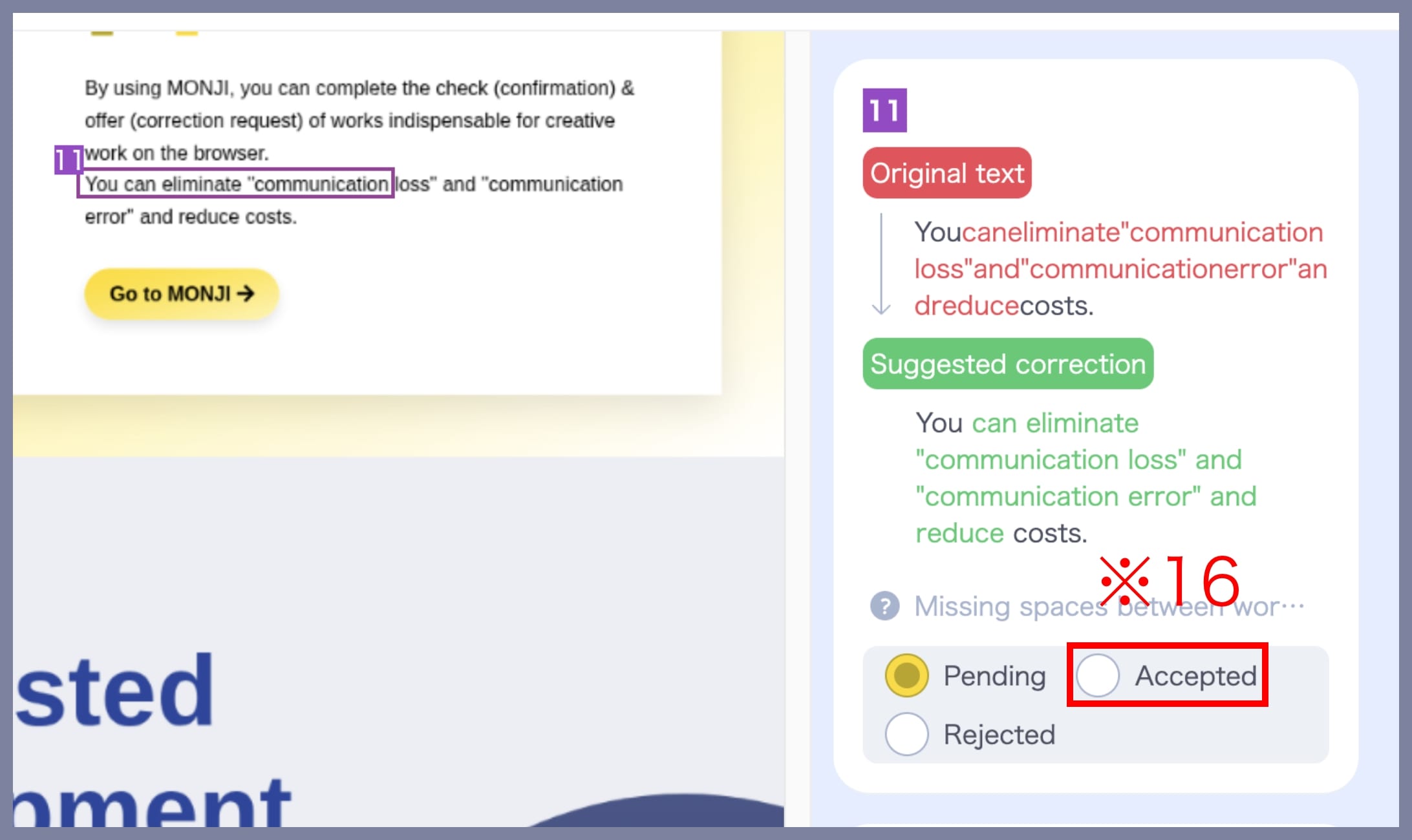
To adopt a suggestion, click Accept (※16). A comment is created automatically, and the corresponding area is highlighted on the screenshot.
If you see “This detection is not shown on the screenshot,” clicking Accept (※17) copies the original text, the AI suggestion, and the rationale. Manually select the area on the screenshot and paste the copied text into the comment field.