Purpose
Document internal rules and know-how so anyone can update them. Centralized information prevents knowledge silos, eases onboarding and handoffs, and significantly boosts team productivity.
New Registration
1. Open the Wiki page
There are two types of Wikis: Team Wiki and Project Wiki.
Access the appropriate screen based on the desired Visibility.
Team Wiki
Members belonging to the Team can create, edit, and view.
Guests belonging to the Team cannot use this feature.
*Guests cannot view Team Wikis.
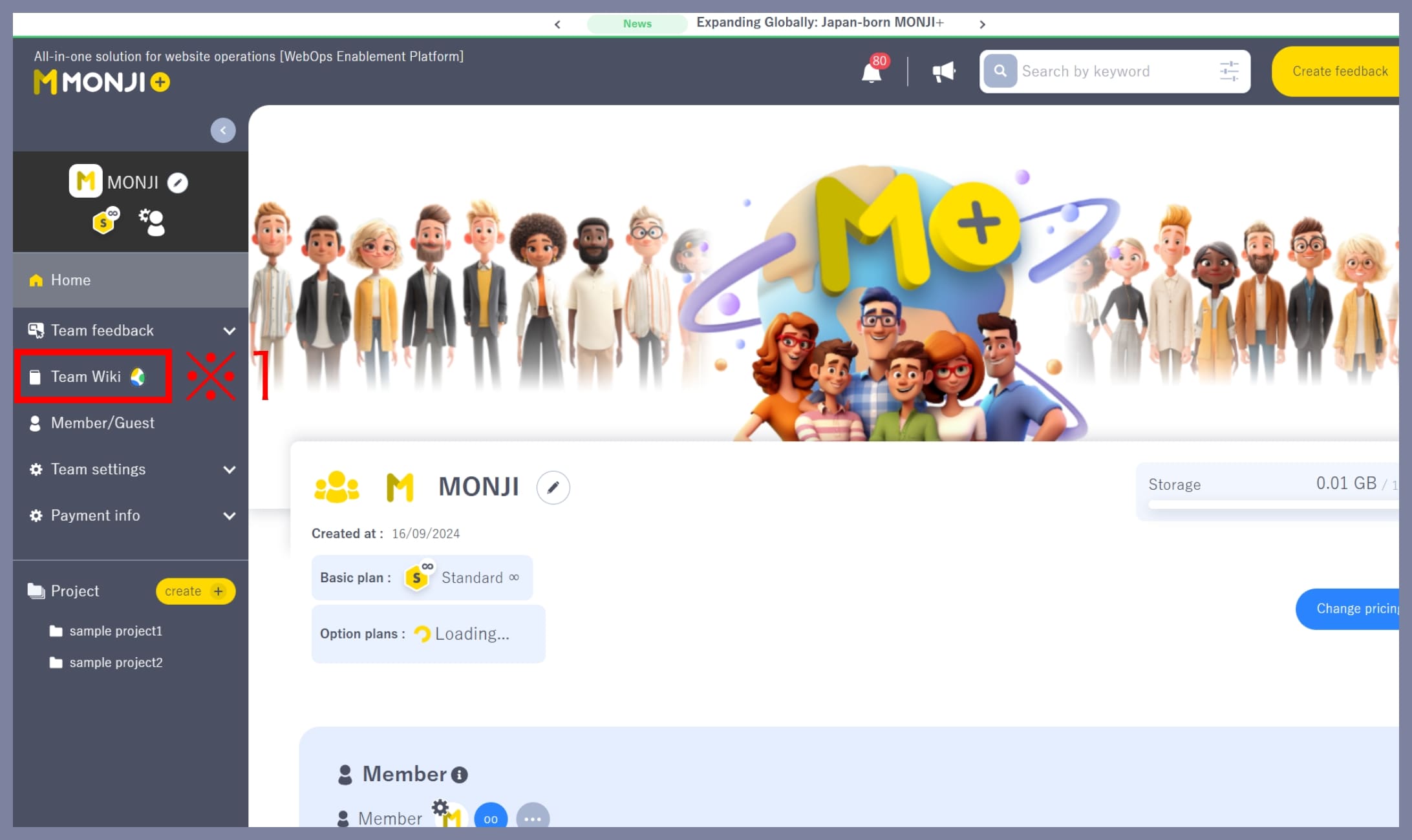
From the Team side menu, click the Team Wiki link (※1).
Project Wiki
Members belonging to the Project can create, edit, and view.
Guests belonging to the Project can view only.
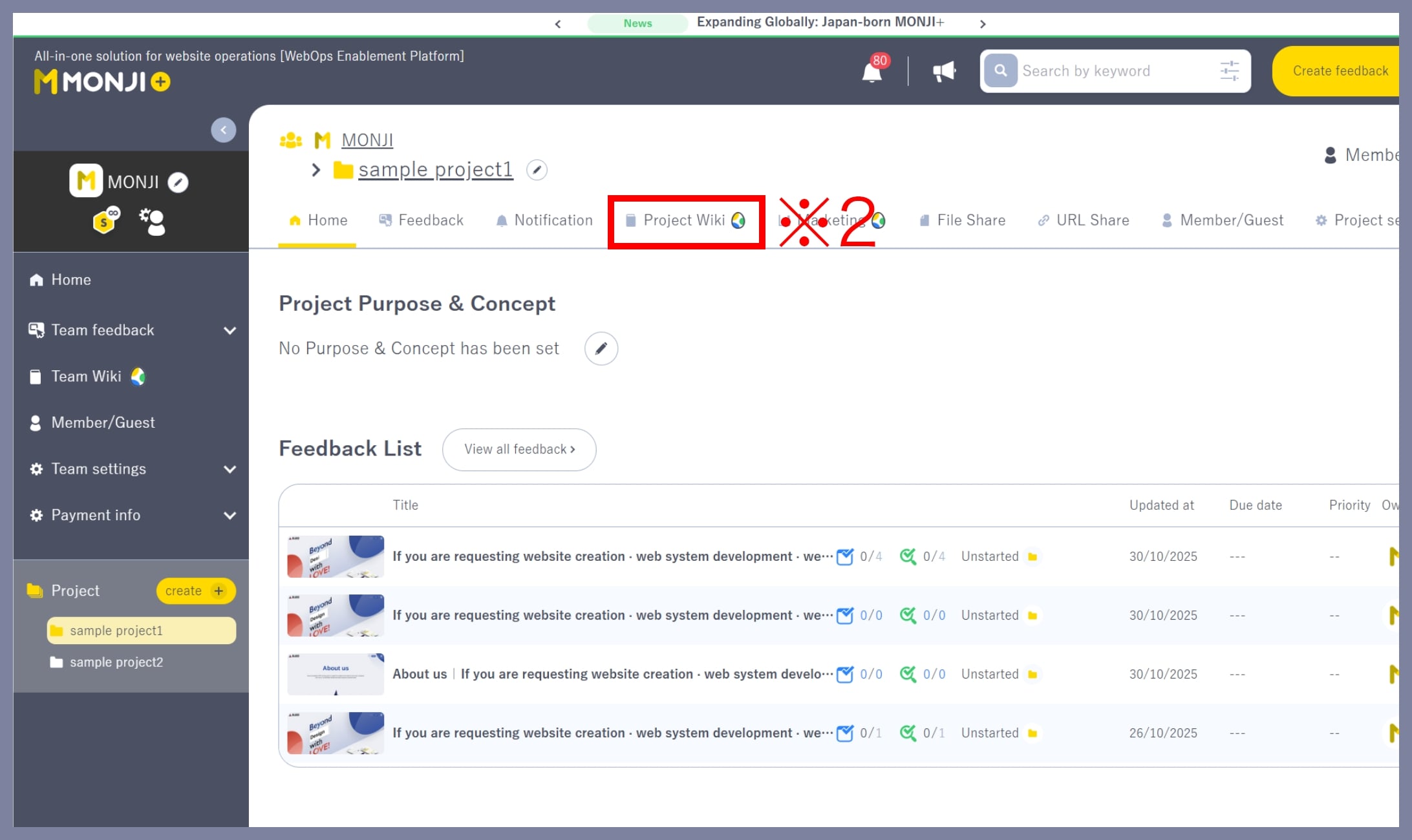
From the Project side menu, click the Project Wiki link (※2).
2. Create a new Wiki
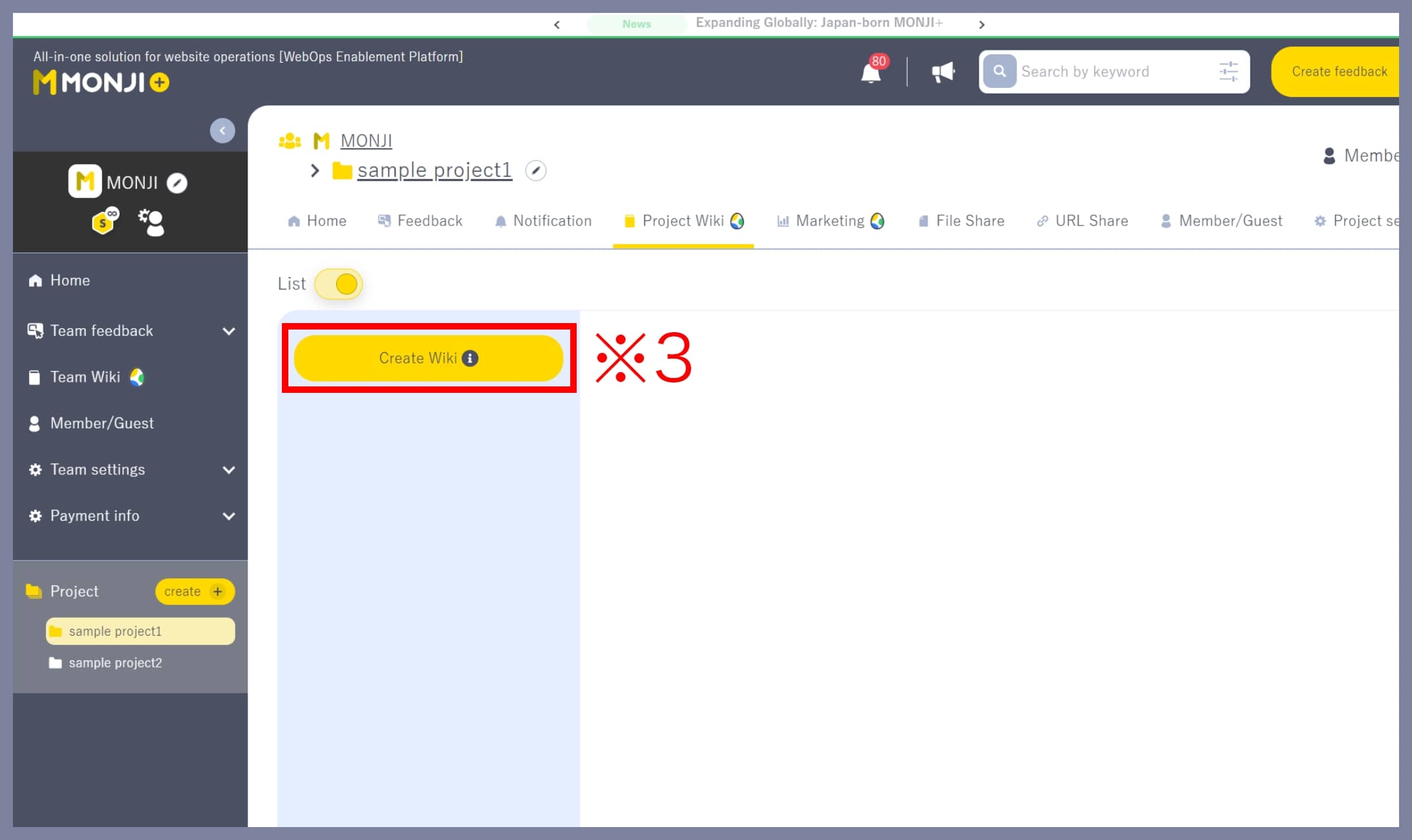
Click the New button (※3).
*Only users with Member permission can create new Wikis. Guests cannot create Wikis.
Select one of four templates (※4) that best fits your use case.
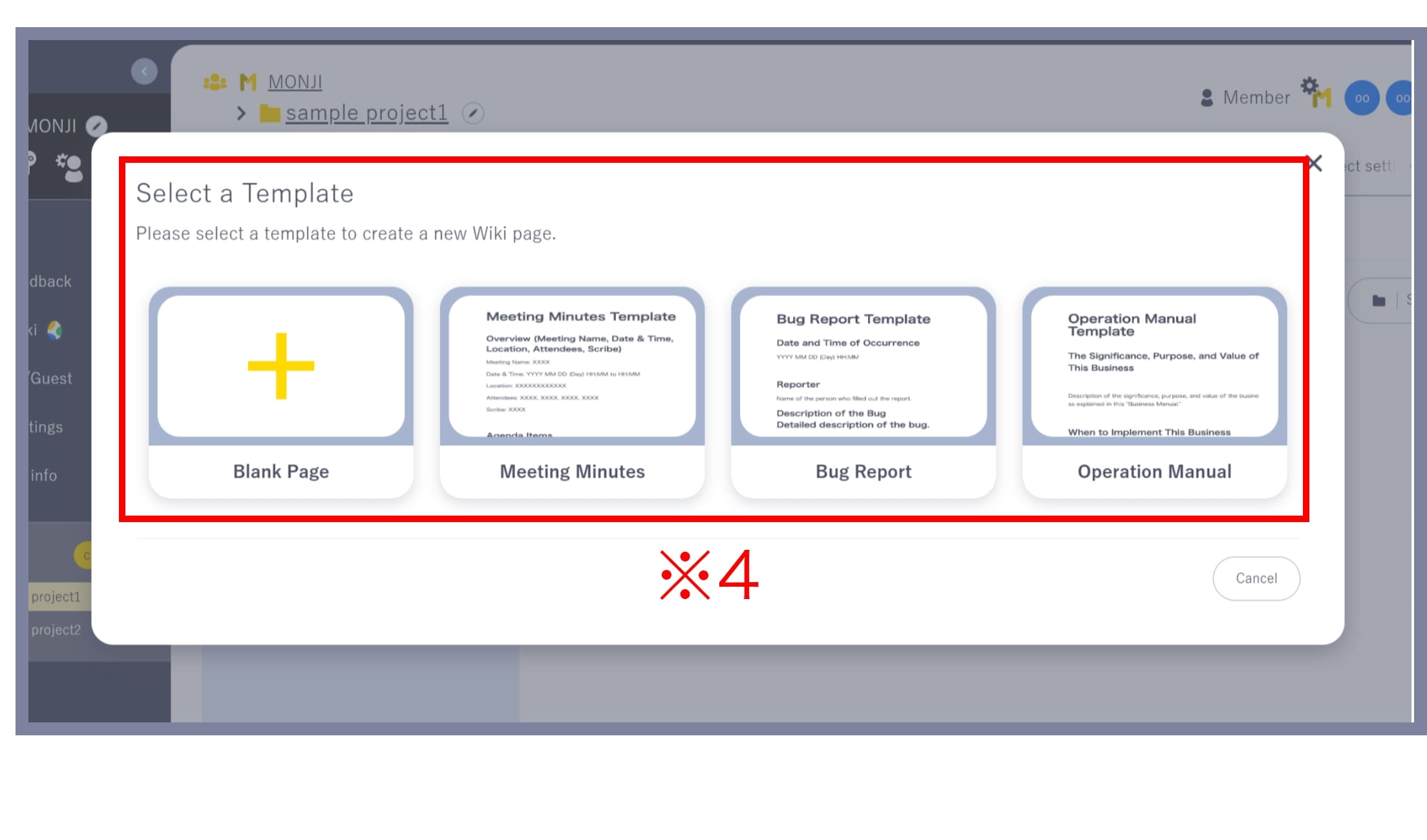
*The above templates are for Team Wiki.
*Templates differ between Team Wiki and Project Wiki.
Blank page
Creates an empty Wiki with no text.
Meeting notes
Pre-filled with sections like Overview, Agenda, and Discussion items.
Bug report
Pre-filled with fields like Occurrence date/time, Bug details, and Reproduction steps.
Operations manual
Pre-filled with sections like Significance, Purpose, and Key points.
3. Set up and enter Wiki content
Enter the following:
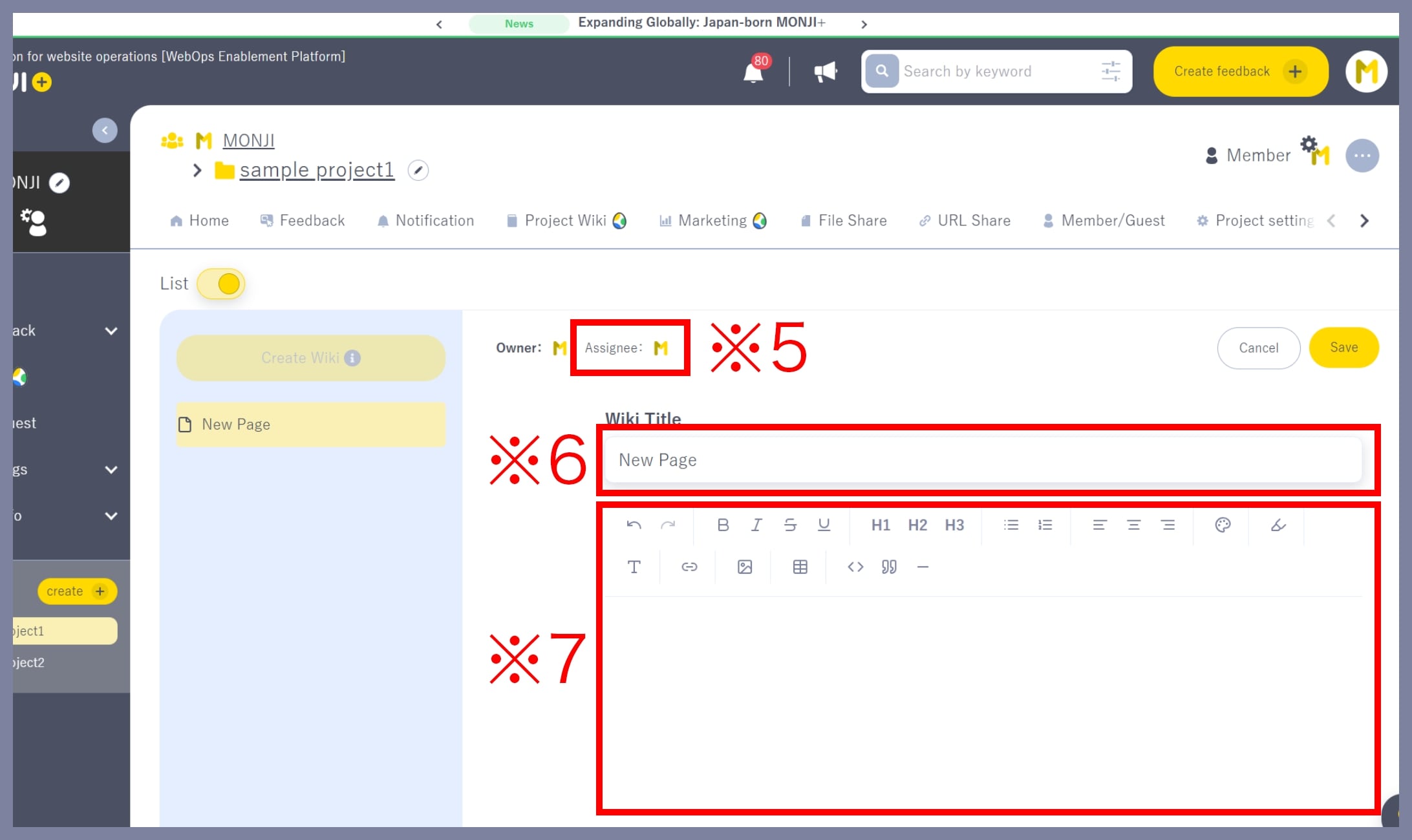
・Wiki title (※6)
・Wiki body (※7)
*The Wiki title can be up to 100 characters.
*When you create a new Wiki, you are set as the Assignee automatically. To change it, edit the Wiki after it has been saved.
The top of the screen shows the Owner (the user who created the Wiki) and the Assignee (※5).
This bar stays fixed at the top as you scroll, so Save and Cancel are always within reach no matter how long the body gets.
How to write the body
The body is written in blocks — paragraphs, headings, lists and other chunks of content.
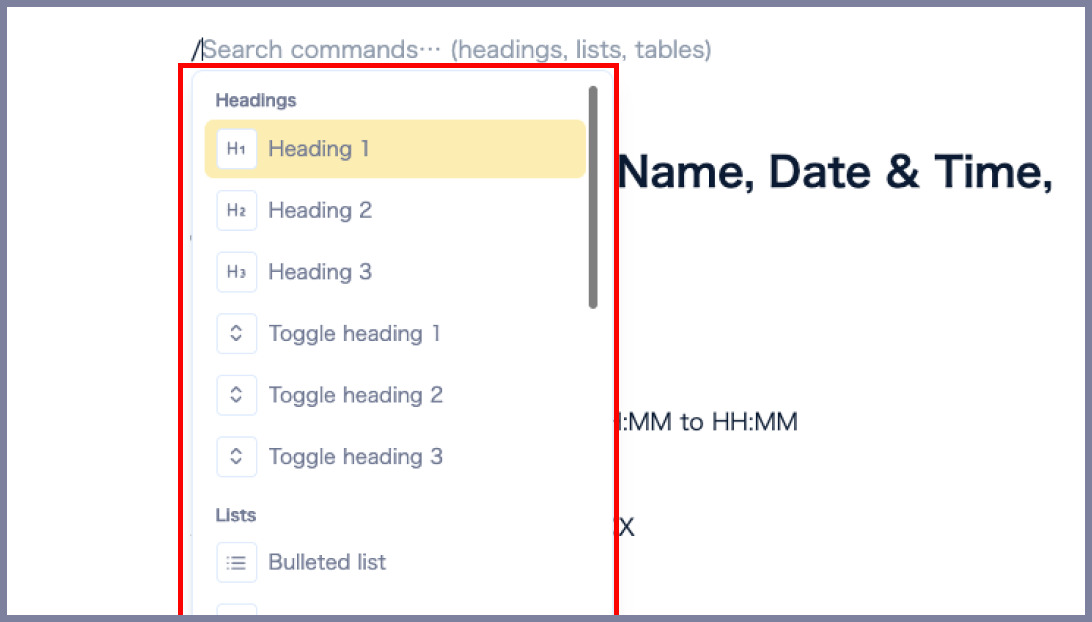
The input area shows the hint “Type ‘/’ for commands, ‘:’ for emoji”.
Type “/” to add a block
Type “/” in the body to open the list of blocks you can insert.
Select text to change its formatting
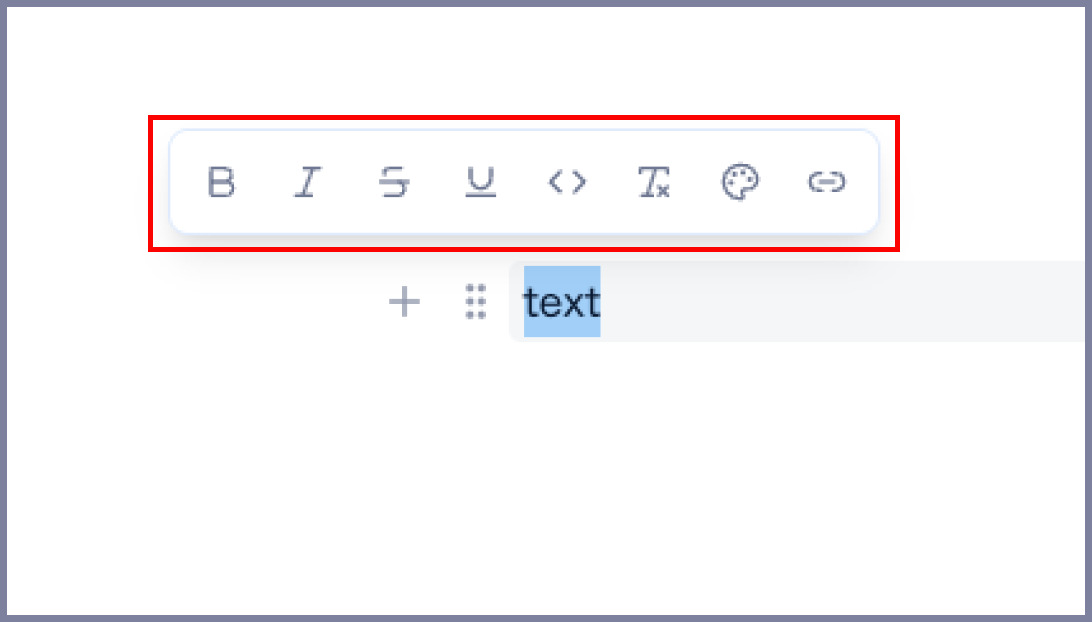
When you select text, a formatting menu appears next to it.
You can apply Bold / Italic / Strikethrough / Underline / Inline code / Text color / Highlight / Font size / Add or edit a link / Clear formatting.
Move and convert blocks
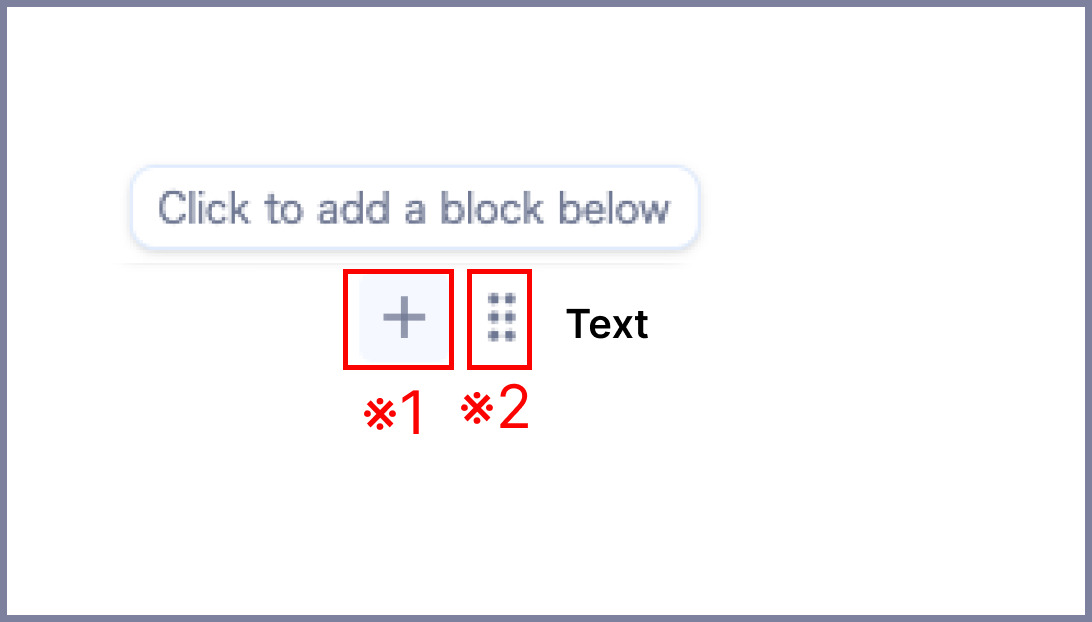
Hover over a block and two icons appear on its left.
Adjust tables
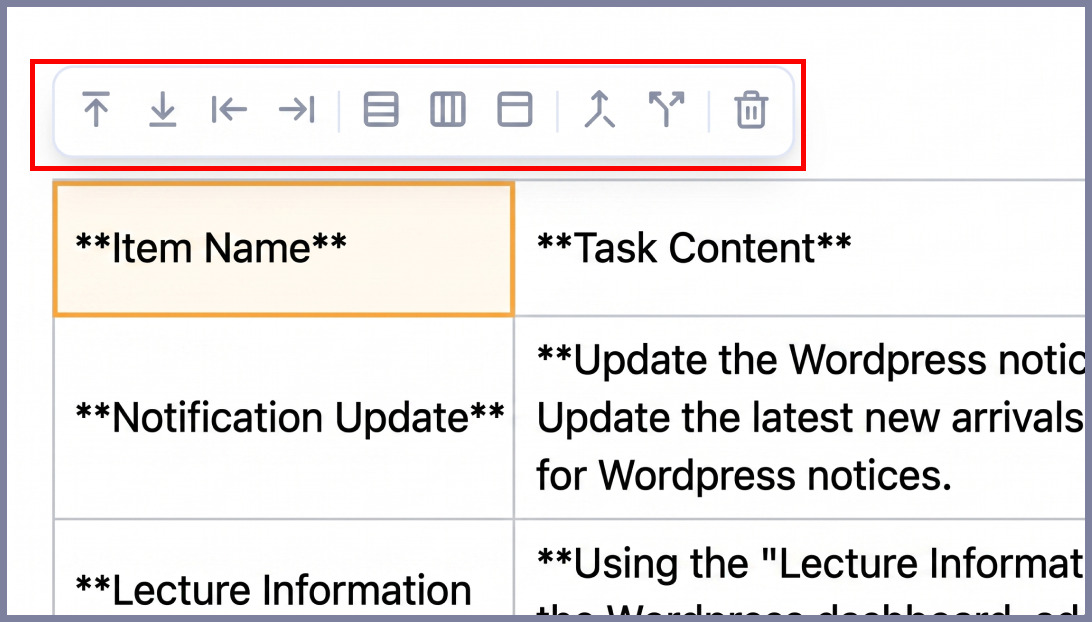
Select a table to open its own menu, where you can add or delete rows and columns, toggle the header row, and merge or split cells.
Save
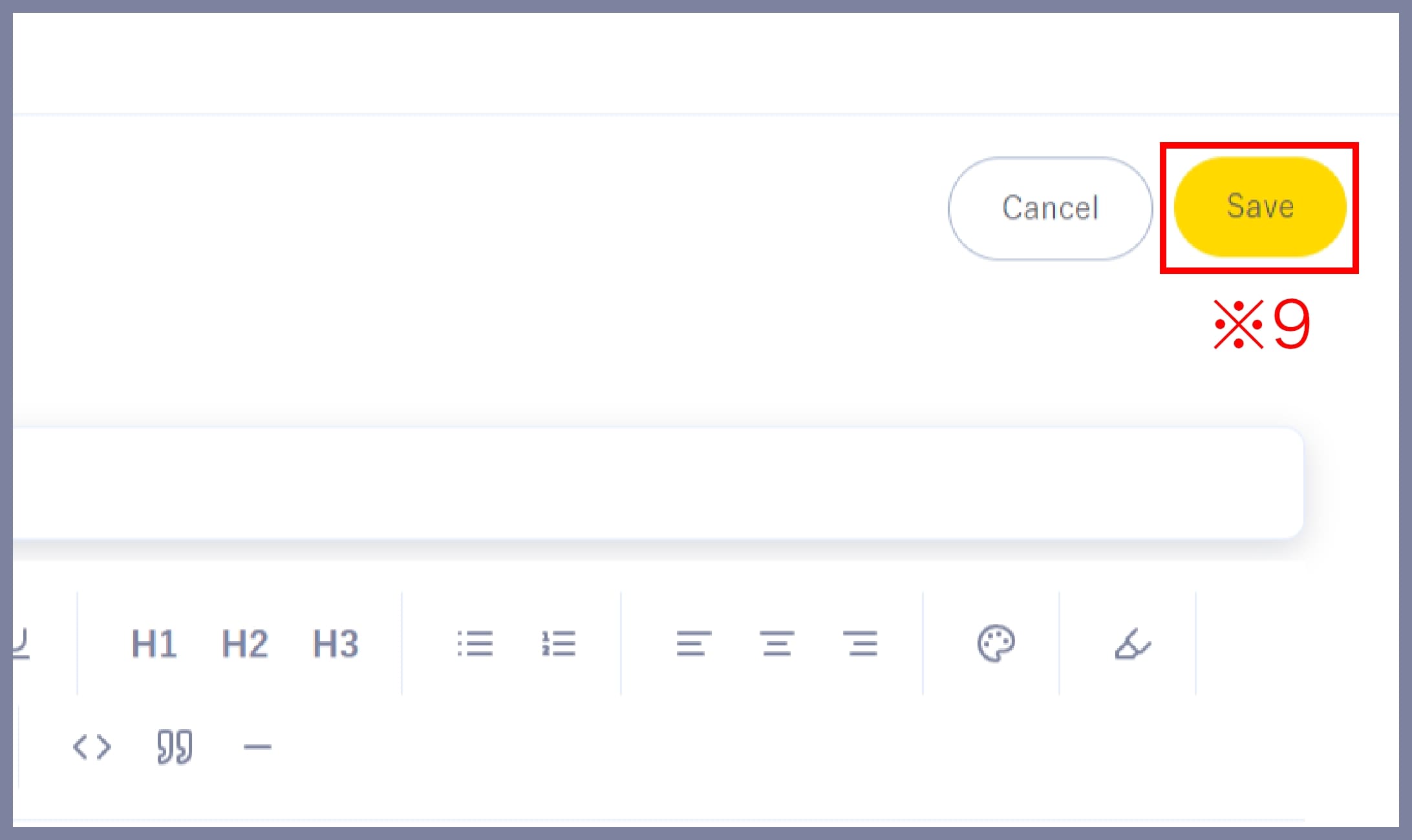
When finished, click Save (※9) at the top of the screen to complete registration.
*If you try to move to another page without saving, Leave this page? appears. Choose Save and leave, Discard and leave, or Keep editing. Choosing Discard and leave on a new page deletes the page itself.
*If someone else updates the same Wiki while you are editing it, Couldn’t save your changes appears when you save. Choose View latest version, Copy my version, or Keep editing and overwrite.
Edit
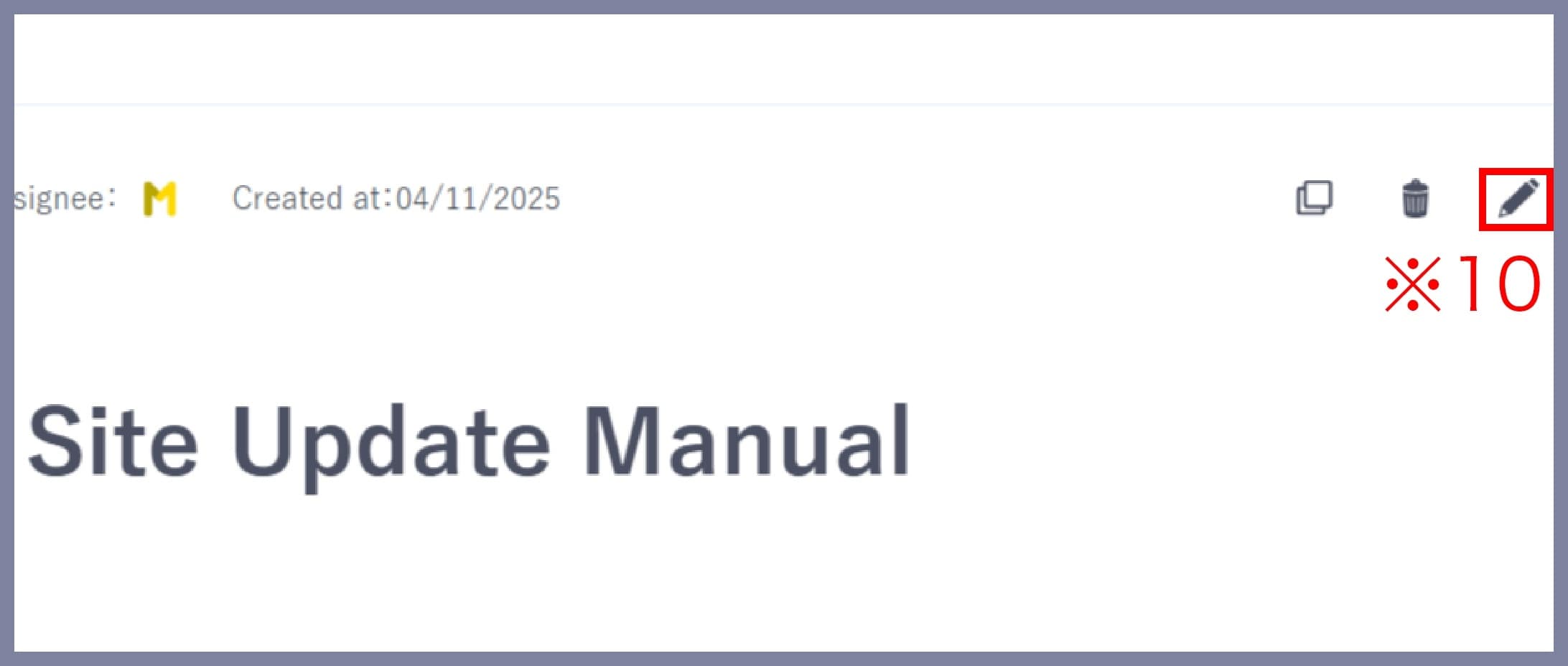
Once registered, you can edit a Wiki by clicking the Edit icon (※10).
*Only Members/Guests with Editor permission (see “Sharing settings” below) can edit Wikis.
Duplicate
Hover over the Wiki title you want to duplicate and click the three-dot icon (※11).
From the menu, click Duplicate (※12).
*Only Members/Guests with Editor permission (see “Sharing settings” below) can duplicate Wikis.

Sharing settings
For Project Wiki, you can set the sharing scope (view/edit permissions) per Wiki.
Viewer: View only
Editor: View and edit
*By default, only the Owner (the user who created the Wiki) can view/edit.
*The Owner can always view/edit regardless of sharing scope.
*If the Owner leaves the team, a Team Admin is automatically set as the new Owner.
*In Team Wiki, all Team Members can view/edit.
1. Open the sharing screen
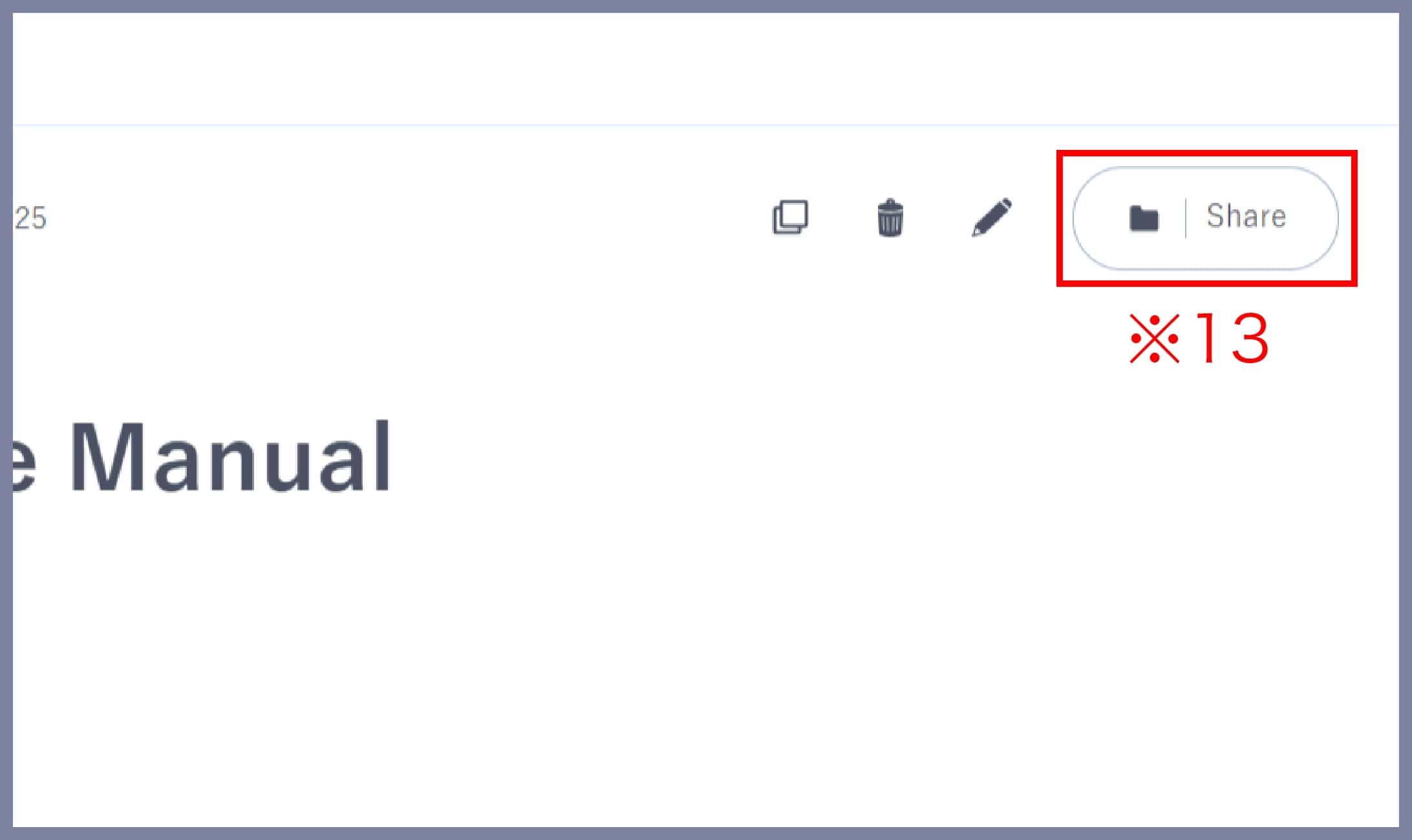
With the target Wiki selected, click the Share button (※13) at the top right.
2. Set the sharing scope
2-1. Share with specific users
Click the Search by account name or email field to show available users (※14).

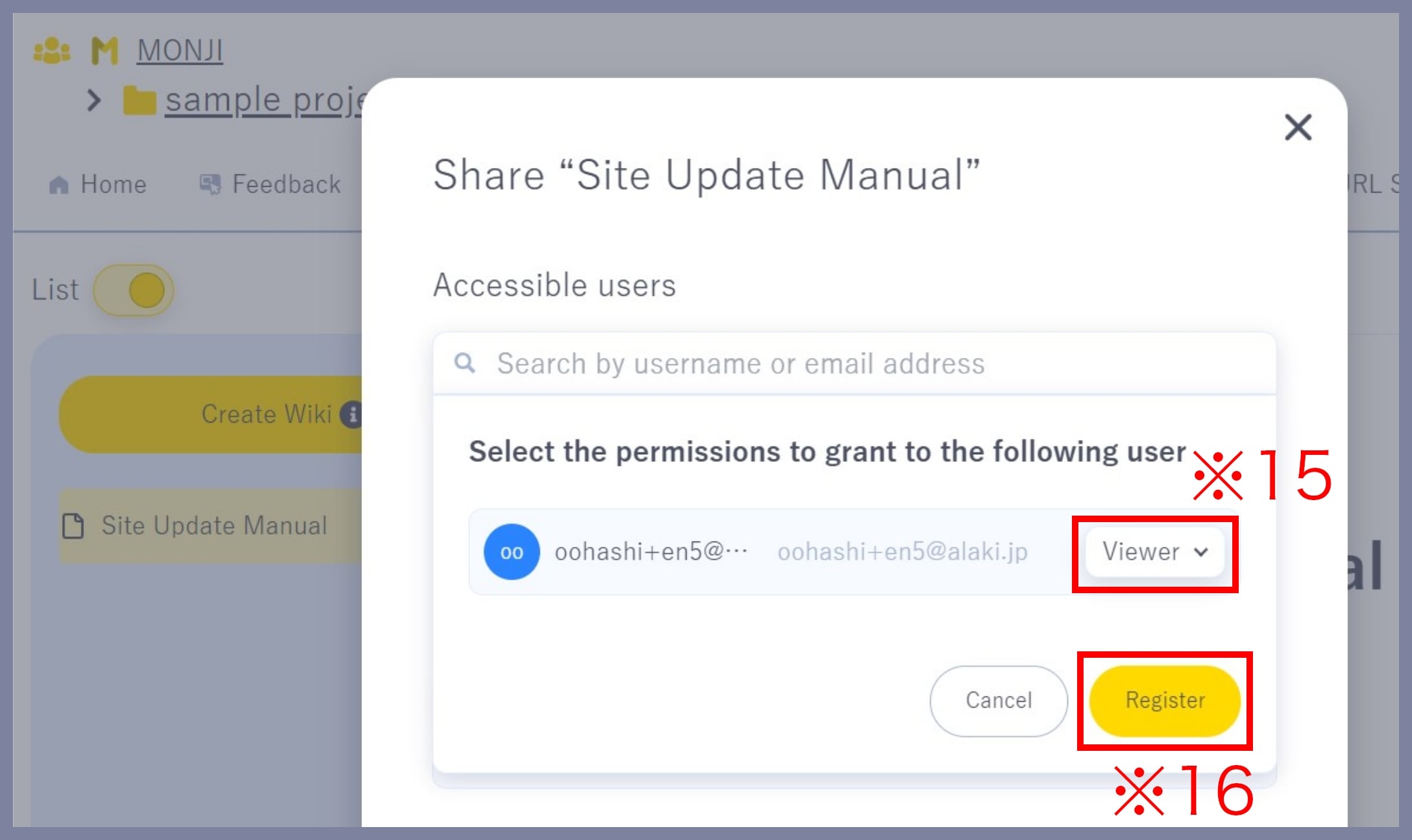
*You can also remove shared users or change their permissions using the same steps.
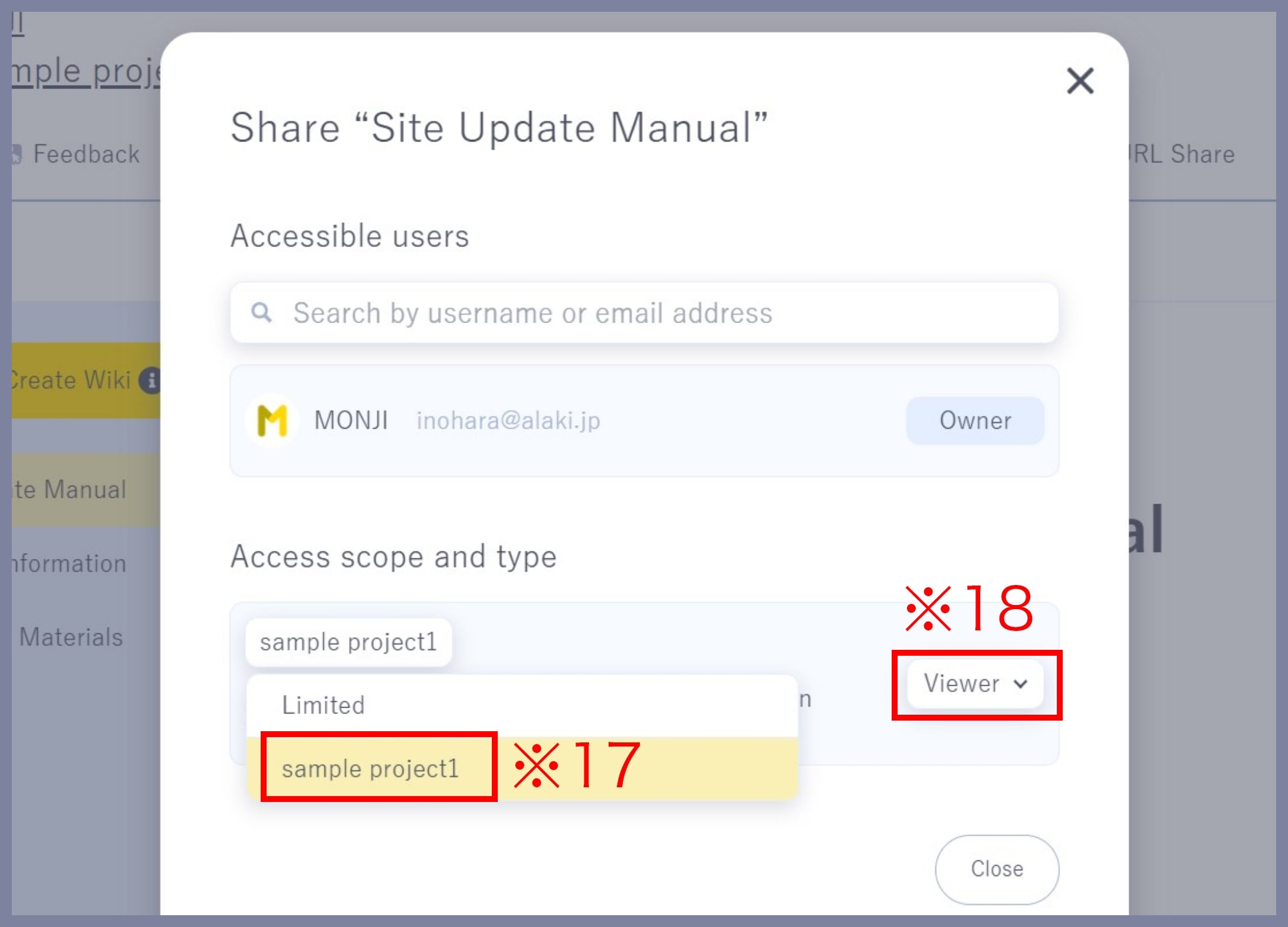
2-2. Share with all project members and guests
3. Close the sharing screen
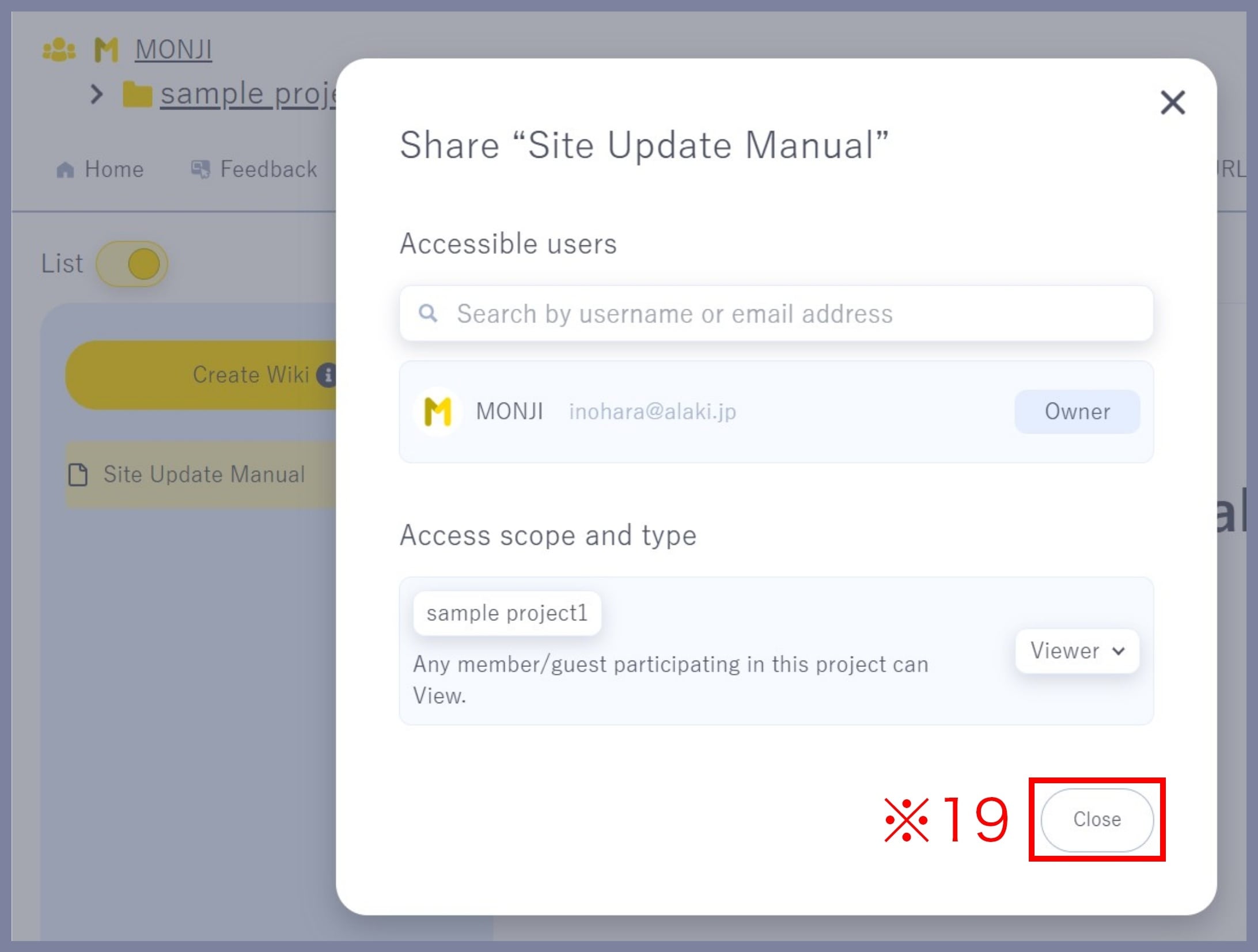
Click Close (※19) at the bottom right to finish.
– About Wiki hierarchy (parent/child)
You can set a hierarchy between Wikis.
How to set a hierarchy
Hover over the Wiki you want as the parent and click “+” to create a new Wiki. After creation, the parent/child relation is set automatically.
How to change the hierarchy
To move a Wiki under a different parent, drag the Wiki and drop it onto the new parent.
How to remove the hierarchy
Drag the child Wiki near its parent. Drop it where a blue line appears under the parent title to remove the parent/child relation.
– Sorting Wikis
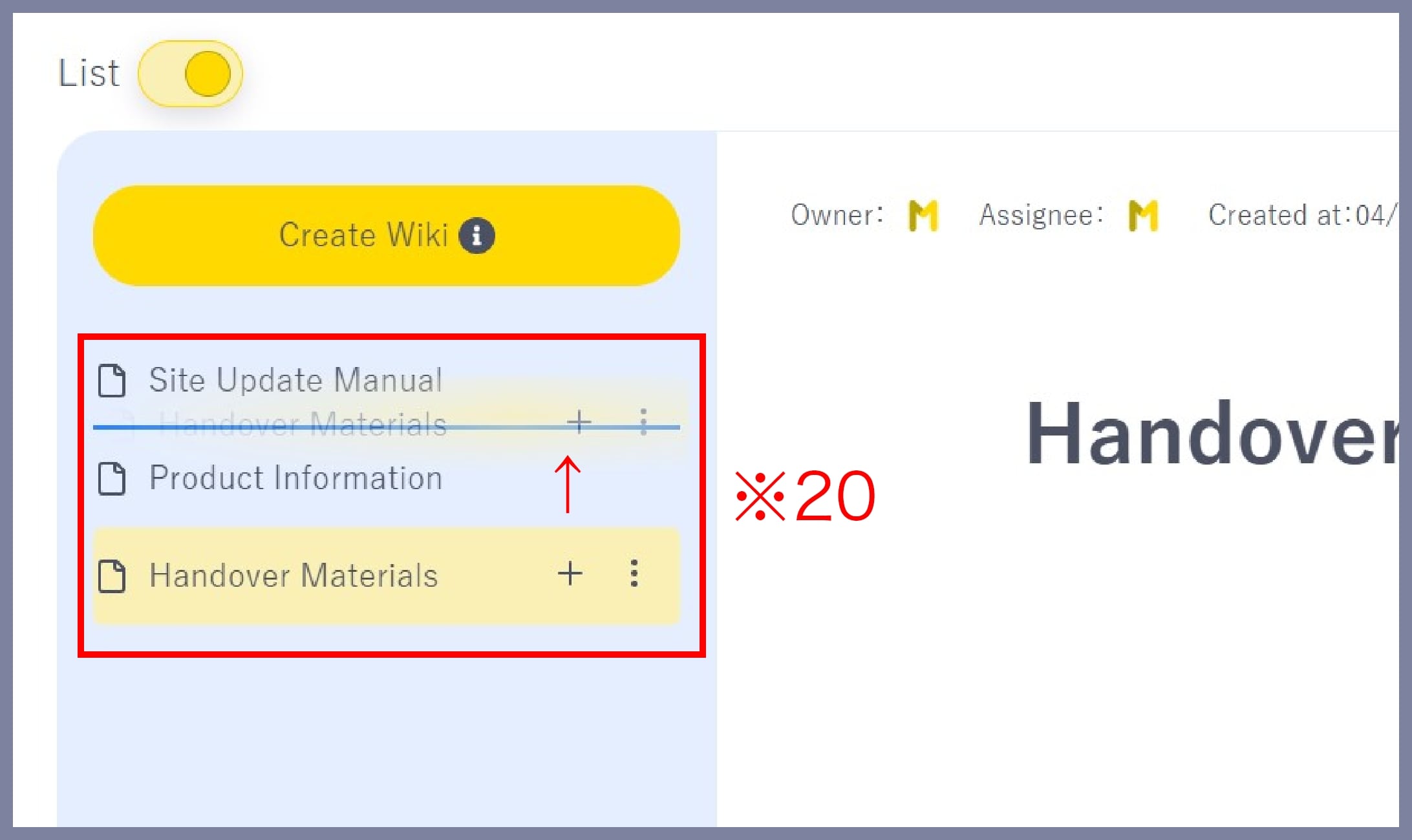
You can freely change the display order. Drag a Wiki to the desired position (※20).
– Copy wiki link and Copy as Markdown
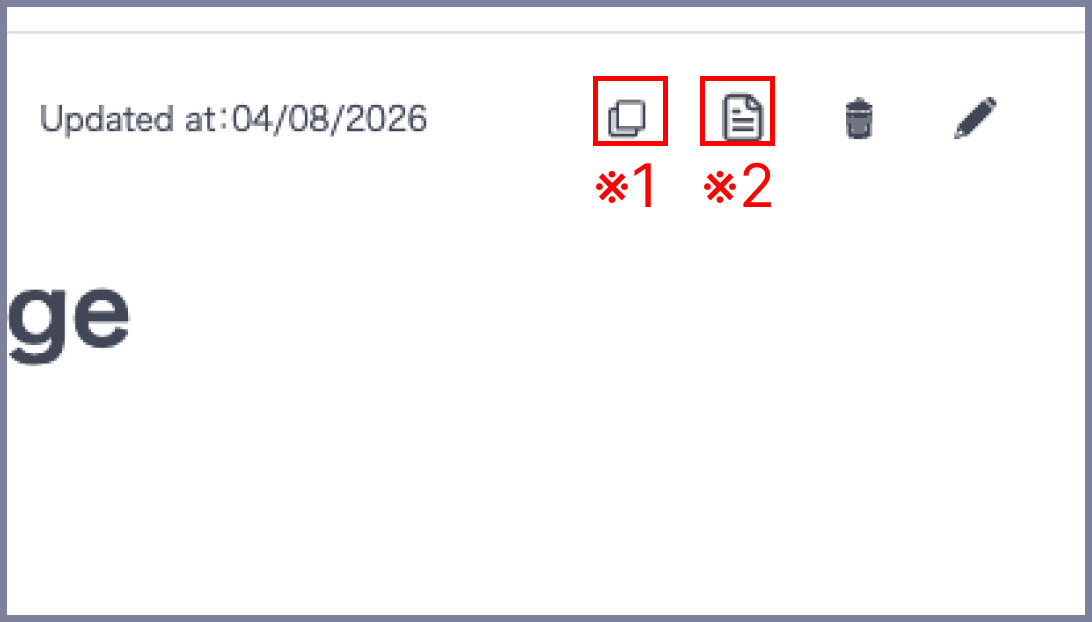
Use the icons at the top right of the screen to copy the contents of a Wiki.
Copy wiki link
Click the Copy wiki link icon (※1) to copy the Wiki Title and URL.
Share them via chat or email to easily notify Members/Guests in your Team/Project.
Copy as Markdown
Click the Copy as Markdown icon (※2) to copy the body as Markdown in addition to the Wiki Title and URL.
Headings, bulleted and numbered lists, tables, code blocks, quotes and images are all converted to Markdown, so you can paste them straight into other documentation tools or generative AI tools.
*Actual viewers/editors are limited by the sharing settings.