Purpose
Create a list of key items to check during creative reviews, such as company name, address, product names, and image usage rules.
Checklists are shared within each project, so anyone can create feedback with consistent quality and speed.
Add or Edit Checklists
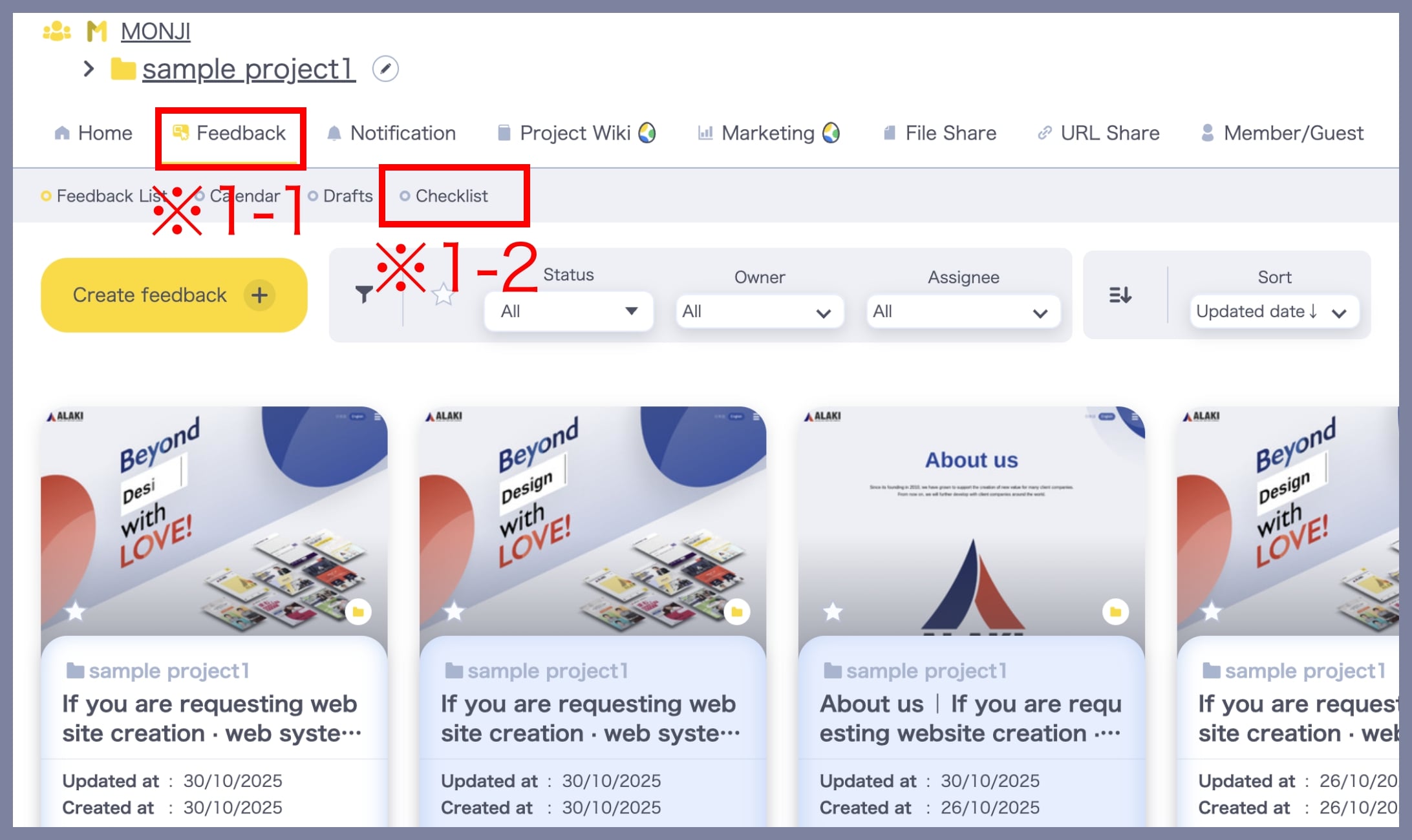
1. Open the “Checklists” screen
Checklists are created and shared per project.
From the Project menu, click Feedback, then click Checklists (※1).
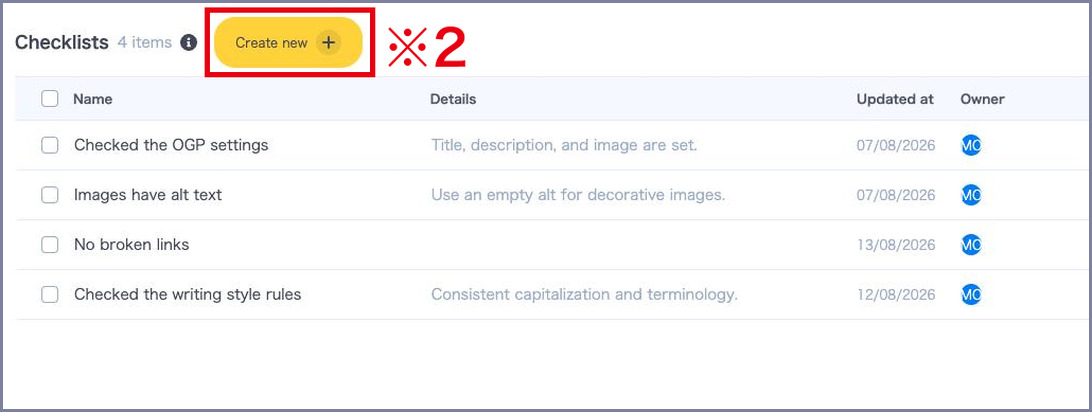
2. Add a checklist item
Click Create new (※2).
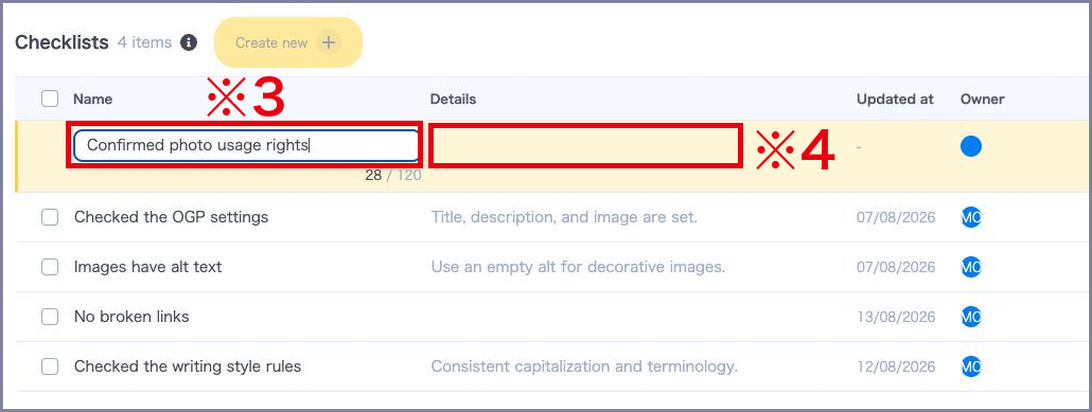
A new row is added at the top of the list, where you can type the Checklist item Name (※3) right away.
Press Enter, or click outside the field, to save it. There is no Save button to click.
Next, click the Details cell (※4) in the same row to enter the checklist item details. (Optional)
3. Edit a checklist item
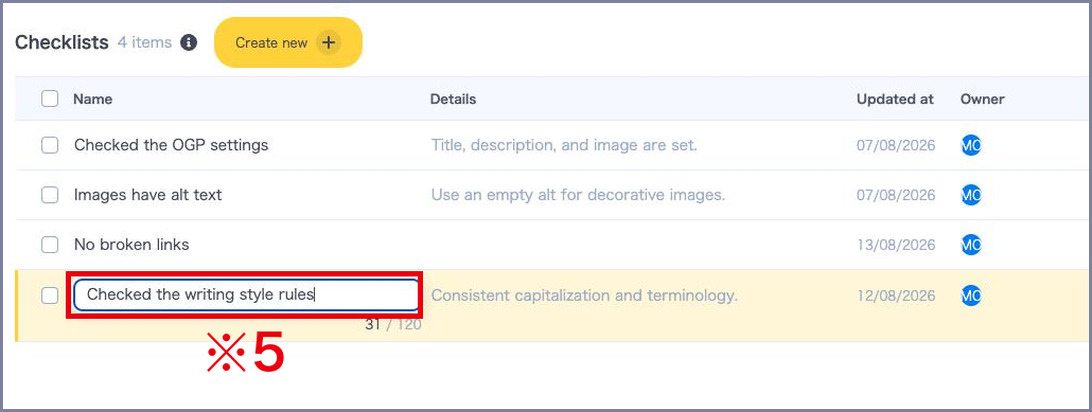
To edit an existing item, click its Name or Details in the list (※5) and edit it in place.
Press Enter, or click outside the field, to save it.
Press Esc to discard your changes.
To add a line break in Details, press Shift + Enter.
4. Delete checklist items
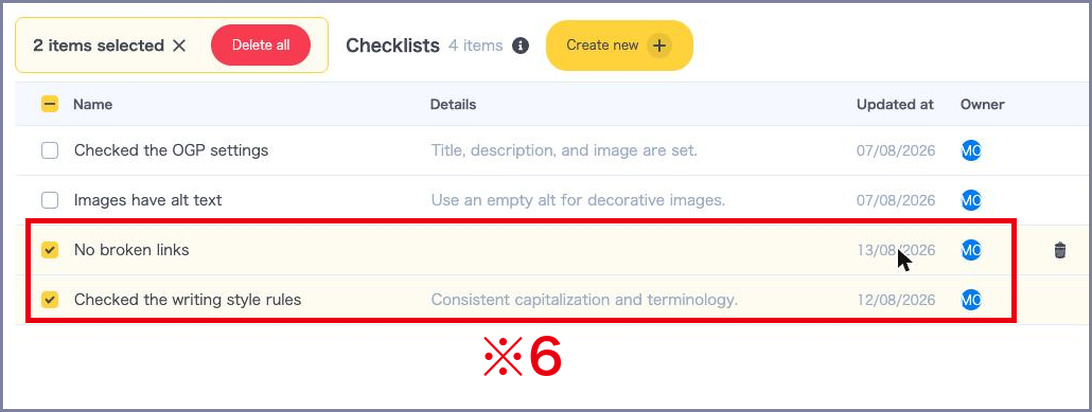
Select the checkboxes of the items you want to delete (※6).
2 items selected and Delete all then appear above the list.
Click Delete all, then click Delete in the confirmation dialog to delete the selected items at once.
Click the checkbox in the header row to select every item currently shown.
To delete a single item, point at its row and click the trash icon on the right.
※ Creating, editing, and deleting checklist items is available to project Members only. Guests can view checklists.
※ Deleted items are also removed from the checklists of feedback.
※ Checklist item Name can be up to 120 characters, and Checklist item Details up to 250 characters.
※ Checklists are available on all plans.
※ The list shows the 20 most recently created items. Scroll down to load more.
How to Use
1. Show the checklist
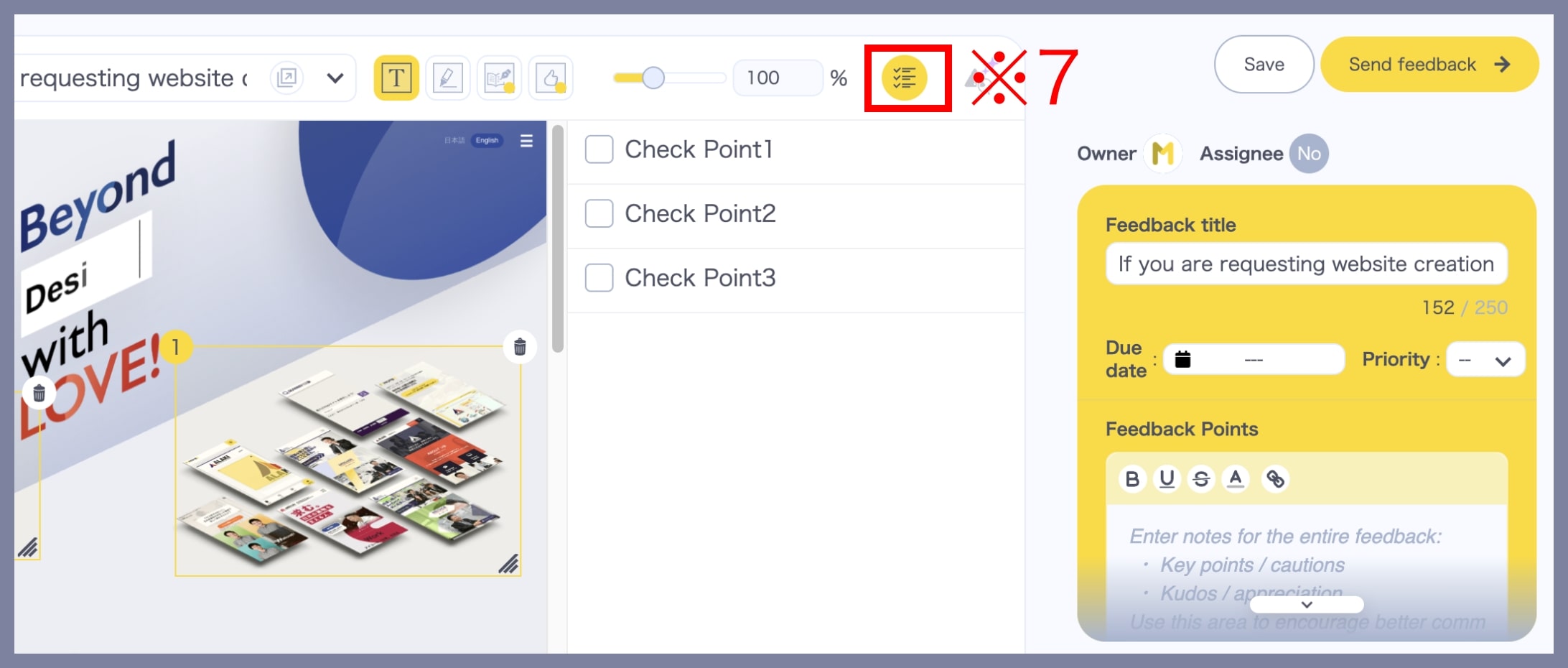
Registered checklists can be used in the Feedback Edit screen.
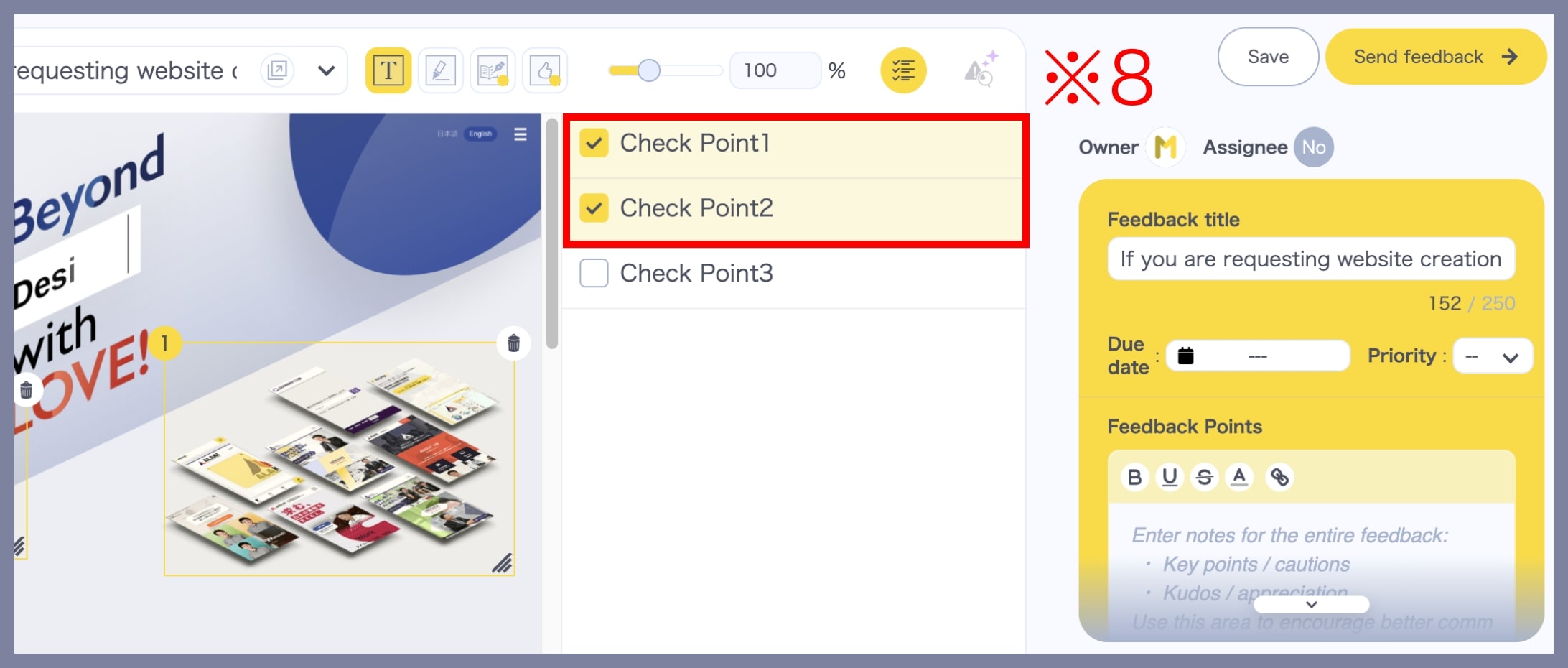
Click the Checklist icon (※7) in the toolbar.
2. Review checklist items
The registered items will be displayed.
Click each item (※8) to mark it as completed.