Purpose
Manage all your links in one place for each project, including design reference sites, sitemaps, wireframes, and more.
Give your project Members and Guests instant access so no one wastes time searching.
Add/Edit Bookmarks
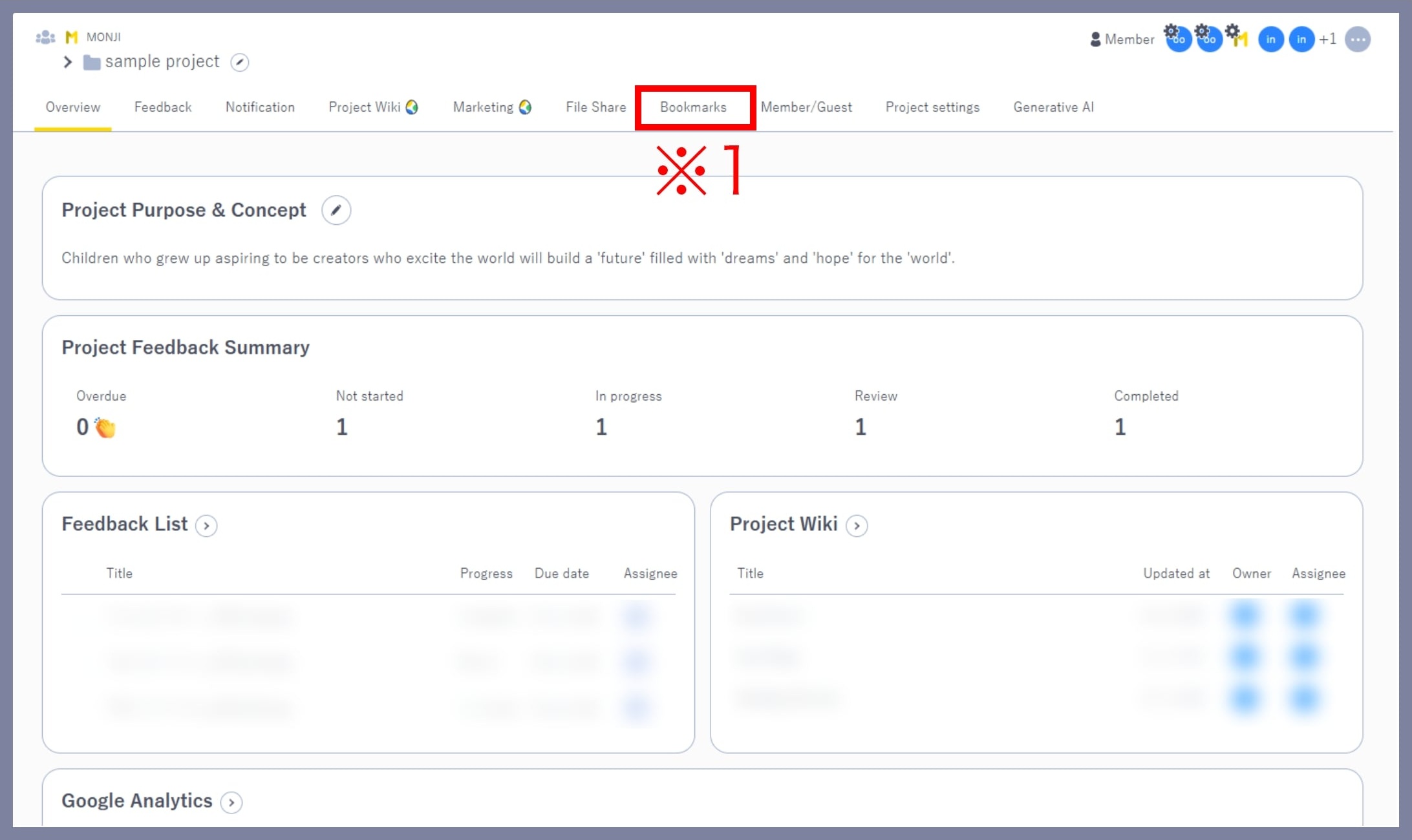
1. Open the “Bookmarks” screen
From the Project menu, click the Bookmark link (※1).
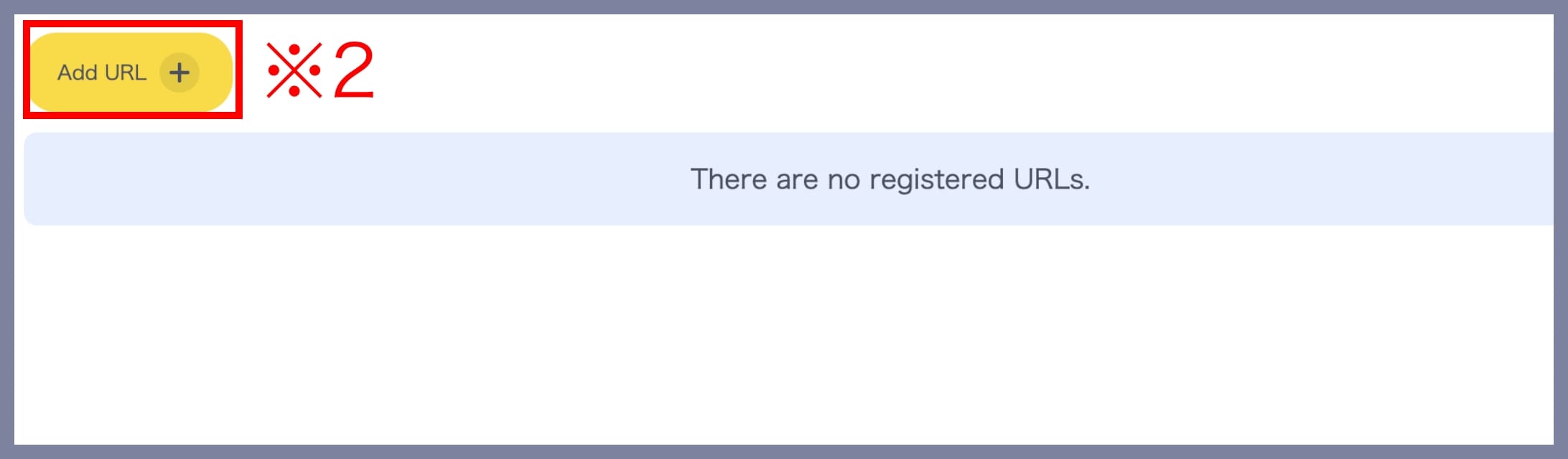
2. Add a new Bookmark
Click the Add URL button (※2).
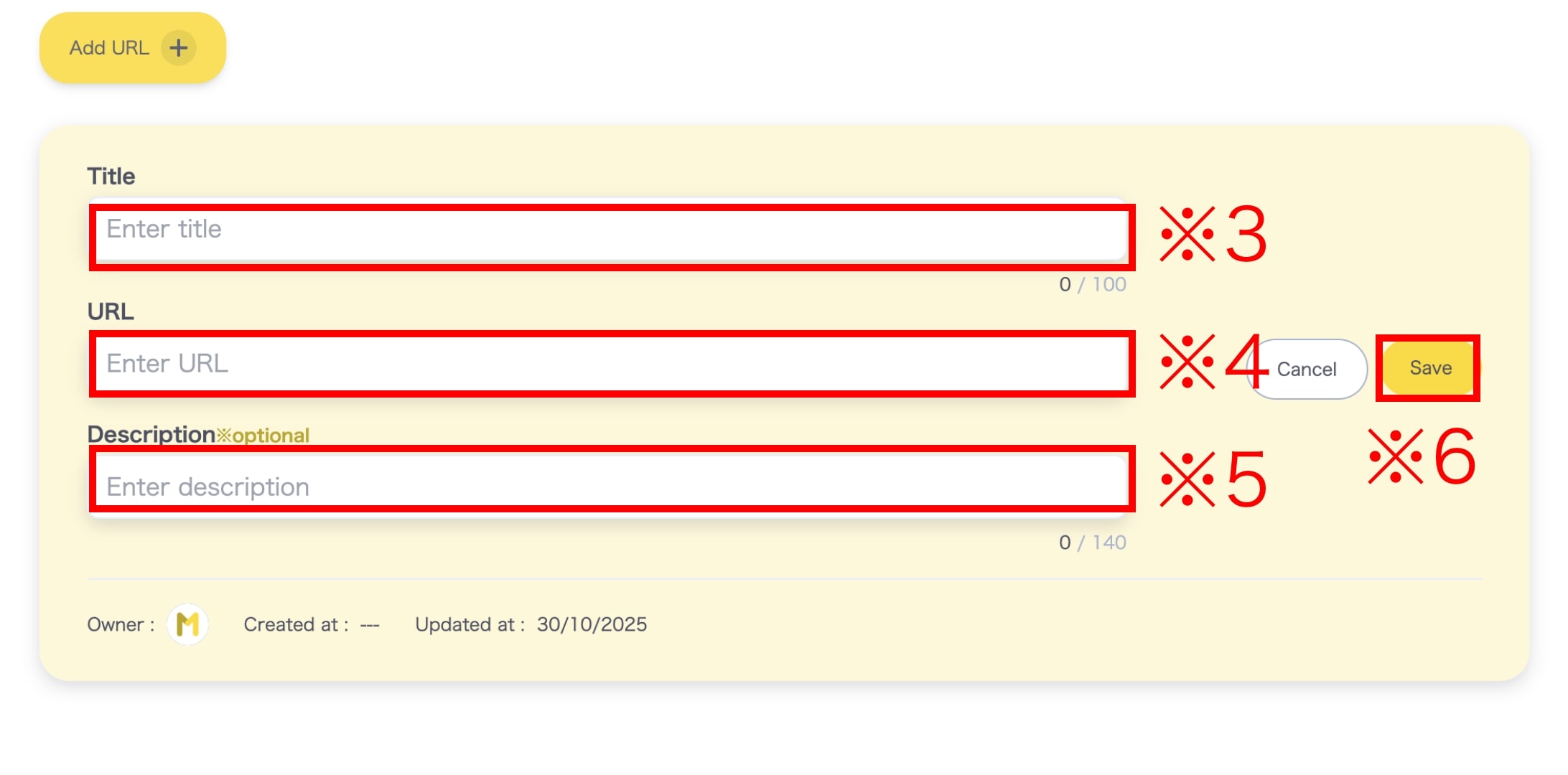
Enter the following details:
- Title (※3)
- URL (※4)
- Notes (※5) — Optional
After entering the information, click Save (※6) to complete the registration.
– Edit a Bookmark
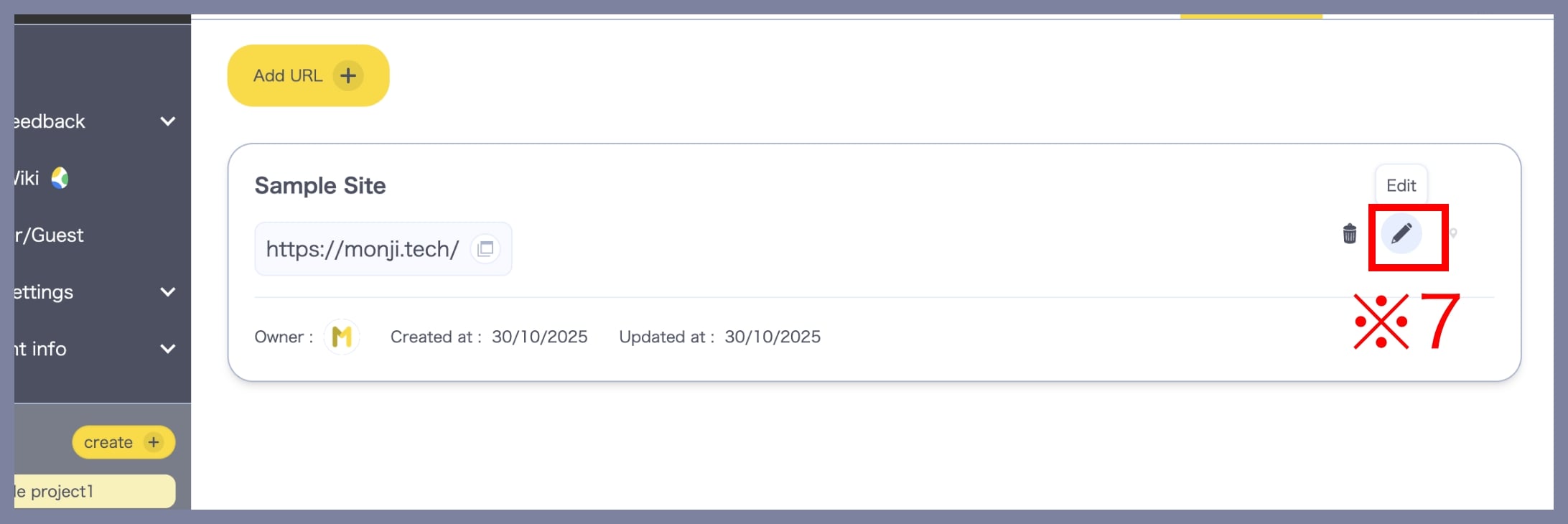
Click the Edit icon (※7) beside the Bookmark you want to modify to update its details.
– Pin a Bookmark
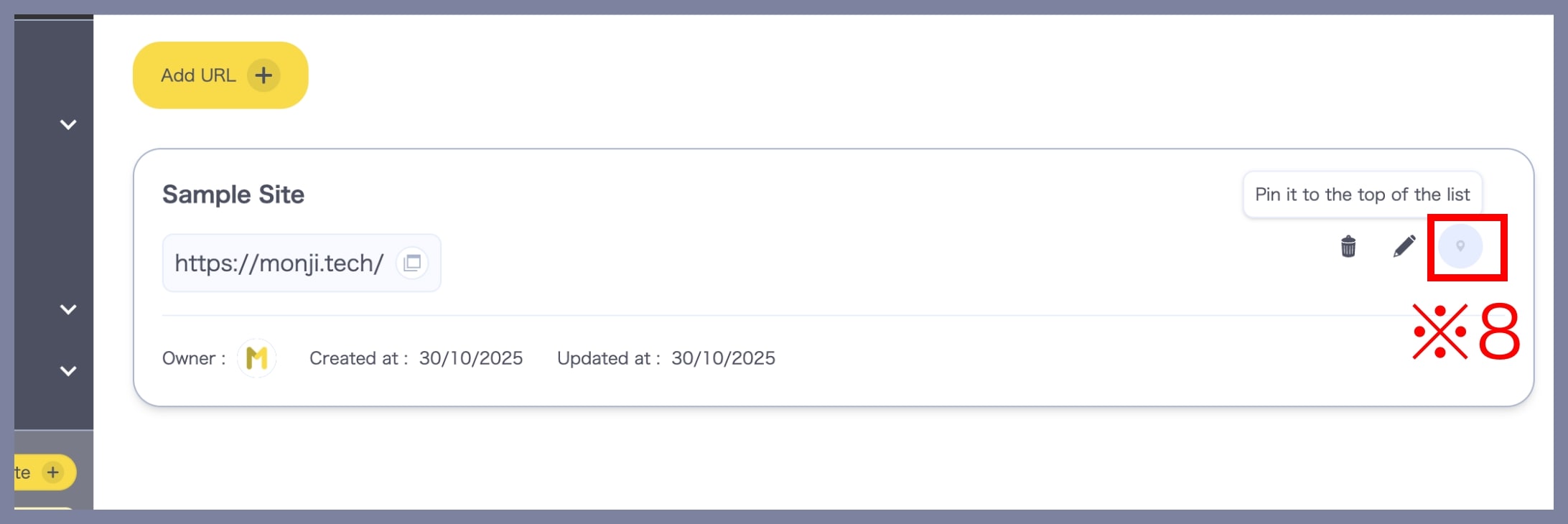
Click the Pin icon (※8) to fix the selected Bookmark to the top of the list for quick access.
– Delete a Bookmark
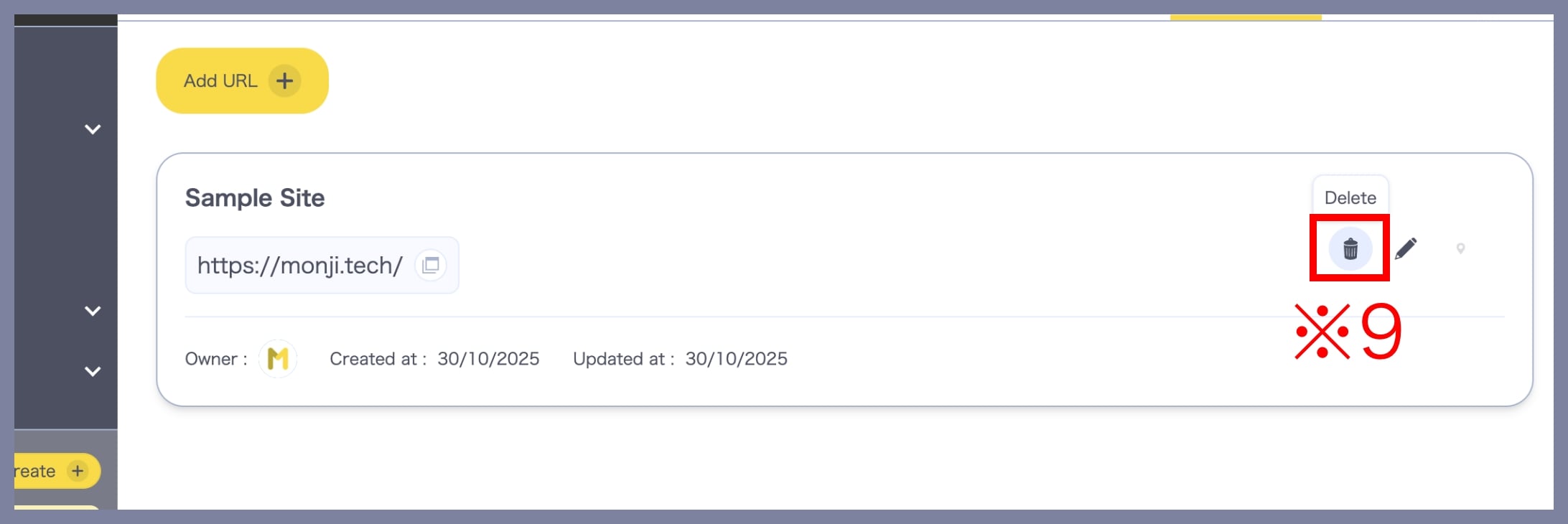
Click the Delete icon (※9) to remove the selected Bookmark from the list.