You can delete your account by following the steps below.
If you are the only Admin of a team on a paid plan, you cannot delete your account. First assign another Member as Admin, or cancel the paid plan before proceeding.
1.Go to General Settings
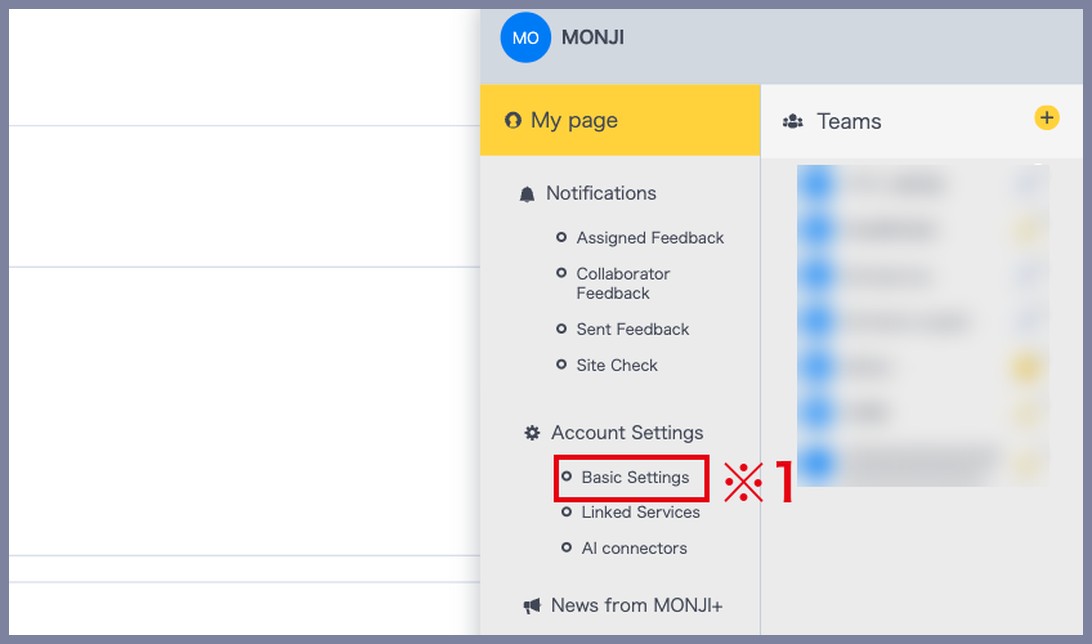
Click your user icon in the top right, then select Account Settings > Basic Settings (※1).
2.Start account deletion
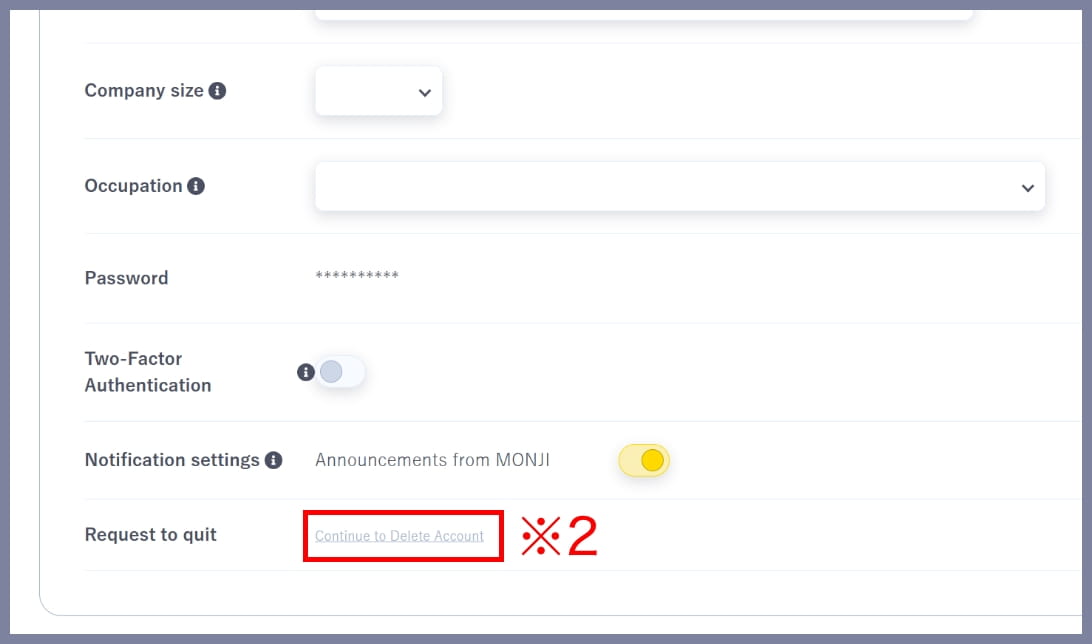
Click Continue to Delete Account at the bottom of the page (※2).
3.Change Admin / Cancel paid plan
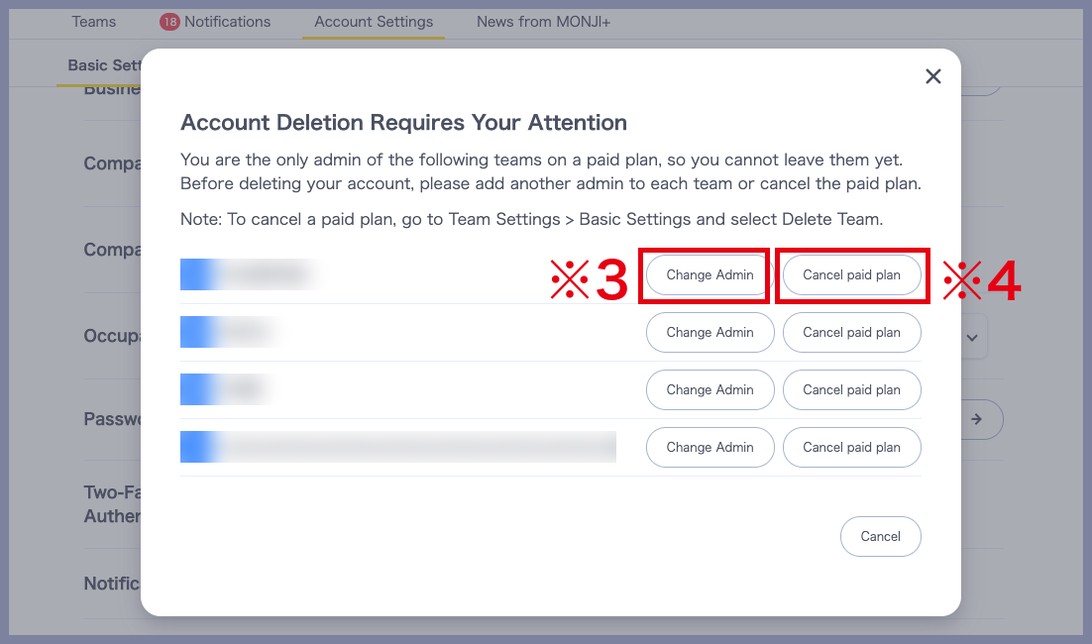
If you’re the only Admin of a team, you’ll see a confirmation message before proceeding with account deletion.
Depending on your plan, complete one of the following steps:
3-1. If you are the only Admin of a team on a paid plan
Select Change Admin (※3) to assign another Member as Admin, or choose Cancel paid plan (※4).
You cannot proceed with account deletion from this modal. Complete one of the steps above, then start again from 1. Go to General Settings.
For instructions on how to cancel the paid plan, please see here.
3-2. If you are the only Admin of a team on a 30-day free trial or free plan
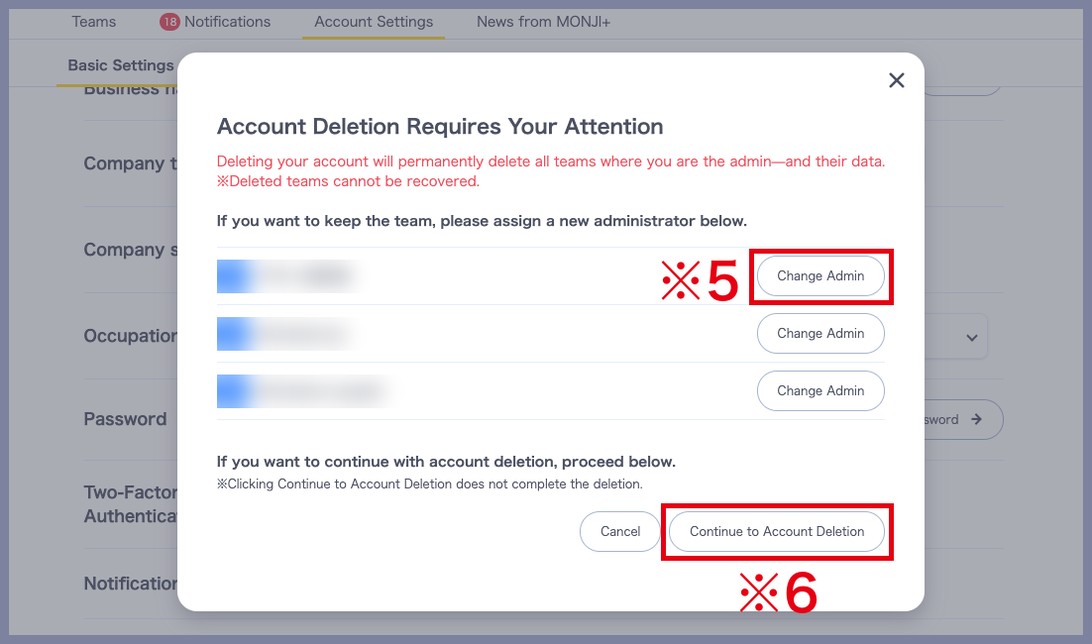
If you want to keep the team, select Change Admin (※5) and assign another Member as Admin.
Once done, go back to 1. Go to General Settings and try again.
To proceed with account deletion, click Continue to Delete Account (※6) and go to 4. Resume account deletion.
If you proceed without changing the Admin, all data for teams where you are the Admin will be deleted when your account is removed.
Deleted data cannot be restored.
4.Resume account deletion
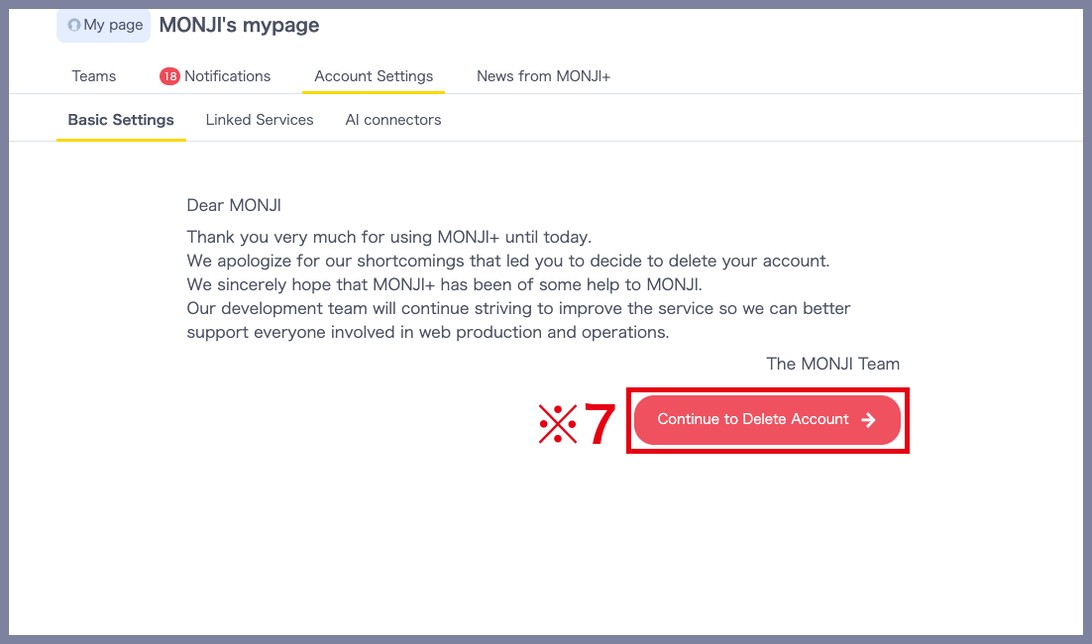
Click Continue to Delete Account (※7).
5.Review and agree to the notes on account deletion
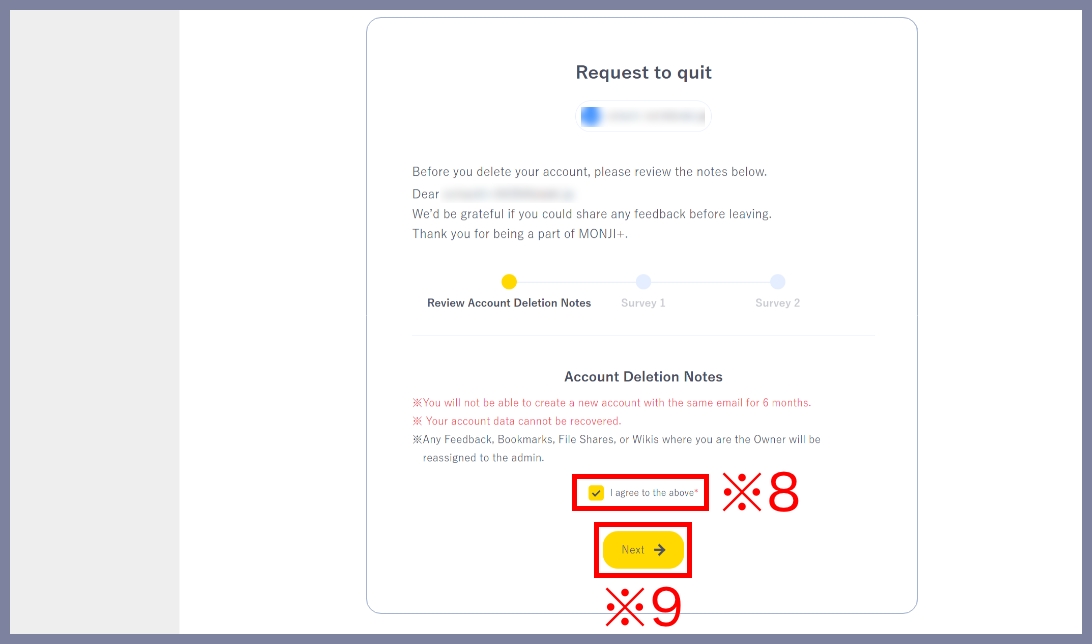
Review the Important notes on account deletion, check I agree to the above (※8), then click Next (※9).
6.Complete Survey 1
Please rate the following five items:
・Ease of use
・Support
・Pricing
・Design and UI
・Likelihood to recommend
After selecting all items, click Next (※10).

7.Complete Survey 2
Please answer the following:
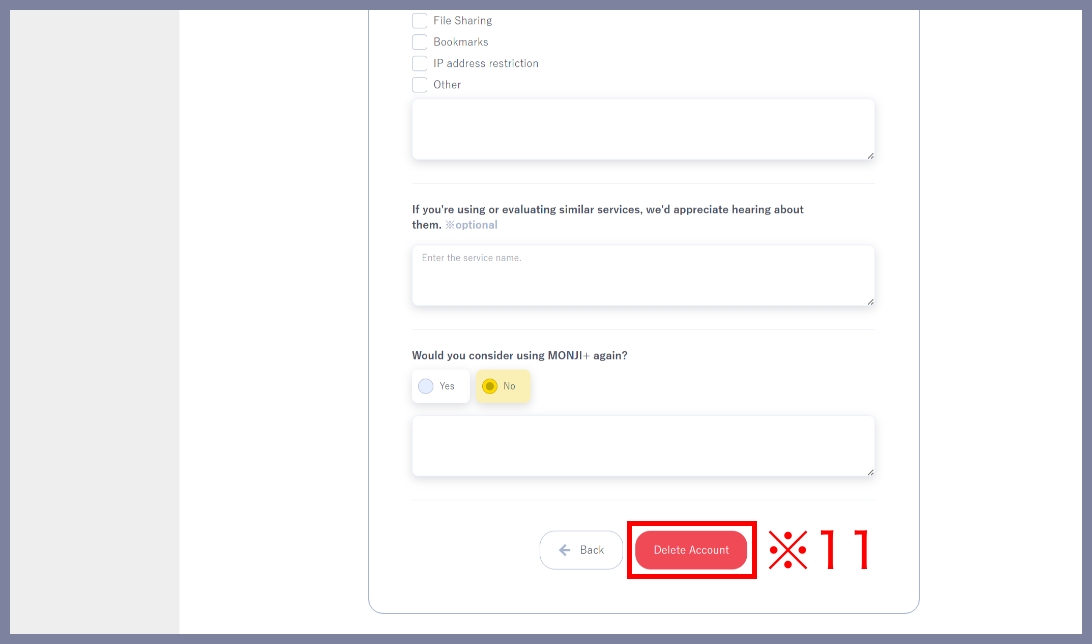
・Features you didn’t find necessary
・Similar services you’re considering
・Likelihood of using MONJI+ again
Once completed, click Delete account (※11).
8.Complete account deletion
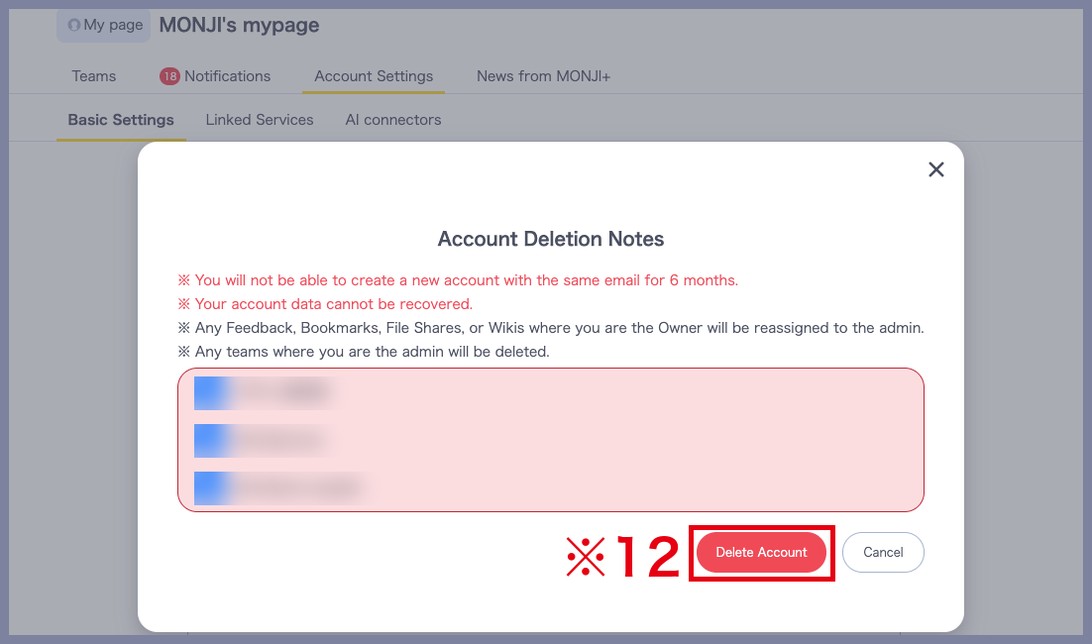
In the confirmation modal, review the Important notes on account deletion again.
If everything looks good, click Delete account (※12).
After deletion, you cannot sign up again with the same email address for 6 months.
Account data cannot be restored.
Any Feedback, bookmarks, file shares, or wiki pages where you are the Owner will be reassigned to the Admin.
9.Account deletion complete
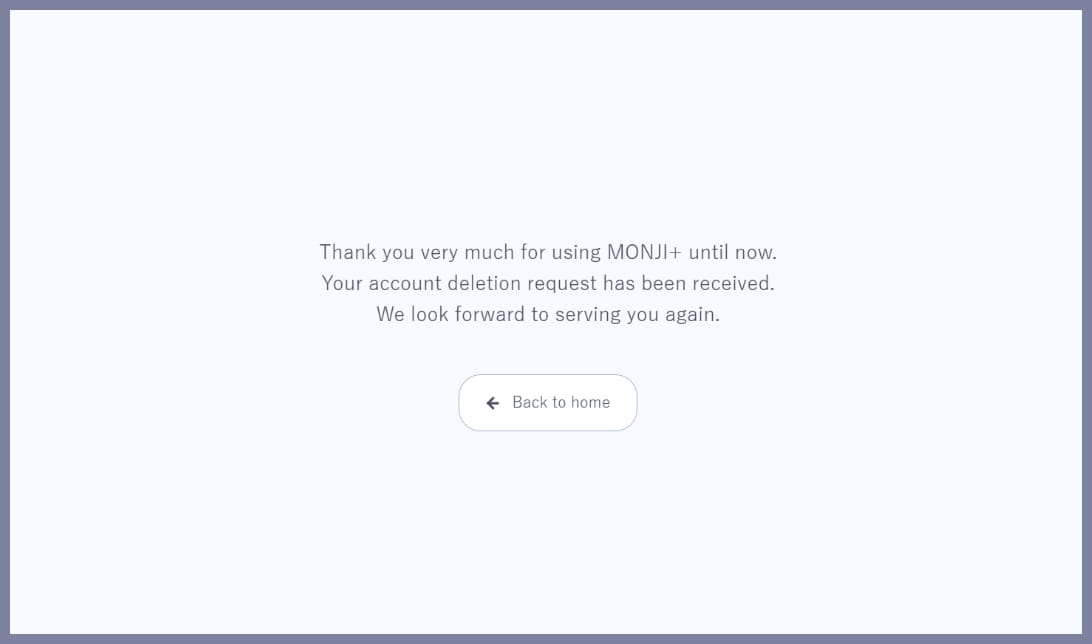
The following screen will appear, and your account deletion is complete.