








MONJI-izm (Chrome extension)
Works on pages after login too.
Create feedback faster and more comfortably with MONJI-izm.
MONJI-izm is a Google Chrome extension that lets you create Feedback directly from any site you're viewing.
It loads twice as fast as before.
Install for free — no setup required. Enjoy!

— Four key benefits of MONJI-izm
Take screenshots in one click
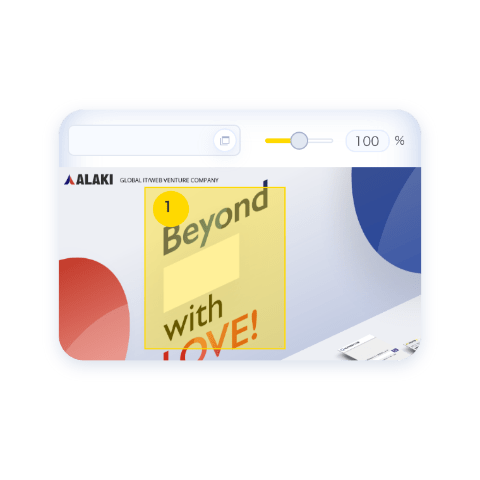
Simply click the "MONJI-izm" icon to capture a screenshot of your current page. No need to access MONJI or enter a URL manually!
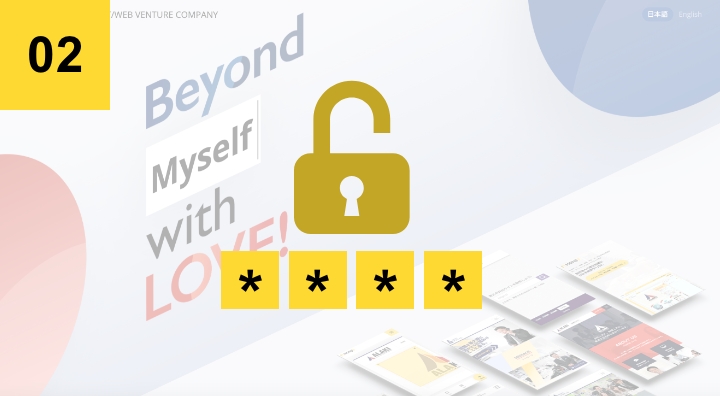
No need to enter Basic Auth ID/PASS
With "MONJI-izm," you can capture screenshots even on sites protected by Basic Authentication—no need to re-enter ID/PASS every time!
Capture open accordions
You can now capture content inside accordions—just open the section you want and click the "MONJI-izm" icon.

Capture pages after login
Easily take screenshots of admin or post-login pages. Just click the "MONJI-izm" icon while logged in.
— 4 Steps to Get Started
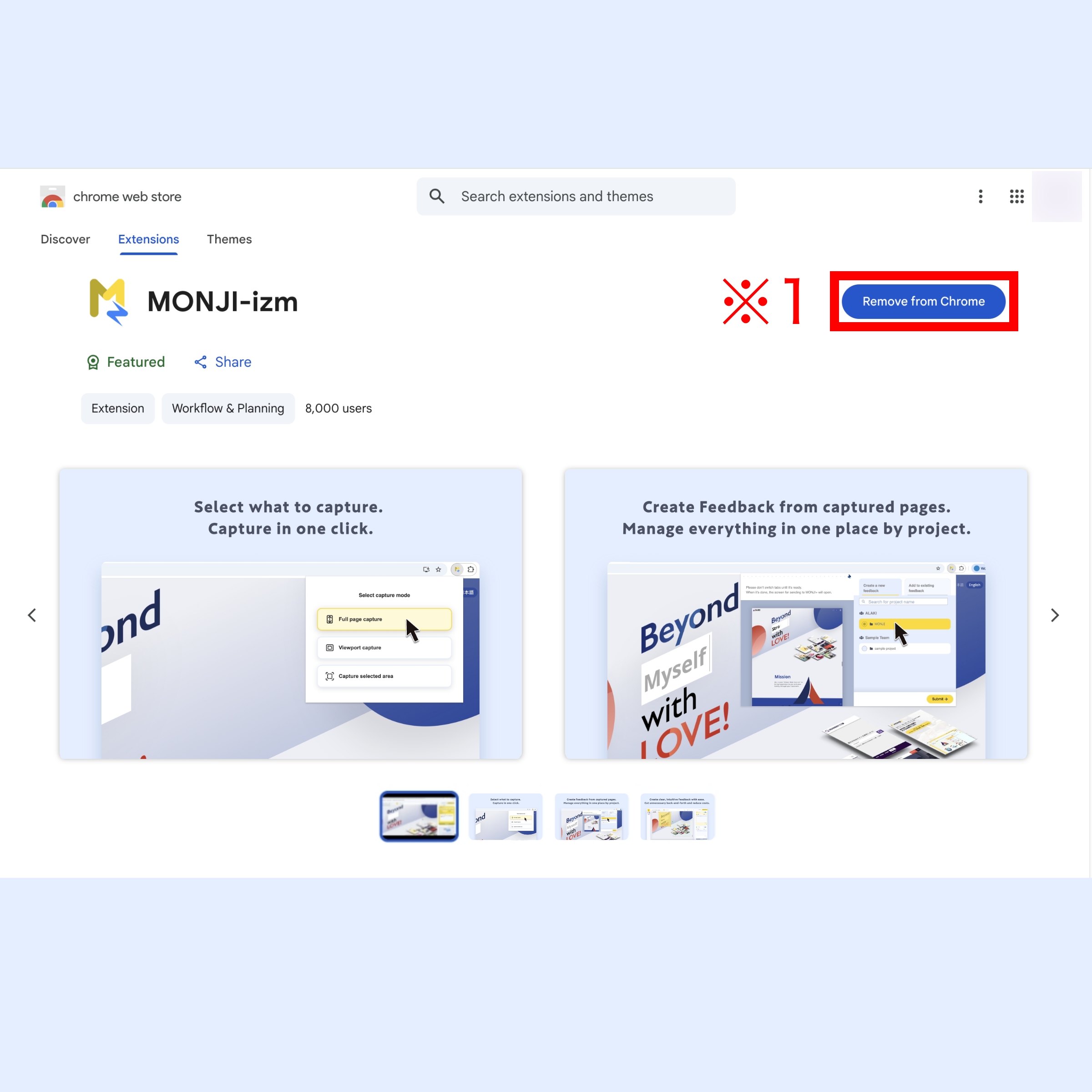
Install
Click the "Install MONJI-izm" button(※1) below to add the free extension from the Chrome Web Store.
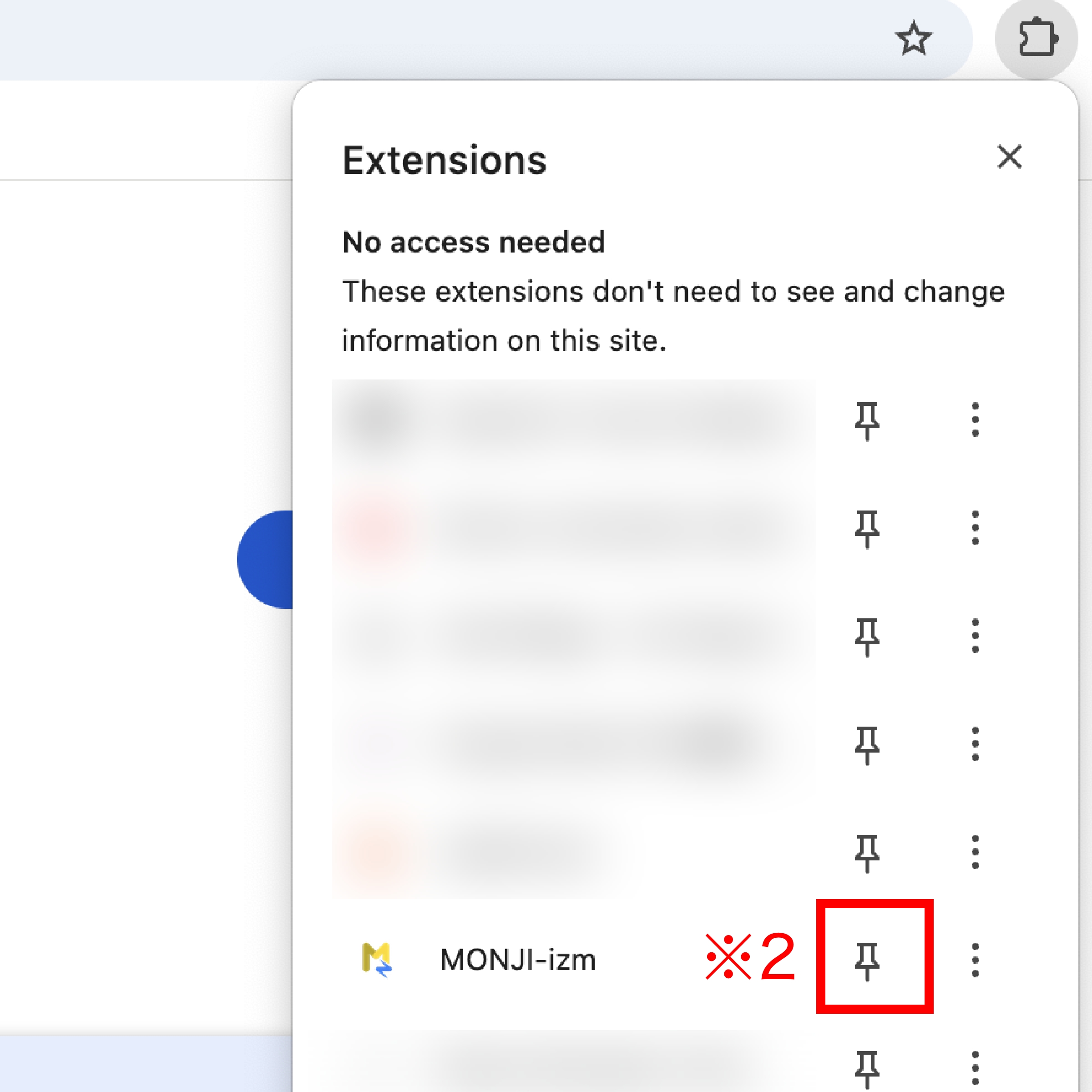
Pin the extension
Once installed, pin the extension(※2) to your Chrome toolbar.
This lets you access it instantly whenever needed.
Select a capture mode to take a screenshot
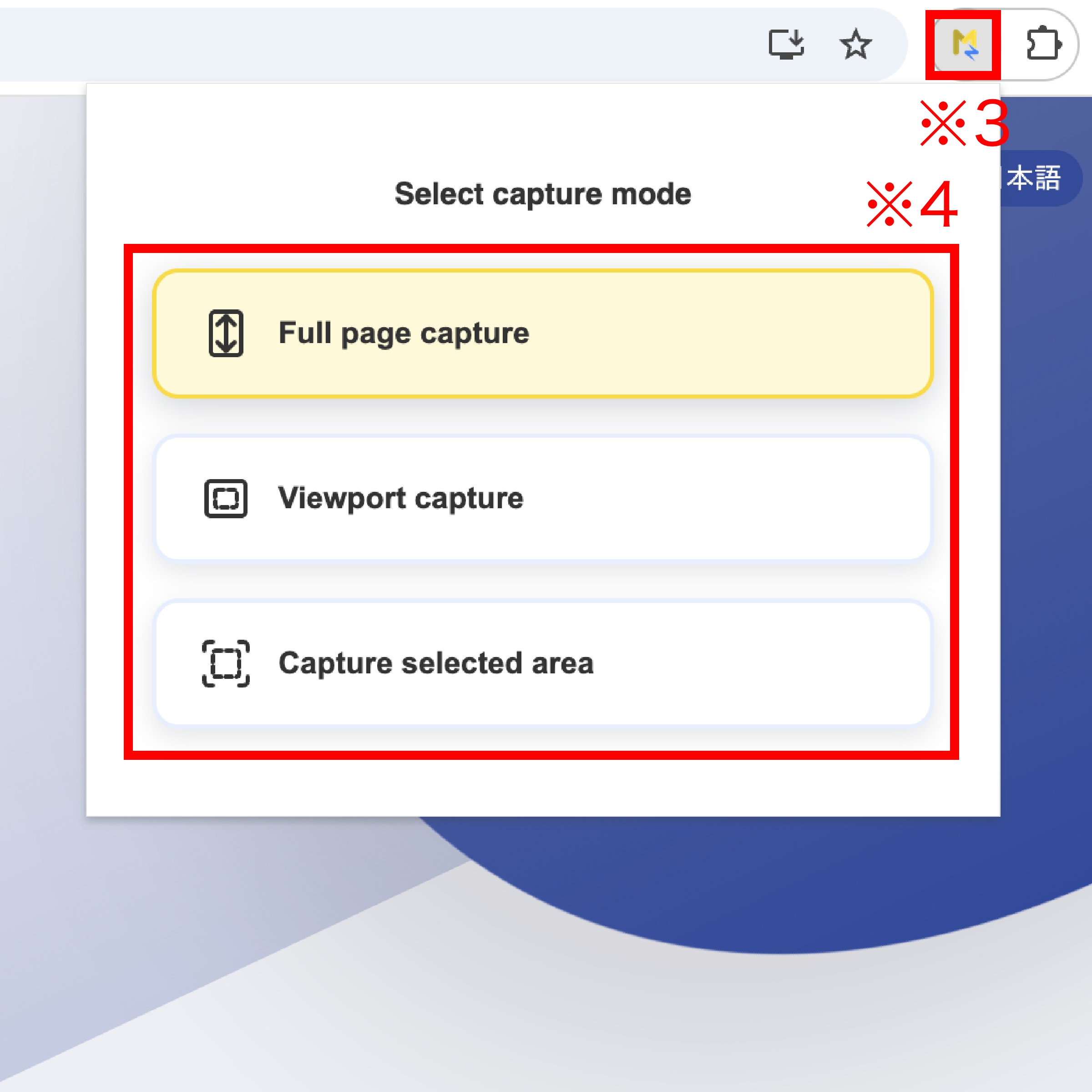
Open the page you want to capture in Chrome, then click the MONJI icon(※3) in the extensions toolbar.
Select the area you want to capture(※4) to start taking a screenshot.
Add screenshots to feedback
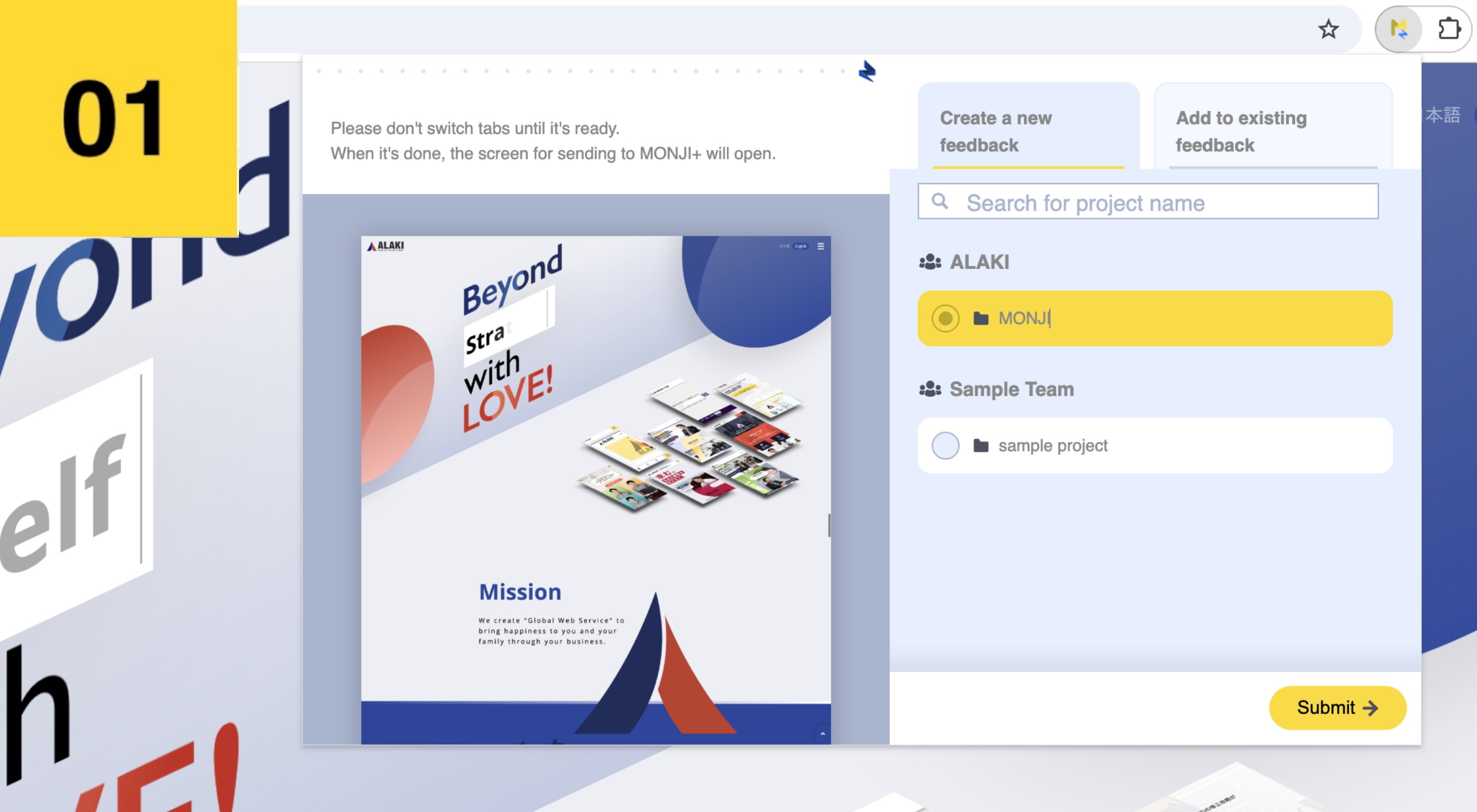
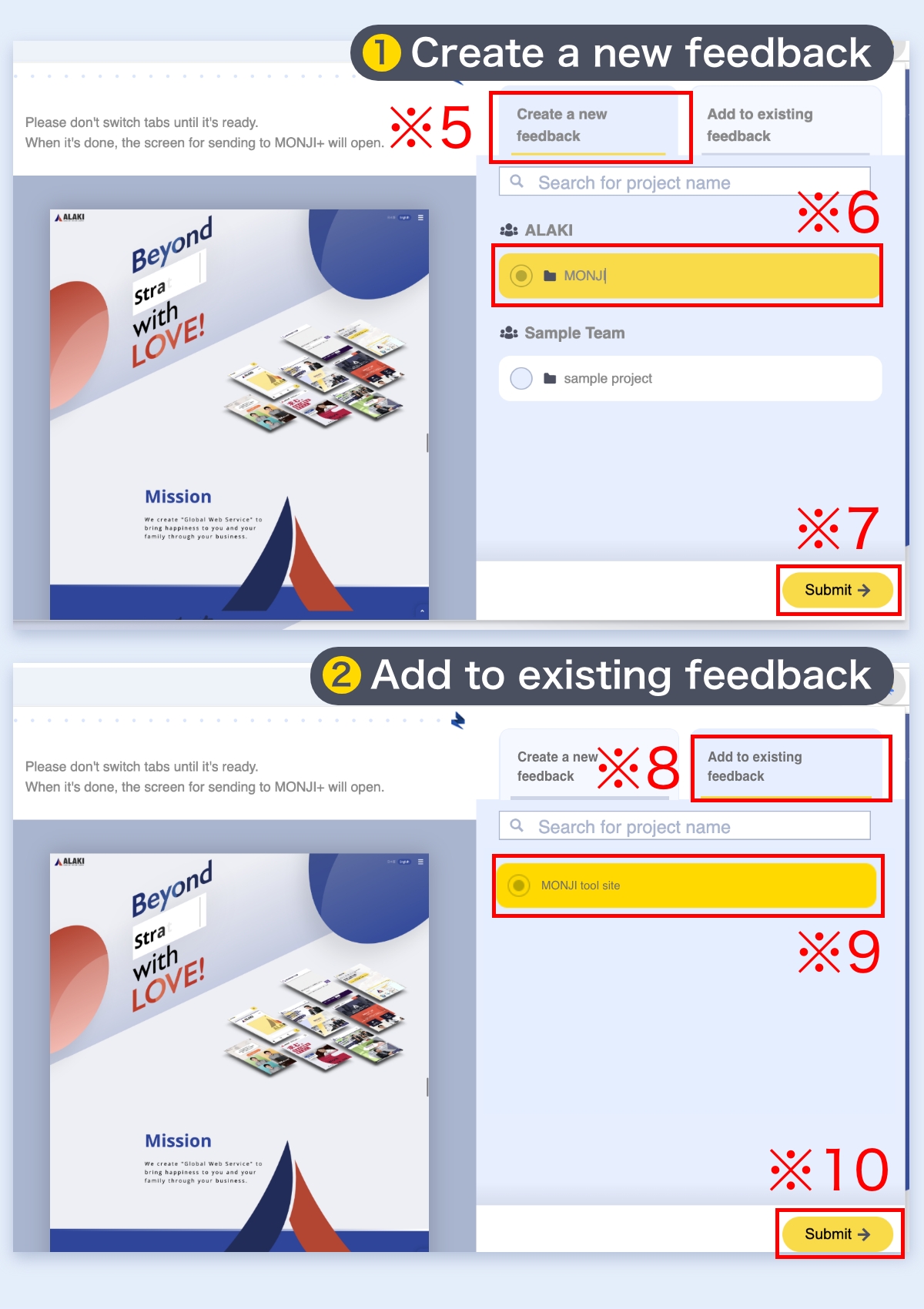
After capturing, you can add your screenshots to a feedback in two ways:
- 1Create a new feedback(※5)
Select a Project(※6) and submit(※7). A new browser tab will open and create the Feedback.
- 2Add to an existing feedback(※8)
To add this page to an existing Feedback, select the Feedback open in another browser tab (※9) and click Send (※10).
Related features
Feedback
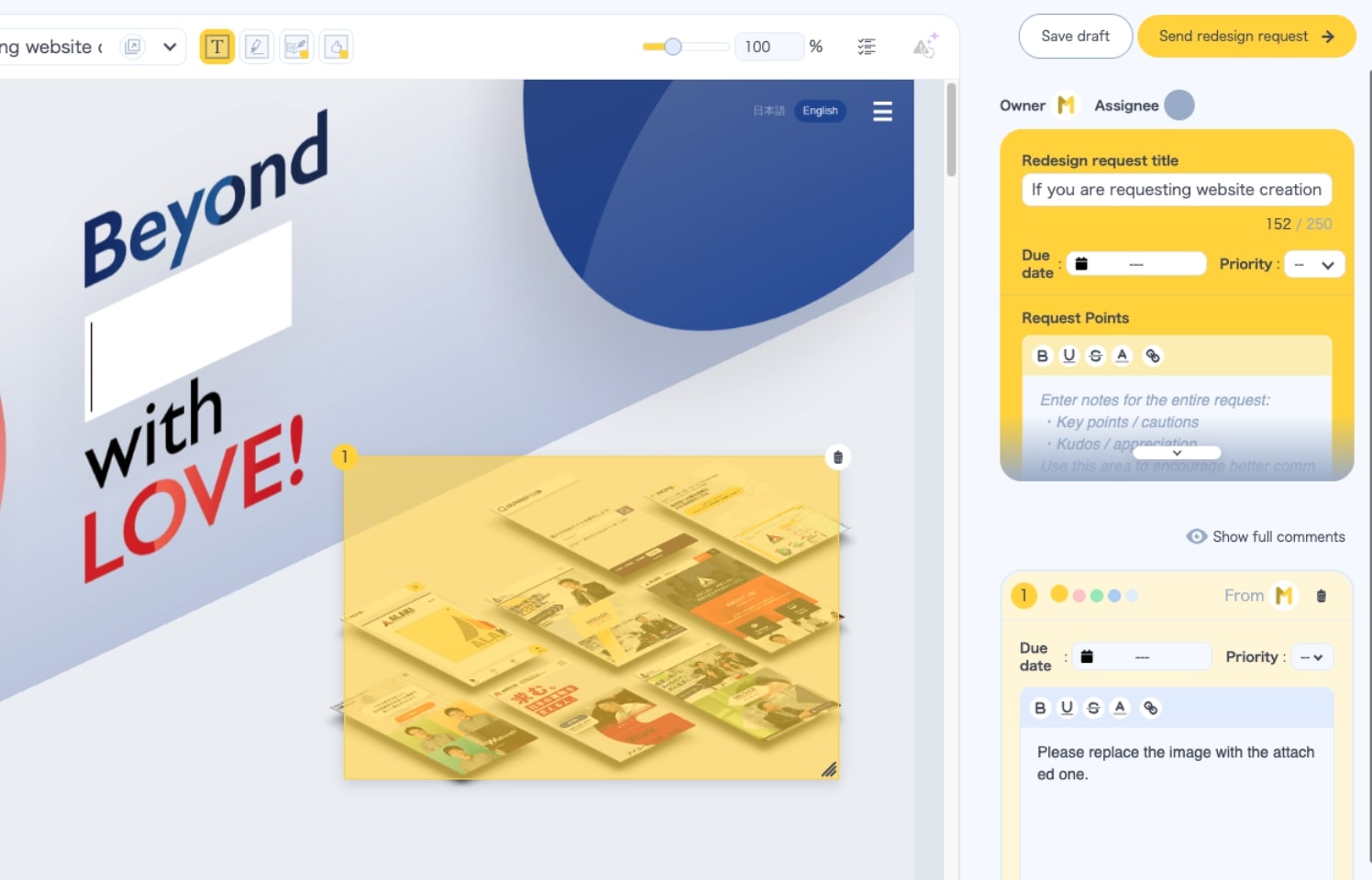
Load a URL and comment right in the browser. Manage edits, details, and progress in one place.
Public link for feedback (with password)
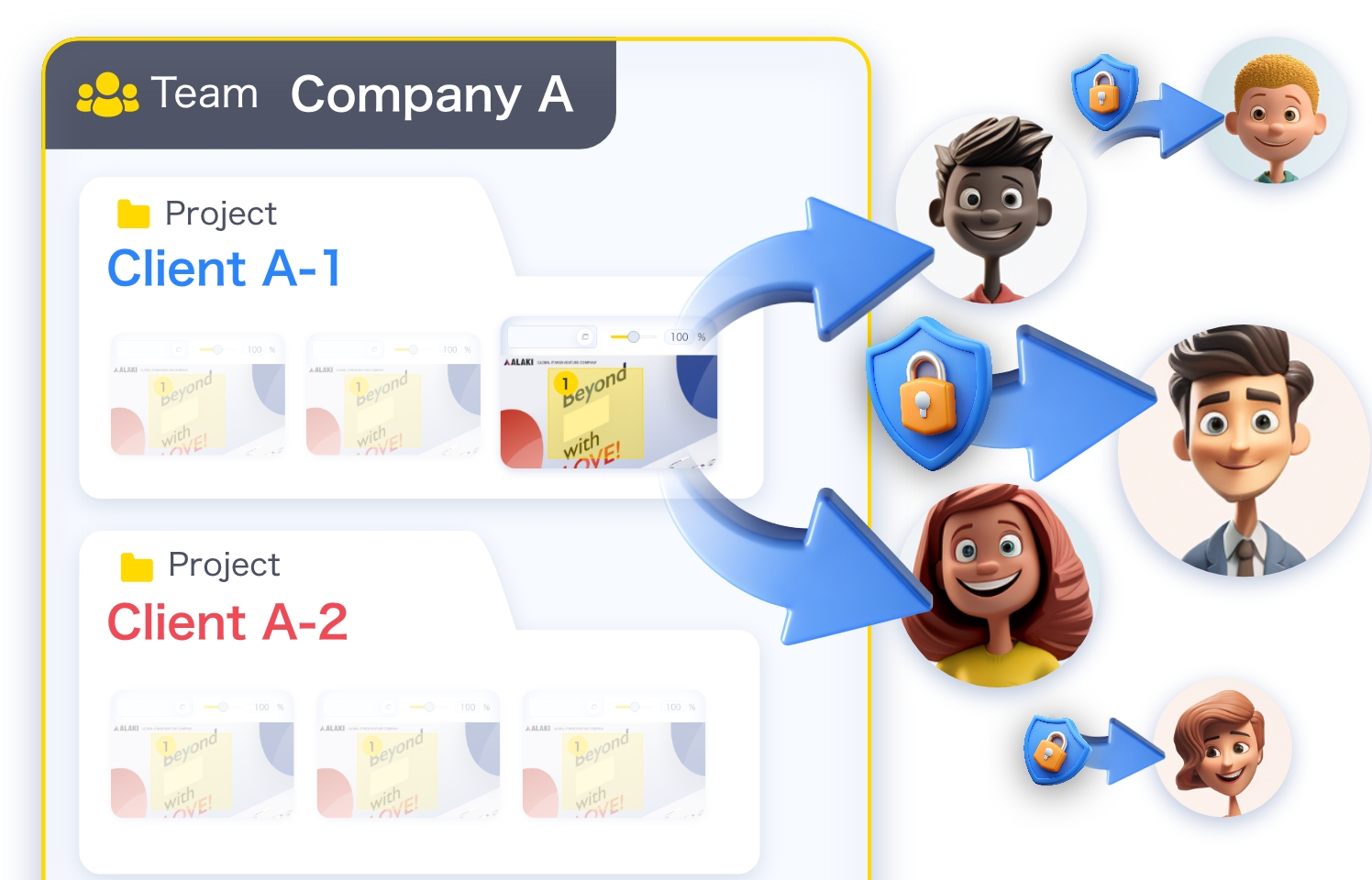
Share and view feedback even without an account or team/project membership.
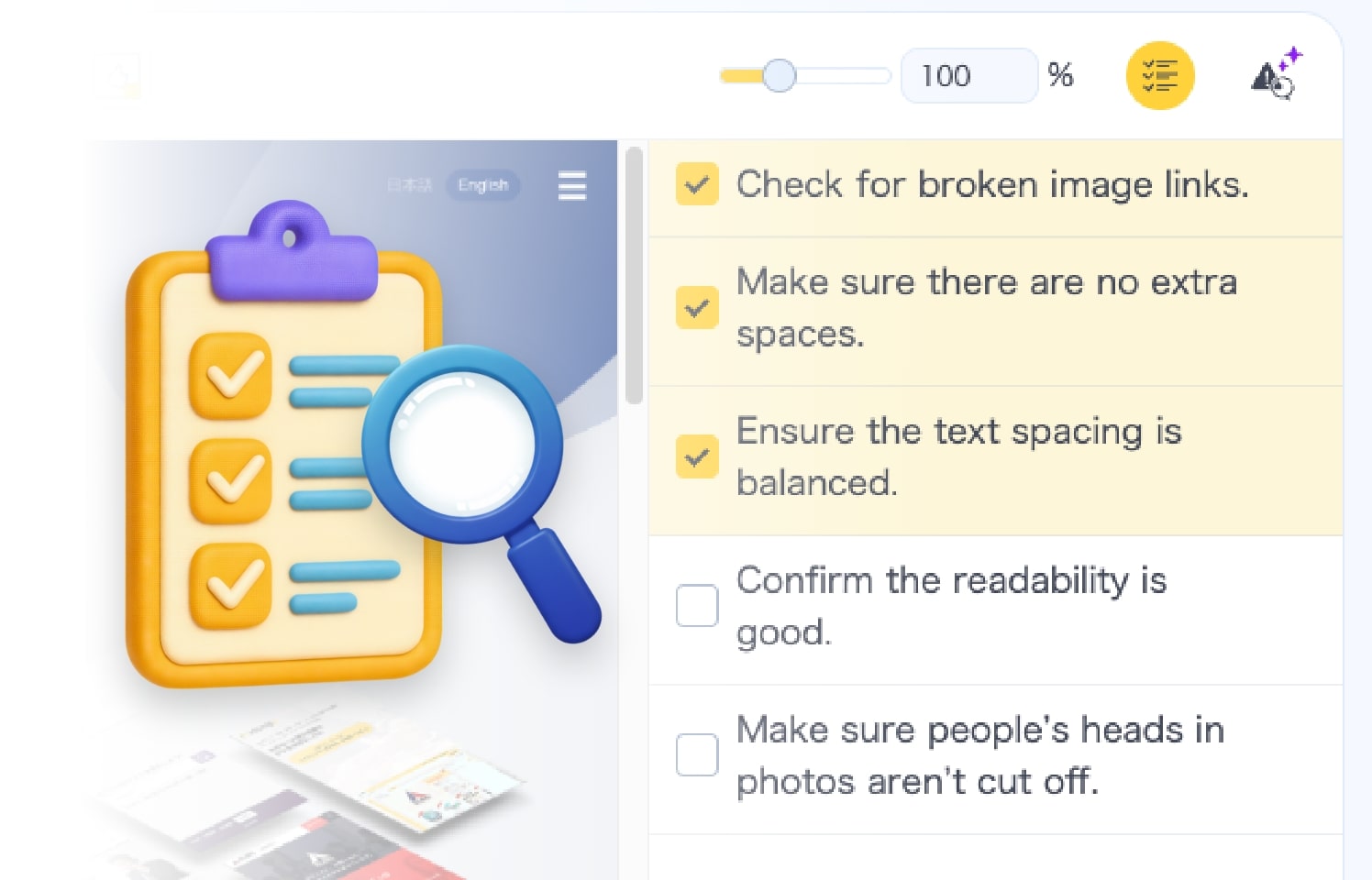
Checklist
Build feedback alongside a checklist. Keep deliverables at consistently high quality.
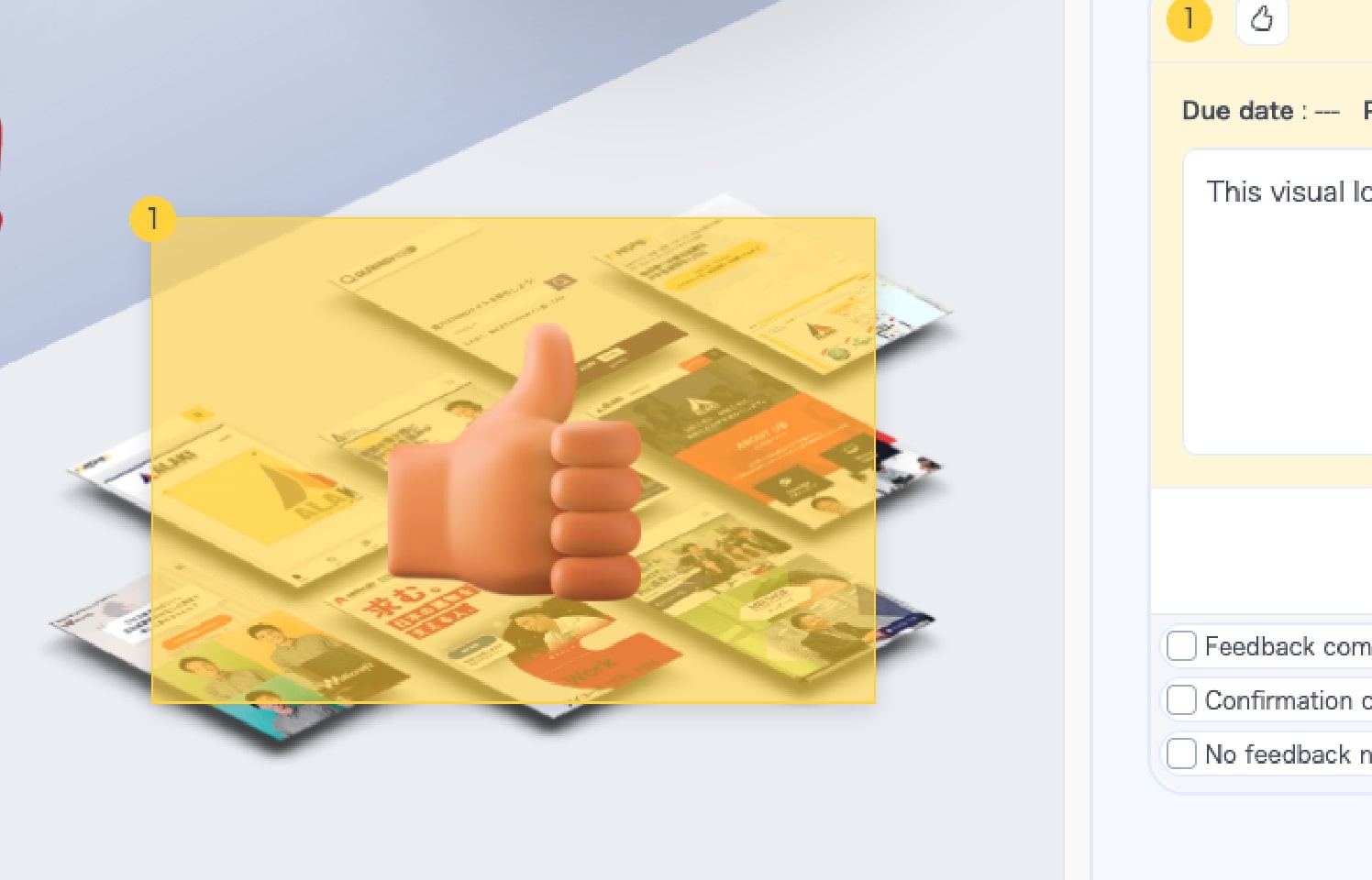
GoodJob
Send three-tier stamps—Excellent, Great, Good—to celebrate great design.
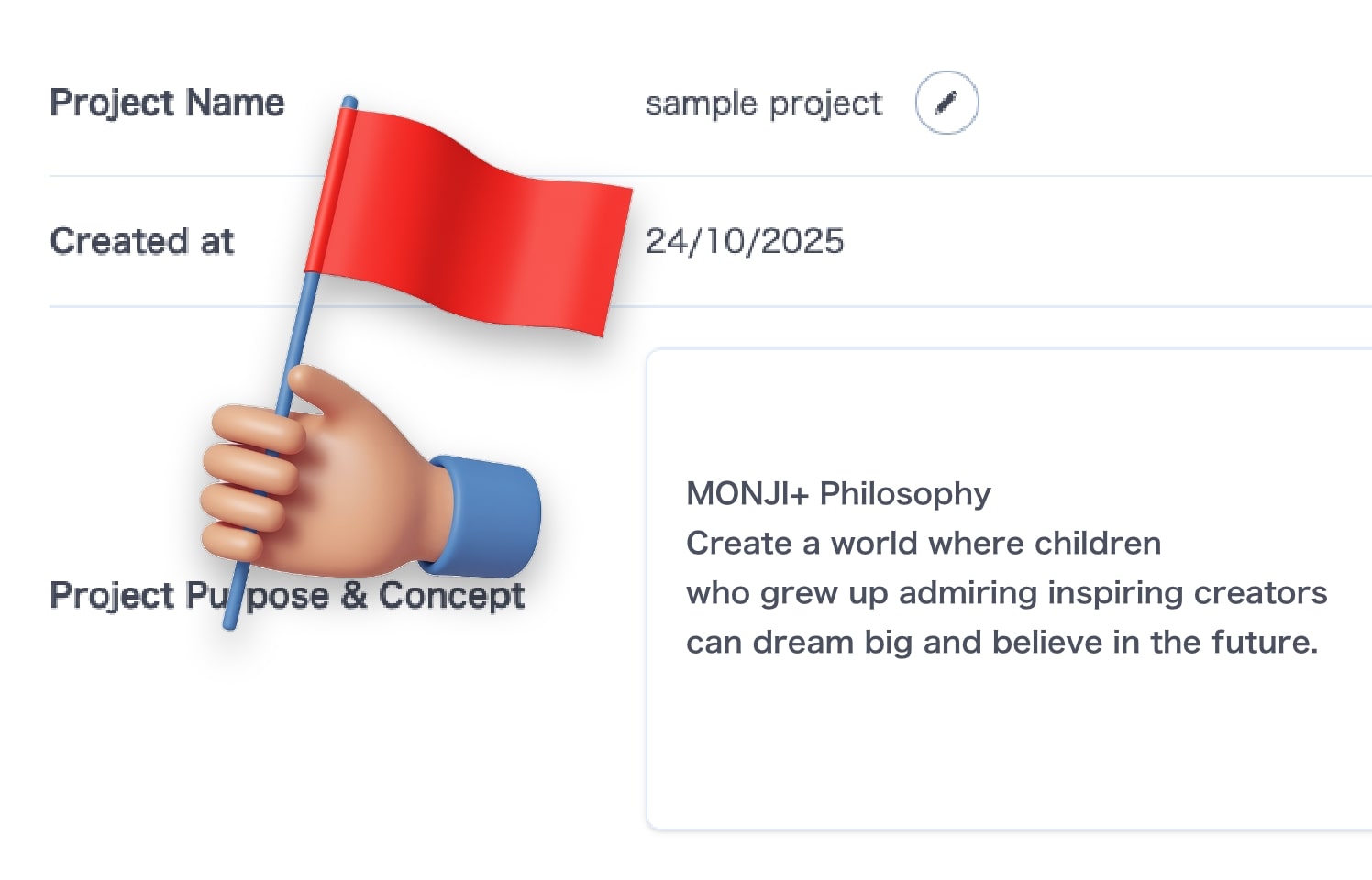
Project purpose and concept
Document and share with the whole team. A clear goal keeps everyone moving forward.