You can configure IP address restrictions by following the steps below.
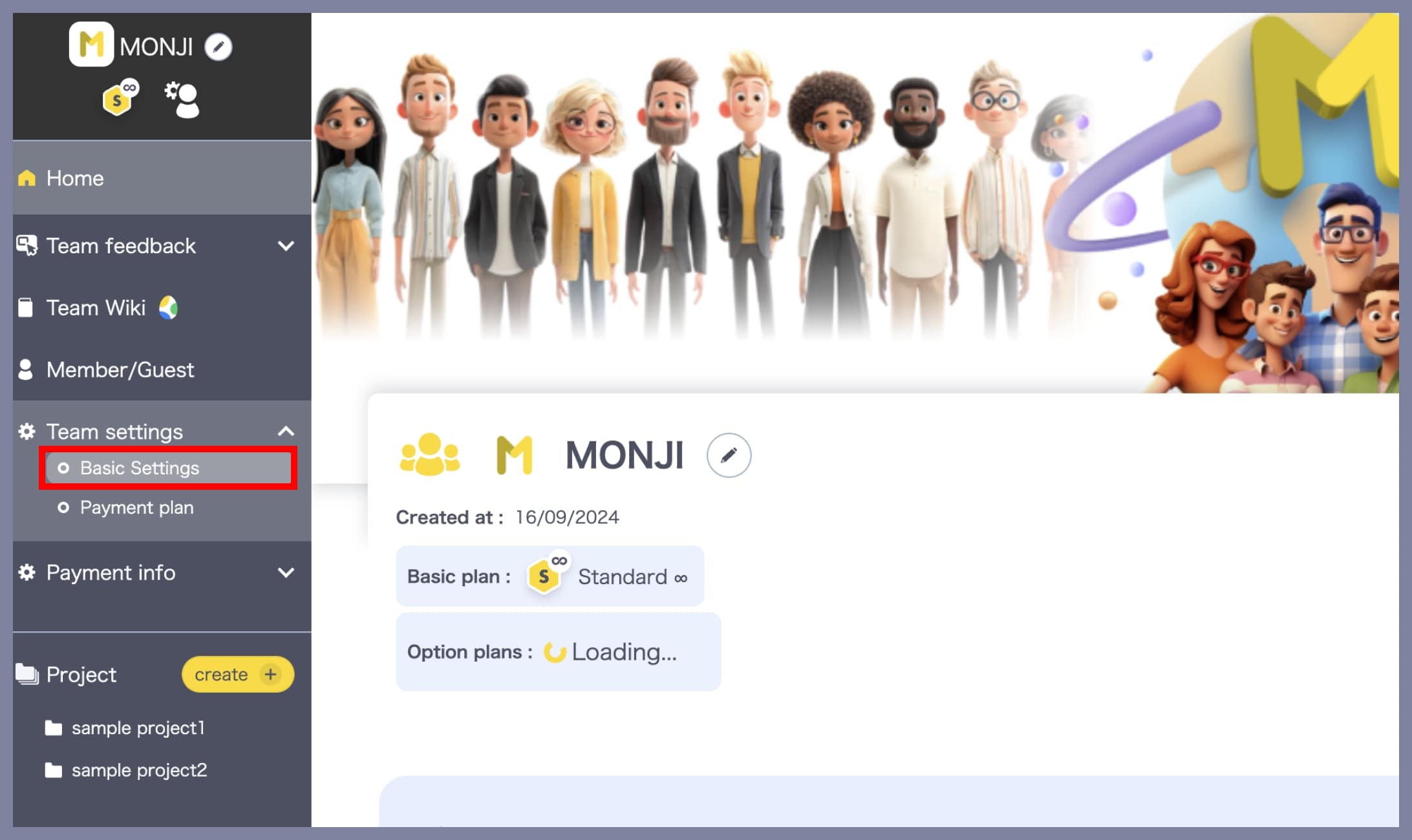
① Go to “Team Settings > Basic Settings”
From the team side menu (at the bottom of the sidebar), click Team Settings > Basic Settings.
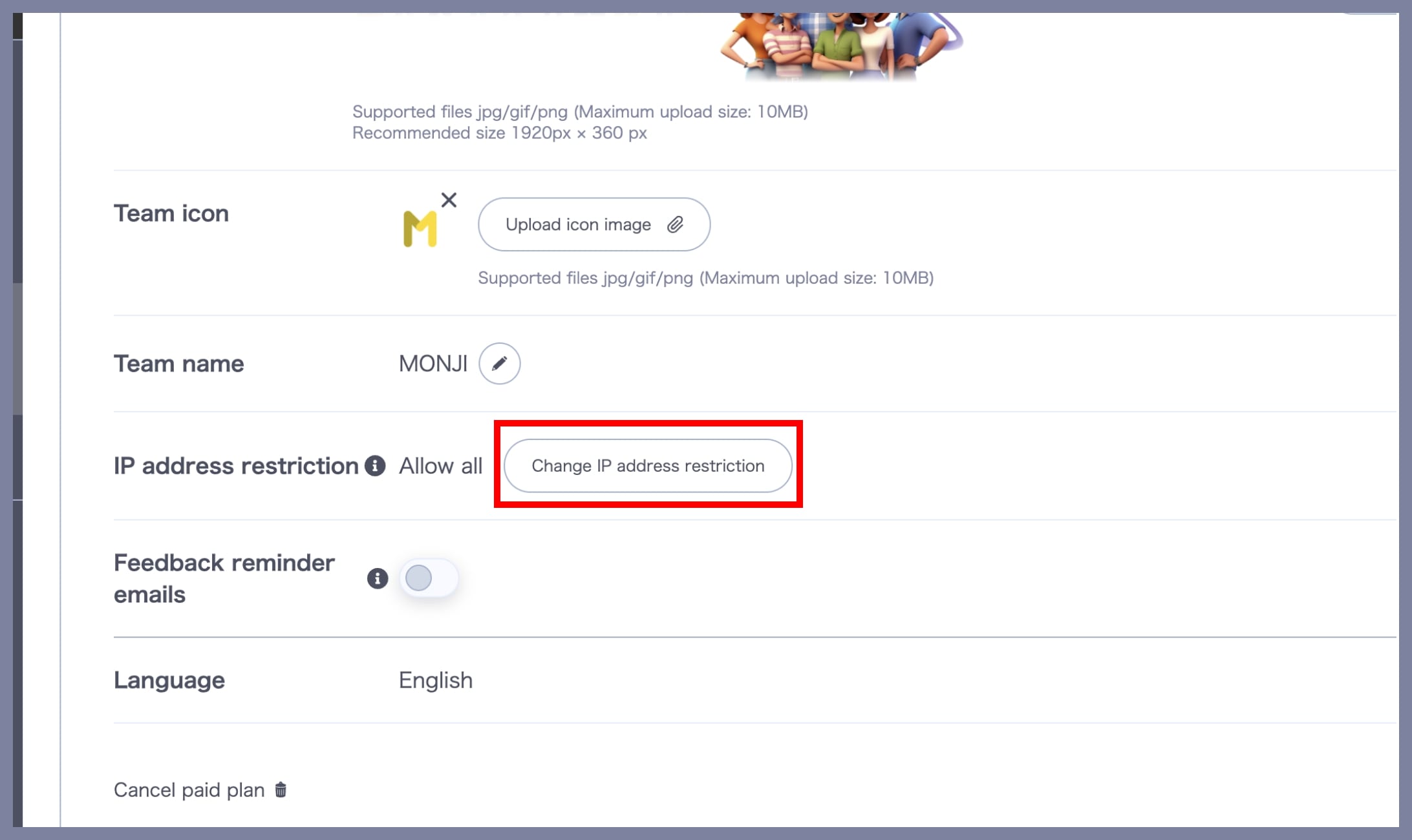
② Open the “Change IP Address Restriction” screen
On the Basic Settings screen, click the Change IP Address Restriction button.
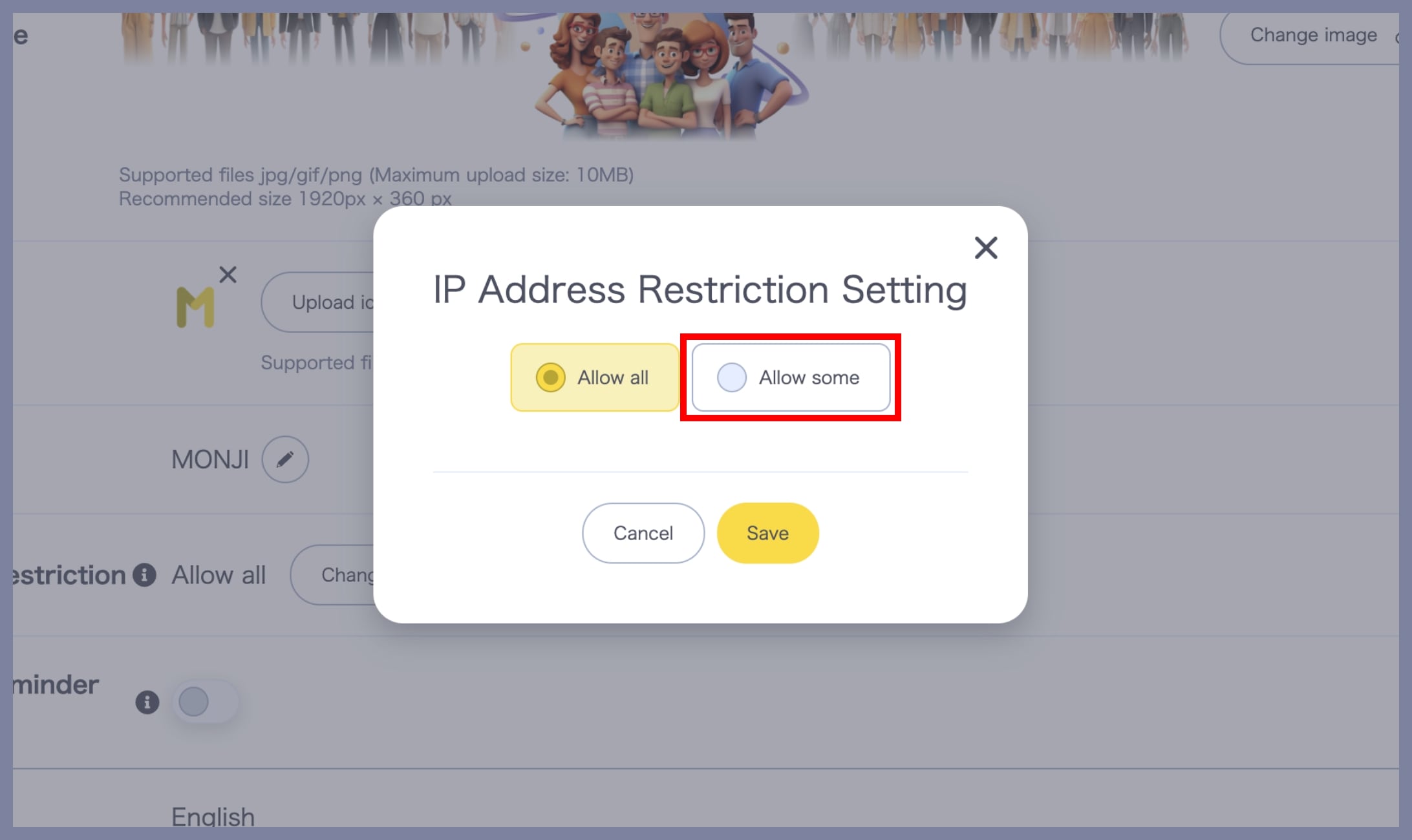
③ Select “Allow Specific IPs”
When the IP Address Restriction Settings screen appears, select Allow Specific IPs.
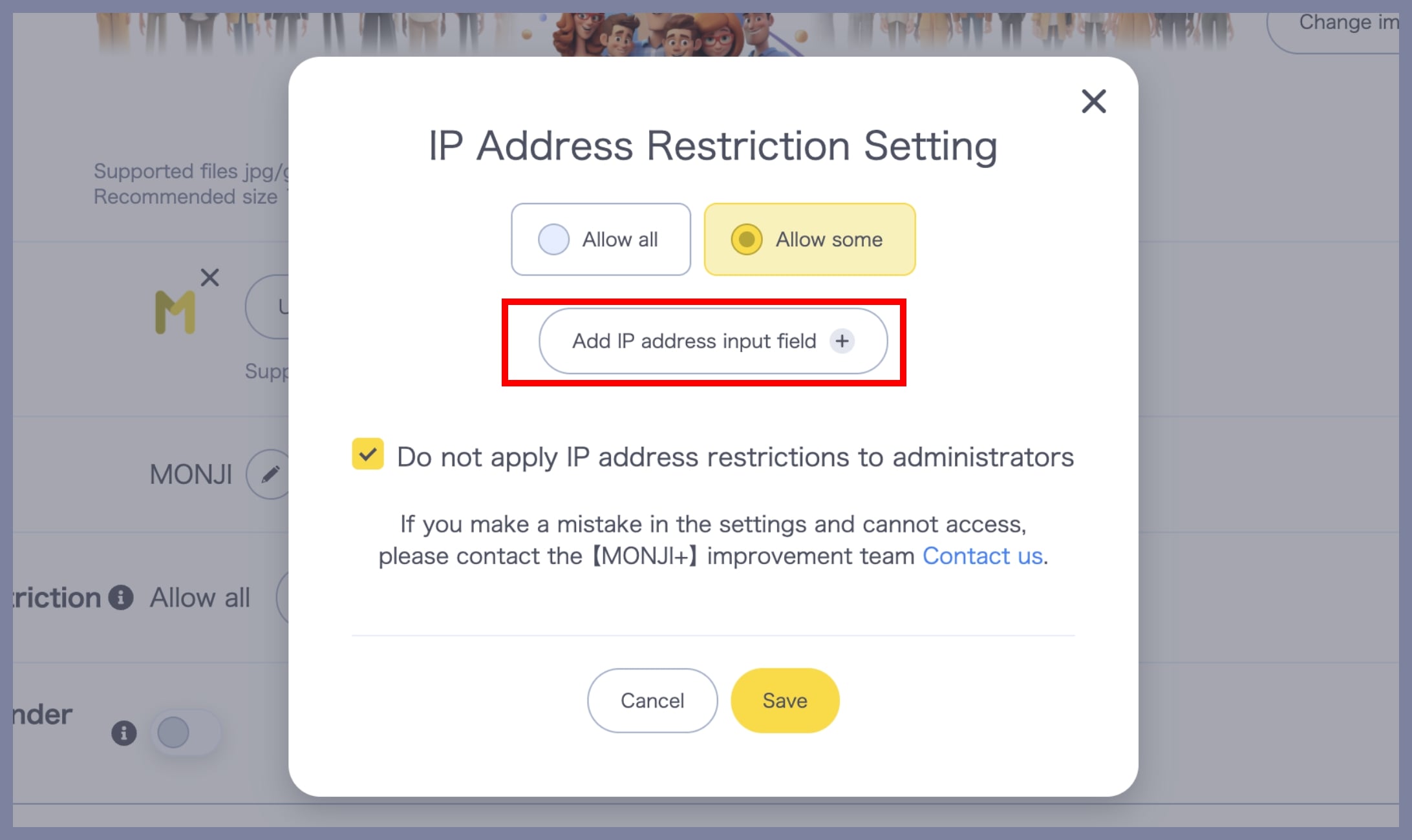
④ Open the IP address input field
Click Add IP Address Field.
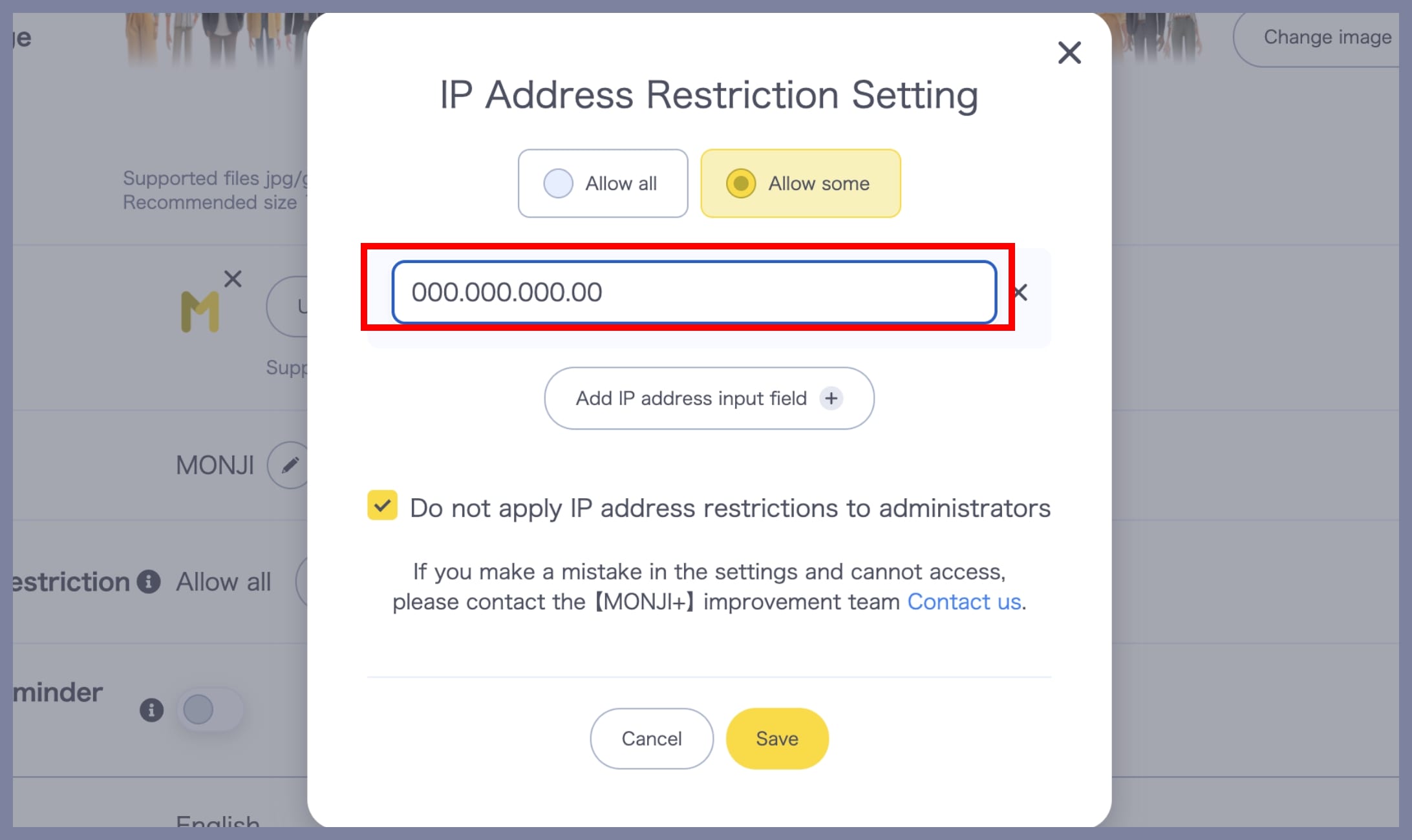
⑤ Enter the IP address
Enter the IP address in the input field.
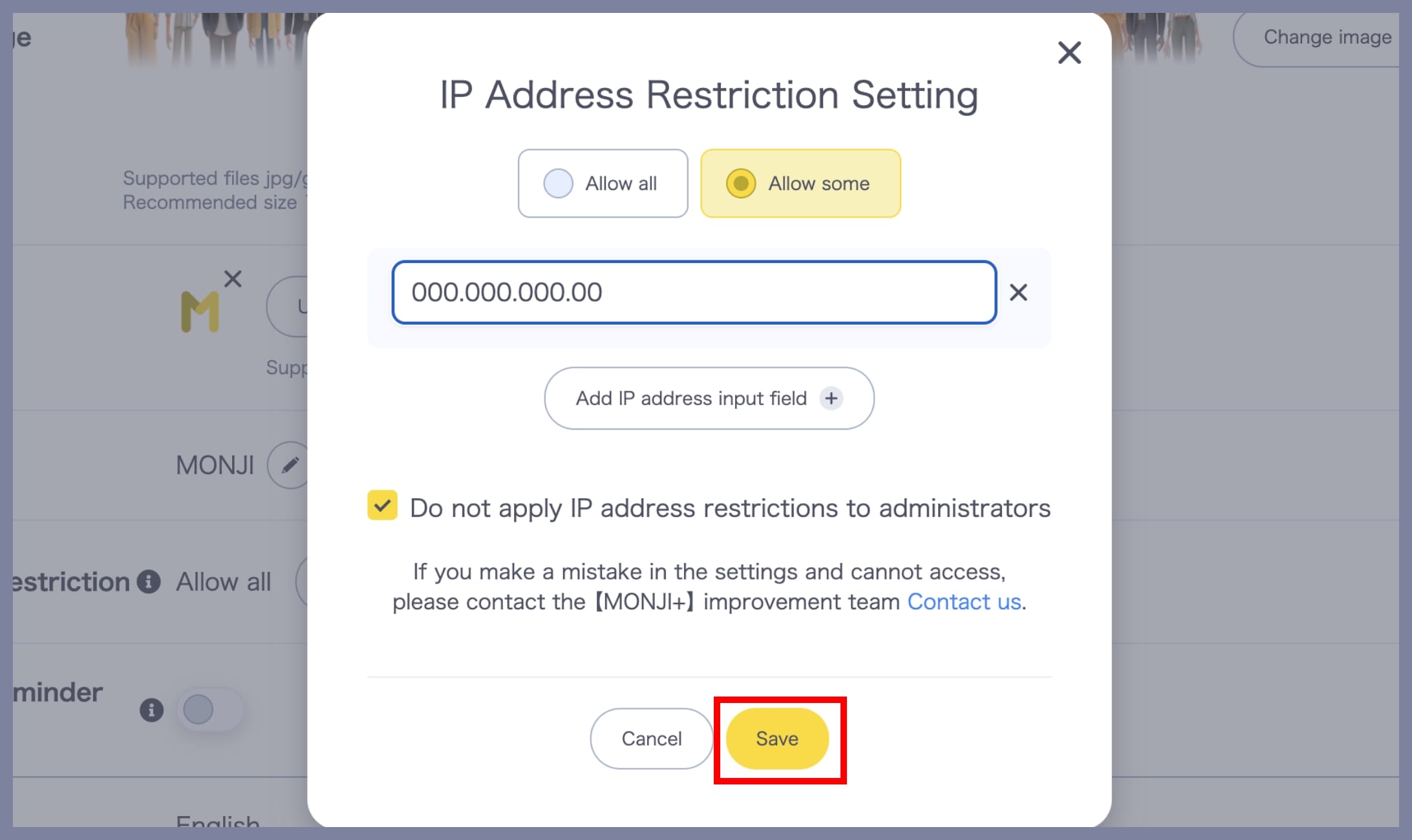
⑥ Complete the setup
After entering the IP address, click Save to complete the configuration.
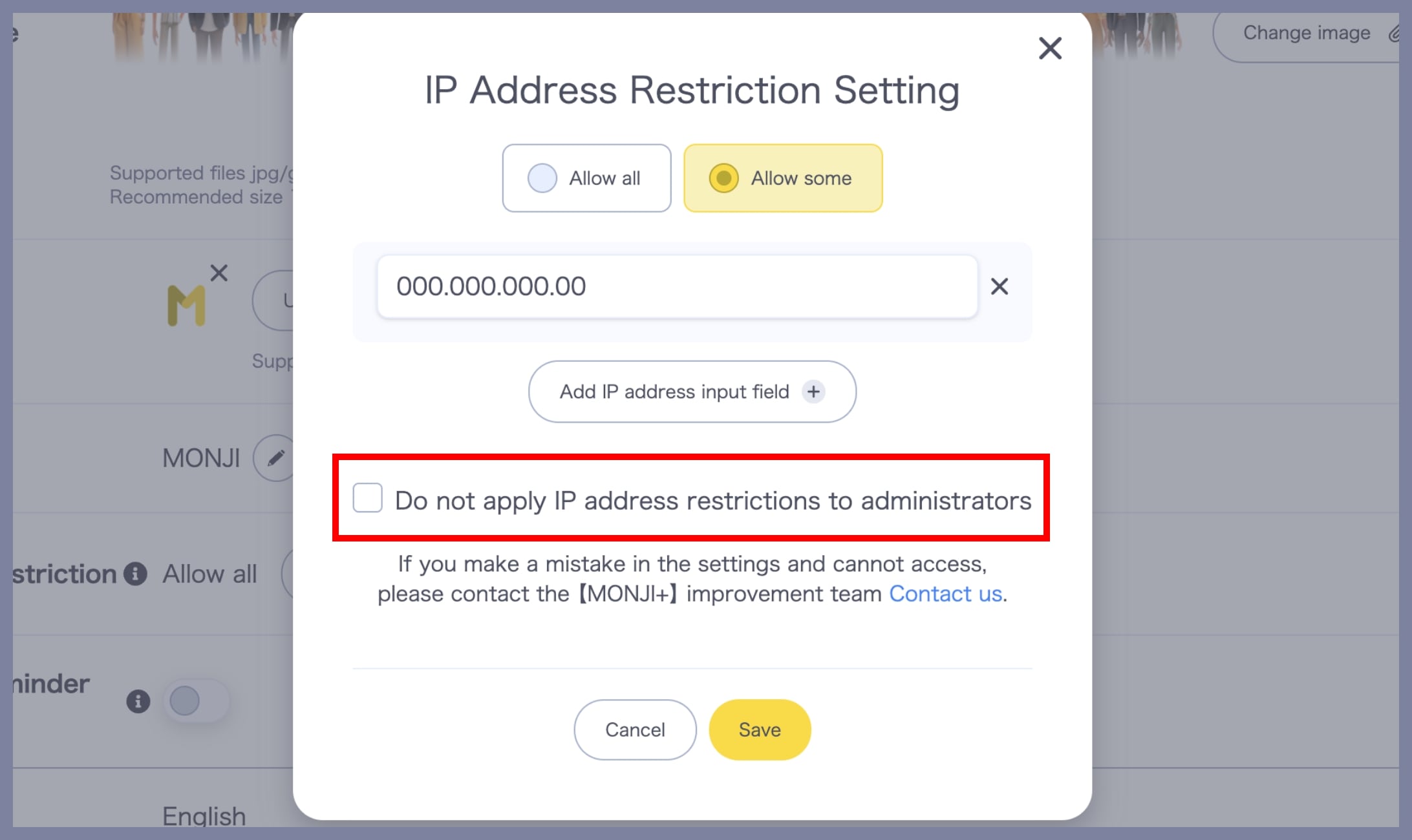
Applying IP Address Restrictions to Admins
If you also want to apply IP address restrictions to Admins, uncheck the option Do not apply IP address restriction to admins.