









Purpose
Text Scan lets you draw a box around text on a web page to turn it into editable text and paste it into a feedback comment.
How to use
Text Scan is available on the feedback creation and editing screen.
For how to create feedback, see here.
1. Draw a box around the text you want to fix
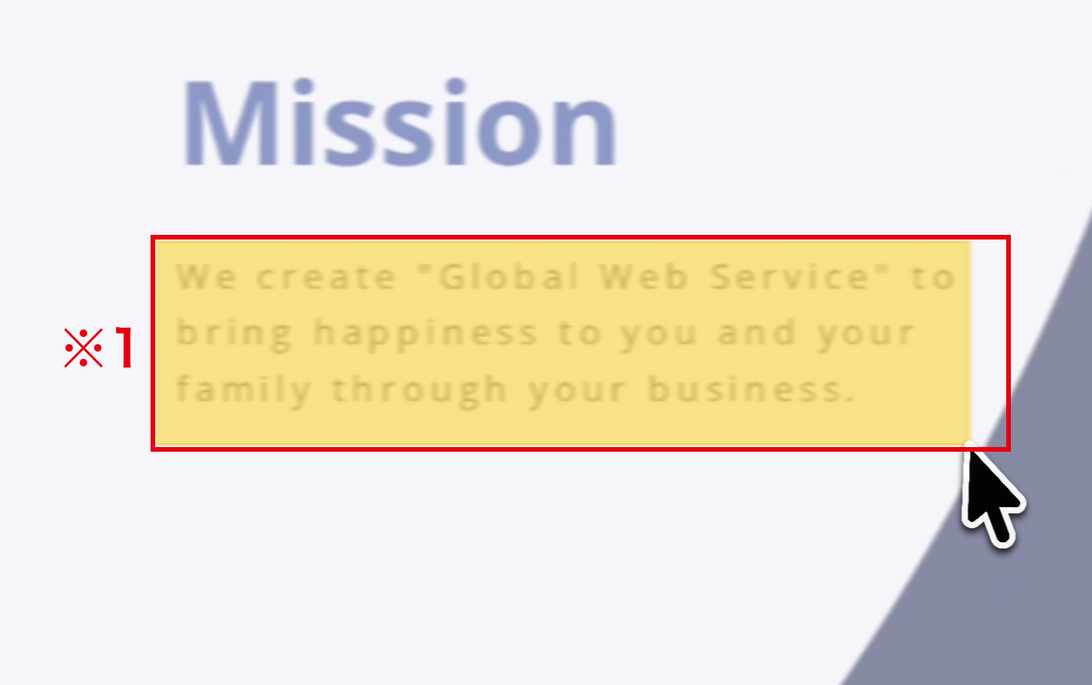
On the feedback editing screen, drag to draw a box around the text you want to fix on the web page.
The selected area becomes a rectangle comment. (※1)
2. Click "Scan text in area"
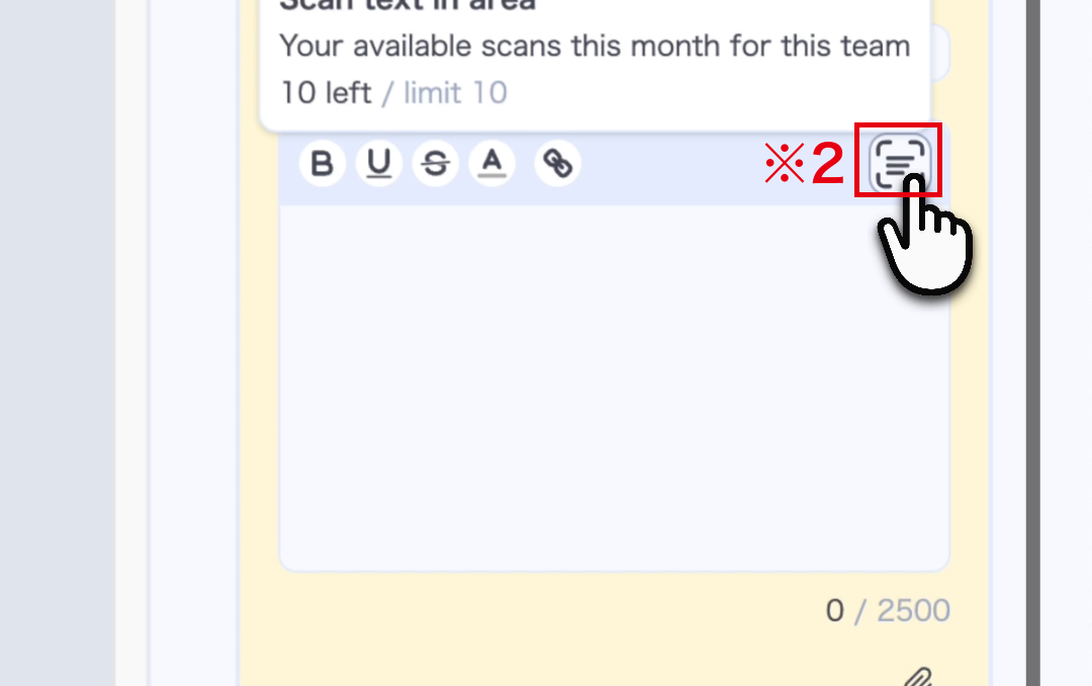
Click the scan button at the top-right of the rectangle comment.
Hover over the button to see how many scans you have left this month. (※2)
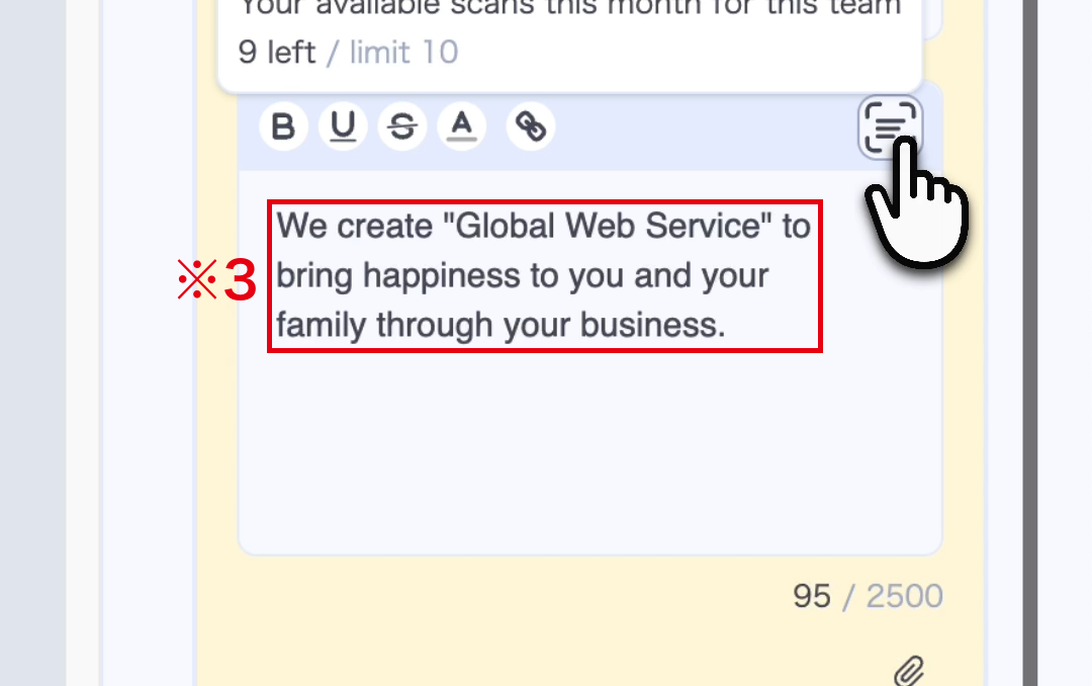
The text in the selected area is recognized and pasted into the comment.
You can edit the scanned text and add your feedback. (※3)
※Text Scan is not available on the Free plan.
Upgrade your base plan to use it.
※Anyone who can edit the feedback can use it, regardless of role (admin, member, or guest).
※There is a monthly usage limit.
For the number of scans per plan and add-on options, see our pricing plans.
※If no text can be read, "No text found" appears.
Blurry images may not be recognized correctly.