









You can see every AI client connected to MONJI+ from “Account Settings” on your account page.
The same screen lets you disconnect an AI client you no longer use.
Check your connected AI connectors
Click your user icon at the top right (※1) and open “AI connectors” under “Account Settings”. (※2)
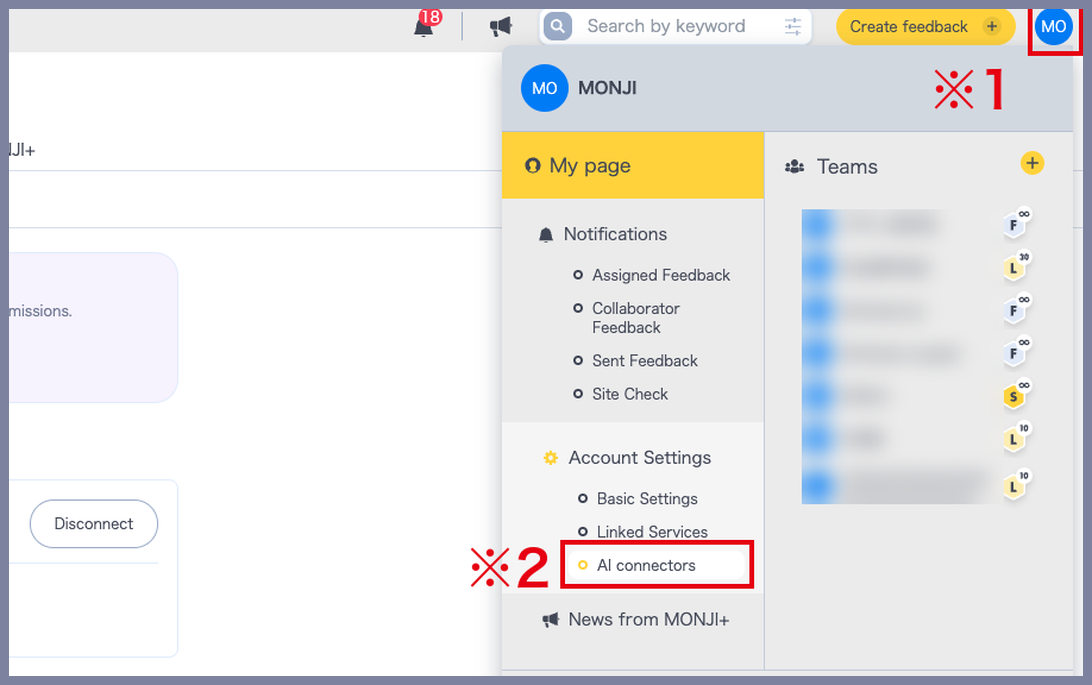
“Connected clients” lists the AI clients connected to MONJI+.
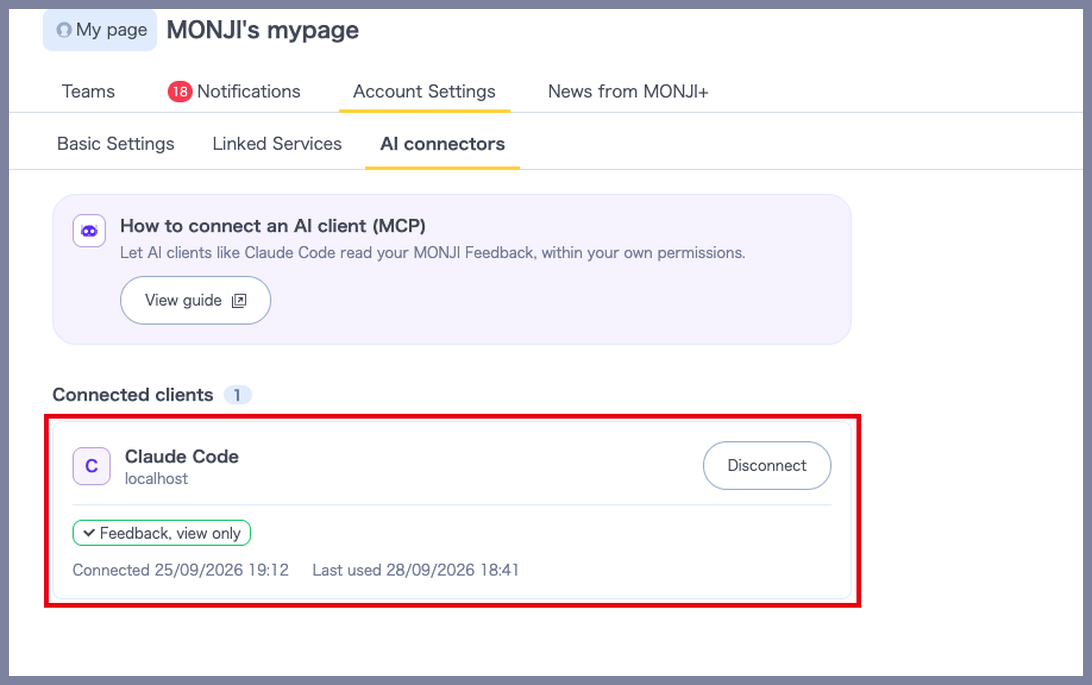
The list shows the following.
- ⚫︎ AI client name
- ⚫︎ Host it connects from
- ⚫︎ What it is allowed to do
- ⚫︎ Date connected
- ⚫︎ Date last used
If the AI client you connected is not in the list, see I connected an AI client, but it does not appear under Connected connectors..
Disconnect an AI connector
Click “Disconnect” on the connector you want to remove.
“Disconnect this connector?” appears, so click “Disconnect” to confirm.
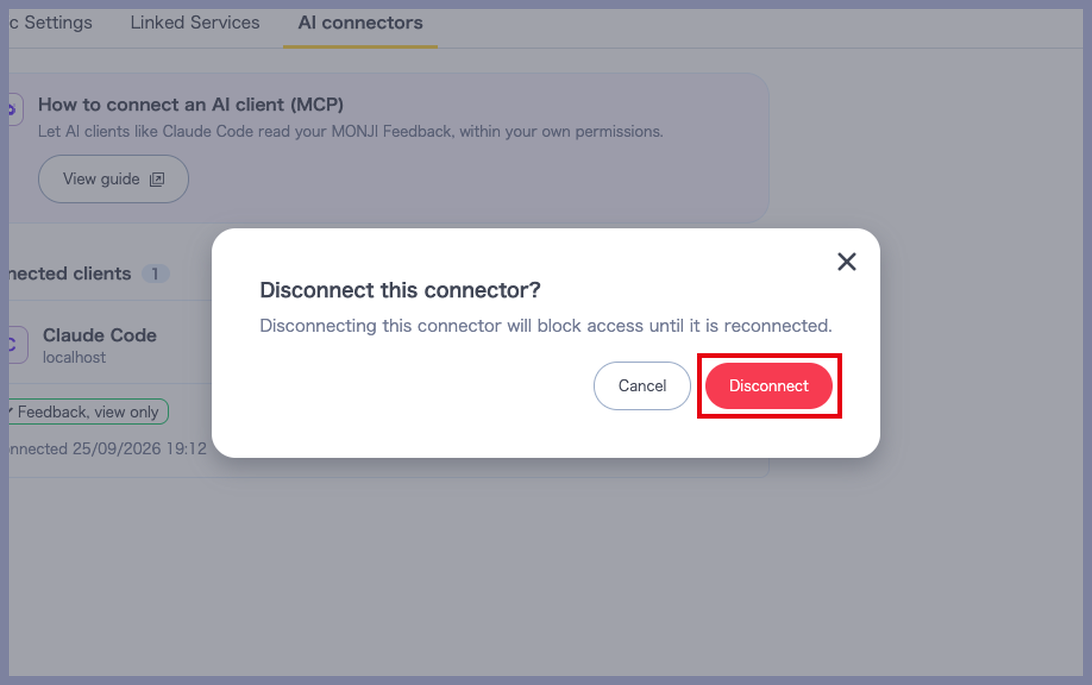
Disconnecting takes effect immediately, and that AI client can no longer read your MONJI+ data.
Information stored in MONJI+ is never deleted.
To use it again, connect it once more with the steps in How to connect an AI client (MCP).
※If you use the same AI client on several devices, disconnecting applies to all of them.
※If “Couldn’t disconnect” appears, the connector is still connected.
Wait a moment and click “Disconnect” again.
※When you close your MONJI+ account, every connected connector is disconnected automatically.
Related guides
- How to connect an AI client (MCP)
- Tools and information available through the official MONJI+ MCP server
- Set the permission to use team data over MCP by role