









MCP integration lets AI clients such as Claude and ChatGPT use the data you have in MONJI+.
An AI client can only do what you allowed when you connected it.
You only need to connect once.
Before you start
- ⚫︎ You can sign in to MONJI+
- ⚫︎ Your AI client supports adding your own MCP server
- ⚫︎ You have data you can view in MONJI+
- ⚫︎ Your role is allowed to use the team’s data over MCP
The connection uses OAuth.
You never enter your MONJI+ password or an API key into the AI client.
Each user connects MCP integration for themselves.
Once connected, whether you can use a team’s data over MCP is decided by the permission set for your role in that team (Admin, Member or Guest).
By default only an “Admin” can use the team’s data.
To use it as a “Member” or “Guest”, ask a team administrator to change the permission.
See Set the permission to use team data over MCP by role for how to change it.
1. What you need
Set these two values in your AI client.
The server name is only a display name inside your AI client, so you may use any name you like.
2. Add MONJI+ to your AI client
Choose the tab for the AI client you use.
- Add MONJI+
Run the following command in your terminal.claude mcp add --transport http monji-mcp https://mcp.monji.tech/mcp
MONJI+ added with this command is available only in the project where you run it.
Add--scope userto use it from any directory.
To edit the config file directly instead, add this to your MCP server settings.{ "mcpServers": { "monji-mcp": { "type": "http", "url": "https://mcp.monji.tech/mcp" } } } - Restart Claude Code
Quit Claude Code and start it again so it picks up the setting. - Start authentication
Run the following command and your browser opens to authenticate.claude mcp login monji-mcp
The same happens the first time a MONJI+ tool is called.
- Open the connector settings
In Claude Desktop, open “Customize” and select “Connectors”. (※1) - Add MONJI+
Click “Add” (※2) to open “Add custom connector”.
Entermonji-mcpas the name and the connector URL above as the remote MCP server URL.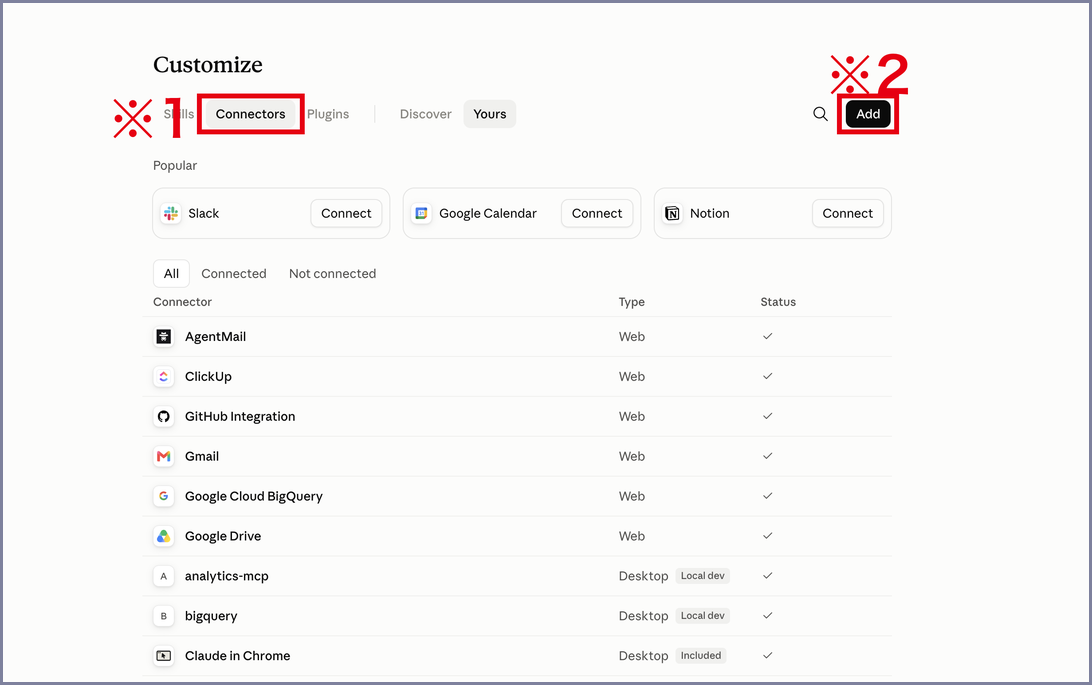
- Start authentication
On the next screen, “Authentication” and “OAuth client” are detected from MONJI+ automatically and shown as detected.
You can leave them as they are.
Click Connect on the connector you added and your browser opens to authenticate.
The connector is saved to your Claude account.
You can therefore use the same connector on claude.ai and in the mobile app.
- Open the connector settings
In the claude.ai settings, open “Customize” > “Connectors”. - Add MONJI+
Click “Add” to open “Add custom connector”.
Entermonji-mcpas the name (※1) and the connector URL above as the remote MCP server URL (※2).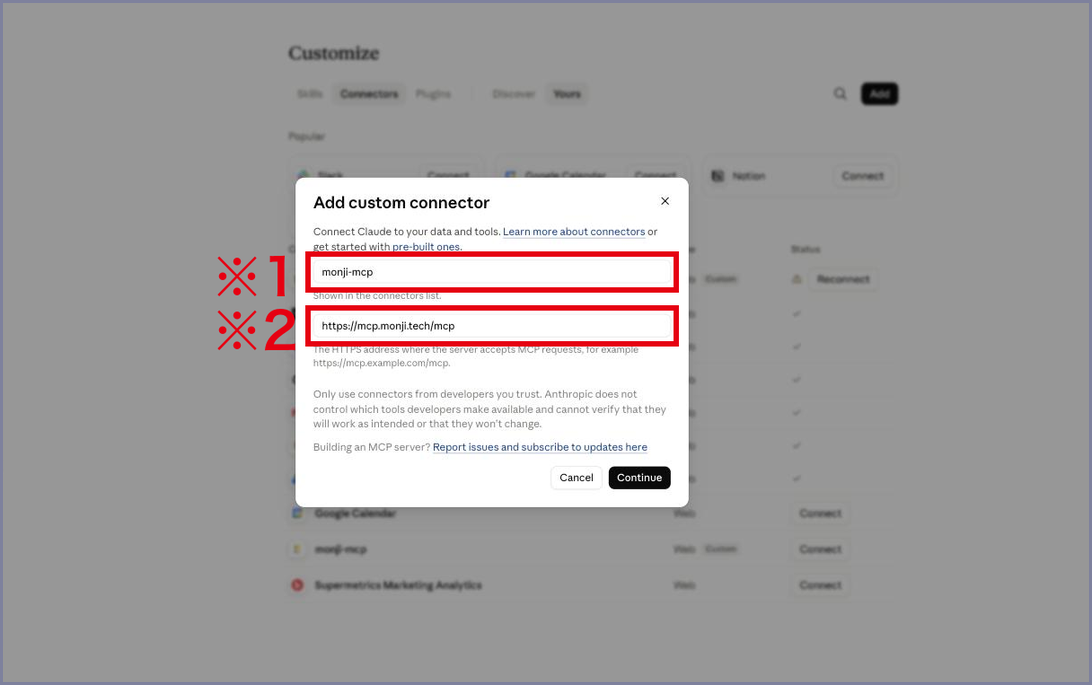
- Start authentication
On the next screen, “Authentication” (※3) and “OAuth client” (※4) are detected from MONJI+ automatically and shown as detected.
You can leave them as they are.
Click Connect on the connector you added and your browser opens to authenticate.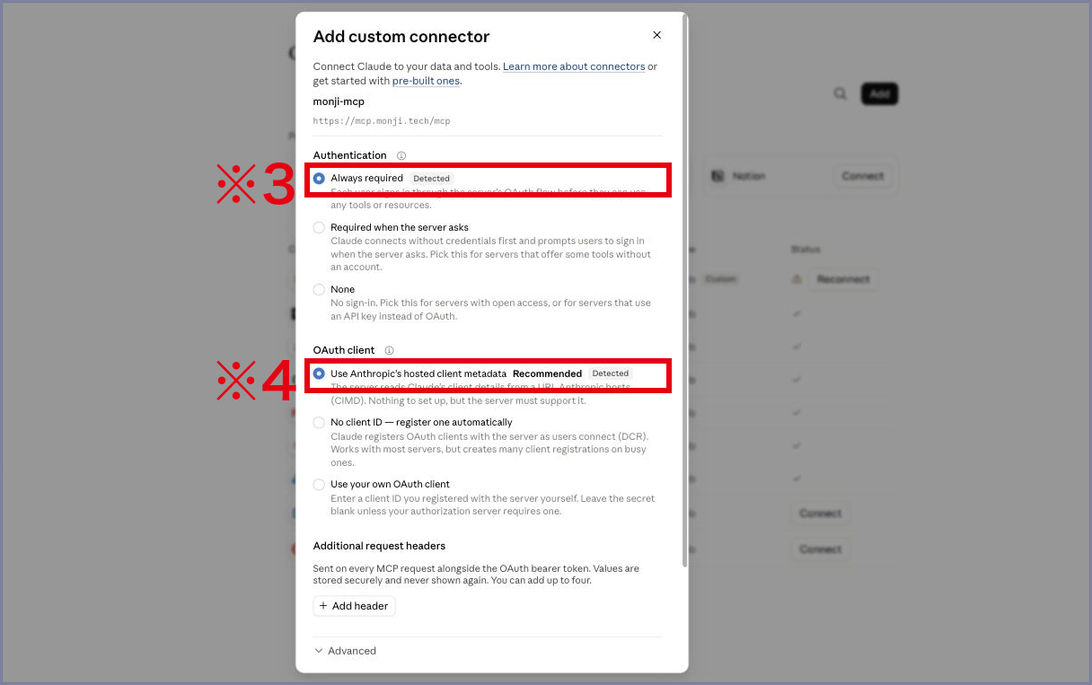
- Turn on developer mode
In the ChatGPT settings, open “Security and login” and turn on “Developer mode”.
This setting is required to add your own MCP server. - Open the Plugins screen
Click “Plugins” in the sidebar (※1), open “Explore plugins”, then click “+” at the top right (※2).
The “New plugin” screen opens.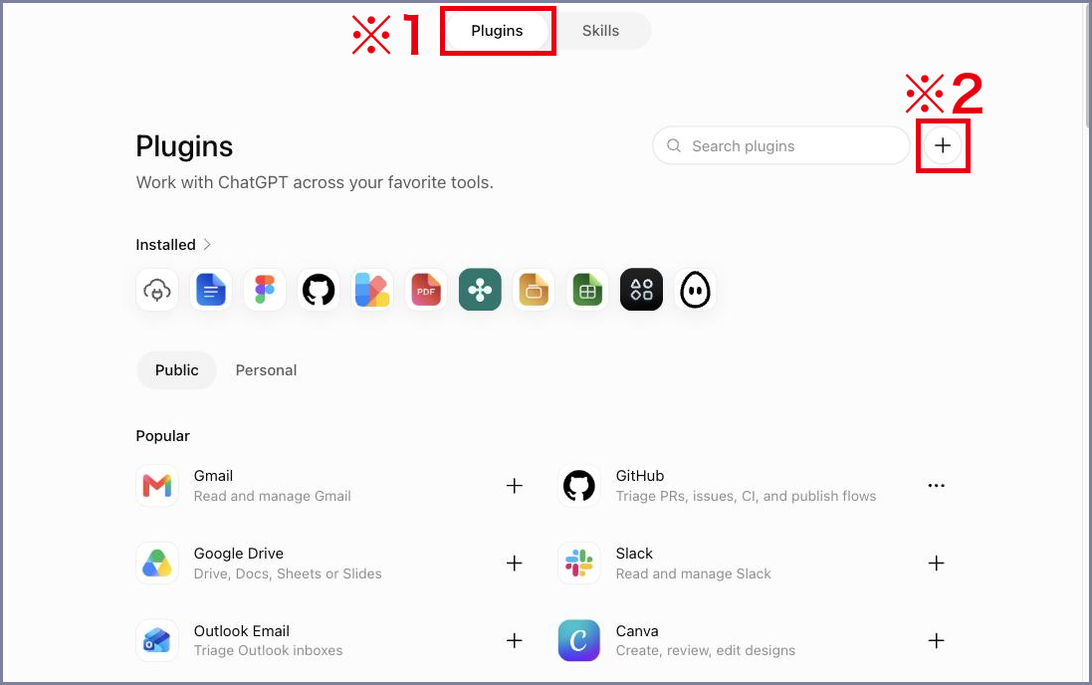
- Add MONJI+
Entermonji-mcpas the name (※3) and the connector URL above under “Server URL” (※4).
Leave “Authentication” set to OAuth.
Tick the box confirming you understand (※5), and “Create” becomes clickable.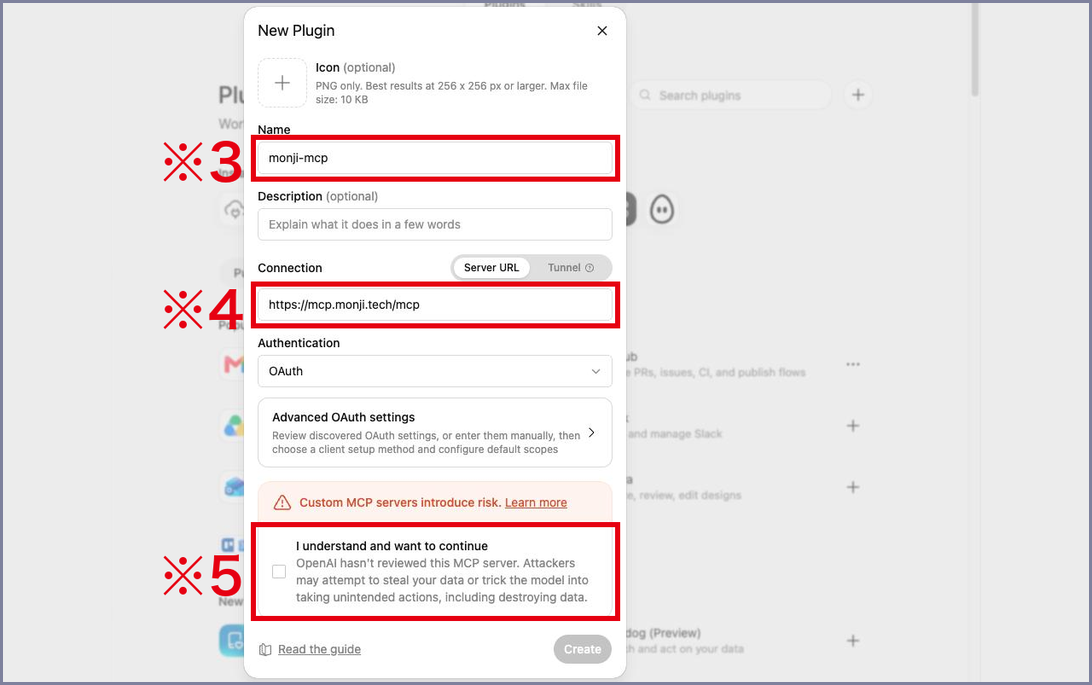
- Start authentication
Once you create it, your browser opens to authenticate.
- Check your Codex CLI version
MCP integration requiresCodex CLI 0.148.0or later. - Add MONJI+
Run the following command in your terminal.codex mcp add monji-mcp --url https://mcp.monji.tech/mcp
To edit the config file (
~/.codex/config.toml) directly instead, add this.[mcp_servers.monji-mcp] url = "https://mcp.monji.tech/mcp"
- Restart Codex
Quit Codex and start it again so it picks up the setting. - Start authentication
Run the following command and your browser opens to authenticate.codex mcp login monji-mcp
Settings screens and config formats change as each AI client is updated.
If you cannot add the server, check the official documentation for your AI client.
3. Sign in to MONJI+ and allow the connection
When the AI client starts authentication, MONJI+ opens in your browser.
- Sign in to MONJI+
If you are not signed in, the sign-in screen appears.
A note at the top explains that signing in is required to connect an AI client.
If you use two-step verification, you also enter a one-time password. - Check what you are allowing
A “Review and allow” screen appears.
The name of the AI client you are connecting is shown on the left.
Check that the MONJI+ account shown is yours.
Also check what is listed under what this app can do. (※1) - Agree to the additional terms
Open the “MONJI+ MCP additional terms” link, review it, and tick the box. (※2)
Once ticked, “Allow” becomes clickable. - Allow the connection
Click “Allow”. (※3)
The connection completes and you return to your AI client.
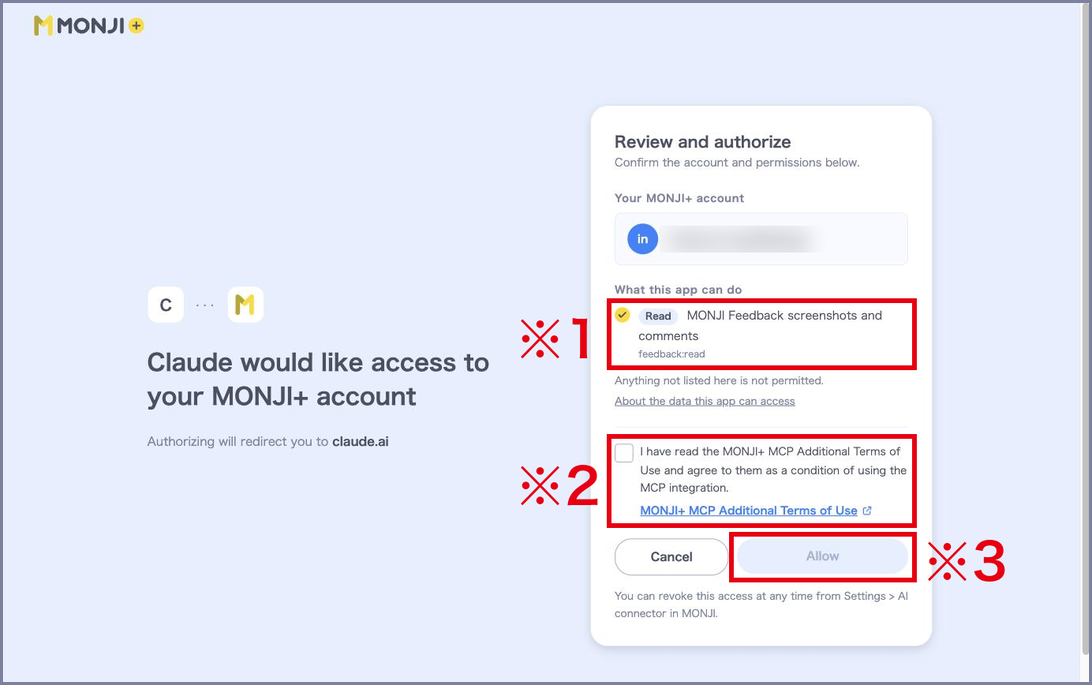
※Before you allow it, check that the app name on the screen is the AI client you are connecting.
If you do not recognize the app name, click Cancel instead of allowing it.
4. Confirm the connection
Check that monji-mcp is connected in your AI client.
You can also check in MONJI+.
Open “Account Settings” from your account page. If monji-mcp appears under “Connected clients” on the “AI connectors” screen, it is connected.
See Check and disconnect AI connectors for how to check and disconnect.
Once you are connected
Open a feedback view and switch to “AI support” in the panel on the right.
You can copy an example prompt from there and paste it straight into your AI client.
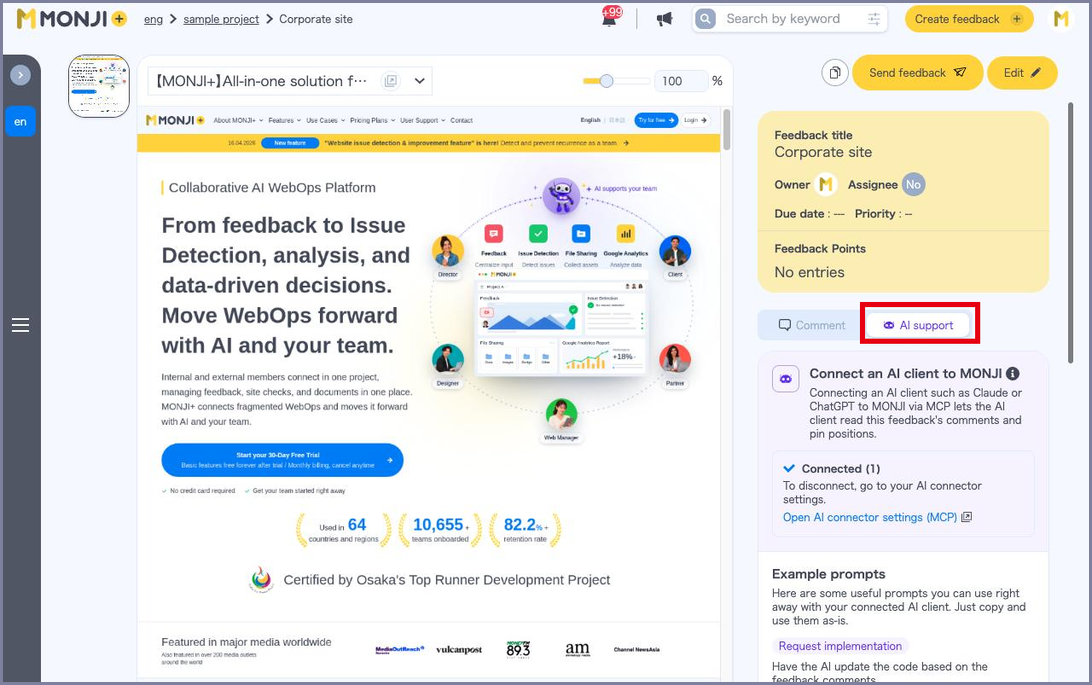
For what is available, see Tools and information available through the official MONJI+ MCP server.
If you cannot connect
If you have not used the connection for a long time, it may have expired.
Allow the connection again from your AI client.
If the authorization screen never opens, authentication does not finish, or monji-mcp does not appear in your AI client, see I connected AI, but it cannot read information from MONJI+.
Related guides
- Check and disconnect AI connectors
- Tools and information available through the official MONJI+ MCP server
- Set the permission to use team data over MCP by role