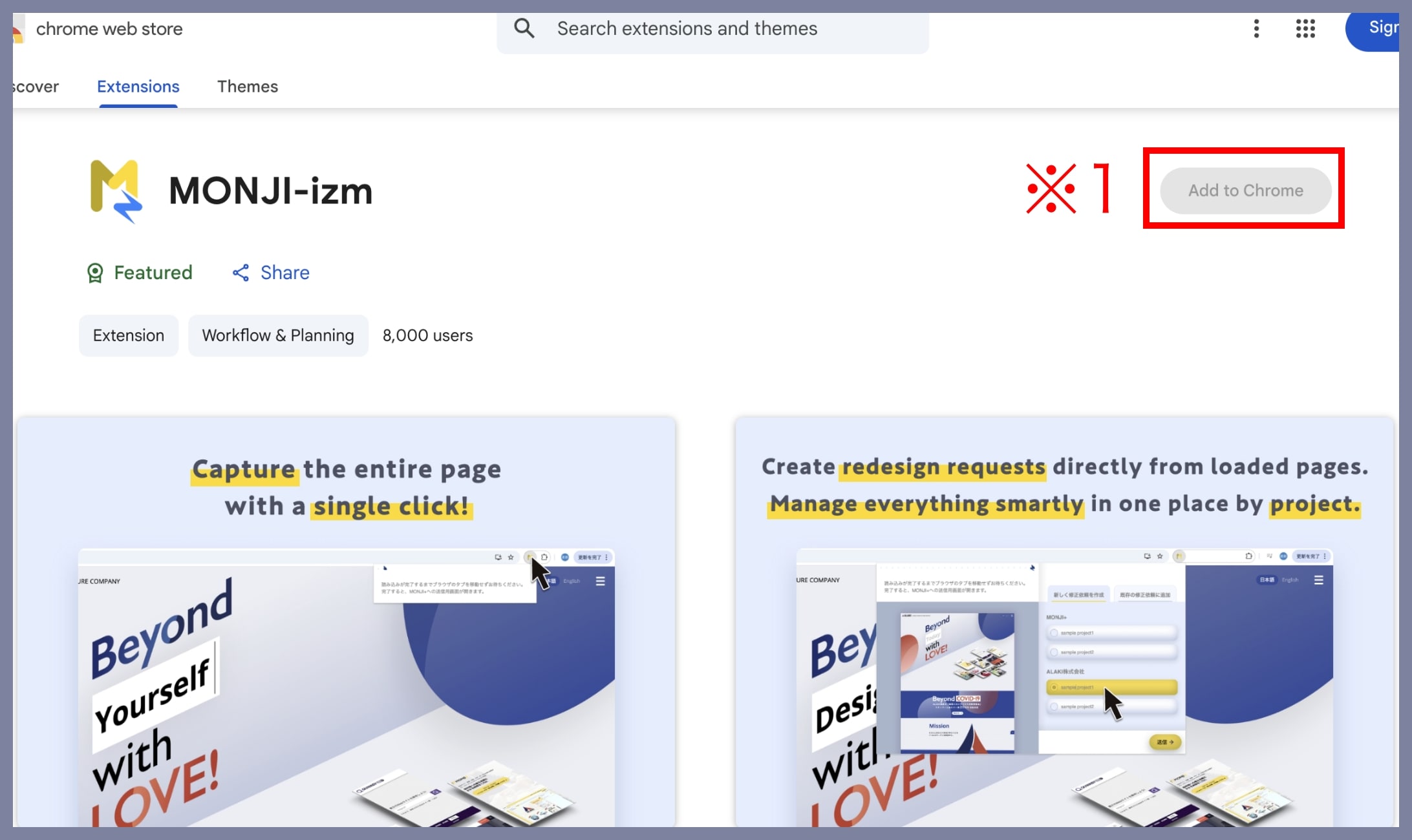
1. Installation
Go to the Chrome Web Store and click the Add to Chrome button (※1) to install MONJI-izm.
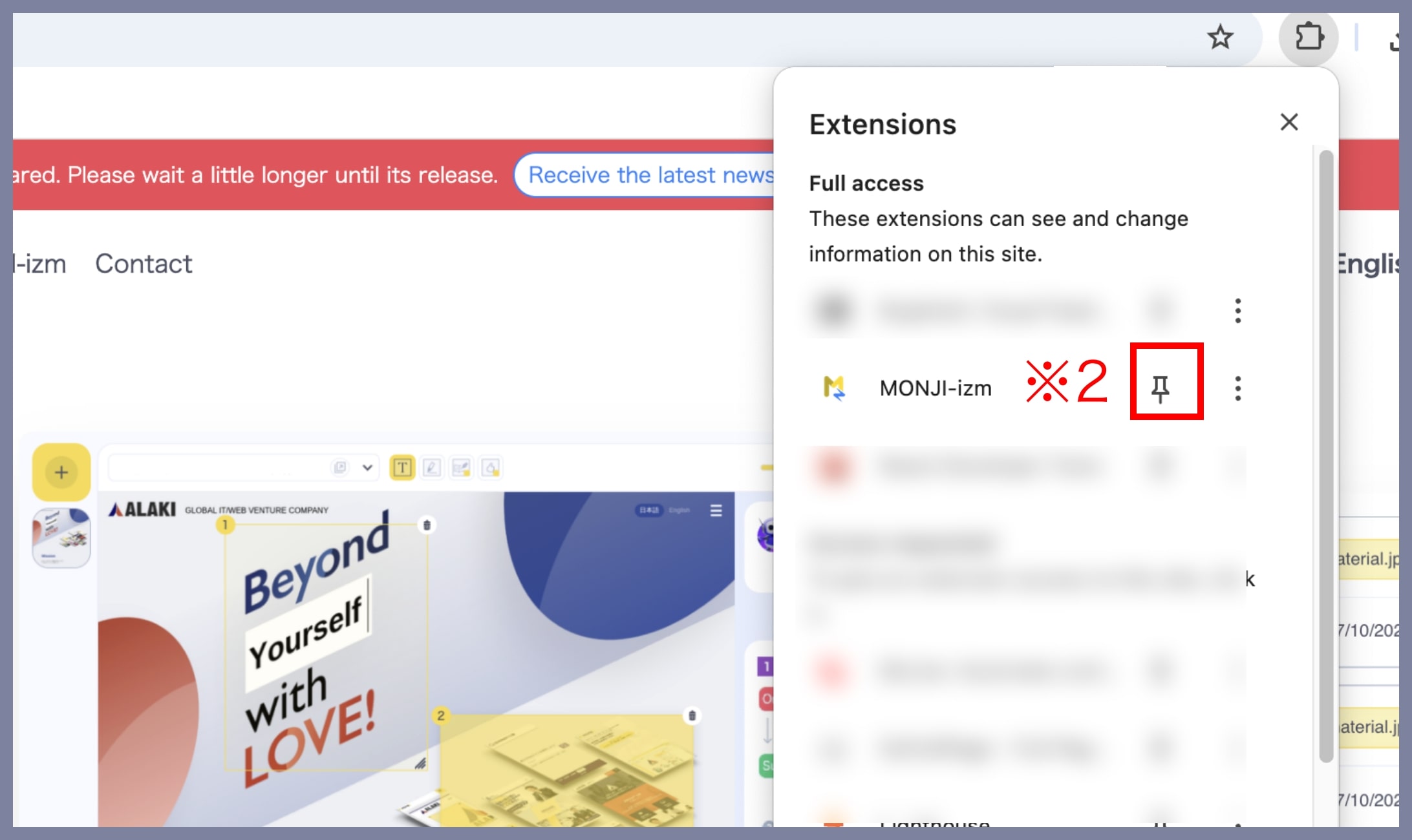
2. Pin to the Browser
After installation, pin MONJI-izm to your Chrome Extensions toolbar (※2).
Pinning it allows you to access MONJI-izm quickly whenever you need it.
3. Capture a Screenshot
Open the webpage you want to capture in Chrome, then click the MONJI-izm icon in the Extensions toolbar (※3).
Capture starts automatically.
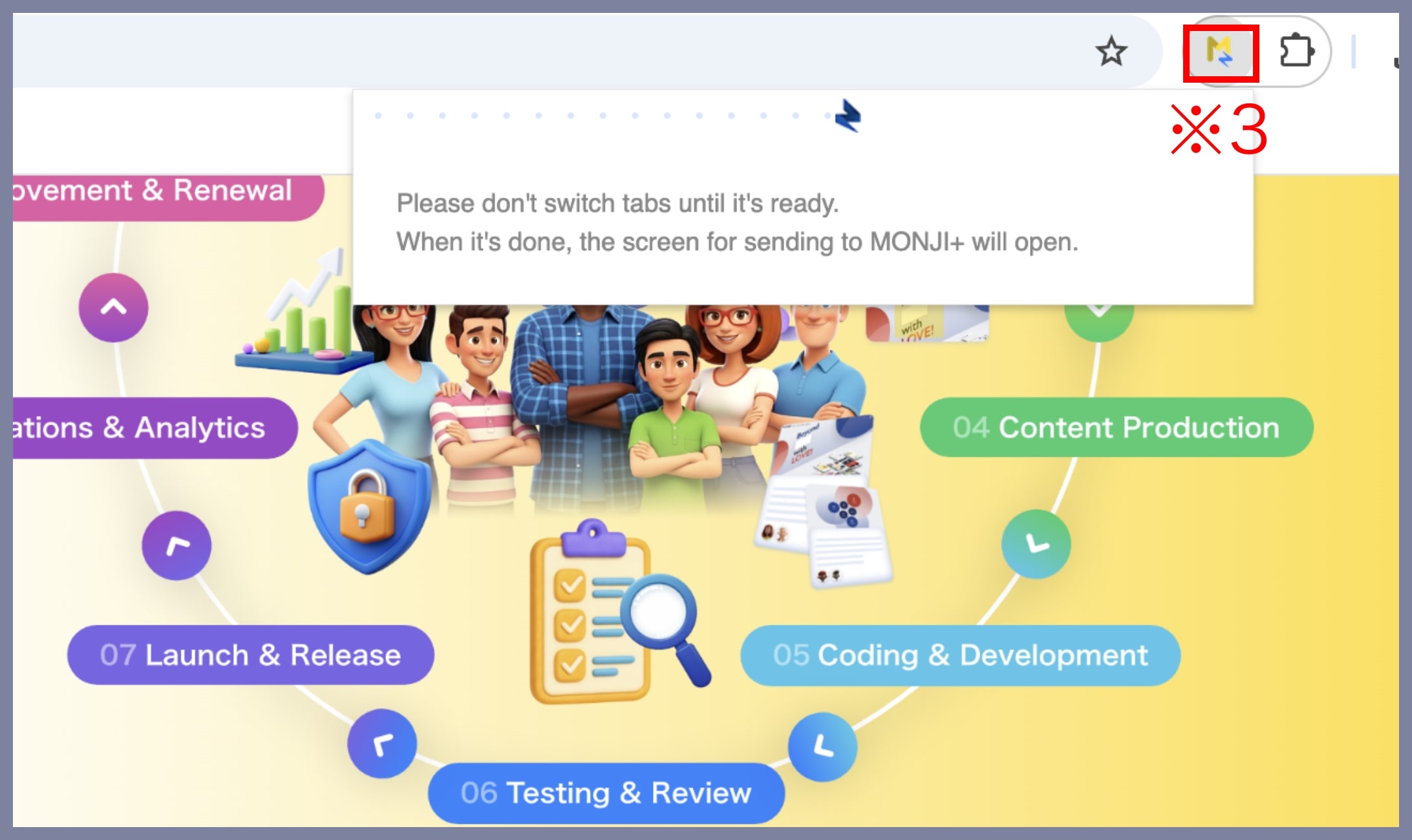
*Please do not switch browser tabs until the loading is complete.
4. Add the Screenshot to Feedback
After the screenshot is captured, choose one of the two options below to add it to feedback:
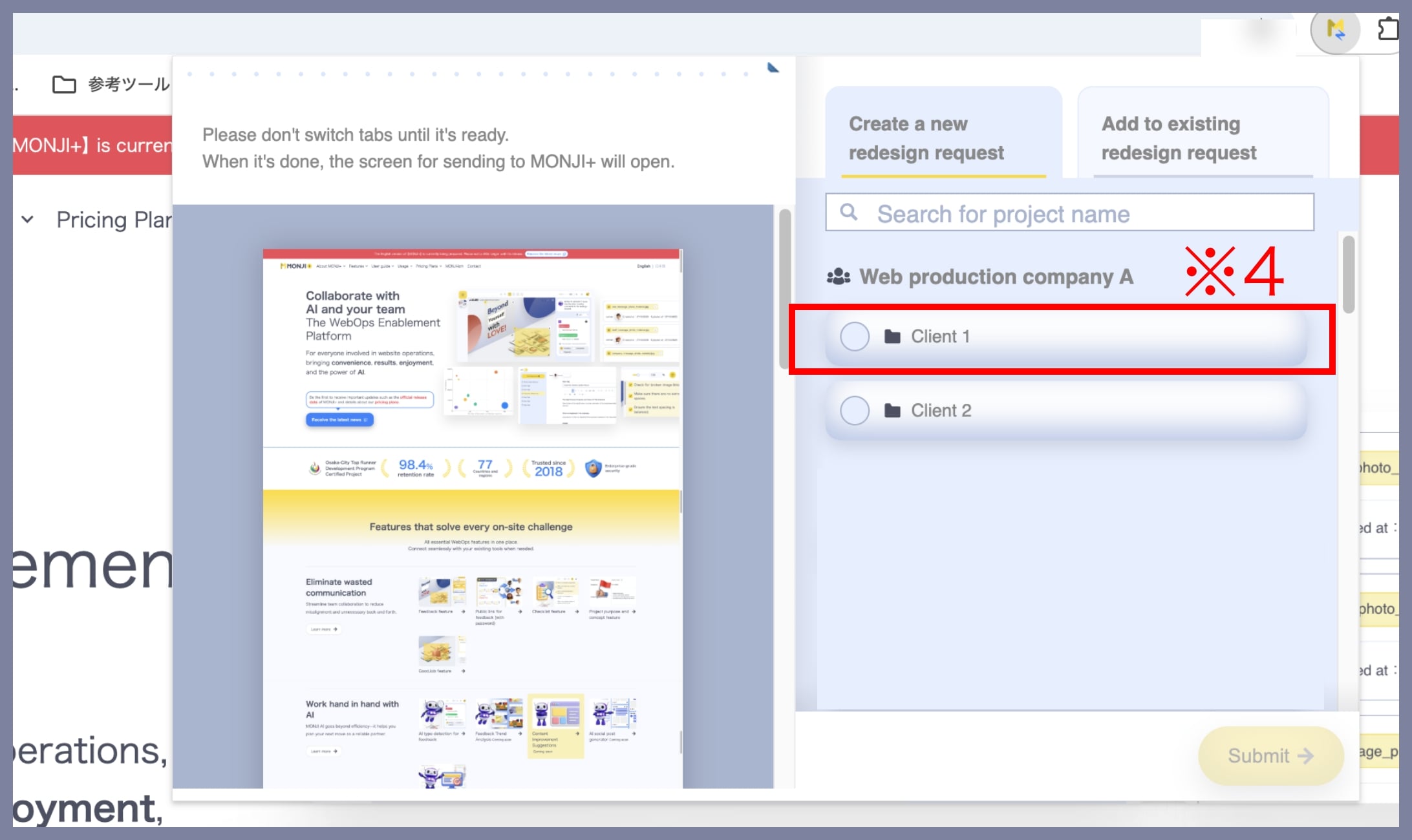
① Create a New Feedback
Select the project where you want to add the screenshot (※4) and create a new feedback.
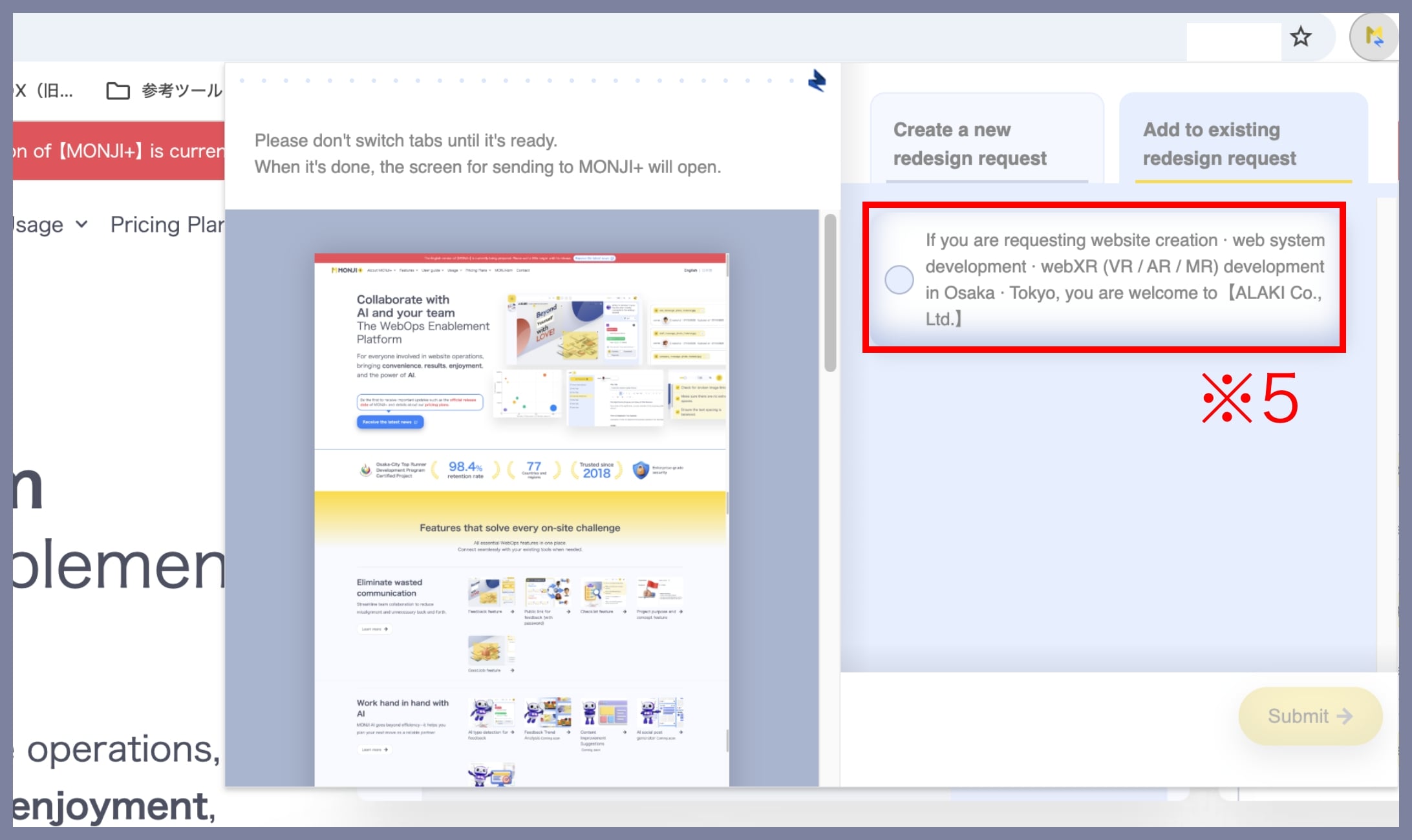
② Add to an Existing Feedback
If you open an existing Editing the feedback screen before capturing, the captured screenshot can be added directly to that feedback.
After capture, select the feedback item to add it to (※5).