












We've updated the Create Feedback screen and the feedback list screen. Move from opening the screen to loading a page without second-guessing the next step, then set assignees and due dates right from the list once you've checked the feedback — the same day-to-day work, in fewer clicks.
1. Start creating feedback without second-guessing
We've redesigned the Create Feedback screen so that everything from choosing a project to capturing a website or a file runs from top to bottom. The next step is always clear, so you can start creating feedback more smoothly.
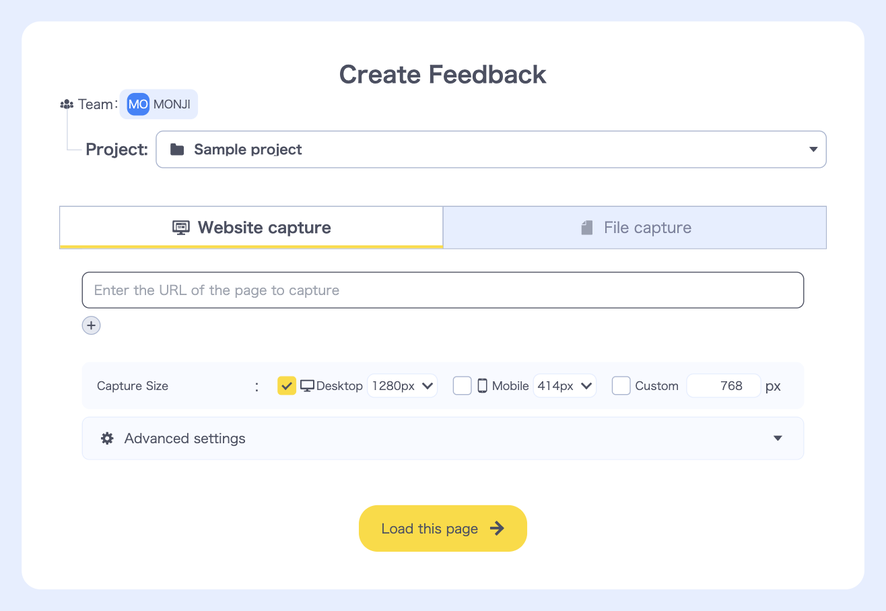
- See the destination team at a glance — the name of the team the destination project belongs to now sits above it
- Switch capture methods more easily — "Website capture" and "File capture" now switch in one click
- Settings grouped under "Advanced settings" — Page Load Mode, AI Typo Detection and Basic authentication are there when you need them
- Paste a URL as soon as the screen opens — when a destination project is already selected, the cursor is in the URL field as soon as the Create Feedback screen opens
2. A more useful feedback list
On the feedback list screen, you can now change the assignee, due date, priority and more on the spot (in both the List and Card views). With this update, assigning work and setting due dates no longer means opening feedback items one by one.
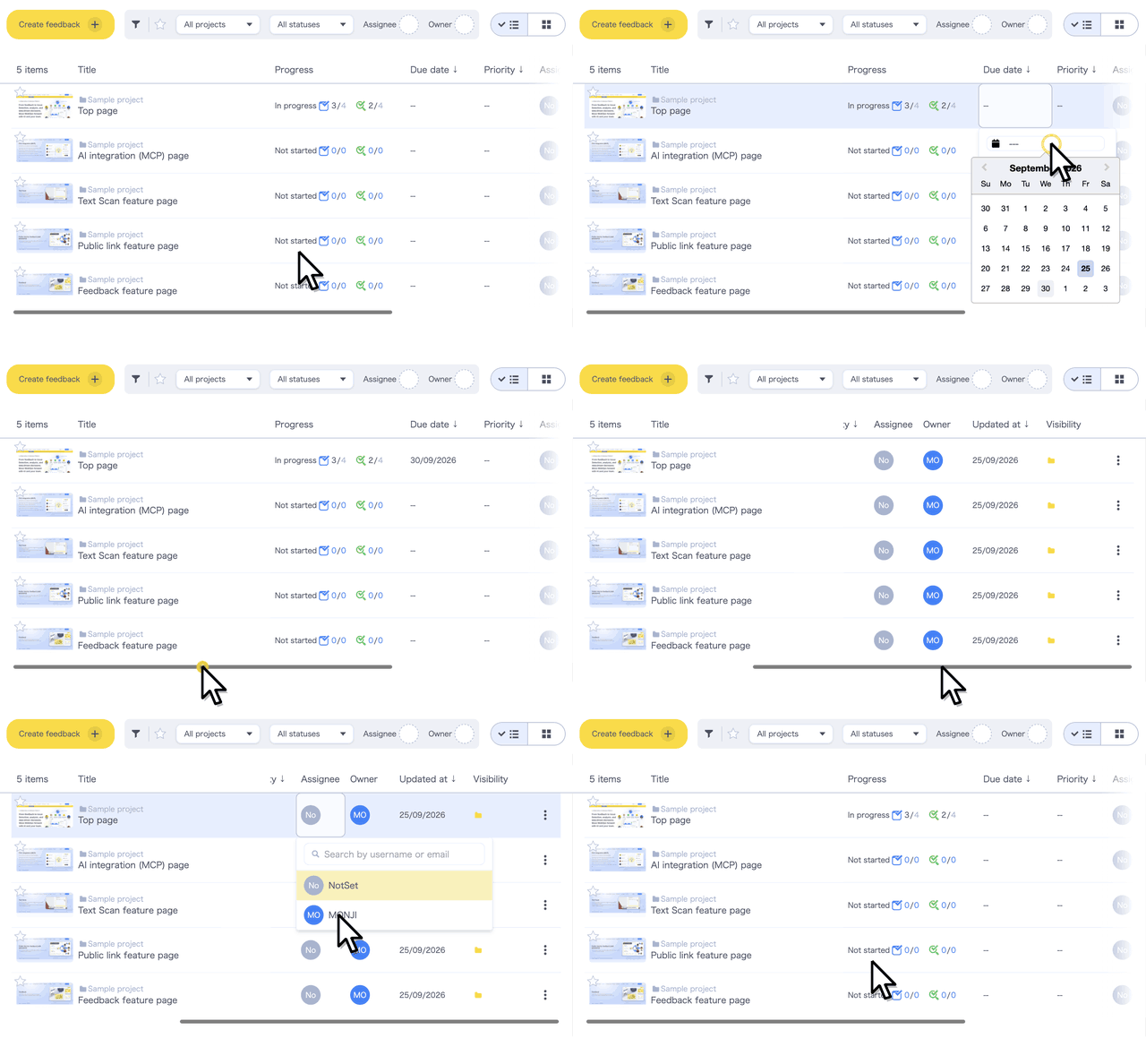
You can change these five fields of a feedback item from the list:
- Due date — pick a date from the calendar
- Priority — choose from A to D
- Assignee — search by account name or email address
- Visibility — choose collaborators and set a password for the feedback's public link on the spot
- Title — hover over a title in the list and click the edit button that appears
A clearer List view
- Scroll the list sideways to see every column — even on a narrow screen, columns stay readable instead of getting squeezed
- A new Visibility column — see at a glance who each feedback item is shared with, so you can keep organizing with the full picture
- Right-click for the actions menu — right-clicking a row in the list opens the same menu as "…"
- Drafts support the List view too — in Drafts too, you can sort by clicking a column header, and a draft's title, due date and priority can be changed on the spot
Give the new screens a try as you create and organize your feedback.
Please clear your browser cache
If the new screens don't appear, clear your browser cache and check again.