









Connect MONJI+ to your AI client with AI integration (MCP), and AI clients such as Claude and ChatGPT can read your site check detections and check history, so you can ask them to organize, analyze, and fix issues.
Copy a prompt from the MONJI+ screens and paste it into your AI client.
Requirements
To read site check results in your AI client, all of the following must be met.
- ⚫︎ Your AI client is connected to MONJI+ and allowed “Site Check: Read” (How to connect an AI client (MCP))
- ⚫︎ Your role in the team is allowed “MCP integration: Site Check” (an admin can set this)
- ⚫︎ You are one of the users who can view the results under the site check sharing settings
If any of these is not met, see If something does not work.
Ask AI about your results
Choose the steps that match what you want to ask.
AAsk AI about a single check
Based on one check, you can organize what to fix, decide priorities, create a fix brief, and more.
BHave AI compare past checks
Compare multiple checks to see which issues were resolved, which remain, which came back, and more.
※You need at least two completed regular checks (rechecks and failed checks do not count).
AAsk AI about a single check
These steps pass the results of one check to your AI client from the detection result details screen.
-
Open the detection result details screen
Sign in to MONJI+ and open the detection result details screen of the check you want to ask about.
For how to open it, see How to view detection results (History・details).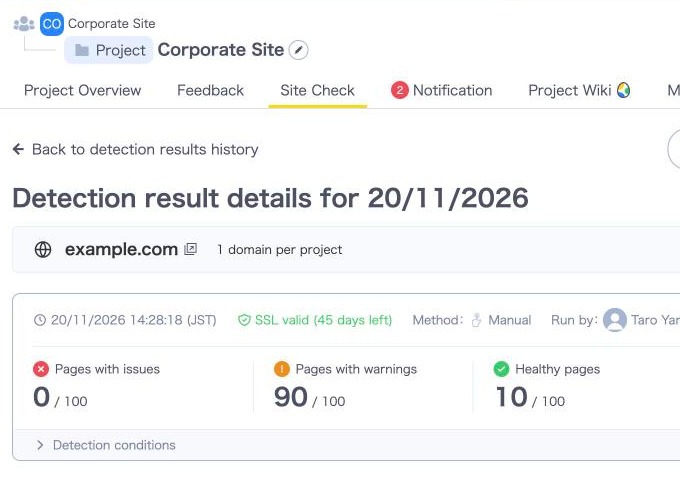
-
Click “Use with your AI client”
The “Use with your AI client” panel opens on the right.
AI receives the full results of that check.
Screen filters are not applied.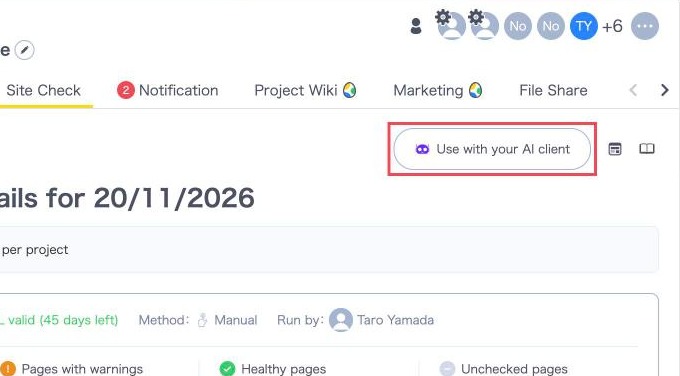
-
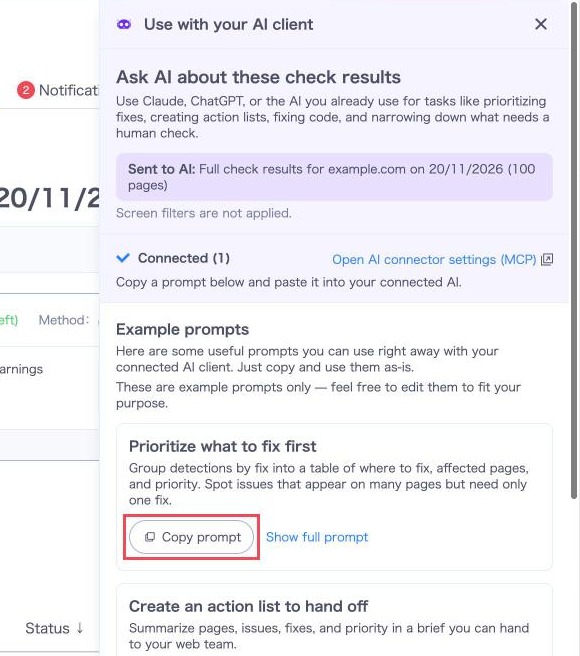
Choose a prompt and click “Copy prompt”
Choose the example prompt that fits what you want to do.
-
Paste it into your AI client and send it
Paste it into your connected AI client and send it.
Your AI client reads the check results and answers.
If you use AI to fix code
Use the code fix prompt with the repository of the checked site open.
It tells AI not to commit, push, or deploy, but review the changes before you publish.
BHave AI compare past checks
These steps pass multiple checks to your AI client from the detection results history screen and have it compare them.
-
Open the detection results history screen
Sign in to MONJI+ and open the detection results history screen of the site check.
For how to open it, see How to view detection results (History・details).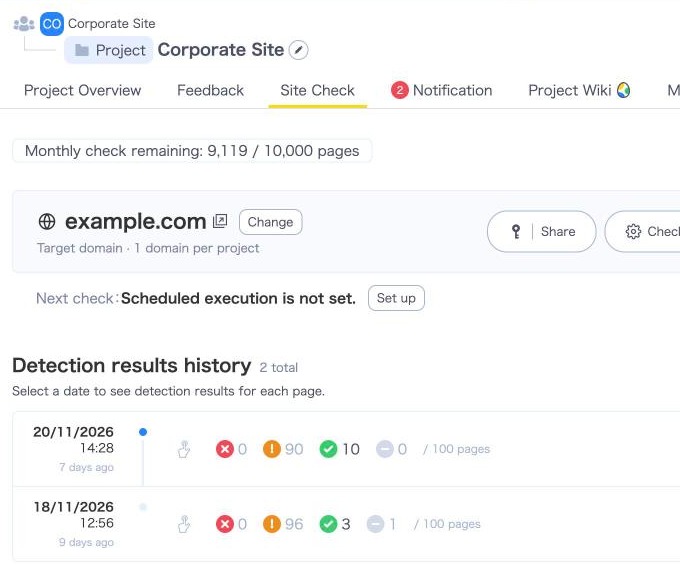
-
Click “Use with your AI client”
The “Use with your AI client” panel opens on the right.
The button cannot be clicked until at least two checks have finished.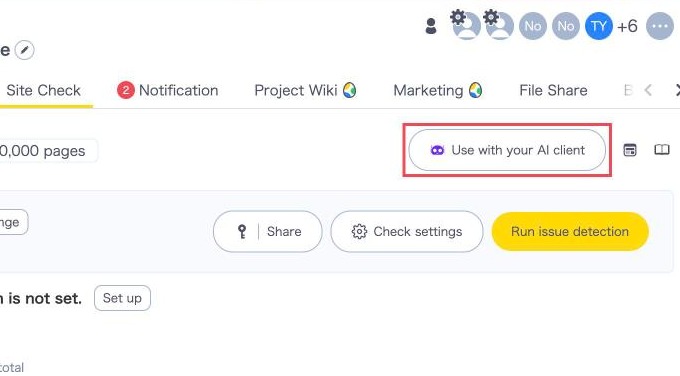
-
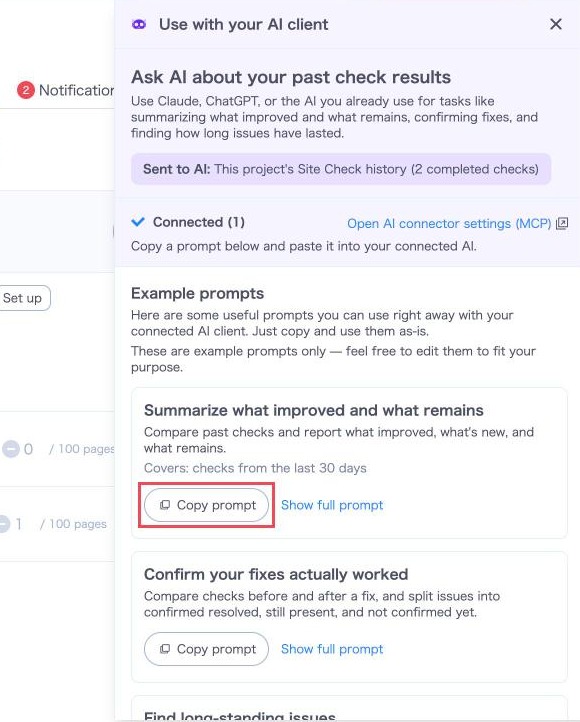
Choose a prompt and click “Copy prompt”
Choose the example prompt that fits what you want to do.
-
Paste it into your AI client and send it
Paste it into your connected AI client and send it.
Your AI client reads your past checks and answers with the comparison.
No need to copy detections one by one
You only copy the instructions for AI (the prompt).
Your connected AI client reads the site check results from MONJI+ over MCP.
Ask with your own instructions
You can also ask your AI client with your own instructions instead of the example prompts shown in MONJI+.
In that case, paste the URL of the site check screen you want to ask about together with your instructions, and send it.
Your AI client reads the check results from the URL you paste.
The URL to paste depends on what you want to ask.
- ⚫︎ To ask about a single check (A): the URL of the detection result details screen
- ⚫︎ To compare past checks (B): the URL of the detection results history screen
Example for A: “(URL of the detection result details screen) List the broken links found in this check.”
Example for B: “(URL of the detection results history screen) Compare the last two checks and tell me which issues are new.”
What can be read
For what your AI client can read and the tools it uses, see What you can use through the official MONJI+ MCP server.
All site check tools are read-only, so an AI client cannot run a site check or change settings.
If something does not work
The button does not appear, or a prompt cannot be used
⚫︎ The button does not appear on the detection result details screen
The button appears once a check has finished (including checks that failed).
If the check is still running, wait until it finishes.
⚫︎ The button on the detection results history screen cannot be clicked
It becomes available once you have at least two completed regular checks (rechecks and failed checks do not count).
To pass a single check to your AI client, use the detection result details screen.
⚫︎ A prompt cannot be used
“Narrow down what needs a human check” is not available when the check has no links or images to review and no pages with warnings.
Your AI client cannot read site check results
⚫︎ The AI client was connected before site check support was added
If “Connected clients” on the “AI connectors” screen under “Account Settings” shows “Reconnect to let this connector read Site Check results too.”, disconnect that connector, then add it again.
See Check and disconnect AI connectors for the steps.
※If you use ChatGPT, after reconnecting, open MONJI+ on the ChatGPT plugins screen (https://chatgpt.com/plugins), click “Manage”, then click “Refresh tools”.
Then start a new conversation.
⚫︎ Your role in the team (Admin, Member, or Guest) is not allowed “MCP integration: Site Check”
Ask a team administrator to turn the permission on.
See Set the permission to use team data over MCP by role for how to set it.
⚫︎ You are not one of the users who can view the results under the site check sharing settings
Ask a user who can change the sharing settings of that site check to add you as a user who can view it.
See How to set who can view or edit detection results and settings (Sharing settings).
⚫︎ Your team is on the Free plan, or its free trial has ended
Move to a paid plan to read site check results.
⚫︎ On a Light plan, you asked for a check older than the latest 3
With the Site check Auto Monitoring add-on, you can read your entire history.
For other causes, see I connected AI, but it cannot read information from MONJI+.