










We've given file sharing a major update. Even as files pile up, you'll reach the one you want right away, and handing over a whole set is far less work.
Images, PDFs, copy files, logos, proposals — keep them all in the project they belong to, and stop juggling email attachments and file transfer services.
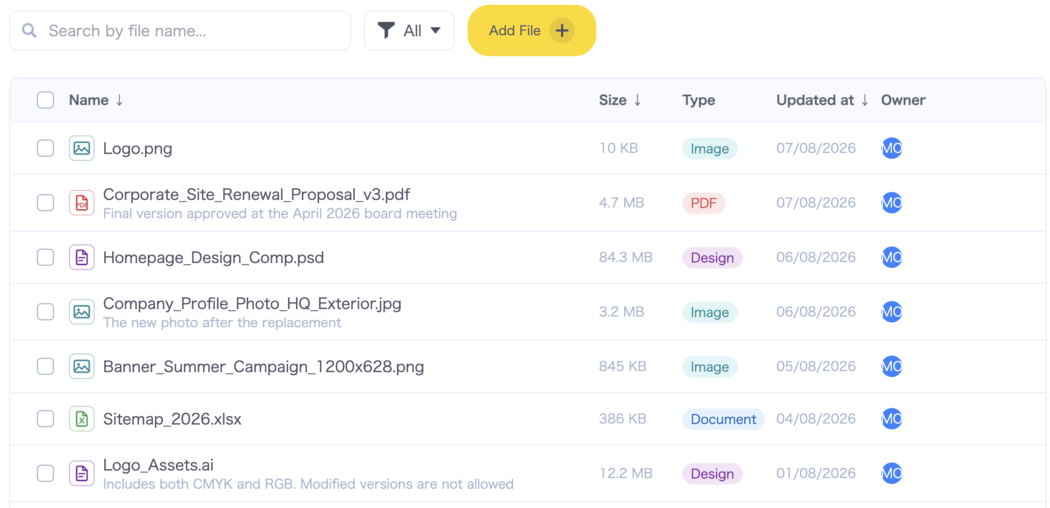
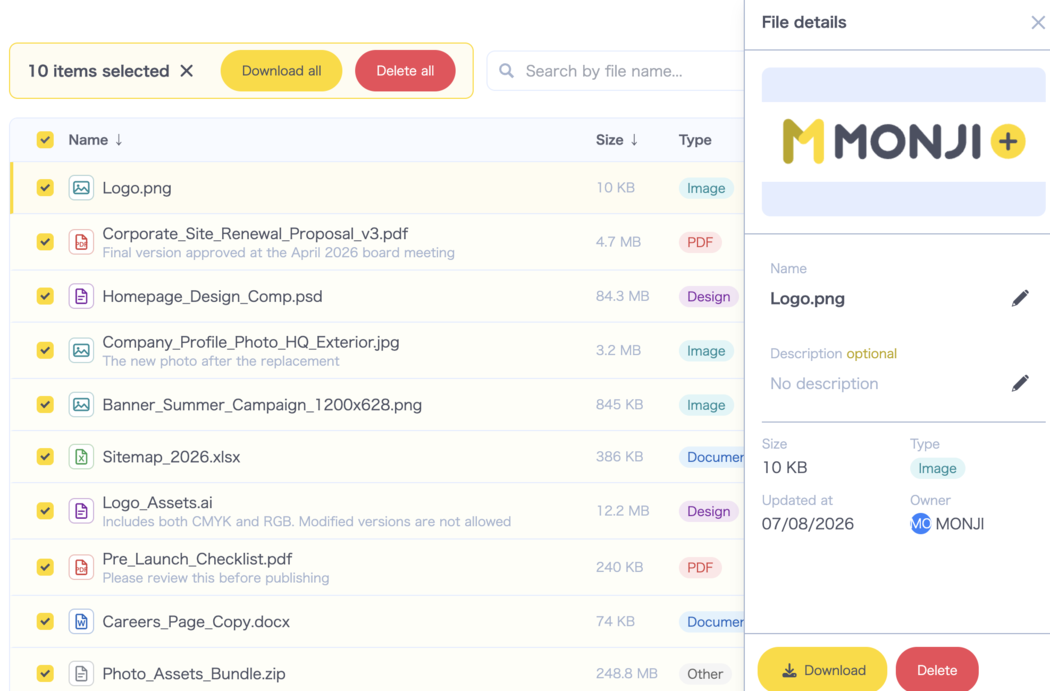
1. Search, filter by type, and sort to find the right file fast
You can now search by file name and notes. Filter by type — images, PDFs, documents, design files — and the list shows an icon so you can tell types apart at a glance. Sorting by name, size, or last updated is supported too, so "what changed recently" and "what's taking up space" are easy to spot.
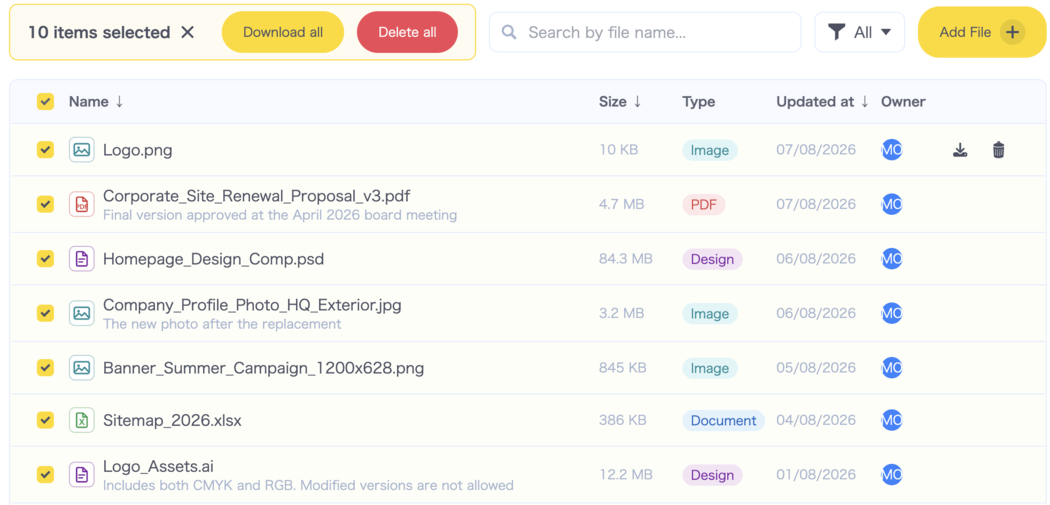
2. Download and delete in bulk
Select several files and download them together as a ZIP. Handing a full set to a client, or backing up assets after launch, now takes a single action. You can delete files you no longer need in bulk as well.
3. Drag and drop to upload several files at once
Just drag files onto the screen to upload them. Drop in several at a time, and when a file with the same name already exists, choose whether to overwrite it or keep both.
4. Preview files and add notes from the detail panel
Select a file to open the detail panel, where images and PDFs preview right there. You can rename the file and add notes — what the asset is for, whether it's the before or after version — from the same place. Judging a file without downloading and opening it means less hunting around.
Your existing files work exactly as before
Files you've already uploaded display and download just as they did. There's nothing to re-upload and nothing to migrate.
File sharing is available from File Share in each project. With files sitting in the same project as your feedback and Wiki, you can check the material and the conversation without moving between tools.